Notiz
Zougrëff op dës Säit erfuerdert Autorisatioun. Dir kënnt probéieren, Iech unzemellen oder Verzeechnesser ze änneren.
Zougrëff op dës Säit erfuerdert Autorisatioun. Dir kënnt probéieren, Verzeechnesser ze änneren.
Automated processes periodically identify, disable, and eventually delete inactive Power Platform environments to optimize storage capacity. An environment might be deleted because it's in a tenant with an expired subscription or because it's not being used. In either case, take actions to prevent the environment from being deleted.
Environments in a tenant with an expired subscription
If the subscription for a tenant expires or is deprovisioned, the system marks all the environments in the tenant for deactivation and eventual deletion. When the system marks an environment for cleanup, it sends an email notification to all admins in your organization 14 days, 7 days, and 1 day before the environment is disabled. If no action is taken, the system deletes the environment 10 days after the final email is sent.
Tip
If you get notifications about exceeding your entitled storage capacity, see Changes for exceeding storage capacity entitlements for actions you can take.
Only production and sandbox environments are affected by the subscription-based automatic cleanup. Learn about automatic deletion of inactive Microsoft Dataverse for Teams environments.
Actions you can take if your subscription expires
Renew or purchase licenses before the system deletes the environments. Be sure to purchase enough licenses and capacity to cover all the production environments in your tenant. The system automatically re-enables the environments within 24 hours.
If the system already deleted an environment, you have a limited window of time to recover it.
Important
Allow ample time to renew or purchase licenses before the system deletes your environments. Your organization might have a central admin and purchasing group and might be purchasing through Microsoft partners. Plan accordingly.
Inactivity-based cleanup
A cleanup mechanism in Power Platform automatically removes environments that aren't being used. Only default, developer, and Dataverse for Teams environments are affected by the activity-based automatic cleanup.
Important
You can't turn off this cleanup mechanism. However, you can review the last activity date for environments in the Power Platform admin center.
Definition of user activity
Power Platform calculates a single measure of inactivity for each environment. The measure accounts for all activity by users, makers, and admins across Power Apps, Power Automate, Power Platform, Microsoft Copilot Studio, and Dataverse.
Most create, read, update, and delete operations on the environment and its resources—that a user, maker, or admin initiates—are considered activity. Visits to the home page, solution explorer, and Power Apps or Power Automate designer aren't considered activity.
Here are some examples of the types of actions that are considered as activity:
- User activity: Launch an app, launch the environment URL, execute a flow (whether automatic or not), or chat with a Microsoft Copilot Studio bot.
- Maker activity: Create, update, or delete an app, flow (both desktop and cloud flows), Microsoft Copilot Studio bot, or custom connector.
- Admin activity: Trigger an environment operation such as copy, restore, or reset.
Activity includes automated behaviors such as scheduled flow runs. For example, if there's no user, maker, or admin activity in an environment, but it contains a cloud flow that runs daily, then the environment is considered active.
Note
As of April 20, 2025, Center of Excellence (CoE) toolkit operations—which query data from multiple Dataverse organizations in a customer tenant—are no longer considered as activity by developer organizations. Developer organizations, which were previously only kept active by CoE queries, become inactive unless there's other activity against those developer organizations.
Notification recipients
The following users receive email notifications about inactive environments:
System administrators of the environment.
For Dataverse for Teams environments, the owners of the team paired with the environment are automatically granted the System Administrator role and receive email notifications. Team members and guests don't receive the email notifications.
The creator of the environment.
If environment administrators are no longer part of the tenant, then the tenant administrators are notified.
View last user activity of environment
Environment admins can see when an environment was last used by checking the Last activity column in the Power Platform admin center. The activity for each environment is updated once a day.
- Sign in as an admin to the Power Platform admin center.
- In the navigation pane, select Manage.
- In the Manage pane, select Environments.
- See Last activity column for environment in question.
Developer environments
Important
The inactivity-based cleanup described in this section is separate from the deprecation of unmanaged developer environments.
Regardless of activity, unmanaged developer environments are suspended starting December 15, 2026 and deleted starting January 15, 2027. Until then, the inactivity schedule in this section continues to apply.
Developer environments that are managed environments aren't affected by the deprecation and continue to follow the 60-day inactivity schedule.
Power Platform automatically removes developer environments that aren't being used based on the following schedule. After 30 days of inactivity, the system automatically disables environments. If, after 15 days, you don't re-enable the environment, the system deletes the environment. You have seven days to recover the environment once it's deleted.
As part of this cleanup process, you can expect the following outcomes:
- Admins receive email notifications that warn of upcoming disablement or deletion.
- Any activity triggered on the environment or re-enabling the environment resets the inactivity period.
- The system deletes environments 15 days after being disabled due to inactivity.
Timeline for unused developer environments
The environment's administrators and the user who created the environment receive email notifications according to the schedule described in the following table.
| State of environment | What to expect |
|---|---|
| 23 days with no user activity | A warning email is sent stating that the environment will be disabled and a countdown is displayed in the Environment state on the Environments list page and the Environment page. |
| 27 days with no user activity | A second warning email is sent stating that the environment will be disabled. |
| 30 days with no user activity | The environment is disabled. An email notice is sent stating that the environment is disabled. The Environment state is disabled on the Environments list page and the Environment page. |
| 7 days after the environment is disabled | A warning is sent stating that the environment will be deleted and a countdown is displayed in the Environment state on the Environments list page and the Environment page. |
| 11 days after the environment is disabled | A second warning is sent stating that the environment will be deleted. |
| 15 days after the environment is disabled | The environment is deleted. An email notice is sent stating that the environment is deleted. |
A warning message appears on the Environments list page and Environment page when an environment is disabled.
Timeline for unused developer environments that are managed environments
Personal developer environments that are managed environments use a 60-day inactivity threshold instead of 30 days. After 60 days of inactivity, the environment's administrators and the user who created the environment receive email notifications according to the schedule described in the following table.
| State of environment | What to expect |
|---|---|
| 53 days with no user activity | A warning email is sent stating that the environment will be disabled and a countdown is displayed in the Environment state on the Environments list page and the Environment page. |
| 57 days with no user activity | A second warning email is sent stating that the environment will be disabled. |
| 60 days with no user activity | The environment is disabled. An email notice is sent stating that the environment is disabled. The Environment state is disabled on the Environments list page and the Environment page. |
| 7 days after the environment is disabled | A warning is sent stating that the environment will be deleted and a countdown is displayed in the Environment state on the Environments list page and the Environment page. |
| 11 days after the environment is disabled | A second warning is sent stating that the environment will be deleted. |
| 15 days after the environment is disabled | The environment is deleted. An email notice is sent stating that the environment is deleted. |
A warning message appears on the Environments list page and Environment page when an environment is disabled.
Default environment
A cleanup mechanism in Power Platform automatically removes default environments based on the following criteria:
- Default environments without flows are deleted after 120 days of inactivity.
- Default environments with flows are deleted after 402 days of inactivity to allow annual and seasonal activity.
- Tenants with premium licenses are excluded from the cleanup.
- Default environments with Microsoft 365 agents or Microsoft Planner are excluded from deletion.
- Admins receive two warning notifications before the default environment is deleted due to inactivity. Default environments are deleted 30 days after the first notification.
As part of this cleanup process, a new replacement default environment without Dataverse is created, with an option to add Dataverse later. The original default environment is deleted, but can be recovered as a sandbox environment within seven days. Any activity triggered on the environment resets the inactivity period.
Timeline for unused default environments
The environment administrators receive email notifications according to the following schedule:
| Default environment with Flows | Default environment without Flows | What to expect |
|---|---|---|
| 372 days with no user activity | 90 days with no user activity | A warning is sent stating that the environment will be deleted and a countdown is displayed in the Environment state on the Environments list page and the Environment page. |
| 387 days with no user activity | 105 days with no user activity | A second warning is sent stating that the environment will be deleted. |
| 402 days with no user activity | 120 days with no user activity | The environment is deleted, and a new default environment without Dataverse is created for the tenant. An email notice is sent stating that the environment is deleted. |
A warning message appears on the Environments list page and Environment page when the default environment is within 30 days of deletion.
Dataverse for Teams environments
Important
The inactivity-based cleanup described in this section is separate from the deprecation of Dataverse for Teams environments. Regardless of activity, Dataverse for Teams environments that aren't upgraded to Dataverse are suspended on September 15, 2026 and decommissioned on October 30, 2027. Until the suspension date, the inactivity schedule in this section continues to apply.
Power Platform automatically removes Microsoft Dataverse for Teams environments from your tenant that are left inactive. An environment is first disabled after 90 days of inactivity. And then, deleted if administrators don't take any action and the environment is left disabled for 30 days. Administrators have seven days to recover deleted environments.
A disabled or deleted environment doesn't affect any other Microsoft Teams assets (Teams, channels, SharePoint sites, Teams-connected sites, and so on) and applies only to Dataverse integrations. This cleanup process is automatic. If you no longer need an inactive Dataverse for Teams environment, you don't need to do anything.
Disabling a Dataverse for Teams environment prevents any meaningful use of the environment and its resources. Apps can't be launched, flows are suspended, chatbots can't be interacted with, and so on.
Additionally, users and makers aren't notified on the Environment's list page and Environment page when the Dataverse for Teams environment is disabled.
Timeline for inactive Dataverse for Teams environments
The following table describes the schedule of notifications and actions for Dataverse for Teams environments that are considered inactive.
| State of Dataverse for Teams | Power Platform action |
|---|---|
| 83 days after no user activity | Send a warning that the environment will be disabled. Update the environment state on the Environments list page and the Environment page. |
| 87 days after no user activity | Send a warning that the environment will be disabled. Update the inactive environment state on the Environments list pages and the Environment page. |
| 90 days after no user activity | Disable the environment. Send a notice that the environment has been disabled. Update the disabled environment state on the Environments list page and the Environment page. |
| 113 days after no user activity | Send a warning that the environment will be deleted. Update the disabled environment state on the Environments list page and the Environment page. |
| 117 days after no user activity | Send a warning that the environment will be deleted. Update the disabled environment state on the Environments list page and the Environment page. |
| 120 days after no user activity | Delete the environment. Send a notice that the environment has been deleted. |
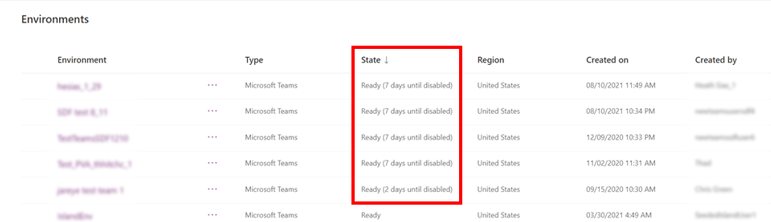
Environment state on the Environments list page in Power Platform admin center
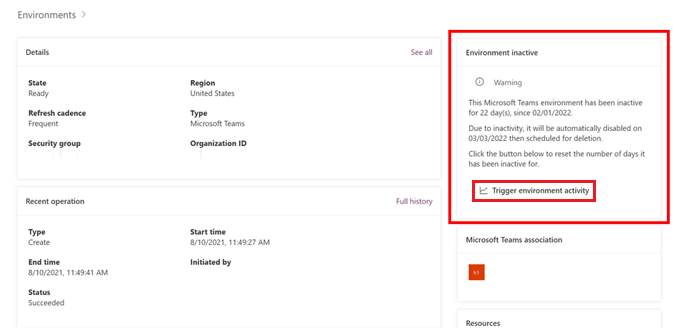
Inactive environment alert on the Environment page in Power Platform admin center
Note
The Environment inactive warning tile only displays if the Dataverse for Teams environment is <= 7 days until disablement.
The Environment disabled tile displays anytime a Dataverse for Teams environment is disabled due to inactivity.
Trigger activity, re-enable, and recover an environment
By default, administrators have 15 days to re-enable an environment. If the environment remains disabled for 15 days, it's automatically deleted. Administrators have seven days to recover a deleted environment.
Trigger activity in an inactive environment
Once environment administrators receive notification that an environment will be cleaned up, environment admins can trigger activity on the environment to indicate that the environment is active and prevent the cleanup action. If an environment is already disabled, the Trigger environment activity button isn't displayed. In this situation, the only option for the customer is to re-enable the environment before deletion.
- Sign in to the Power Platform admin center.
- In the navigation pane, select Manage.
- In the Manage pane, select Environments.
- Select the inactive environment.
- On the Environment page, select Trigger environment activity.
Re-enable a disabled environment
- Sign in to the Power Platform admin center.
- In the navigation pane, select Manage.
- In the Manage pane, select Environments.
- Select the disabled environment.
- On the Environment page, select Re-enable environment.
Recover a deleted environment
- Sign in to the Power Platform admin center.
- In the navigation pane, select Manage.
- In the Manage pane, select Environments.
- Select Recover deleted environments.
- Select an environment to recover, and then select Recover.
Learn more about recovering an environment.
Related content
Back up and restore environments
Licensing overview for Microsoft Power Platform
Microsoft Power Apps and Power Automate licensing guide