Notiz
Zougrëff op dës Säit erfuerdert Autorisatioun. Dir kënnt probéieren, Iech unzemellen oder Verzeechnesser ze änneren.
Zougrëff op dës Säit erfuerdert Autorisatioun. Dir kënnt probéieren, Verzeechnesser ze änneren.
As a SharePoint Administrator in Microsoft 365, you can temporarily allow the use of custom scripts in SharePoint sites. By using custom scripts, users can operate with some classic features, like using the script editor web part. Users can also change the look, feel, and behavior of sites and pages to meet organizational objectives or individual needs.
If you allow custom script, all users who have Add and Customize Pages permission to a site or page can add any script they want. By default, users who create sites are site owners and, therefore, have this permission.
Note
For simple ways for users to change the look and feel of a site, see Change the look of your SharePoint site.
By default, SharePoint doesn't allow script on most sites that administrators create by using the SharePoint admin center and on all sites that are created by using the New-SPOSite PowerShell command. The same restriction also applies to OneDrive, sites that users create themselves, modern team and communication sites, and the root site for your organization. For more information about the security implications of custom script, see Security considerations of allowing custom script.
Important
If your organization's SharePoint deployment was done before 2015, your custom script settings might still be set to Not Configured, even if, in the SharePoint admin center, they appear to be set to prevent users from running custom script. In this case, users can't copy items between SharePoint sites and between OneDrive and SharePoint. On the Settings page in the SharePoint admin center, to accept the custom script settings as they appear, select OK, and enable cross-site copying. For more information about copying items between OneDrive and SharePoint, see Copy files and folders between OneDrive and SharePoint sites.
How do I temporarily allow custom script on SharePoint sites?
Caution
Before you allow custom script on sites in your organization, make sure you understand the security implications.
To allow custom script on a particular site (previously called a site collection) immediately, follow these steps:
Download the latest SharePoint Online Management Shell.
Note
If you installed a previous version of the SharePoint Online Management Shell, go to Add or remove programs and uninstall SharePoint Online Management Shell.
Connect to SharePoint as a SharePoint Administrator in Microsoft 365. To learn how, see Getting started with SharePoint Online Management Shell.
Run the following command.
Set-SPOSite <SiteURL> -DenyAddAndCustomizePages 0Or, use the Set-PnPSite PowerShell cmdlet as follows:
Set-PnPSite -Identity <SiteURL> -NoScriptSite $false
Changes to allow custom scripts are overridden to Not allowed within 24 hours.
Note
You can't allow custom scripts on an individual user's OneDrive.
How do I permanently block new custom scripts in OneDrive and SharePoint sites?
Turn on Baseline security mode settings.
How do I manage custom scripts in the SharePoint admin center?
As a SharePoint administrator, use the SharePoint admin center to manage custom scripts within your organization.
Identify the sites that are configured to use custom scripts.
Change custom script settings for each site, as appropriate for your organiztion.
Alternately, you can turn on Baseline security mode settings and block new custom scripts across OneDrive and SharePoint sites at once.
Identify sites that allow custom scripts
Use the SharePoint admin center to identify SharePoint sites that are configured to allow custom scripts.
In the SharePoint admin center, under Sites, select Active sites.
Look for the Custom script column.

If you don't see the Custom script column in the list of sites, add it to any view.
The Custom script allowed sites view is also available to provide easy access to all sites where custom script is enabled:
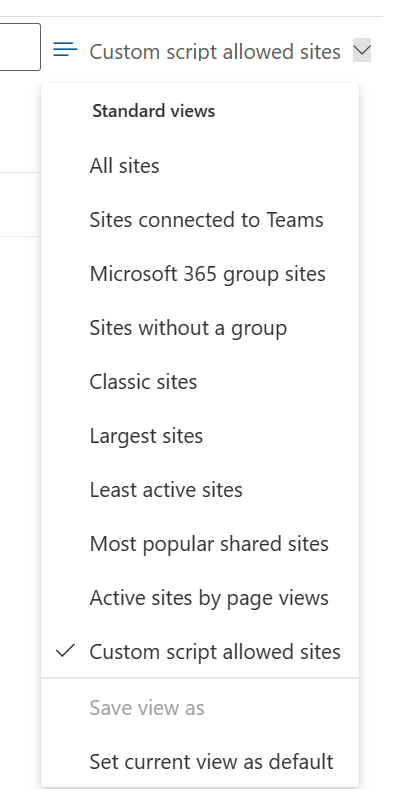
These views show which sites are configured to allow custom scripts, even if they don't actually use custom scripts.
Change custom script settings for a SharePoint site
In the SharePoint admin center, under Sites, select Active sites.
On the Active sites page, select a site.
Under Settings > Custom scripts, specify whether to allow or block custom scripts.
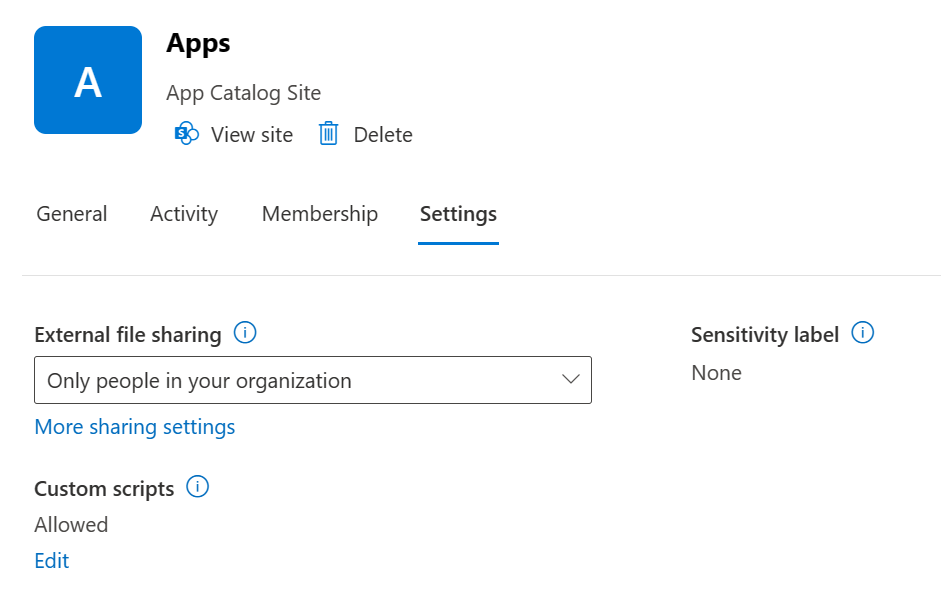
You can control custom script settings for a specific site by deciding whether to allow or block custom script:
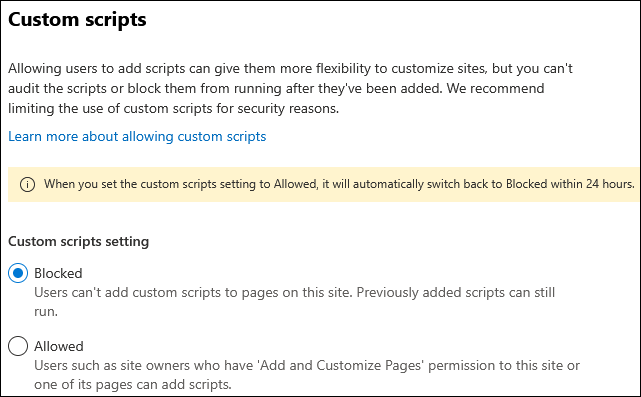
By default, any changes to custom script settings for a specific site last for a maximum of 24 hours. After that time, the setting resets to Blocked for that specific site.
Important
If the site is locked because it's in either the ReadOnly or NoAccess state, changes to custom scripts settings don't appear in the SharePoint admin center. However, as soon as the state of the site goes back to Unlock, custom script settings immediately turn to Not allowed before users access the site.
What features are affected when custom scripts are blocked?
When you block users from running custom scripts on OneDrive or the classic SharePoint team sites they create, site administrators and owners can't create new items, such as templates, solutions, themes, and help file collections. If you previously allowed custom script, items that were already created still work.
The following site settings aren't available when you prevent users from running custom script:
| Site feature | Behavior | Notes |
|---|---|---|
| Save Site as Template | No longer available in Site Settings | Users can still build sites from templates created before custom script was blocked. |
| Save document library as template | No longer available in Library Settings | Users can still build document libraries from templates created before custom script was blocked. |
| Save list as template | No longer available in List Settings | Users can still build lists from templates created before custom script was blocked. |
| Theme Gallery | No longer available in Site Settings | Users can still use themes created before custom script was blocked. |
| Help Settings | No longer available in Site Settings | Users can still access help file collections available before custom script was blocked. |
| Sandbox solutions | Solution Gallery is no longer available in Site Settings | Users can't add, manage, or upgrade sandbox solutions. They can still run sandbox solutions that were deployed before custom script was blocked. |
| SharePoint Designer | Pages that aren't HTML can no longer be updated. Handling List: Create Form and Custom Action no longer work. Subsites: New Subsite and Delete Site redirect to the Site Settings page in the browser. Data Sources: Properties button is no longer available. |
Users can still open some data sources. To open a site that doesn't allow custom script in SharePoint Designer, you must first open a site that does allow custom script. |
| Operating files that potentially include script | The following file types can't be uploaded, copied, moved, or opened in a library:.asmx .ascx .aspx .htc .jar .master .swf .xap .xsf |
Existing files in the library aren't impacted. |
| Uploading Documents to Content Types | Access denied message when attempting to attach a document template to a Content Type. | We recommend using Document Library document templates. |
| Publishing of SharePoint 2010 Workflows | Access denied message when attempting to publish a SharePoint 2010 Workflow. | |
| Custom Actions | Access denied message when attempting to create new custom actions. | Existing custom actions aren't impacted. |
| Design Manager | Access denied message when attempting to create new layout, master page, or design package. | Users can still use page designs created before custom script was blocked. |
By default, you can't update the Site property bag when you prevent users from running custom scripts. You can change that behavior by running the following command:
Set-SPOTenant -AllowWebPropertyBagUpdateWhenDenyAddAndCustomizePagesIsEnabled $True
For more information, see AllowWebPropertyBagUpdateWhenDenyAddAndCustomizePagesIsEnabeld option.
When custom scripts are blocked, the following web parts and features are unavailable to SharePoint site administrators and owners:
| Web part category | Web part |
|---|---|
| Business Data | Business Data Actions Business Data Item Business Data Item Builder Business Data List Business Data Related List Excel Web Access Indicator Details Status List Visio Web Access |
| Community | About This Community Join My Membership Tools What's Happening |
| Content Rollup | Categories Project Summary Relevant Documents RSS Viewer Site Aggregator Sites in Category Term Property Timeline WSRP Viewer XML Viewer |
| Document Sets | Document Set Contents Document Set Properties |
| Advanced | Embed |
| Forms | HTML Form Web Part |
| Media and Content | Content Editor Script Editor Silverlight Web Part Page Viewer (can't set web page URL) |
| Search | Refinement Search Box Search Navigation Search Results |
| Search-Driven Content | Catalog-Item Reuse |
| Social Collaboration | Contact Details Note Board Organization Browser Site Feed Tag Cloud User Tasks |
| Master Page Gallery | Can't create or edit master pages |
| Publishing Sites | Can't create or edit master pages and page layouts |
Furthermore, SharePoint Framework web parts that have the requiresCustomScript value set to true behave as follows:
- The web part isn't available in the web part picker.
- Every instance of a web part that was added to a page when custom scripts were previously allowed no longer surfaces in those pages.
SharePoint site authors can remove web parts that no longer work while editing their pages.
Best practices for communicating script setting changes
Before you prevent custom script on sites where you previously allowed it, communicate the change well in advance so users can understand the impact. Otherwise, users who are accustomed to changing themes or adding web parts on their sites suddenly can't make those changes. They see the following error message.
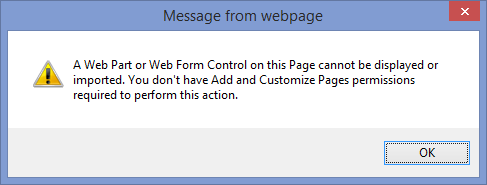
Communicating the change in advance reduces user frustration and support calls.