Notiz
Zougrëff op dës Säit erfuerdert Autorisatioun. Dir kënnt probéieren, Iech unzemellen oder Verzeechnesser ze änneren.
Zougrëff op dës Säit erfuerdert Autorisatioun. Dir kënnt probéieren, Verzeechnesser ze änneren.
Summary
When your Application Gateway is running, you can enable logs to inspect the events that occur for your resource. For example, the Application Gateway Firewall logs give you insight into what the Web Application Firewall (WAF) is evaluating, matching, and blocking. By using Log Analytics, you can examine the data inside the firewall logs to gain even more insights. For more information about log queries, see Overview of log queries in Azure Monitor.
In this article, you learn about the Web Application Firewall (WAF) logs. You can set up other Application Gateway logs in a similar way.
Prerequisites
- An Azure account with an active subscription. If you don't already have an account, you can create an account for free.
- An Azure Application Gateway WAF SKU. For more information, see Azure Web Application Firewall on Azure Application Gateway.
- A Log Analytics workspace. For more information about creating a Log Analytics workspace, see Create a Log Analytics workspace in the Azure portal.
Sending logs
To export your firewall logs into Log Analytics, see Diagnostic logs for Application Gateway. When you have the firewall logs in your Log Analytics workspace, you can view data, write queries, create visualizations, and add them to your portal dashboard.
Explore data with examples
When you use the AzureDiagnostics table, view the raw data in the firewall log by running the following query:
AzureDiagnostics
| where ResourceProvider == "MICROSOFT.NETWORK" and Category == "ApplicationGatewayFirewallLog"
| limit 10
This query looks similar to the following query:
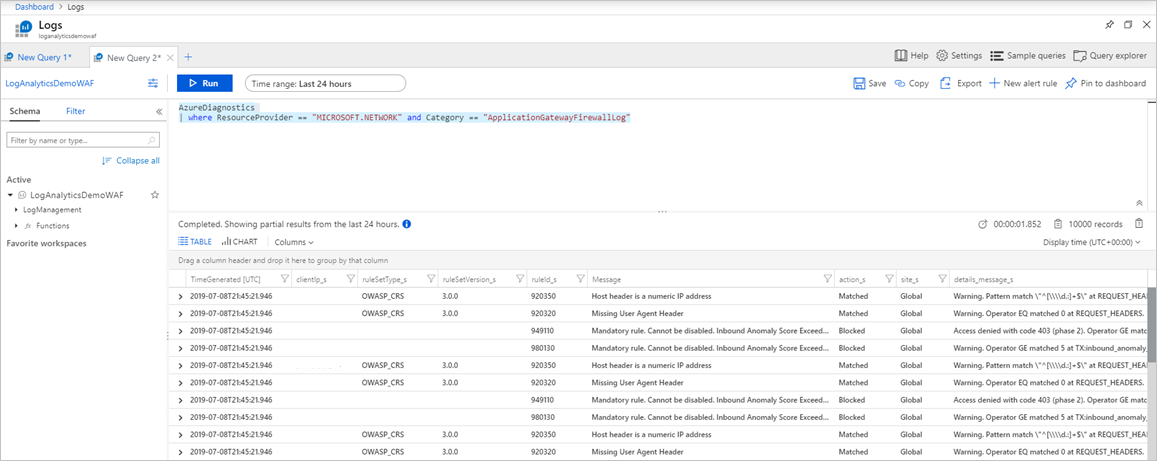
When you use the Resource-specific table, view the raw data in the firewall log by running the following query. To learn about the resource-specific tables, see Monitoring data reference.
AGWFirewallLogs
| limit 10
You can drill down into the data, and plot graphs or create visualizations from here. The following examples show AzureDiagnostics queries that you can use.
Matched or blocked requests by IP
AzureDiagnostics
| where ResourceProvider == "MICROSOFT.NETWORK" and Category == "ApplicationGatewayFirewallLog"
| summarize count() by clientIp_s, bin(TimeGenerated, 1m)
| render timechart
Matched or blocked requests by URI
AzureDiagnostics
| where ResourceProvider == "MICROSOFT.NETWORK" and Category == "ApplicationGatewayFirewallLog"
| summarize count() by requestUri_s, bin(TimeGenerated, 1m)
| render timechart
Top matched rules
AzureDiagnostics
| where ResourceProvider == "MICROSOFT.NETWORK" and Category == "ApplicationGatewayFirewallLog"
| summarize count() by ruleId_s, bin(TimeGenerated, 1m)
| where count_ > 10
| render timechart
Top five matched rule groups
AzureDiagnostics
| where ResourceProvider == "MICROSOFT.NETWORK" and Category == "ApplicationGatewayFirewallLog"
| summarize Count=count() by details_file_s, action_s
| top 5 by Count desc
| render piechart
Add to your dashboard
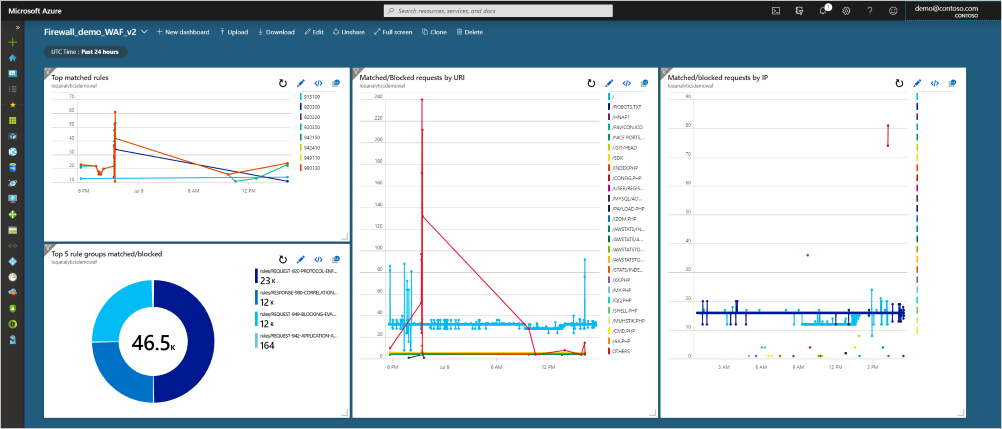
After you create a query, add it to your dashboard. Select Pin to dashboard in the log analytics workspace. When you pin the previous four queries to an example dashboard, you see this data at a glance:
Next steps
Backend health, diagnostic logs, and metrics for Application Gateway