Notiz
Zougrëff op dës Säit erfuerdert Autorisatioun. Dir kënnt probéieren, Iech unzemellen oder Verzeechnesser ze änneren.
Zougrëff op dës Säit erfuerdert Autorisatioun. Dir kënnt probéieren, Verzeechnesser ze änneren.
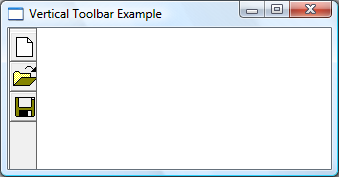
The key to creating a vertical toolbar is to include CCS_VERT in the window style, and to set the TBSTATE_WRAP style for each button.
What you need to know
Technologies
Prerequisites
- C/C++
- Windows User Interface Programming
Instructions
Create a Vertical Toolbar
The following example code creates the vertical toolbar shown in the following illustration.
HIMAGELIST g_hImageList = NULL;

HWND CreateVerticalToolbar(HWND hWndParent)
{
    // Define the buttons.
    // IDM_NEW, IDM_0PEN, and IDM_SAVE are application-defined command IDs.

    TBBUTTON tbButtons3[numButtons] =
    {
        {STD_FILENEW,  IDM_NEW,  TBSTATE_ENABLED | TBSTATE_WRAP, BTNS_BUTTON, {0}, 0L, 0},
        {STD_FILEOPEN, IDM_OPEN, TBSTATE_ENABLED | TBSTATE_WRAP, BTNS_BUTTON, {0}, 0L, 0},
        {STD_FILESAVE, IDM_SAVE, TBSTATE_ENABLED | TBSTATE_WRAP, BTNS_BUTTON, {0}, 0L, 0}
    };

    // Create the toolbar window.
    HWND hWndToolbar = CreateWindowEx(0, TOOLBARCLASSNAME, NULL,
                                      WS_CHILD | WS_VISIBLE | CCS_VERT | WS_BORDER, 0, 0, 0, 0,
                                      hWndParent, NULL, g_hInst, NULL);

    // Create the image list.
    g_hImageList = ImageList_Create(24, 24,                   // Dimensions of individual bitmaps.
                                    ILC_COLOR16 | ILC_MASK,   // Ensures transparent background.
                                    numButtons, 0);

    // Set the image list.
    SendMessage(hWndToolbar, TB_SETIMAGELIST, 0, (LPARAM)g_hImageList);

    // Load the button images.
    SendMessage(hWndToolbar, TB_LOADIMAGES, (WPARAM)IDB_STD_LARGE_COLOR, (LPARAM)HINST_COMMCTRL);

    // Add them to the toolbar.
    SendMessage(hWndToolbar, TB_BUTTONSTRUCTSIZE,       (WPARAM)sizeof(TBBUTTON), 0);
    SendMessage(hWndToolbar, TB_ADDBUTTONS, numButtons, (LPARAM)&tbButtons3);

    return hWndToolbar;
}
Related topics