Note
Access to this page requires authorization. You can try signing in or changing directories.
Access to this page requires authorization. You can try changing directories.
What this Document Tells You
The following steps outline the SuccessFactors OCN and LinkedIn Learning integration process:
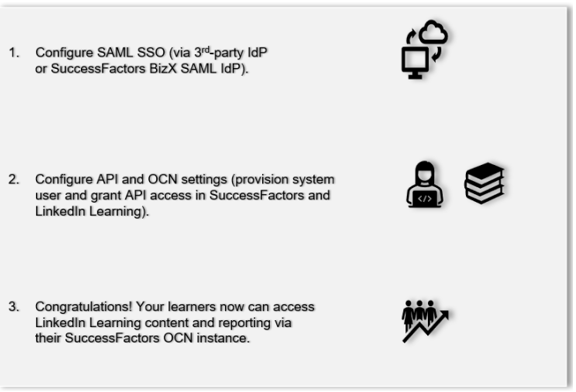
SuccessFactors Deep Integration Functionality
Authentication (OCN API): OAuth 2.0 (Platform Token Server), authenticated via an X.509 certificate registered as a trusted client application in SAP SuccessFactors Platform.
Authentication (Learner SSO): SAML SSO Identity Provider
Reporting: OCN
Content Discovery: Automated Catalog Sync (All languages)
Requirements:
The LinkedIn Learning and SuccessFactors deep integration configuration involves the following requirements:
An active SuccessFactors LMS instance with BizX suite
An active LinkedIn Learning account
Admin access to LinkedIn Learning
Admin privileges to your SuccessFactors LMS instance
Admin access to the SAP SuccessFactors Platform (Employee Central/BizX Platform), in addition to SuccessFactors Learning, for the OAuth2 client registration steps below.
Integration Overview
Check out our overview of SuccessFactors' integration benefits and capabilities.
Single Sign-On (SSO)
During the initial configuration, you can configure LinkedIn Learning and SuccessFactors to establish a secure SAML single sign-on (SSO) connection that ensures seamless and secure access to content. SSO authentication reduces friction for users and administrators by eliminating the need for manual user registration. SSO ensures that learners spend more of their time watching content and less of their time trying to remember usernames and passwords.
Note
This SAML SSO connection governs how learners sign in to LinkedIn Learning. It is a separate mechanism from the OCN API authentication used for content sync and completion reporting (covered under "SuccessFactors API Configuration" below).
Automated Content Catalog Sync
The LinkedIn Learning library contains thousands of courses. Courses are added at a rate of 25-30 courses per week at no extra cost. Traditionally, the administrator of a content discovery platform manually uploads new content on a regular interval. However, the SuccessFactors deep integration uses LinkedIn Learning APIs to dynamically refresh the content library daily. This method ensures new LinkedIn Learning content is available within 24 hours of its release.
LinkedIn Learning connects to SuccessFactors OCN APIs, so LMS admins do not have to manually upload new content packages at regular intervals. After initial setup, LinkedIn Learning uses OCN APIs to dynamically refresh the content library on an automated basis. This ensures new LinkedIn Learning content is available to learners within 24 hours of release. All content titles and descriptions are aggregated and indexed to accommodate keyword searches and support efficient discoverability. SuccessFactors supports automatic syncing of All languages content libraries.
Configuration
Enabling SAML SSO
LinkedIn Learning and SuccessFactors can be configured to establish a SAML single sign-on (SSO) connection to ensure seamless and secure access to content. You have two configuration options:
Connect to your organization’s identity management solution (Recommended) – If your organization has a centrally-managed identity management solution like Azure AD, Okta, or ADFS, you can configure it to authenticate users into SuccessFactors and LinkedIn Learning. Your IdP must be configured to send the SuccessFactors unique user identifier (also known as BizX UserID) to LinkedIn Learning and SuccessFactors. If user IDs aren’t the same between the two systems, learner activity tracking will not work. To learn more about identifying your SuccessFactors BizX UserID, see the "Identifying your BizX UserID" section in the Appendix. To pursue this option, contact your dedicated LinkedIn Learning Technical Consultant.
Connect directly to SuccessFactors BizX SAML IdP – LinkedIn Learning and SuccessFactors can be configured to establish a SAML single sign-on (SSO) connection. See the "Configuring SAML SSO via SuccessFactors" section of the Appendix.
SuccessFactors API Configuration (OCN Authentication)
For LinkedIn Learning to push new content and learner progress into SuccessFactors LMS, a system user must be provisioned, and API access must be granted using SAP's OAuth 2.0 (Platform Token Server) method. In this section, we will review the steps required to authorize communication between the two systems.
Before proceeding, ensure you have configured and enabled SSO for your LinkedIn Learning account. If you enable content syncing before completing the SSO configuration, course launches will fail.
Note
SAP publishes an official companion guide, "Implementing OAuth 2.0 Token for OCN APIs," which covers the SAP-side configuration in greater detail. Use it alongside this guide for the full Platform and Role-Based Permissions steps.
Create OCN Admin Role
To create an OCN admin profile in SuccessFactors, take the following steps:
Log in to the SuccessFactors Learning Administration environment and go to System Administration > Security > Role Management.
Click Add New.
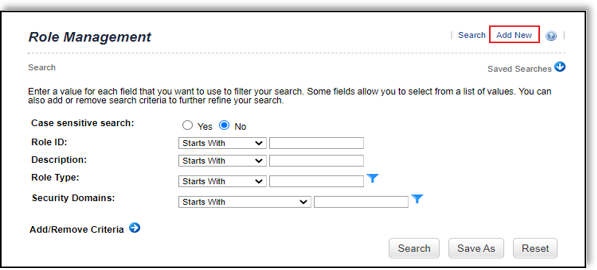
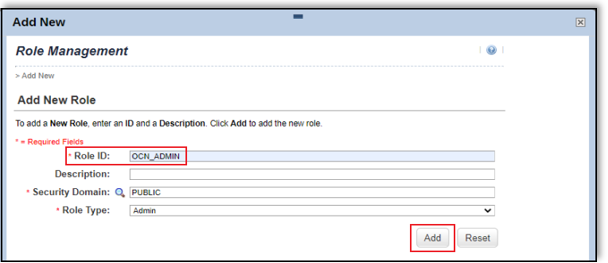
In the Role ID field, enter "OCN_ADMIN".
Click Add.
Select Permissions, then click the link under Add Permissions to the Role.
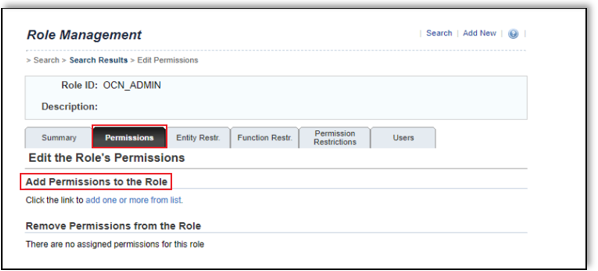
Under Add Permissions to Roles, enable Learning Activities, Search, and People Management.
 :
:Set Status Restriction to "Active" for each activity under Permission Restrictions:
Add Item
Add Item Libraries
Edit Item
Edit item Libraries
Edit Item Finance
Edit Item Cost/Price
Edit Item Custom Fields
Edit Item State
Open Content Network Import
View Item
View Item Libraries
View Item Finance
View Item Cost/Price
View Item Custom Fields
Search User
Add History Record (required for completion writeback)
Click Apply Changes.
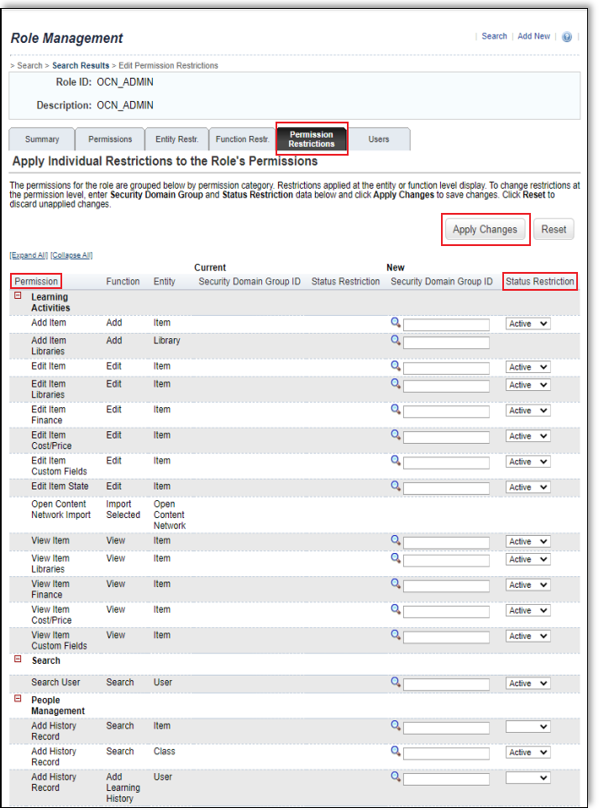
Note
The Add History Record permission is required for completion writeback. If you already have a working OCN integration, your existing OCN Admin Role already includes it and no change is needed.
Create System Admin User
To create a system admin user in SuccessFactors, take the following steps:
Log in to the SuccessFactors Learning Administration environment and go to System Administration > Security > Administrators.
In the upper right-hand corner of the screen, click Add New.
In the Admin ID field, enter "LILADMIN". If you already have this administrator from a prior OCN setup, you can reuse it and skip to Step 6.
Enter a new password in the password fields.
Click Add.
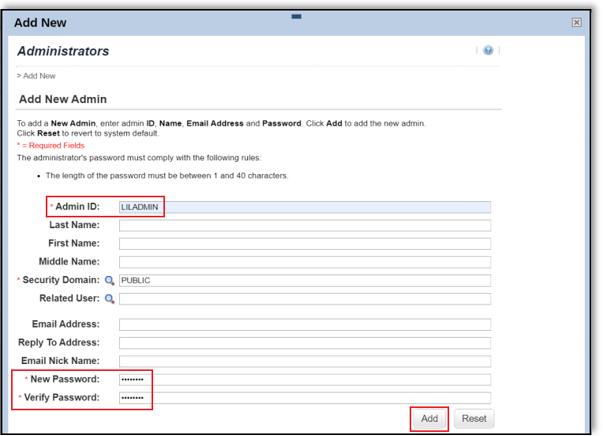
Select the Assigned Roles tab. If this integration is your first SuccessFactors instance, click Edit.
In the Role ID field, enter "OCN_ADMIN", then click Add.
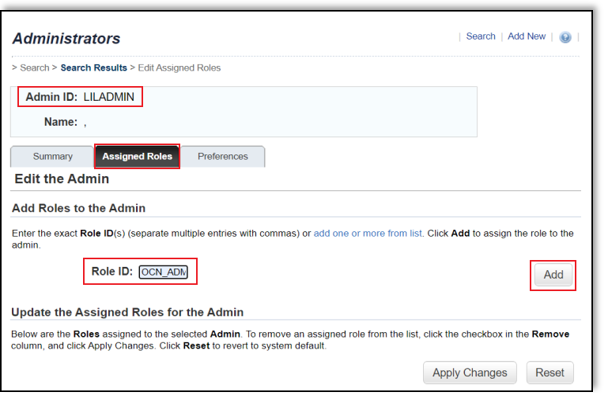
This Admin ID must be linked to an SAP SuccessFactors Platform user and granted OAuth2 client permissions, as described below.
Link this Admin to an SAP SuccessFactors Platform user
An SAP SuccessFactors Platform user must be created and imported so it can be mapped to your LMS Administrator account above. This user is the identity under which API calls are made. If you have already created this user, this step is optional.
In SAP SuccessFactors Platform, go to Admin Center → Employee Export and select Export Template.
Populate one row with the minimum required fields:
STATUS = activeUSERID= your existing Admin ID from the OCN integration above (for example,LILADMIN)USERNAMEFIRSTNAMELASTNAMEMANAGER = NO_MANAGERHR = NO_HRDEFAULT_LOCALE = en_US
Go to Admin Center → Import Employee Data. For the action, choose Import Data. For the entity, choose Basic Import. Click Validate Import File Data, correct any errors, then Import.
Add the Platform user to the SFAPI permission group (or the equivalent group used in your environment for API access, based on your org's access structure): Admin Center → Manage Permission Groups. The exact group name varies by configuration; confirm it with your system administrator.
Link the Platform user to the SAP SuccessFactors Learning Administrator account (the Admin ID created above) that has the required OCN permissions, by matching the user ID.
Note
If you are migrating an existing OCN integration, no new Learning permissions are required, since your OCN Admin Role already has them (see the note under "Create OCN Admin Role"). If this is a new integration, confirm the LMS Administrator account has the Add History Record permission before continuing, or completion reporting will fail.
Create the API Administrator role in Platform (Role-Based Permissions)
Create a dedicated Permission Role in Platform to grant the OAuth2 management and Learning access permissions required for token-based API calls.
In Platform, go to Admin Center → Manage Permission Roles and click Create New Role. As a best practice, name the role API Administrator.
On the Add Permissions tab, add:
- Manage Integration Tools → Manage OAuth2 Client Applications
- Learning → Learning Access Permission (checkbox)
Save the role. Then click Add Role Assignment and assign it to a restricted group that contains the Platform user created above. Do not assign this role to All Employees.
Register LinkedIn Learning as an OAuth2 Client Application
Before generating your certificate in the next section, note that LinkedIn Learning provides the X.509 certificate used for this registration — you do not need to generate a certificate or private key on the SuccessFactors side.
Go to Admin Center → Security Center → OAuth Configurations → Manage OAuth2 Client Applications and click Register Client Application.
Company: pre-filled with your company name.
Application Name: enter a unique name, for example "LinkedIn Learning OCN".
Application URL:
https://linkedin.com/(copy as-is, including the trailing "/").Bind to Users: check this box.
X.509 Certificate: paste the certificate generated by LinkedIn Learning (see "Configure LinkedIn Learning OCN Settings" below). Paste only the text between the BEGIN and END lines, not the BEGIN/END lines themselves.
Click Register. SAP SuccessFactors generates an API Key (Client ID) for this application.
Click View on the registered application to retrieve and copy the API Key.
From this same page, also copy your Company value — this becomes your Company ID in LinkedIn Learning.
Note
LinkedIn Learning performs SAP's token generation and API call signing automatically using the certificate you registered. You do not generate assertions or tokens yourself.
OCN Property File
To configure the OCN property file, take the following steps:
In the SuccessFactors Learning Administration navigation menu, select System Administration > Configuration > System Configuration.
Find the Open Content Network option in the configuration file and select the Edit (pen) icon.
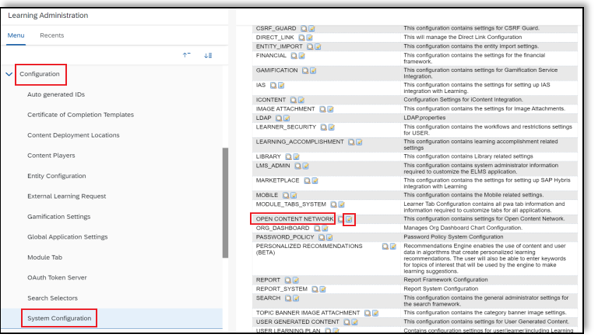
Scroll to the bottom of the configuration file.
Copy and paste the values below into the configuration file:
providers[LINKEDINLEARNING].enabled=trueproviders[LINKEDINLEARNING].name=LinkedIn Learningproviders[LINKEDINLEARNING].label=label.u.ProviderLinkedInLearningproviders[LINKEDINLEARNING].baseLaunchUrl=<https://www.linkedin.com/learning>providers[LINKEDINLEARNING].pricingModel=If LinkedIn Learning is your first OCN integration, enter the three additional parameters. To find the possible values, follow the click paths below:
defaultValues.itemType[default]: References > Learning Activities > Item Types > Do a blank search > choose the necessary item type and add it to the value parameter in the OCN property file.defaultValues.itemCompletionStatus[default]: References > Manage Users Learning > Completion Status > Do a blank search > choose the necessary item completion and add it to the value parameter in the OCN property file.defaultValues.domainID[default]: System Admin > Security > Security Domains > Do a blank search > choose the default domain where the item would be created and add it to the parameter in the OCN property file.
These values vary per SuccessFactors deployment. LinkedIn cannot provide guidance regarding which values you should use. If you have questions, direct them to SuccessFactors support.
For reference, here is a sample configuration:
#Domain groupdefaultValues.domainID[default]=LIL#This configuration sets the item type.defaultValues.itemType[default]=Course#This configuration sets the item completion status.defaultValues.itemCompletionStatus[default]=CRSE-CClick Apply Changes.
OCN Content Synchronization Automatic Process
To automate the OCN content sync process, take the following steps:
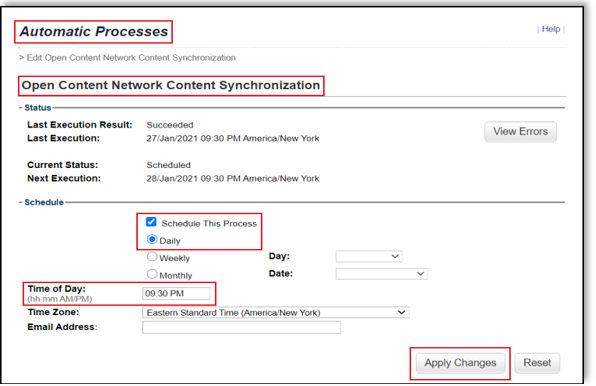
In the SuccessFactors Learning Administration navigation menu, select System Administration > Automatic Processes.
Select Open Content Network Content Synchronization.
Select the Schedule This Process check box.
Select the Daily radio button.
In the Time of Day field, specify a time outside of peak usage hours.
Click Apply Changes.
Create a LinkedIn Learning Label
To create a LinkedIn Learning label, take the following steps:
In the SuccessFactors Learning Administration navigation menu, select References > Manage Labels > Labels.
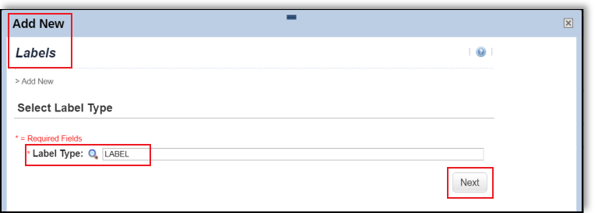
Click Add New.
In Label Type, enter "LABEL" and click Next.
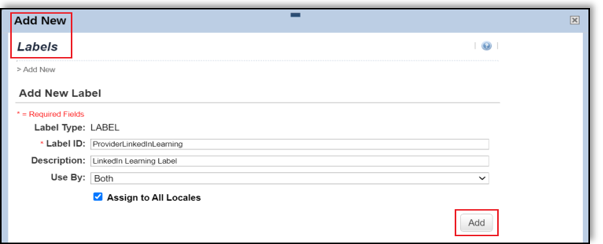
In Label ID, type "ProviderLinkedInLearning".
In Description, type "LinkedIn Learning Label".
In Use By drop down, select "Both".
Select Assign to All Locales.
Click Add.
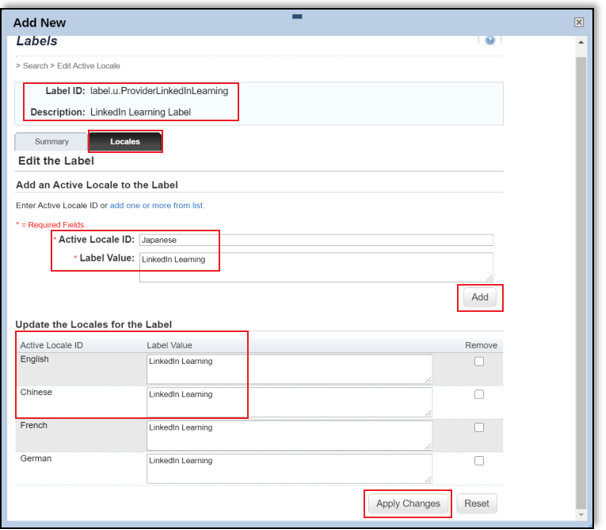
Select the Locales tab.
To add a locale to the LinkedIn Learning label, enter the locale (i.e., "Japanese") in the Active Locale ID field and "LinkedIn Learning" in the Label Value field, then click Add.
For each Active Locale ID, enter "LinkedIn Learning" (if the Label Value field is not already populated).
Click Apply Changes.
To verify the label, within the Learning Administration menu, visit Content > Open Content Network and confirm the list of content providers includes
LinkedIn Learning (LINKEDINLEARNING). If you seenull (LINKEDINLEARNING)confirm the label ID created in this section matches theproviders[LINKEDINLEARNING]labelvalue provided in your OCN property file.
Configure LinkedIn Learning OCN Settings
To configure LinkedIn Learning OCN settings, take the following steps:
In your LinkedIn Learning account, if you are not already in the Admin screen, select Go to Admin > Integrate.
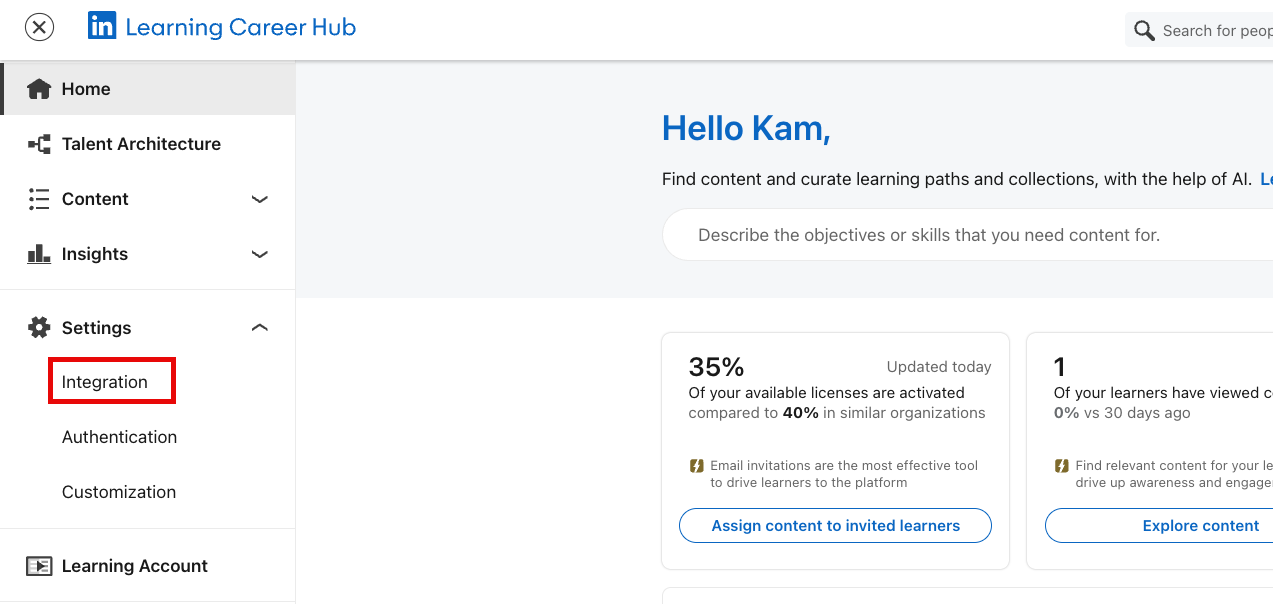
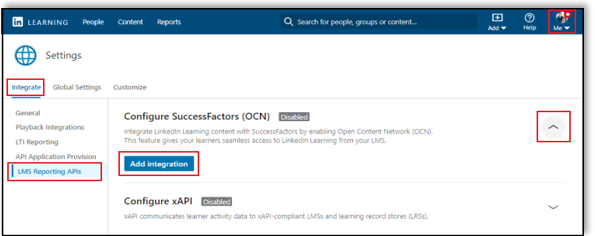
In the side menu, select Configure reporting integrations.
Expand the Configure SuccessFactors (OCN) section.
Click Add integration (or the pencil/edit icon if you are updating an existing integration). The Add/Edit SuccessFactors (OCN) integration screen appears.
In the user type drop down, there are three options:
ID – SAML SSO IdP configured unique user ID (UUID) value for your account. You should select this value if you are using SuccessFactors as your SAML IdP. If you’re using a 3rd Party SSO IdP, you should only select this option once you’ve confirmed your IdP is configured to send the same SSO UUID value to SuccessFactors and LinkedIn Learning. Unless a LinkedIn Learning Technical Consultant explicitly recommends an alternate option, select this value.
Username – SAML SSO custom attribute used solely for communication with external systems. You should select this value if you are using a third party SAML IdP that is configured to send the SuccessFactors UUID value as “username” in the SAML SSO payload.
Email – A user’s work email address value. You should select this value if you are using email as your UUID in both LinkedIn Learning and SuccessFactors.
In the OCN Server field enter your SuccessFactors host name.
Note
Server names differ for new and legacy customers. Example: for new customers, the OCN server name follows this format:
examplecompany.successfactors.com; for legacy customers, the OCN server name follows this format:examplecompanyname.plateau.com.Copy the X.509 Certificate. LinkedIn Learning generates this certificate for you — you do not need to create one yourself. Click Copy Certificate to copy it. When pasting it into SuccessFactors (Step "Register LinkedIn Learning as an OAuth2 Client Application" above), paste only the text between the BEGIN CERT and END CERT lines; the Copy Certificate button includes the header/footer automatically, so remove them before pasting into SuccessFactors.
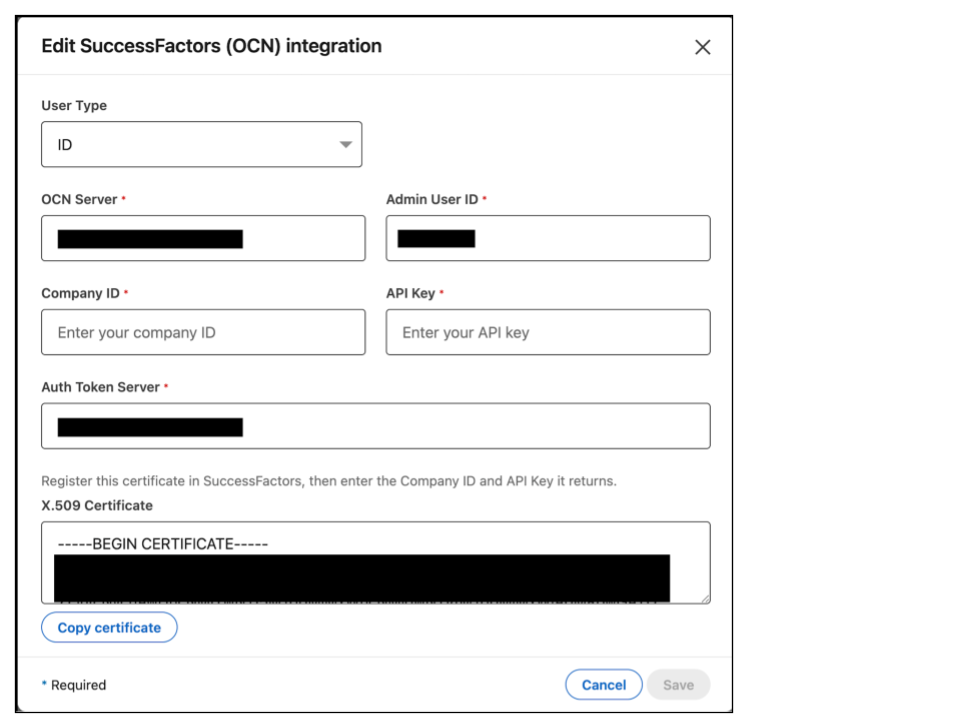
Enter the four values now used for OCN authentication:
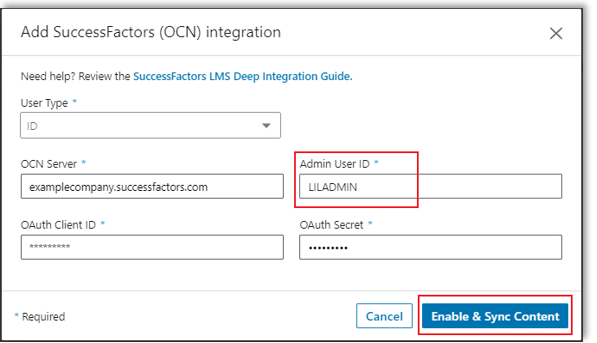
Field in LinkedIn Learning Where it comes from Company ID The Company value from the SuccessFactors OAuth2 Client Application page API Key The API Key generated by SuccessFactors when you registered LinkedIn Learning as a client application X.509 Certificate Generated by LinkedIn Learning (Step 7 above); you paste it into SuccessFactors, not the other way around Token Server URL The web address you use to access your SuccessFactors environment (for example, hcm-us10-sales.hr.cloud.sap)In the Admin User ID field, enter the value "LILADMIN" (or your existing Admin ID).
Note
The initial content import takes several hours to complete. After the initial import completes, future content imports take place daily in a fraction of the original time. Once the import process completes, we strongly recommend you run another process to associate the content with a library, category, or course length of duration. A monthly audit allows you to continue to import new titles into your LMS and remove corresponding titles from the library when LinkedIn Learning courses retire.
To begin the content import, click Enable and Sync Content.
Once the sync is complete and you are ready to make courses available to learners, you can import the content individually or in bulk. You can now automatically import learning content from OCN providers to make LinkedIn Learning content readily available to all learners. Please refer to step 12.
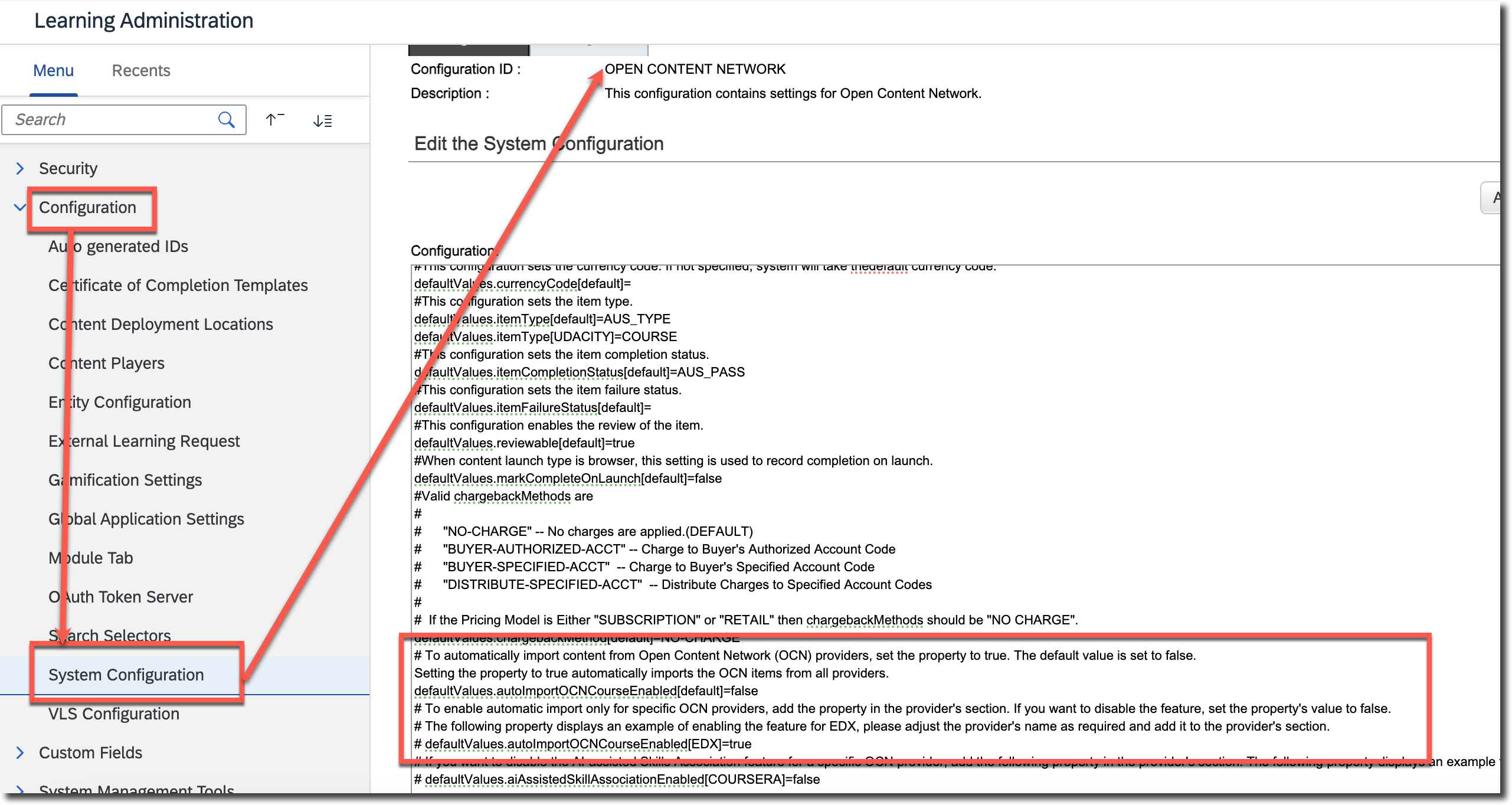
To configure automatic import of LinkedIn Learning content into SuccessFactors LMS, take the following steps:
- Go to System Administration > Configuration > System Configuration > OPEN CONTENT NETWORK. Setting this feature to true automatically imports courses from LinkedIn Learning.
- Set the defaultValue.autoImportOCNCourseEnabled[default] property to 'true'.
- Ensure that you've scheduled the Open Content Network Content Synchronization automatic process to regularly update the list of courses in the LMS.
Appendix
Manage skills on imported courses
Starting August 2026, LinkedIn Learning sends a list of skills with each course imported into SuccessFactors.
Skills are sent through the existing OCN course import process, so as SAP customers, you don't need to change the OCN property file or any of the integration settings described above.
Courses imported before August 2026 don't have skills attached. To backfill skills on those courses, rebootstrap your content catalog.
For LinkedIn Learning skills to match the skills in your Talent Intelligence Hub skill library, your SuccessFactors instance must have the following:
Talent Intelligence Hub (TIH)
AI-Assisted Skills Inference for Learning (a separately licensed SAP feature that consumes AI units)
Without these, LinkedIn Learning still sends the skills, but SuccessFactors doesn't match them to your skill library, so they don't appear on the course page.
When a LinkedIn Learning skill matches a skill in your skill library, it appears on the course page as an attribute. If no match exists, add the skill to your skill library first.
To enable skills tagging in your SuccessFactors instance, refer to SAP's guide on Associating Skills with Open Content Network Items Using AI.
For Customers Migrating to SAML Authentication
If you already have a working SuccessFactors OCN integration configured with an OAuth Client ID and Secret, you can move it to the certificate-based method above without re-running the full setup:
In LinkedIn Learning, open your existing SuccessFactors (OCN) integration and copy the X.509 Certificate.
In SAP SuccessFactors, complete the Platform user linking, API Administrator role, and OAuth2 Client Application registration steps under "Create System Admin User" and "Register LinkedIn Learning as an OAuth2 Client Application," reusing your existing Admin ID (e.g.,
LILADMIN), OCN Server, and OCN Admin Role — no changes are required to these.Back in LinkedIn Learning, enter the new Company ID, API Key, and Token Server URL alongside your unchanged OCN Server and Admin User ID, then click Save.
Your previous credentials continue to work for approximately 24 hours until they expire; content sync and completion reporting continue uninterrupted during this window. After that, confirm the daily delta sync still brings new content into SuccessFactors and that a completed course is reported back correctly.
Troubleshooting Course Completions
For a completion to be sent back to SuccessFactors, the following conditions must be true:
The learner’s SuccessFactors BizX ID must match the LinkedIn Learning user type value.
The completed course must be imported into SuccessFactors catalog.
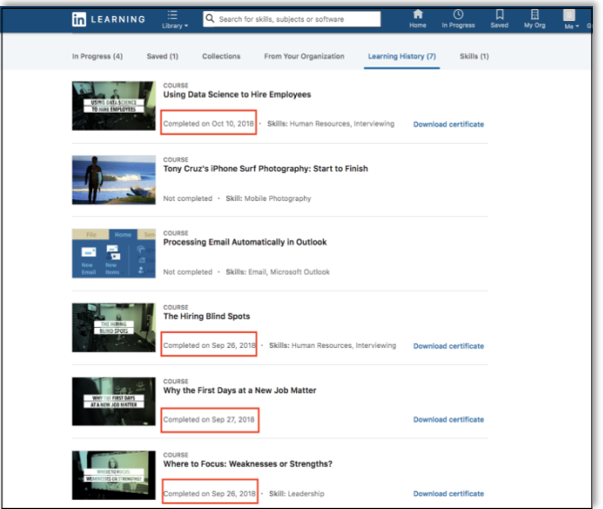
The learner must complete a course in full. You can verify the learner has completed the course in LinkedIn Learning by selecting Home > Me > In Progress > Learning History and confirming the “Completed on” date.
The SuccessFactors Learning Administrator account used for OCN must have the Add History Record permission. If you are migrating an existing OCN integration, it already has this.
If the above conditions are met, provide your dedicated technical consultant with the following information to further investigate:
The user’s SuccessFactors BizX UserID. To learn more about identifying BizX UserIDs see the "Identifying your BizX UserID" section below.
The user’s LinkedIn Learning Employee ID (SSO ID).
The name of the completed course and the date on which it the learner completed it.
Identifying your BizX UserID
If you opt to connect your organization’s identity management solution to LinkedIn Learning, you must configure it to send the SuccessFactors unique user identifier (also known as "BizX ID") to LinkedIn Learning so LinkedIn Learning can communicate course completions back to SuccessFactors. This section describes how to identify your BizX ID.
To identify your BizX ID, take the following steps:
In the SuccessFactors Learning Administration navigation menu, select People > Users.
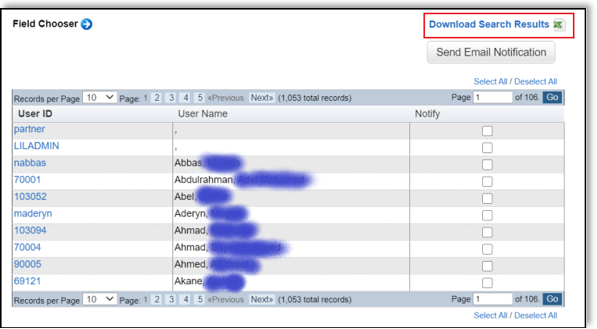
Click Search, then click Download Search Results. The file downloads to your computer.
Open the CSV file.
The “User ID” column contains your BizX ID; send this value to LinkedIn Learning via your third-party SAML IdP. To ensure the correct value is released in the SAML attribute statement, share examples of this value with the administrator of your SAML IdP.
Managing SuccessFactors Locales
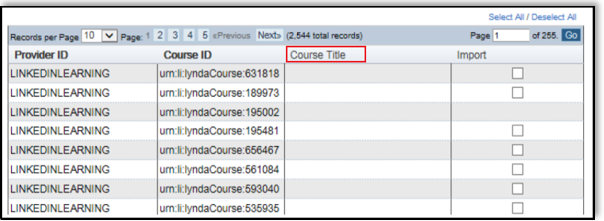
In SuccessFactors LMS, course titles and descriptions only appear in the locale to which they are populated. If your LinkedIn Learning subscription includes access to multiple languages and locales, you may notice some LinkedIn Learning content appears in search results without a title and description. This error indicates the locale in which you are searching does not match the locale of the LinkedIn Learning content. LinkedIn has no control over how SuccessFactors displays content metadata in the LMS. Please contact your LinkedIn Learning technical consultant to enable additional locales (when and if they are available for courses).
Configuring SAML SSO via SuccessFactors
In this section, we review how to establish a SAML SSO directly with SuccessFactors (BizX) IdP. SuccessFactors does not provide any basic profile information (like a learner’s first name and last name), which can complicate reporting in LinkedIn Learning. You should only pursue this option if your organization does not have a third-party SSO provider or a LinkedIn Learning Technical consultant recommends it.
This section governs learner SSO login and is separate from the OCN API authentication described above.
Caution
Use SuccessFactors as an SSO identity provider only if you have no other available option.
Generating Identity Provider Metadata
To generate IdP metadata in SuccessFactors, take the following steps:
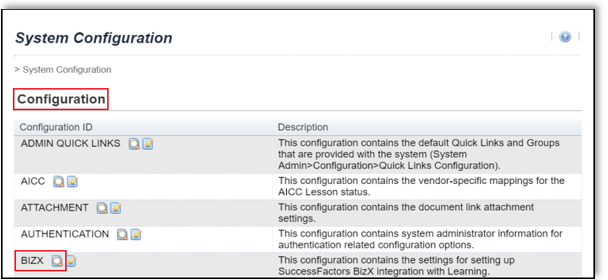
In the SuccessFactors Learning Administration navigation menu, select System Administration > Configuration > System Configuration.
Find the BizX option in the configuration file and select View (magnifying glass) icon.
Within the property file, scroll down to the SAML Single Sign On section.
Find the
metadataProviders.IDP1.valueentry. The value should look like the following sample URL:https://performancemanager[numericvariable].successfactors.[variable-depending-on-global-region]/idp/samlmetadata?company=[company_id]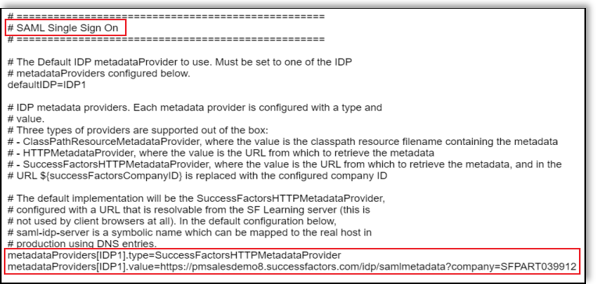
Visit the above URL to download the identity provider XML file.
Configuring an SSO Service Provider
To configure an SSO provider in LinkedIn Learning, take the following steps:
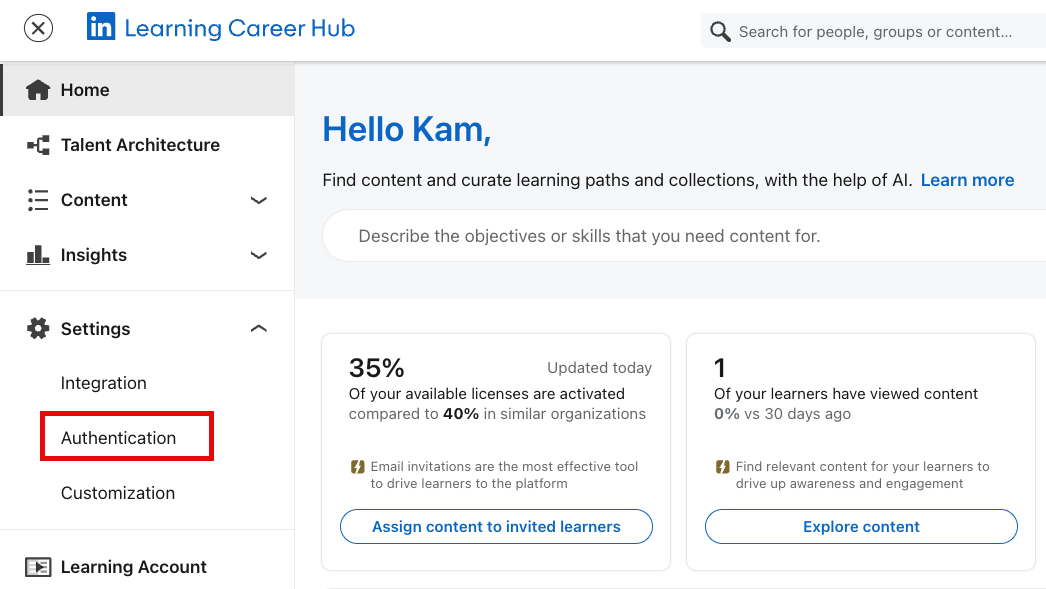
In your LinkedIn Learning account, if you are not already in the Admin screen, select Go to Admin > Authentication.
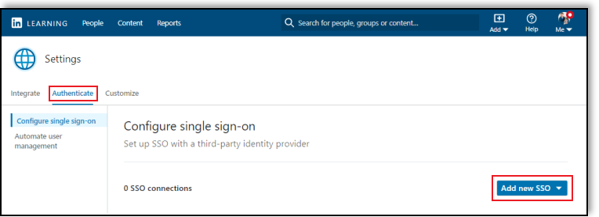
In the Configure single sign-on section, click Add new SSO.
Select your SSO method (in this case, "SAML").
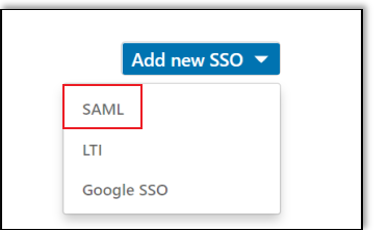
In the Authenticate users with SAML SSO screen, select the Identity provider settings tab, then click Load and copy information from fields.
Click Download file.
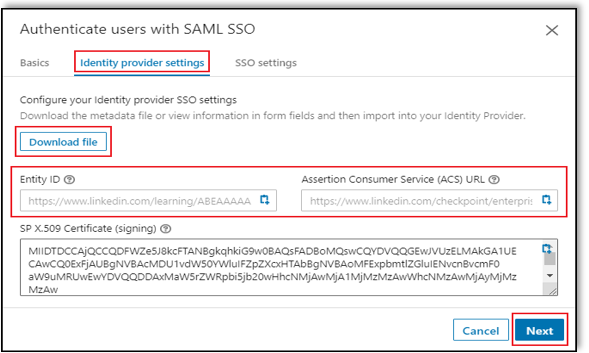
To open a communication with the SuccessFactors team, create a support ticket and copy and paste the SSO configuration values from the LinkedIn Learning interface into the template below.
SuccessFactors Support,
My organization would like to integrate with LinkedIn Learning via the Open Content Network. To complete the single sign-on setup, a new authorized SP assertion consumer service needs to be configured in your back-end provisioning settings. Below you will find the relevant details provided by LinkedIn Learning for the assertion consumer service configuration:
Assertion Consumer Service (ACS) URL: <insert-your-linkedin-learning-acs-url> Certificate: <insert-your-linkedin-learning-x509-certificate>
Once SuccessFactors support has configured a new assertion consumer service, return to the Authenticate users with SAML SSO screen and click Next.
Select the "Upload XML file" radio button, then click Upload XML file and navigate to the downloaded metadata file, select it and click Open.
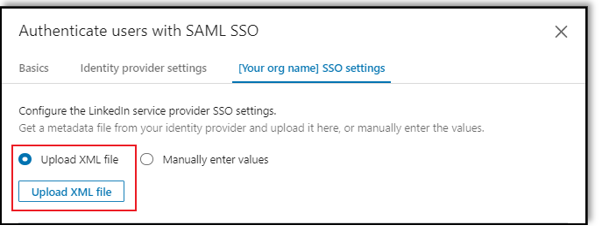
In SuccessFactors, select Save SSO configuration > Activate SSO configuration > I’m ready.
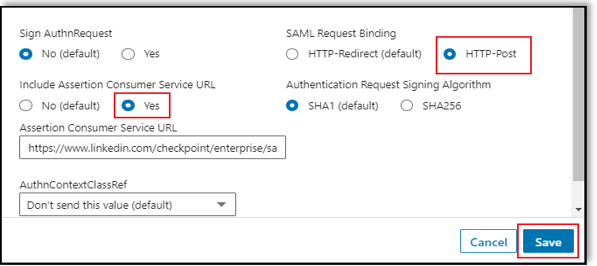
In the LinkedIn Learning SSO settings tab, under SAML Request Binding, select "HTTP-Post".
Under Include Assertion Consumer Service URL, select “Yes”, then click Save.
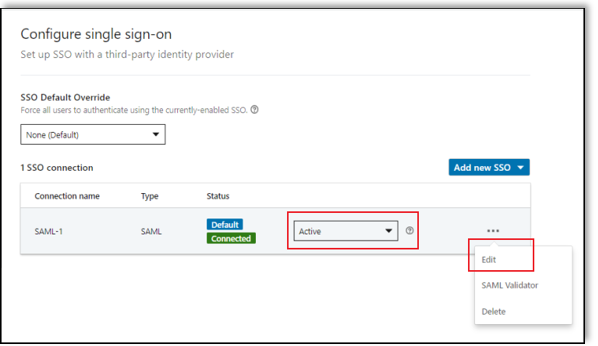
In the Configure single sign-on screen, set the connection to "Active".
In the bottom right-hand corner of the screen, click the "More Options" icon (...) and select "Edit".
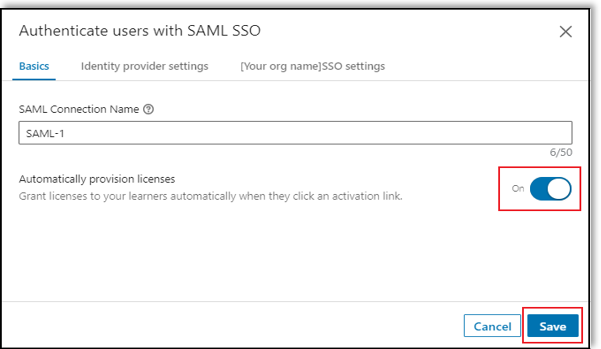
Toggle Automatically assign licenses to "On", then click Save.
Verify the SSO Configuration
To verify the success of your SSO configuration, take the following steps:
If you are not already in the Admin screen, select Go to Admin > Authentication.
In the browser address bar, copy the account ID value. In the example below the account ID is “123456”.
https://www.linkedin.com/enterprise/accountcenter/settings?account=123456Construct a SSO URL for testing by pasting the account ID value from the last step into the URL below.
https://www.linkedin.com/checkpoint/enterprise/login/[account-ID]?application=learningCopy and paste the SSO URL into your web browser and provide your SuccessFactors credentials when prompted.
Congratulations! Your learners now can access LinkedIn Learning content and reporting via their SuccessFactors OCN instance.
If SSO authentication is working as expected, you will be redirected to LinkedIn Learning. If applicable, you may be prompted to login with your LinkedIn credentials before being redirected to the course page.
Support
Please review additional resources on SuccessFactors integration.
Questions
For LinkedIn Learning configuration questions, reach out to your dedicated Customer Success Manager.