Note
Access to this page requires authorization. You can try signing in or changing directories.
Access to this page requires authorization. You can try changing directories.
If an employee leaves your organization, you might be wondering what you should do to secure data and prevent unauthorized access. This article series explains how to block access to Microsoft 365 so former employees can't sign in to your organization's Microsoft 365 subscription, the steps you should take to secure your organization's data, and how to allow other employees to access a former employee's email and OneDrive content.
Before you begin
To complete the steps in this series, you use these Microsoft 365 capabilities and features.
| Product or component | Capability or feature |
|---|---|
| Microsoft 365 admin center | Convert mailbox, forward email, revoke access, or remove user |
| Exchange admin center | Block user, block access to email, or wipe device |
| OneDrive and SharePoint | Give access to other users |
| Outlook | Import pst files, add mailbox |
| Active Directory | Remove users in hybrid environments |
| Purview eDiscovery | Apply legal holds to departing employees to retain their data for legal or compliance purposes |
Solution: Remove a former employee
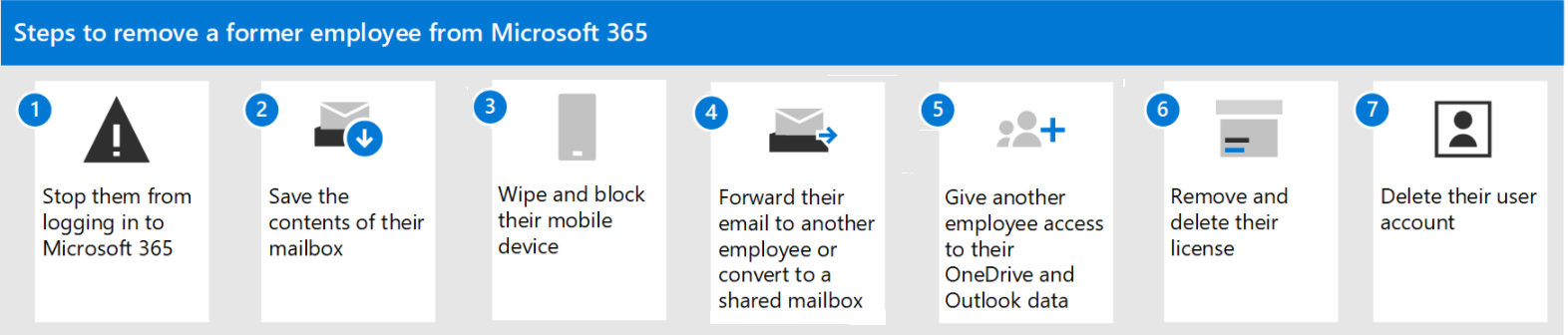
| Step | Why do this step |
|---|---|
| Step 1: Prevent a former employee from signing in to your organization's Microsoft 365 services | Prevent former employees from accessing your Microsoft 365 services and organization's data. |
| Step 2: Save the contents of a former employee's mailbox | If someone is taking over the former employee's work, it's helpful for them to access this information. Or, if there's a legal requirement or important need to save the former employee's data, you want to complete this step. |
| Step 3: Wipe and block a former employee's mobile device | Removes your organization's data from the former employee's phone or tablet. |
| Step 4: Forward a former employee's email to another employee or convert to a shared mailbox | You can keep the former employee's email address active in case you have customers or partners sending email to the former employee's address. Setting up email forwarding makes sure messages get to the next person taking over the work. |
| Step 5: Give another employee access to OneDrive and Outlook data | If you only remove a user's license but don't delete the account, the content in the user's OneDrive remains accessible to you even after 30 days. Before you delete the account, consider granting access of the former employee's OneDrive and Outlook content to another user. After you delete an employee's account, the content in their OneDrive and Outlook is retained for 30 days. During that 30 days, you can restore the user's account, and gain access to their content. If you restore a user's account, their OneDrive and Outlook content remains accessible to you, even after 30 days. |
| Step 6 - Remove and delete the Microsoft 365 license from a former employee | When you remove a license, you can assign it to someone else. Or, you can delete the license if you don't need it. When you remove or delete a license, the former employee's email, contacts, and calendar are retained for 30 days, and are then deleted permanently. If you remove or delete a license but don't delete the account, the content in the user's OneDrive remains accessible to you even after 30 days. |
| Step 7 - Delete a former employee's user account | Deleting a former employee's account stops email messages sent to that account from being received. |
Watch: Delete a user overview
Check out this video and others on our YouTube channel.
Does your organization use Active Directory?
If your organization synchronizes user accounts to Microsoft 365 from a local Active Directory environment, you must delete and restore those user accounts in your local Active Directory service. You can't delete or restore them in Microsoft 365.
To delete and restore a user account in Active Directory (on premises), see Delete a User Account.
If you're using Microsoft Entra ID, see the Remove-MgUser PowerShell cmdlet.