Note
Access to this page requires authorization. You can try signing in or changing directories.
Access to this page requires authorization. You can try changing directories.
The Microsoft 365 Message center helps IT admins track upcoming changes, feature updates, and required actions across services. Use Message center to plan for change, prevent disruptions, and stay informed about Microsoft 365 updates that affect your organization.
To open Message center from the Microsoft admin center, go to Health > Message center.
To open Message center from the Microsoft admin center, go to admin center, go to Health > Message center.
You can also use the Microsoft 365 Admin app on your mobile device to view Message center, which is a great way to stay current with push notifications.
For the most recent updates to Message center, see What's new in Message center.
For frequently asked questions about Message center, see Message center FAQ.
Feature release status for your organization in Message center
Note
The release status is only available for limited feature announcements.
For each new and updated feature announcement in Message center, the Status for your org field provides a release status to help you track when a feature is available in your tenant.
These three release statuses are updated on each applicable message over the lifecycle of the feature release:
Scheduled: The feature is planned to release to your tenant, and isn't available to any users in your organization
Rolling out: The feature is beginning to roll out to some applicable users in your organization.
Launched: The feature is generally available to all the applicable users in your organization.
Updates to feature release status are provided on the original Message center post. Filtering capability on Status for your org allows easier visibility on the updated release status.
The release status is only available for new and updated features that are also announced on AI at Work Roadmap and that have general availability status (production ready). If you don't see release status on a message, it means the release status isn't available for that feature.
Relevance recommendation
For each new Message center post, we provide a recommendation for how relevant the change is for your organization. This recommendation is based on multiple factors such as:
- Apps and service usage.
- Changes meant to prevent or fix issues for subscription.
- Changes meant to help you plan ahead or stay informed.
- Impact changes, such as data privacy and app and service retirements.
There are three levels of relevance:
High - These posts are about changes in your organization, which need immediate action to avoid service disruption. These posts can also include feature releases with high potential impact to your organization, for example, an app or service being heavily used by people in your organization.
Medium - These posts are about changes in your organization, which don't need immediate action. Examples are nonbreaking changes or new features for a service, which is being used by your organization, an early announcement for an upcoming breaking feature change, retirement
Low - These posts are about changes that you need to monitor. They're related to low impact apps and services in your organization. Examples would be a feature update for an app or service, which isn't actively used in your organization.
The relevance recommendations are only available for newer Message center posts. This means the Message center posts you already received are "blank" for relevance recommendations.
If you see Processing for a Message center post, it means that the score is being computed for this post and should be available soon. You should try to refresh after a few minutes.
Microsoft needs your feedback to improve the accuracy and relevance for Message center posts. Use the Extended Feedback option on Message center posts to send us your opinions.
Major updates
Major updates are communicated at least 30 days in advance when an action is required and might include:
- User impacting changes to daily productivity such as changing a user's inbox, meetings, delegations, sharing and access that might result in help desk calls, or organizational conformance concerns.
- Changes to the themes, web parts, deployed Copilot agents, and other components that might impact customer customizations.
- Increases or decreases to visible capacity such as storage, number of rules, Copilot agents and prompts, items, or durations.
- Rebranding that might cause end-user confusion or result in help desk changes, collateral changes, or URL changes if the new URL isn't *.cloud.microsoft
- A new service or application deployed with default settings turned on.
- Changes to where data is stored or accessed.
In the Message center, major updates are tagged as Major update. Filter Major updates by selecting the Major update from the Tags drop-down.
Preferences
If administration is distributed across your organization, you might not want or need to see posts about all Microsoft 365 services. Each admin can do the following actions:
- Set preferences that control which messages are displayed in Message center.
- Filter messages.
- Set email preferences to receive a weekly digest of all messages, emails for major updates only, and emails for data privacy messages.
To access Message center preferences, do the following steps:
Select Preferences at the top of Message center.
In the Custom View tab, make sure that the check box is selected for each service that you want to monitor. Clear the check boxes for the services you want to filter out of your Message center view.
Digest emails are turned on by default and are sent to your primary email address. To stop receiving the weekly digest, clear the Send me email notifications from message center check box in the Email tab.
You can also enter up to two email addresses, separated by a semicolon.
You can also choose the emails you want to get, and a weekly digest of services you select.
Select Save to keep your changes.
For more information about roles and permissions for Message center, see Admin roles that don't have access to the Message center.
Display messages in your preferred language
We use machine translation to automatically display messages in your preferred language. Read Language translation for Message center posts for more information on how to set your language.
Note
The weekly digest and any posts that are emailed are sent in English-only. Recipients can use Translator for Outlook to read the message in their preferred language.
Service & monthly active users
When you open a message center post, we tell you the number of users who have been using that Microsoft 365 app or service in the Service & monthly active users section. The numbers are for the last 28 days. This info can help you prioritize which changes you should work on.
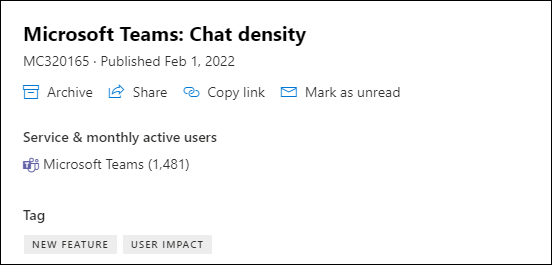
The number of monthly users applies to all users who have been using that Microsoft 365 app or service on any device.
Note
This feature isn't available for all Microsoft 365 productivity apps and services yet. We'll let you know when the feature isn't available.
Display specific columns & use filters
To display specific columns, on the Message center page, on the far right of the table, select Choose columns, and in the Choose columns pane, select the ones you want displayed.
You can select any column heading, except Service and Tag, to sort messages in ascending or descending order.
For an overview of the information in each column, see the following section.
Column information
Message center presents a view of all active messages in a table format. By default, it shows the most recent message at the top of the list.
| Column | Description & Filters |
|---|---|
| Check mark | Selecting the check mark in the column heading row selects all messages currently displayed. Selecting the check mark next to one or more messages lets you take action on those messages. |
| Message title | Message titles are brief descriptions of upcoming changes. If the full title doesn't display, hover your cursor over it and the entire title appears in a pop-up box. |
| More options | More options let you dismiss a message, mark it as read or unread, or share it with another admin. To restore an archived message, select the Archive tab, select the check mark next to the message, and select Restore. |
| Favorites | Select the star to mark a message as a favorite. Once you mark messages as favorite, you can also sort by the column and use the Message state filter for Favorites. |
| Service | Icons indicate the application to which the message applies. Use the Service filter to select various services, such as Microsoft 365 Apps, SharePoint Online, Power BI, Windows, and others. |
| Platform | The platform that's affected by the Message center post. |
| Last updated | Date that the message was published or last updated. Use the Message state filter for updated messages. |
| Message ID | Microsoft tracks our Message center posts by message ID. You can refer to this ID if you want to give feedback or if you call Support about a particular message. |
| Act by | We only have dates here if we're making a change that requires you to take an action by a certain deadline. Since we rarely use the Act by column, if you see something here, you should pay extra attention to it. |
| Relevance | Relevance is our recommendation based on the potential impact to your organization and the usage of affected services. For more information, see our levels of relevance. |
| Status for your org | This column only shows a status if the service is supported or if it's applicable. |
| Tag | Choose tags from the Tag drop-down to filter messages. Admin impact: When the change clearly impacts the admin in the following ways - UI change, workflow change, control available, and Specific/Potential Action. Data Privacy: Data privacy notification (limited to global administrator and Message center Privacy reader roles). Deferred feature: Feature is available in Deferred release. For more information, see [Configure deferred release].(configure-release-options.md). Feature update: Update to an existing feature. Major update: Changes communicated at least 30 days in advance. See Major updates. New feature: New feature or service. Retirement: Retirement of a service or feature. User impact: When the change to the service clearly impacts the user - UI Change and workflow change. |
| Category | This column isn't shown by default, but can be specified in the Choose columns panel. Messages are identified by one of the following three categories: Prevent or fix issues: Informs you of known issues affecting your organization and might require that you take action to avoid disruptions in service. Prevent or fix issues are different than Service health messages because they prompt you to be proactive to avoid issues. Plan for change: Informs you of changes to Microsoft 365 that might require you to act to avoid disruptions in service. For example, we let you know about changes to system requirements or about features that are being removed. We try to provide at least 30 days' notice of any change that requires an admin to act to keep the service running normally. Stay informed: Tells you about new or updated features we're turning on in your organization. announced first in the AI at Work. Also lets you know about planned maintenance in accordance with our Service Level Agreement. Planned maintenance might result in down time, where you or your users can't access Microsoft 365, a specific feature, or a service such as email or OneDrive. |
| Timing of change | Allows you to sort and filter posts by when a rollout is planned. This week: Rollout planned for this week. This month: Rollout planned for this month. Next month: Rollout planned for next month. N/A: No given planned rollout date. Custom: Select start and end dates to filter messages by timing of change. |
Admin roles that don't have access to the Message center
Most users assigned any admin role in Microsoft 365 can view Message center posts. You can also assign the Message center reader role to users who should be able to read and share Message center posts without having any other admin privileges.
The following admin roles don't have access to the Message center:
- Compliance administrator
- Conditional access administrator
- Customer Lockbox access approver
- Device administrators
- Directory readers
- Directory synchronization accounts
- Directory writers
- Intune service administrator
- Privileged role administrator
- Reports reader
Important
Microsoft recommends that you use roles with the fewest permissions. Using roles with the fewest permissions helps improve security for your organization. Global Administrator is a highly privileged role that should be limited to emergency scenarios when you can't use an existing role. For more information, see About administrator roles in the Microsoft 365 admin center.
For more information about admin roles, see About administrator roles in the Microsoft 365 admin center.
Give feedback on a post
In the Message center, you can select a message to view details.
If a Message Center post isn't relevant to your organization, provide us with feedback. Select thumbs up or thumbs down on the MC post and select This change isn't relevant to my org.
Note
If you're using Microsoft 365 for Government - GCC High and Office 365 Government - DoD, you can't provide feedback on a post.
Share a message
See a message that someone else needs to act on? You can share the contents of the message with any user by email:
Select the message to open it, and then select Share.
To share the message, enter email addresses separated by a colon. You can send to individual and group email addresses. Optionally, you can choose to receive a copy of the message in email (the message goes to your primary email address) or add a personal message to provide recipients with more context.
Select Share to send the email.
Get a link
Need to follow up with another admin to make sure they're aware of a change and taking action? You can generate a link to share in an email or a chat. The person you share the link with has to have access to Message center. For more information, see admin roles that don't have access to the Message center.
- Select the More options ellipses next to the Message title.
- Select Copy link.
- Use Ctrl+V or right-click and select Paste to insert the link to whatever document you wish.
Read and unread states
Any unread message in Message center appears in bold. Opening a message marks it as read.
To mark a message as unread, from the main page of the message center, select the More options ellipses next to a message, and then select Mark as unread. You can also open a message and mark it as unread in the details panel. Filter for unread messages from the Message state drop-down by selecting Unread.
Archive and restore a message
If you see a message that doesn't pertain to you, or maybe you've already acted on it, you can archive the message. Archiving a message removes it from the Inbox. The view that you see in the Message center is specific to your user account, so archiving it from your view doesn't affect other admins.
To archive a message from the message pane, from the Message title column, select Archive. The Archive tab shows the messages you have archived.
There are two ways to archive a message:
- On the Inbox tab of the Message center, select a message, and then select Archive above the list of messages.
- Open the message, and then select Archive on the top of the message pane.
Need to get an archived message back? No problem.
- Select the Archive tab at the top of the Message center. A list of archived messages appears.
- Select the message, select Restore, and the message is restored to the Inbox tab.
Track your message center tasks in Planner
A lot of actionable information about changes to Microsoft 365 services arrives in the Microsoft 365 message center. It can be difficult to keep track of which changes require tasks to be done, when, and by whom, and to track each task to completion. You also might want to make a note of something and tag it to check on later. You can do all this and more when you sync your messages from the Microsoft 365 admin center to Microsoft Planner. For more information, see Track your message center tasks in Planner.
Set language translation for Message center posts
To learn how to set your language preferences to enable machine translation for Message center posts, see Language translation for Message center posts.
Work with service communications API in Microsoft Graph
If you'd like to program an alternative way to get real-time service health information and Message center communications, see Working with service communications API in Microsoft Graph.
For AI-powered workflows, you can also use Microsoft MCP Server for Enterprise. For more information, see Overview of Microsoft MCP Server for Enterprise.
Unsubscribe from Message center emails
Digest emails are turned on by default and are sent to your primary email address. To stop receiving the weekly digest, select Preferences and then Email.
- Deselect the Send a weekly digest of my messages checkbox.
- Email notification for major updates is a separate control. If you don't want to receive email notices about major updates, verify that Send me emails for major updates checkbox isn't selected.
- To stop receiving email notices about data privacy messages, verify that Send me emails for data privacy messages checkbox isn't selected. (Data privacy messages aren't included in the weekly digest.)
Select Save to keep your changes.
Scroll messages in the message pane
When you open a message in a reading pane, you can use the Up and Down  arrows on the top of the pane to move to the next, or the previous message in the list.
Related articles
Frequently asked questions about Message center
Modern change management for Microsoft 365 - Overview
Configure modern release options
Overview of Microsoft MCP Server for Enterprise
Get started with the Microsoft Release Communications MCP Server