Note
Access to this page requires authorization. You can try signing in or changing directories.
Access to this page requires authorization. You can try changing directories.
You can inspect and debug CSS container queries in the Elements tool in DevTools.
A CSS container query allows you to manipulate an element's styles based on its parent container's CSS properties. A CSS container query uses code to query some aspect of an element's parent container element. This capability shifts the concept of responsive web design from page-based to container-based.
See also:
- Responsive web design at MDN.
- CSS container queries at MDN.
- Debug CSS container queries demo.
Highlight a container and its descendants
An element that's defined as a CSS container query can have any of the following badges next to it in the DOM tree in the Elements tool:
- No container badge, for a name-only container, such as
container-name: named-container-a;. - No container badge, for a style container, where the contained element has a
@container style()CSS container query. - The inline-size container badge
 , for
, for container-type: inline-size. - The size container badge
 , for
, for container-type: size.
Clicking the inline-size badge or size badge displays (or hides) a dotted-line overlay of the container and its descendants.
To display the dotted-line overlay of the container and its descendants:
Go to the Debug CSS container queries demo in a new window or tab.
In the Inline size container section, right-click to the left of the Card element, within the black box, and then select Inspect.
DevTools opens, with the Elements tool selected:
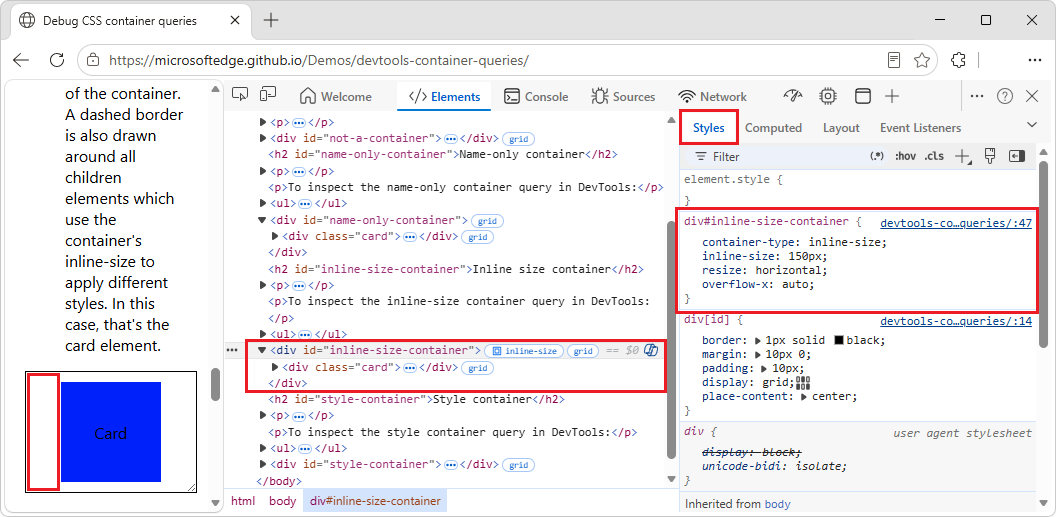
In the DOM tree, the element
<div id-"inline-size-container">is selected, and has an inline-size container badge:In the Styles tab, the CSS rule
div#inline-size-containeris displayed. Within that CSS rule, the CSS propertycontainer-type: inline-sizedefines the container element. A contained descendant element can query this container'sinline-sizedimension (horizontal axis) and change the contained descendant element's styles based on the width of the container.In the DOM tree, click the inline-size badge
: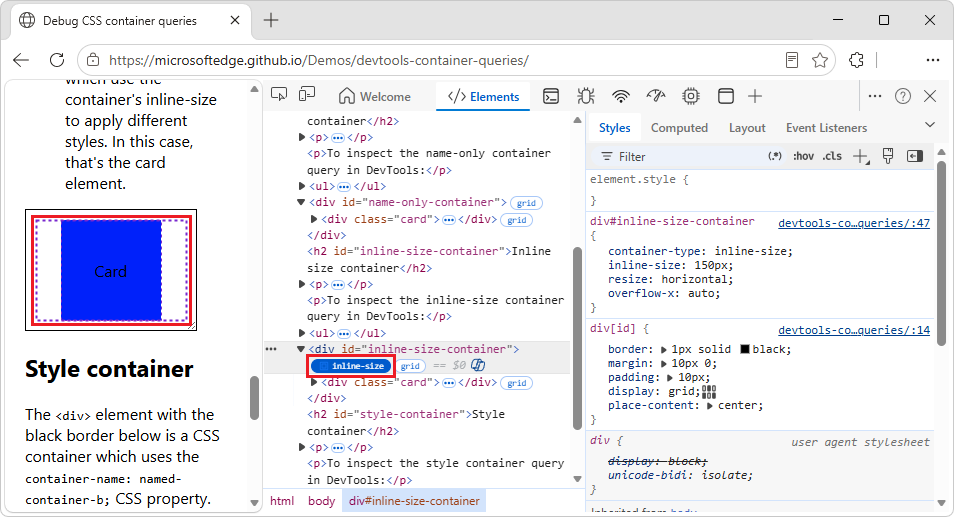
A dotted-line box is displayed around the contained element, and the inline-size badge has inverted foreground text color and background color.
Click the inline-size badge again.
The dotted-line boxes are hidden, and the inline-size badge has its original foreground text color and background color.
Select an element's container element in the DOM tree
To find and select the container element that caused a contained element's CSS container query to take effect:
Go to the Debug CSS container queries demo in a new window or tab.
In the Name-only container section, right-click the Card element, and then select Inspect.
DevTools opens, with the Elements tool selected:
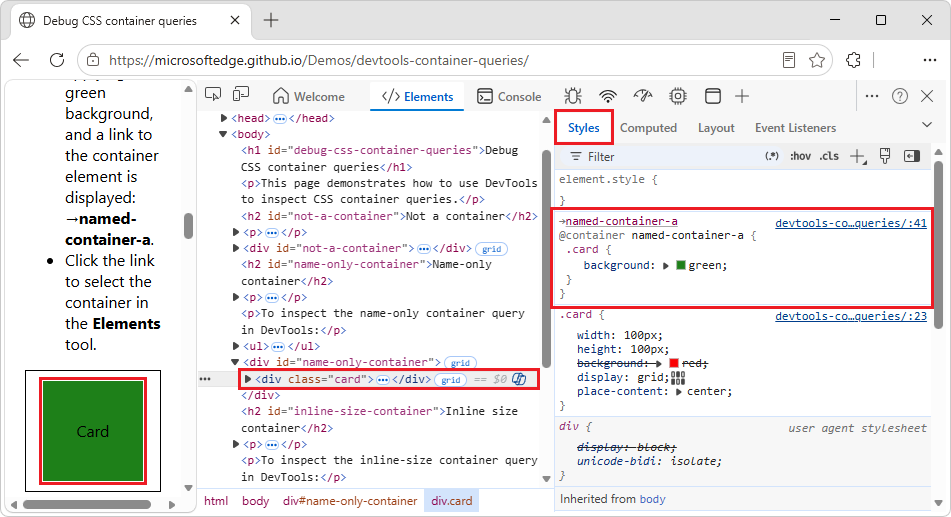
In the DOM tree, the
<div class="card">element is selected, within the<div id="name=only-container">element.In the Styles tab, the
@container named-container-aCSS rule is displayed, defining thebackgroundcolor for acard.In the Styles tab, at the top of the
@container named-container-aCSS rule, click the →named-container-a link.DevTools finds and selects the container element that caused the CSS container query to take effect:
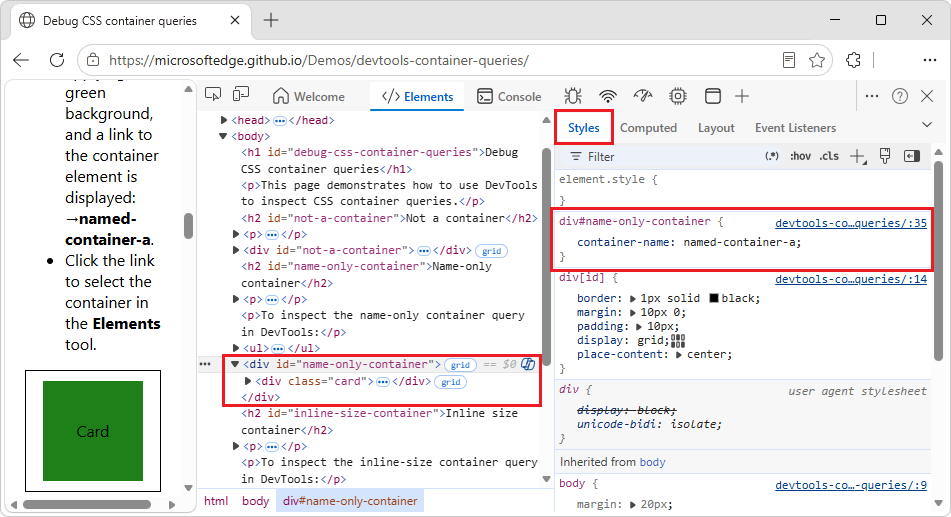
In the DOM tree, the
<div id="name=only-container">element is selected.In the Styles tab, the
div#name-only-containerCSS rule is displayed, defining the CSS propertycontainer-name: named-container-a;.
Inspect a CSS container query
The Elements tool shows the CSS properties that apply to the descendent element and that are defined inside of an @container query.
Inspect a name-only CSS container query
In this section of the demo, the <div id="name-only-container"> element with a black border is a CSS container that uses the container-name: named-container-a; CSS property.
The <div class="card"> element that's within that CSS named-container uses a @container query to change its background to green when it's inside a container named named-container-a.
To inspect a name-only CSS container query in DevTools:
Go to the Debug CSS container queries demo in a new window or tab.
In the Name-only container section, right-click the Card element, and then select Inspect.
DevTools opens, with the Elements tool selected:
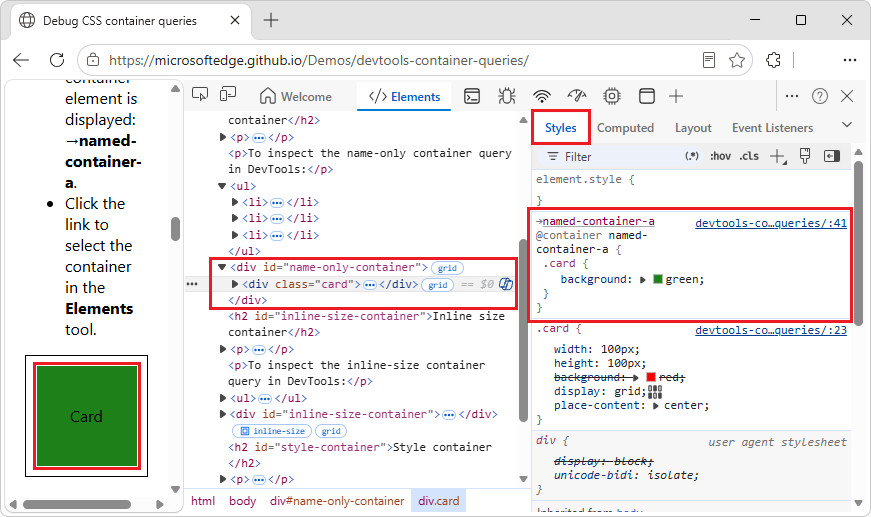
In the DOM tree, the
<div class="card">element is selected, within<div id="name-only-container">.In the Styles tab, the
@containerquerynamed-container-ashows the CSS rule that's applying the green background.At the top of the CSS rule is a link to the container element:
→named-container-a.Click the
→named-container-alink.In the DOM tree, the element
<div id="name-only-container">is selected.
Inspect an inline-size CSS container query
In this section of the demo, the <div id="inline-size-container"> element with a black border is a CSS container of type inline-size, because it uses the container-type: inline-size; CSS property.
The <div class="card"> element that's within the inline-size CSS container uses a @container query to change its background to different colors depending on the size of its container. You can resize the container by using the handle in the bottom-right corner of the container, and observe the card's background color change.
To inspect an inline-size CSS container query in DevTools:
Go to the Debug CSS container queries demo in a new window or tab.
In the Inline size container section, right-click the Card element, and then select Inspect.
DevTools opens, with the Elements tool selected:
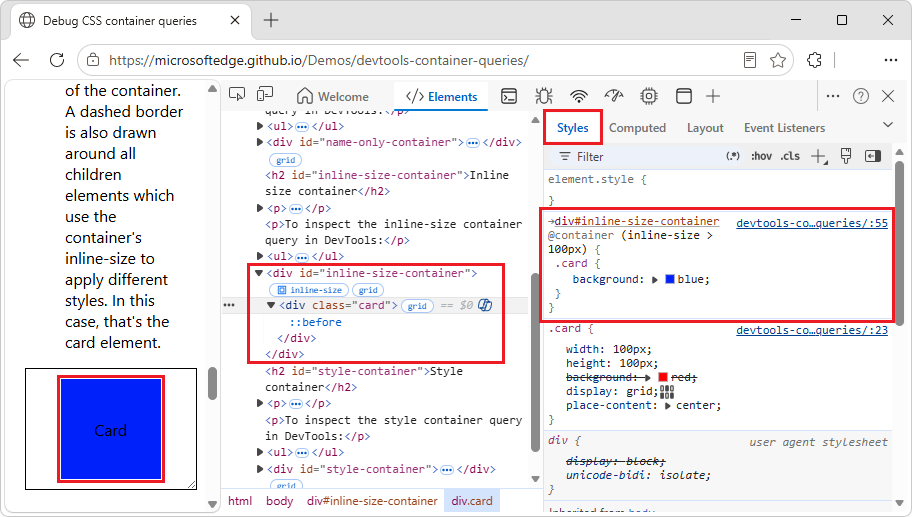
In the DOM tree, the
<div class="card">element is selected, within<div id="inline-size-container">.In the Styles tab, the
@containerquerynamed-container-ashows the CSS rule that's applying the green background.At the top of the CSS rule is a link to the container element:
→div#inline-size-container.Click the
→div#inline-size-containerlink.In the DOM tree, the element
<div id="inline-size-container">is selected, and an inline-size container badge is displayed next to it.Click the inline-size container badge
.In the demo page, a dashed border is added around the content area of the container:
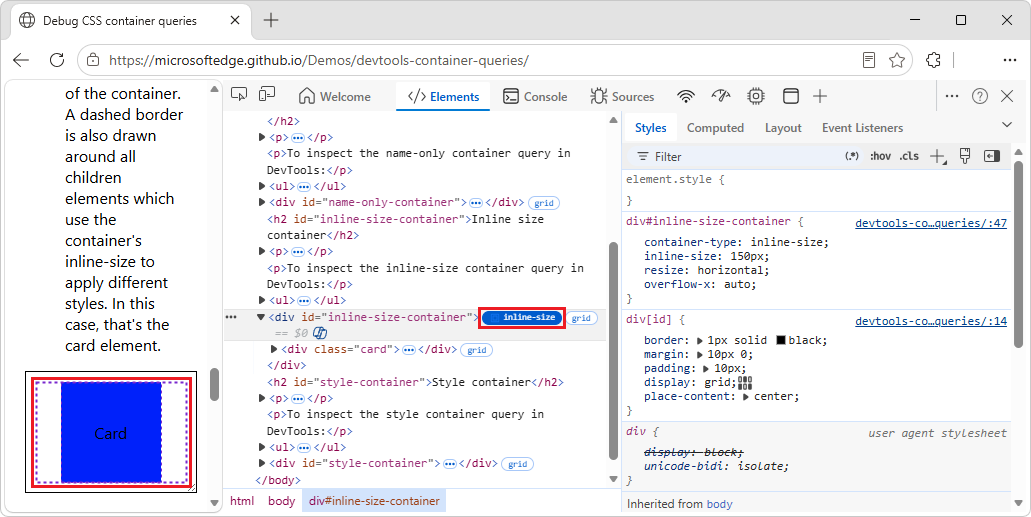
The inline-size container badge has inverted foreground text color and background color.
A dashed border is also displayed around all children elements which use the container's inline-size to apply different styles. In this case, that's the
<div class="card">element (the inner dashed border).Click the inline-size container badge
again.In the demo page, the dashed border is removed.
In the demo page, in the Inline size container section, resize the Card container by dragging the handle that's in the bottom-right corner of the container.
The card's background color changes.
Inspect a style CSS container query
In this section of the demo, the <div id="style-container"> element with a black border is a CSS container that uses the container-name: named-container-b; CSS property.
The <div class="card"> element that's within that CSS container uses a @container style() query to change its background to a different color, depending on the value of its container's --foo custom CSS property.
The container changes the value of --foo over time by using a CSS animation. Observe the card's background change over time.
To inspect a style CSS container query in DevTools:
Go to the Debug CSS container queries demo in a new window or tab.
In the Style container section, right-click the Card element, and then select Inspect.
DevTools opens, with the Elements tool selected:
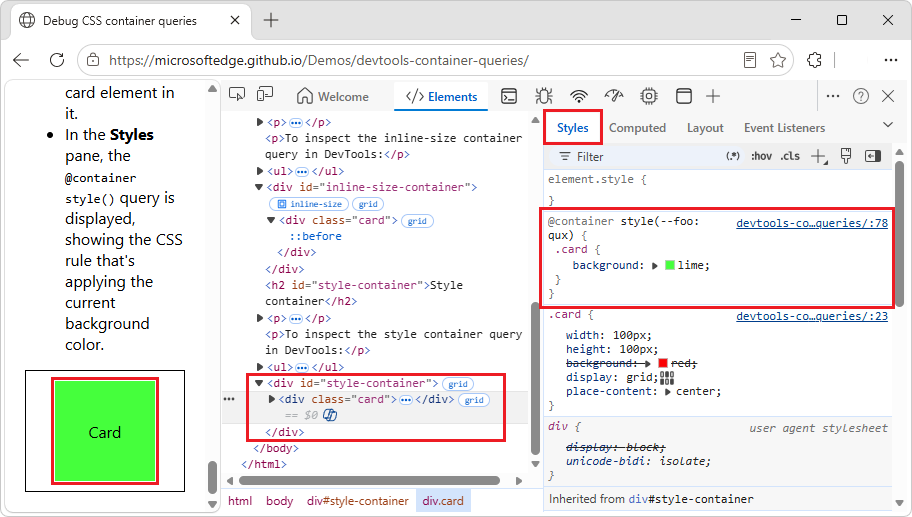
In the DOM tree, the
<div class="card">element is selected, within<div id="style-container">.In the Styles tab, the
@container style()query shows the CSS rule that's applying the current background color.
Modify a CSS container query
To debug a CSS container query, you can modify the CSS container query in the same way as modifying any other CSS property in the Styles tab, as described in Get started viewing and changing CSS.
To modify a CSS container query:
Go to the Debug CSS container queries demo in a new window or tab.
In the Inline size container section, right-click the Card element, which is initially blue, and then select Inspect.
DevTools opens, with the Elements tool selected:
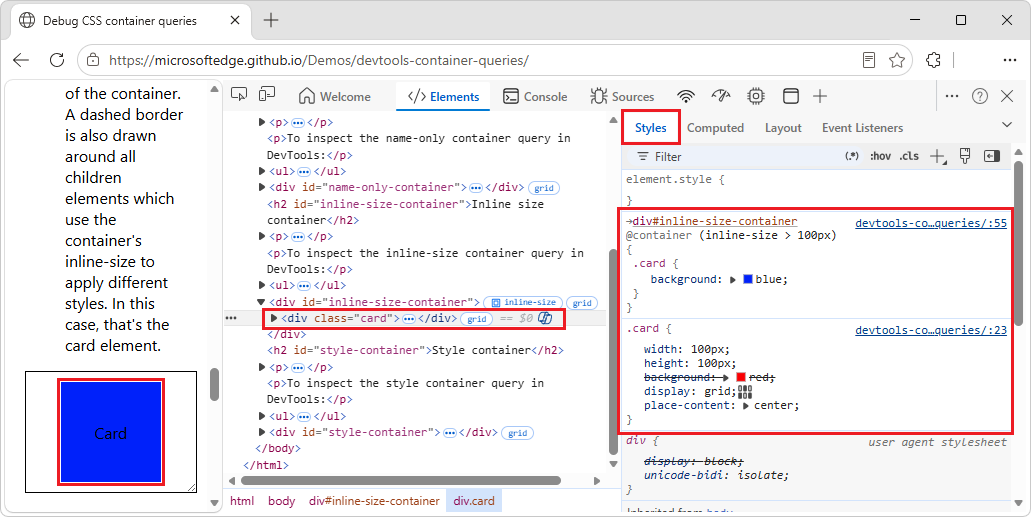
In the DOM tree, the
<div class="card">element is selected, within the<div id="inline-size-container">element, which has an inline-size container badge next to it.In the Styles tab, the
@container (inline size > 100px)CSS rule is displayed, defining thebackgroundcolor for acard.In the Styles tab, click
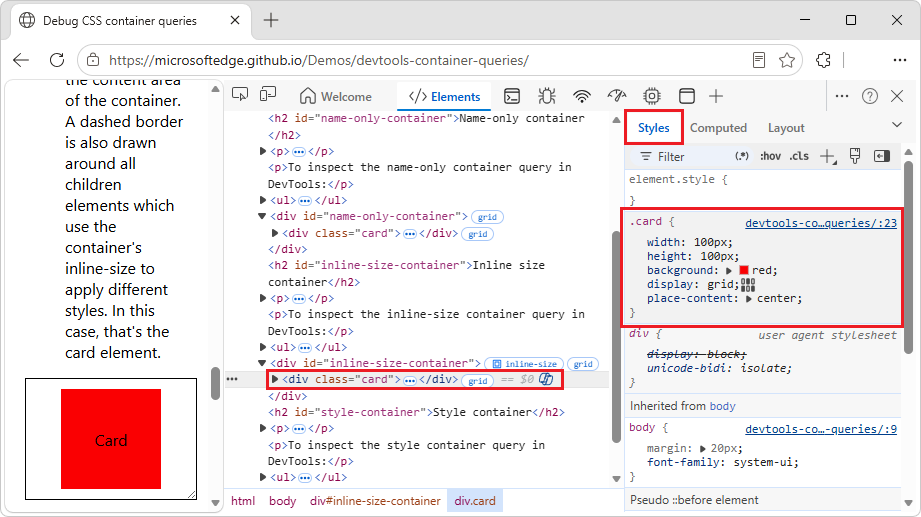
(inline size > 100px), edit the value to200px, and then press Enter.
The card turns red, because the container is smaller than 200px (it's 150px by default):
Note
Portions of this page are modifications based on work created and shared by Google and used according to terms described in the Creative Commons Attribution 4.0 International License. The original page is found here and is authored by Sofia Emelianova and Jecelyn Yeen.
 This work is licensed under a Creative Commons Attribution 4.0 International License.