Note
Access to this page requires authorization. You can try signing in or changing directories.
Access to this page requires authorization. You can try changing directories.
This guide assumes that you're familiar with inspecting CSS in Microsoft Edge DevTools. To learn the basics, see Get started viewing and changing CSS.
Detailed contents:
- Inspect the CSS you author
- Understand CSS in the Styles tab
- Find the CSS selectors which matched and didn't match the element
- Detect invalid CSS declarations and values
- Detect overridden CSS properties
- Detect inactive CSS properties
- Differentiate inherited and non-inherited CSS properties
- Reveal individual longhand CSS property values
- View CSS properties that can't be edited
- Inspect an element that isn't styled the way you expect
- Understand CSS in the Computed tab
- Search for duplicates
- Find unused CSS
- See also
Inspect the CSS you author
This article describes how to use the Element tool to understand why CSS sometimes doesn't apply to an element as expected.
Suppose that you just added some CSS to an element and you want to verify that the new styles are applied properly. However, when you refresh the page to test your changes, your changes don't appear.
The first thing to do is to inspect the element and make sure that your new CSS code is actually applied to the element. See Select an element in CSS features reference.
Sometimes, you'll see your new CSS code in the Elements > Styles tab, but the rules and properties that you added are displayed in a dimmed font, are non-editable, are crossed out, or have a Warning or Hint button next to them.
The examples in this article are from the Find CSS issues demo. Source code: /devtools-css-issues/.
Understand CSS in the Styles tab
The Styles tab recognizes many kinds of CSS issues and highlights them in different ways. The following sections describe these CSS issues.
Find the CSS selectors which matched and didn't match the element
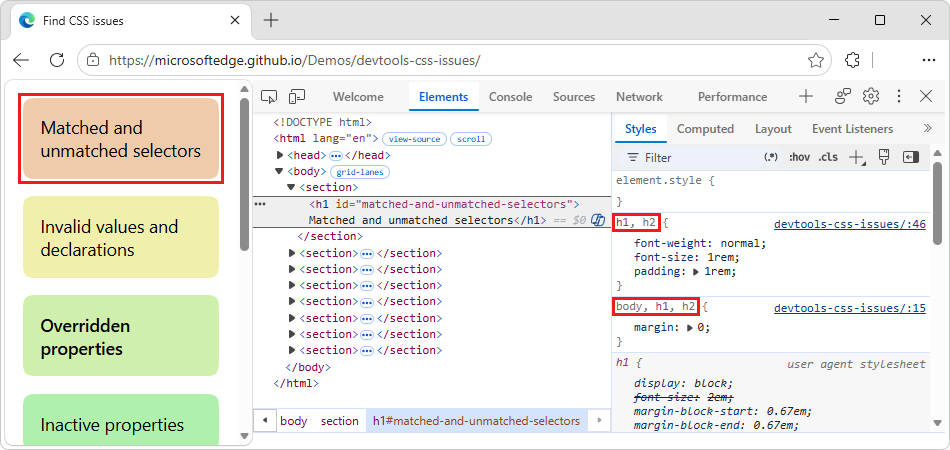
The Styles tab shows matched selectors in regular text, and unmatched selectors in dimmed text:
Detect invalid CSS declarations and values
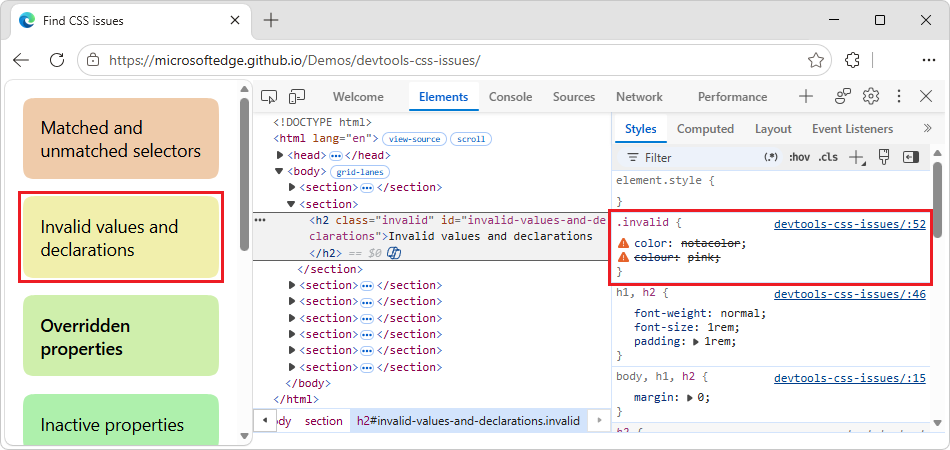
The Styles tab crosses out and displays a Warning icon ( ) next to the following:
- An entire CSS declaration (property and value), when the CSS property is invalid or unknown.
- Just the value, when the CSS property is valid but the value is invalid.
Detect overridden CSS properties
The Styles tab crosses out properties that are overridden by other properties according to the cascading order:
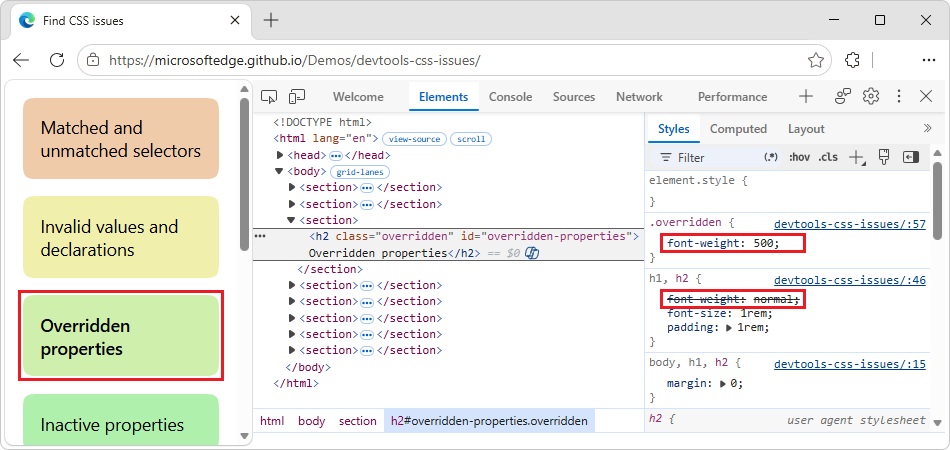
In this example, the font-weight: 500; property that's defined in the .overridden rule overrides the font-weight: normal; property that's defined in the h1, h2 rule. According to the CSS cascading order, the .overridden rule takes precedence over the h1, h2 rule.
The class name .overridden is arbitrary; this specific class name is not required.
See also:
- Cascading order in Introduction to the CSS cascade at MDN.
Detect inactive CSS properties
The Styles tab displays in dimmed text and puts an Information button ( ) next to a property that's valid but has no effect because of other properties.
These dimmed properties are inactive because of CSS logic, not because of the cascading order.
The dimmed inactive properties differ from dimmed non-inherited properties; see Differentiate inherited and non-inherited CSS properties, below.
Inactive properties have an Information button (). To get a hint about what went wrong, hover over the Information button:
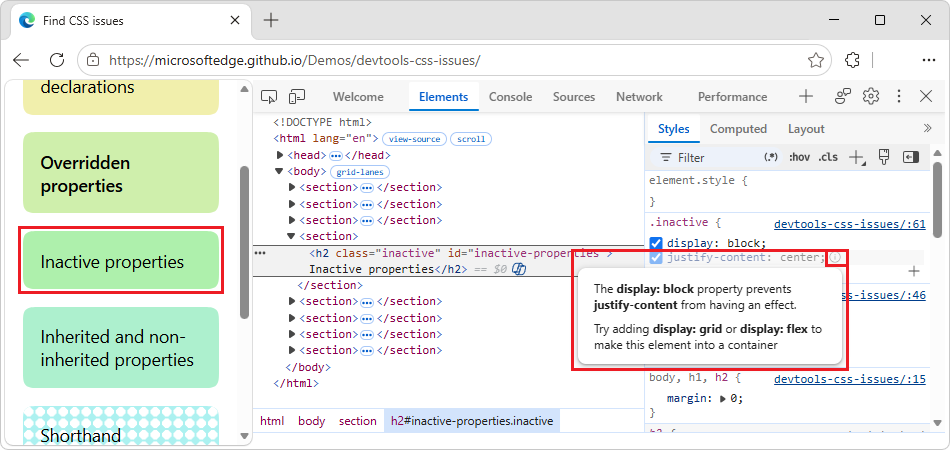
In this example, the display: block; property disables the justify-content property that controls flex or grid layouts.
Differentiate inherited and non-inherited CSS properties
In the Styles tab, under an Inherited from <element-name> section, the way that CSS properties are displayed depends on their default inheritance mechanism:
- CSS properties that are inherited by default, such as
color, are shown in regular text. - CSS properties that are not inherited by default, such as
padding, are shown in dimmed text.
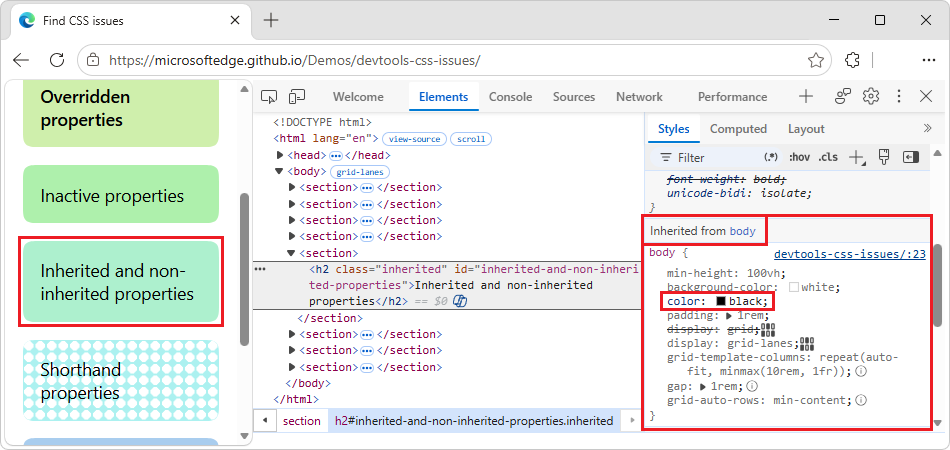
The dimmed non-inherited properties differ from dimmed inactive properties; see Detect inactive CSS properties, above. Non-inherited properties don't have an Information button (), and are shown in the corresponding sections.
Overriding default inheritance doesn't affect the way the Styles tab displays the properties: dimmed or not.
See also:
- Inheritance at MDN.
- Overriding inheritance, an example in Inheritance at MDN.
Reveal individual longhand CSS property values
Shorthand (concise) properties let you set multiple CSS properties at once and can make your stylesheet more readable. However, due to the short nature of such properties, you might miss a longhand (precise) property that overrides a property implied by the shorthand.
The Styles tab displays shorthand properties as dropdown lists ( ) that contain all the properties that are shortened:
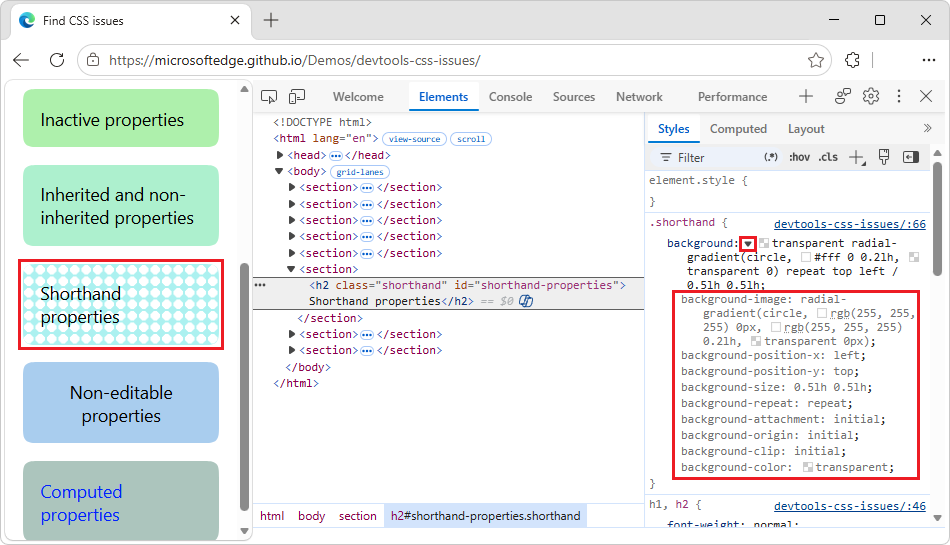
See also:
- Shorthand properties at MDN.
View CSS properties that can't be edited
The Styles tab displays properties that can't be edited in italic text. For example, the CSS from the following sources can't be edited:
user agent stylesheet—Microsoft Edge's default stylesheet: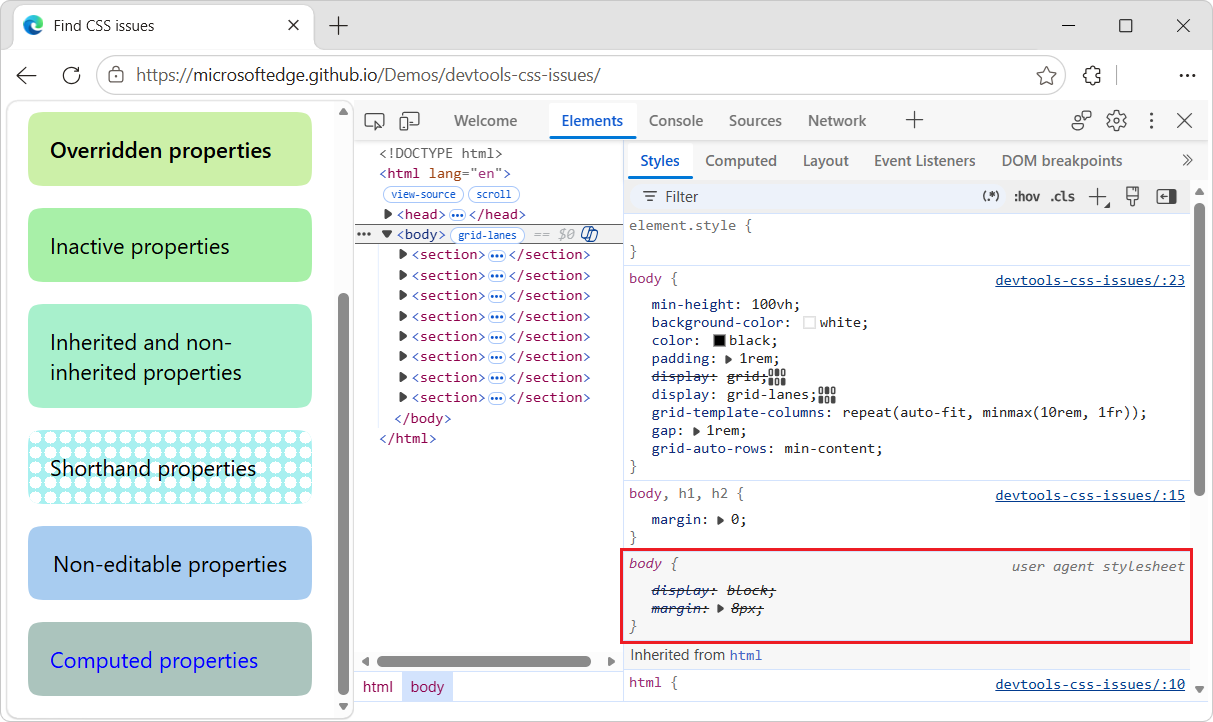
Style-related HTML attributes on the element, such as height, width, or color. You can edit them in the DOM tree and this updates the CSS in the Styles tab, but not the other way around.
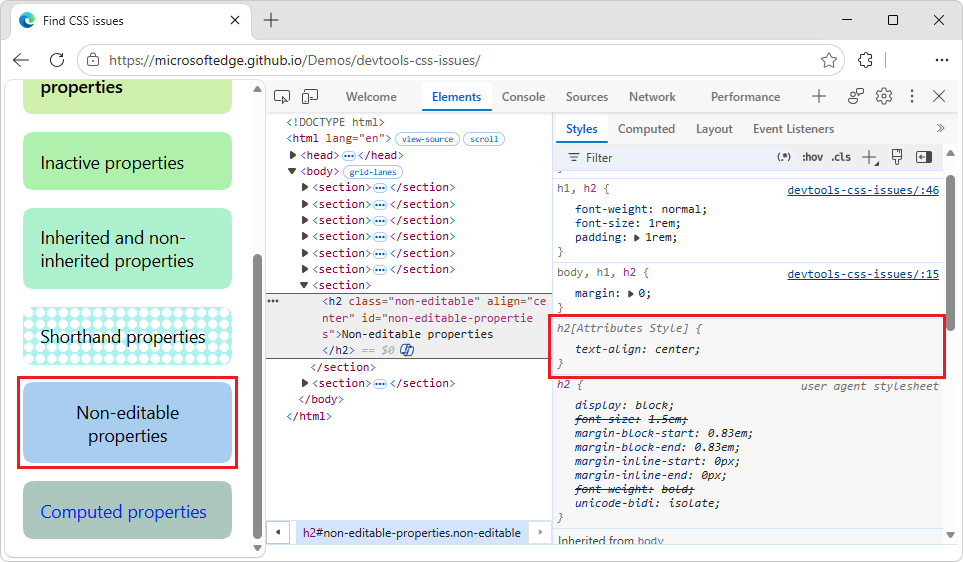
In the above example, the
alignHTML attribute on an<h2>element is set tocenter. This updates the corresponding property underh2[Attributes Style]in the Styles tab.
Inspect an element that isn't styled the way you expect
To try to find what goes wrong, you may want to check:
- CSS documentation and selector specificity in the tooltips in the Styles tab. See also:
- View CSS documentation in CSS features reference.
- View selector specificity in CSS features reference.
- The Computed tab in the Elements tool, to see the "final" CSS that's applied to an element, and compare that to the CSS rules that you declared. See also:
- View only the CSS that's actually applied to an element in CSS features reference.
The Styles tab in the Elements tool displays the exact set of CSS rules as they are written in various stylesheets. In contrast, the Elements > Computed tab lists the resolved CSS values that Microsoft Edge uses to render an element:
- CSS that's derived from inheritance. See Inheritance at MDN.
- Cascade winners. See Introduction to the CSS cascade at MDN.
- Longhand properties (precise), not shorthand (concise).
- Computed values. For example,
font-size: 14pxinstead offont-size: 70%.
Understand CSS in the Computed tab
Use the Computed tab to understand where the final values of an element's CSS properties come from, as explained in the following sections.
See final and inherited CSS values and where they are declared
The Computed tab lists the properties declared in any stylesheet in regular font, both element's own and inherited. To see the source of a CSS property, click the Expand button ( ) next to a CSS property:
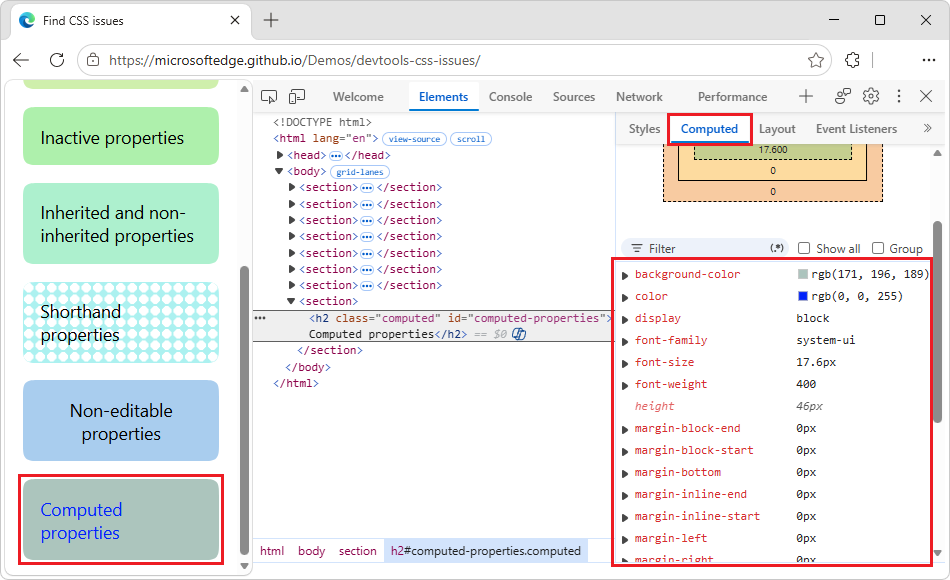
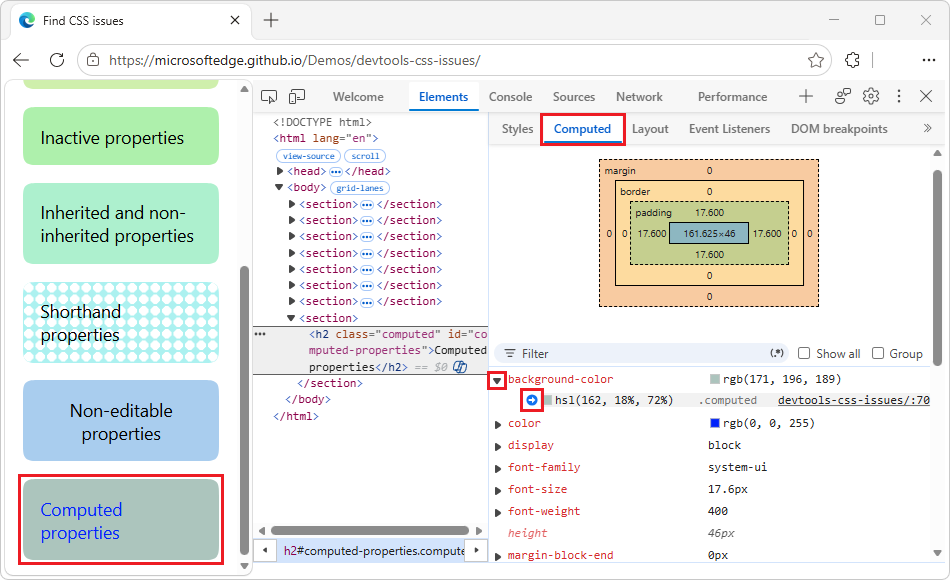
To see the declaration in the Styles tab, hover over the expanded property and click the right-arrow button ( ):
):
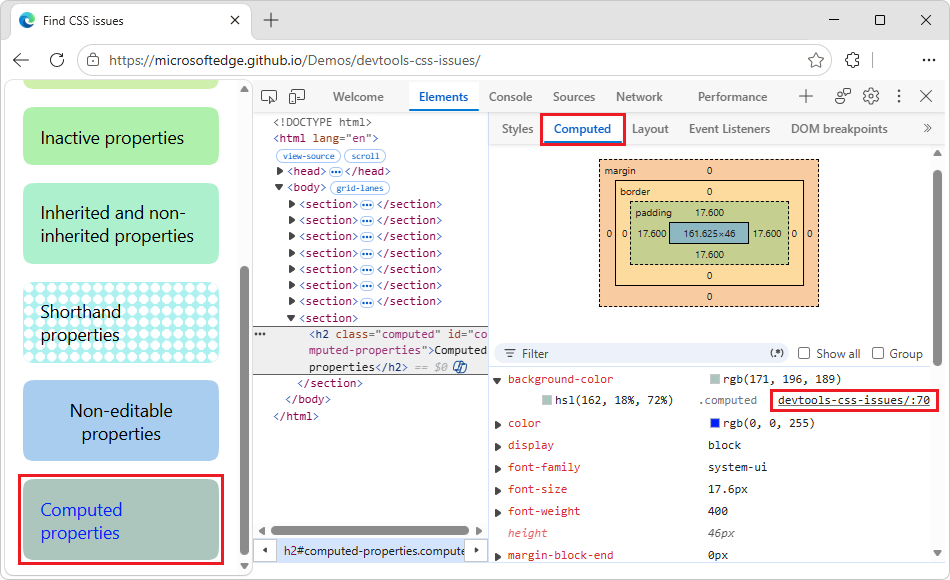
To see the declaration in the Sources pane, click the link to the source file:
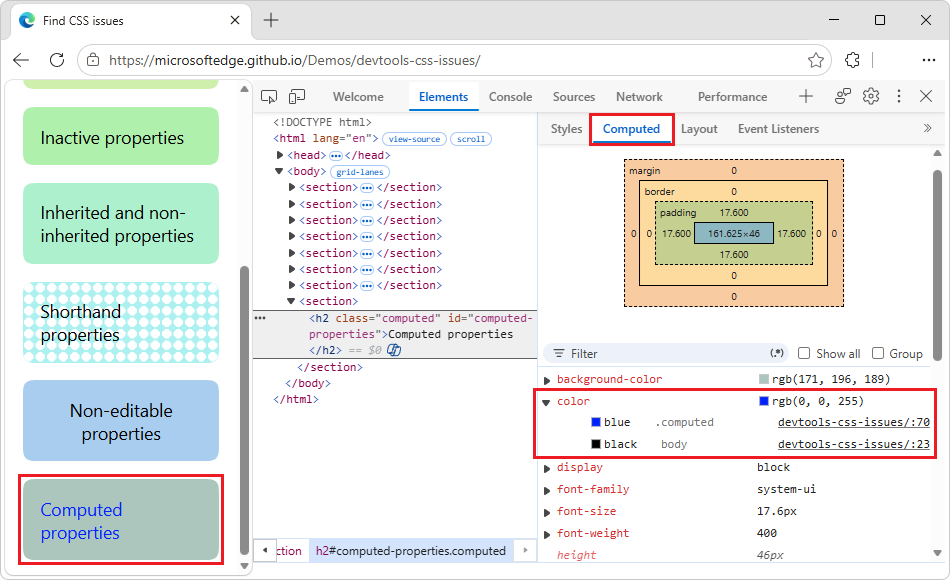
For properties with multiple sources, the Computed tab shows the cascade winner first:
See also:
- Cascading order in Introduction to the CSS cascade at MDN.
See CSS values calculated at runtime
The Computed tab lists property values that are calculated at runtime in dimmed text:
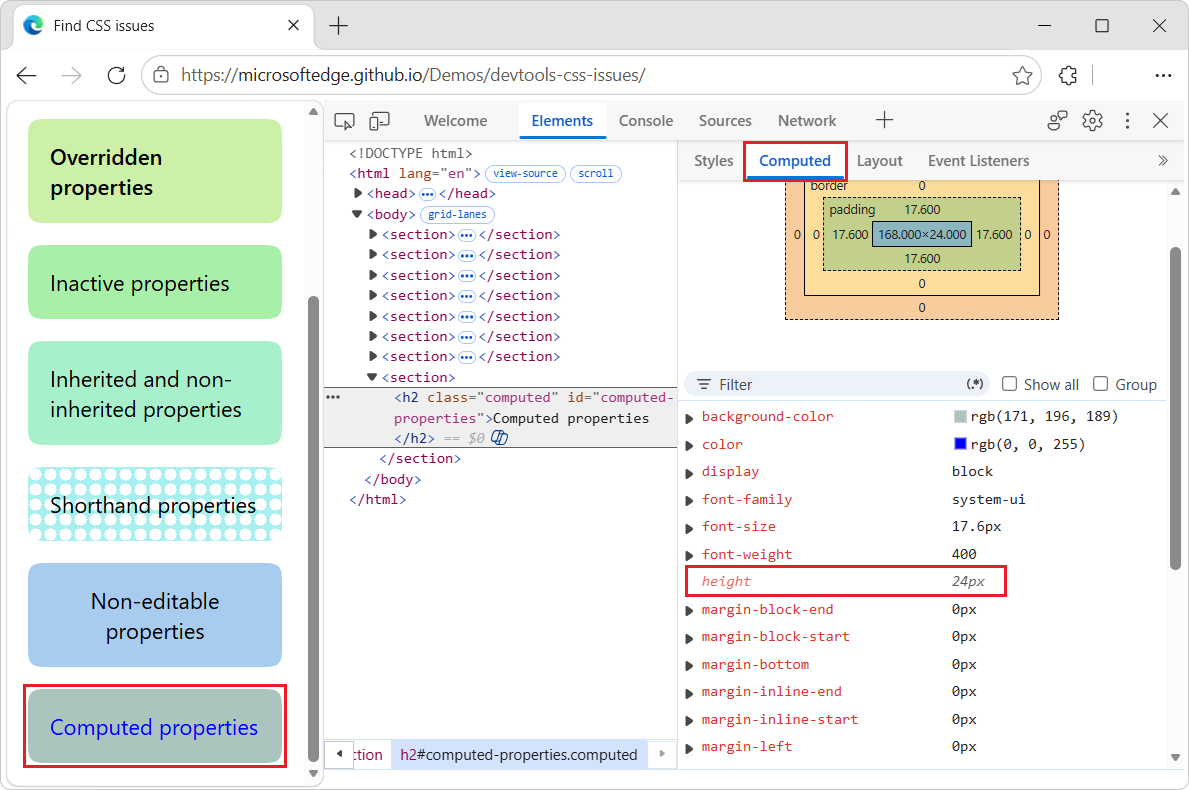
In this example, Microsoft Edge calculated the following for the <h2> element:
height: The element's height, in pixels, based on the element's content and internal padding.width: The element's width, in pixels, based on the element's content and internal padding.
Display non-inherited and custom properties
To make the Computed tab show all properties and their values, select the Show all checkbox. Showing all properties includes:
- Initial values for non-inherited properties in dimmed text.
- Custom properties—with a
--prefix in regular text. Such properties are inherited by default.
Overriding default inheritance doesn't affect whether the Computed tab displays the properties as dimmed or regular text.
See also:
- Overriding inheritance, an example in Inheritance at MDN.
To break this long list into categories, select the Group checkbox:
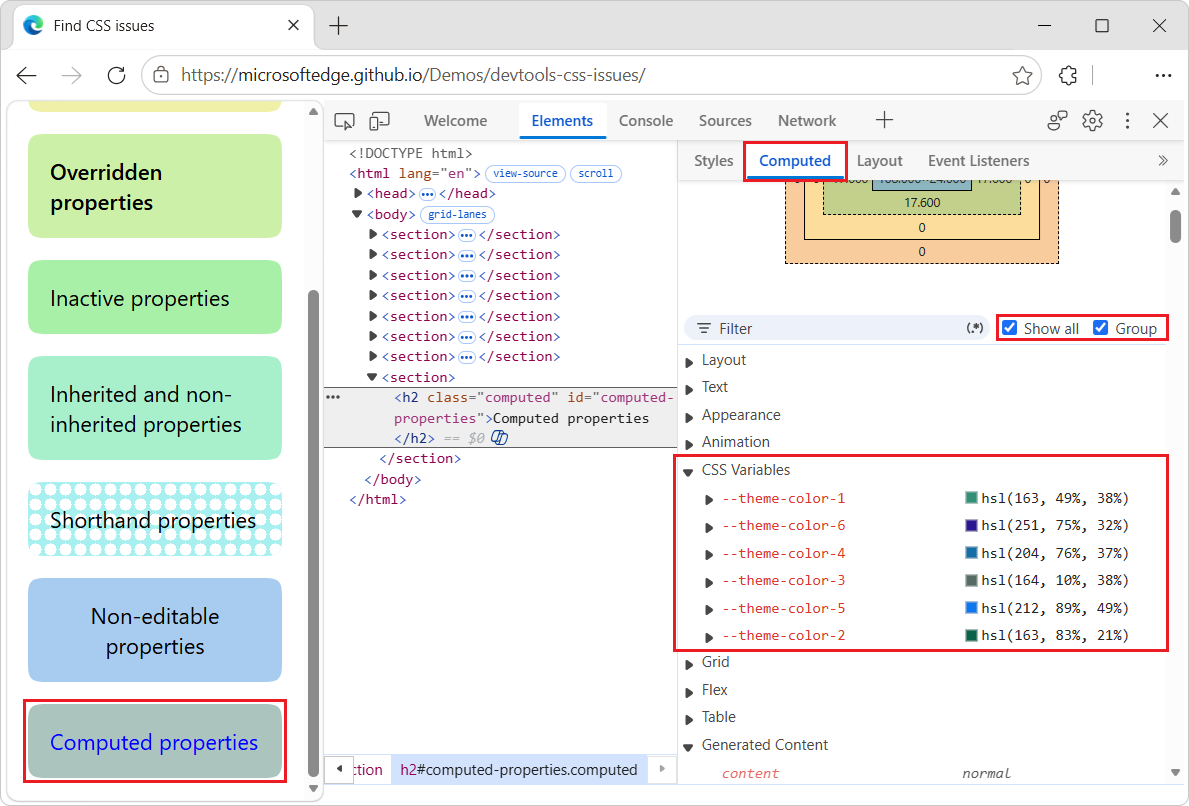
Expand the various group sections to view the related CSS properties. For example:
- Expand Animation to view the initial values of animation-related CSS properties, such as
animation-delay, which are non-inherited properties. - Expand CSS Variables, to view all custom properties.
Search for duplicates
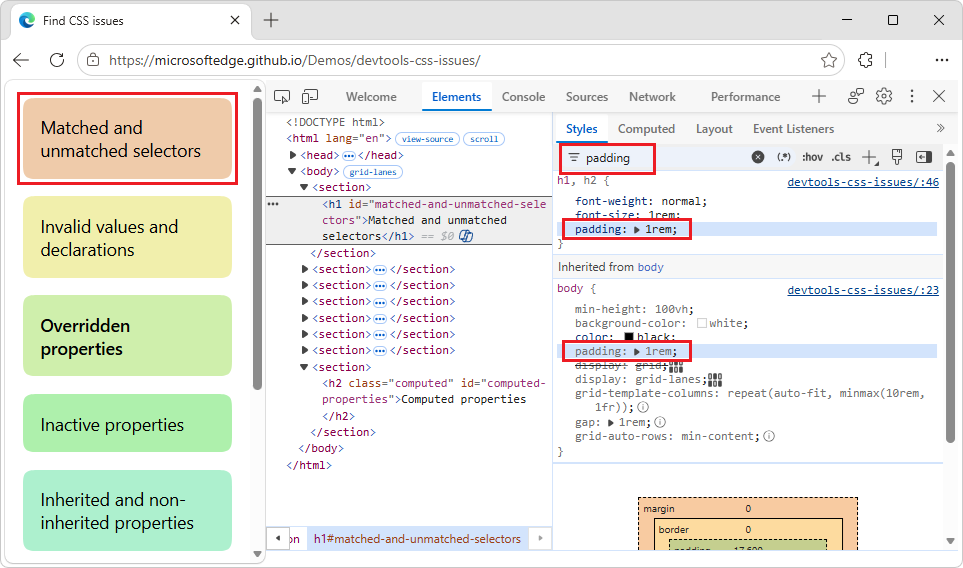
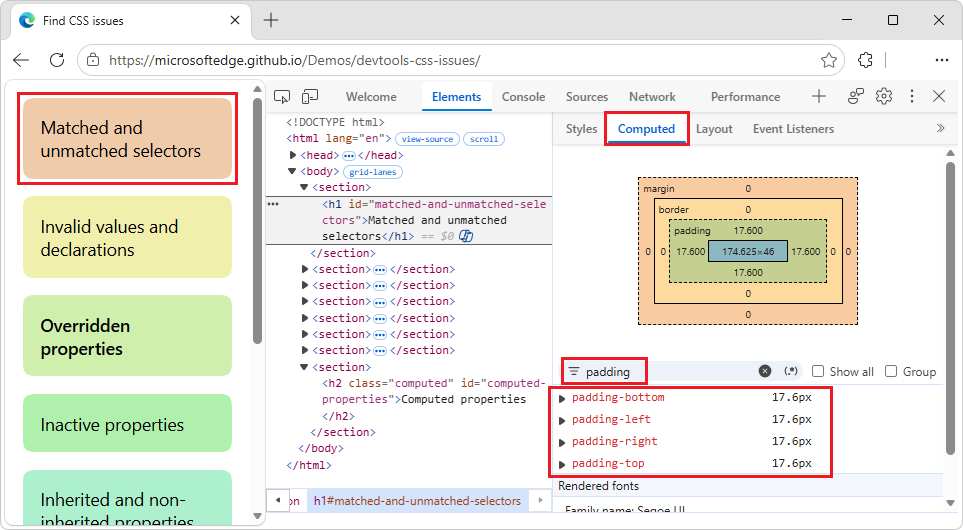
To investigate a specific CSS property and its potential duplicates, type that CSS property name in the Filter textbox. You can do this both in the Styles and Computed tabs.
The Filter text box in the Styles tab:
The Filter text box in the Computed tab:
See also:
- Search and filter an element's CSS in CSS features reference.
Find unused CSS
See Find unused JavaScript and CSS code with the Coverage tool.
See also
- Get started viewing and changing CSS.
- CSS features reference
- Select an element in CSS features reference.
- View CSS documentation in CSS features reference.
- View selector specificity in CSS features reference.
- View only the CSS that's actually applied to an element in CSS features reference.
- Search and filter an element's CSS in CSS features reference.
- Find unused JavaScript and CSS code with the Coverage tool.
MDN:
- Introduction to the CSS cascade
- Cascading order in Introduction to the CSS cascade.
- Inheritance
- Overriding inheritance, an example in Inheritance.
- Shorthand properties
GitHub:
- Find CSS issues - demo.
- /devtools-css-issues/ - source code.
Note
Portions of this page are modifications based on work created and shared by Google and used according to terms described in the Creative Commons Attribution 4.0 International License. The original page is found here and is authored by Sofia Emelianova.
 This work is licensed under a Creative Commons Attribution 4.0 International License.