Note
Access to this page requires authorization. You can try signing in or changing directories.
Access to this page requires authorization. You can try changing directories.
Use the following practices to optimize WebView2's startup time, memory, CPU, and network use. Use these tools and workflows for troubleshooting performance.
Embedding Microsoft Edge WebView2 in Windows apps enables modern web features. WebView2 uses Edge's multi-process architecture, so each control launches multiple browser engine processes that add memory and startup overhead.
Detailed contents:
- Identify the type of performance bottleneck
- Use the Evergreen Runtime
- Optimize startup performance
- Memory usage and process management
- CPU and rendering performance
- Network and loading performance
- Communication between the WebView2 control and the host app
- Telemetry and profiling tools
- Troubleshooting workflows for performance issues
- See also
Identify the type of performance bottleneck
Observe the symptoms of the slow performance, to determine whether the issue is:
Startup lag. See Optimize startup performance, below.
High memory use. See Memory usage and process management, below.
Sustained CPU load. See CPU and rendering performance, below.
Slow page load. See Network and loading performance, below.
Use the Evergreen Runtime
Whenever possible, deploy your app with the Evergreen WebView2 Runtime. The Evergreen Runtime updates automatically, to get the latest performance improvements and security fixes. Keep the WebView2 Runtime evergreen (that is, updated), to future-proof your app. Using a fixed version risks missing out on recent optimizations.
If you must use a fixed runtime for offline or compatibility reasons, update it regularly after testing new builds.
Test your app using the latest WebView2 preview channels (Beta, Dev, or Canary), to prepare for upcoming changes. Many past performance issues, like memory leaks and high CPU usage, have been addressed in newer versions of the WebView2 Runtime.
If Microsoft Edge and WebView2 versions match, and Microsoft Edge is running, the required WebView2 binaries are already in memory, improving launch performance.
See also:
- The Evergreen Runtime distribution mode in Distribute your app and the WebView2 Runtime.
Optimize startup performance
Cold start (cold launch)
A common performance bottleneck is the time to create a WebView2 control and navigate to a webpage for the first time. On a cold launch, WebView2 must spin up its processes and disk caches, which can introduce a noticeable delay (which can vary by hardware and content complexity).
To optimize startup, use the following best practices.
Don't use WebView2 for initial UI
To render splash screens or simple dialogs, use lightweight XAML or Win32 screens instead of WebView2.
Avoid rendering splash screens or simple dialogs with WebView2, due to startup costs and resource contention. Initialize WebView2 only when displaying actual web content.
See also:
Optimize the User Data Folder (UDF) location
Keep the UDF in the default local app data folder, for performance. See Manage user data folders.
Avoid slow drives or network shares; put the data on a faster, physical disk.
Avoid redundant WebView2 instances
Plan your UI so that you don't create more WebView2 controls than necessary.
For example, if navigating between multiple webpages, it might be faster to reuse a single WebView2 and simply navigate it to a new URL, rather than destroying and re-creating a WebView2 control.
See also:
Memory usage and process management
Each WebView2 control creates its own set of processes, such as browser, renderer, and GPU. Resource usage generally grows as more WebView2 instances are created, with each instance running its own set of browser processes.
A WebView2 instance uses memory based on the complexity of the web content and the browser processes it creates. Running many instances of the WebView2 control can strain system memory.
Below are best practices to manage and reduce the memory footprint.
Share WebView2 environments
To save memory, use one
CoreWebView2Environmentacross all WebView2 controls in an app, ensuring consistent parameters for sharing.Reuse the same environment in tabbed interfaces, rather than creating multiple environments.
See also:
Use app-level process sharing
If feasible, use app-level process sharing.
Multiple apps can share a browser process by using the identical user data folder and
CoreWebView2EnvironmentOptions. This reduces memory usage, but requires careful management of profiles and thorough testing, due to possible cross-app interference.Keep in mind that when sharing a User Data Folder (UDF), underlying data (such as cookies, caches, and databases) is being shared between different applications.
See also:
Avoid large-scope host objects
If you use AddHostObjectToScript to expose .NET objects to the web, be mindful of what those objects hold in memory. The entire object is effectively referenced as long as the script context continues to live, which could prevent garbage collection of that object on the .NET side.
Don't expose a very large object graph, if only a small part is needed for scripting. Prefer creating narrow, purpose‑specific host objects, instead of passing full application models. For example:
Expose only the operations and data the page actually needs. For example, expose a
FileServiceobject, instead of your entireAppContext.Wrap complex objects behind small façades to avoid unintentionally exposing deep object hierarchies.
For collections, provide filtered or paged results rather than exposing the full data structure.
When the page that needed the object is gone, call CoreWebView2.RemoveHostObjectFromScript to release the object graph. For example, if you navigate away from a page that was using a host object, remove that object, to avoid keeping it alive behind the scenes.
See also:
- Host/web object sharing in Overview of WebView2 APIs.
Prevent memory leaks
Remove native event handlers before disposing WebView2 objects, to avoid reference cycles and leaks.
Avoid closures that strongly reference WebView2; use weak references when necessary.
Call
WebView2.Dispose()to release WebView2 objects when they're no longer needed.
See also:
- WebView2.Dispose(Boolean) Method - WPF.
- WebView2.Dispose(Boolean) Method - WinForms.
- Fix memory problems
Use memory management APIs
Set
MemoryUsageTargetLevel = CoreWebView2MemoryUsageTargetLevel.Lowon inactive WebViews to reduce memory usage—this may prompt the browser engine to drop cached data or swap memory to disk. When the WebView2 instance is again active, restore the target level toNormal, for full performance. See Memory usage target in Overview of WebView2 APIs.If the WebView2 instance won't be used for a while, call
CoreWebView2.TrySuspendAsync()to suspend the renderer process, which pauses scripts and further decreases resource use. Resume withResume()when needed. TheseTryoperations are best-effort. See Performance and debugging in Overview of WebView2 APIs.
Optimize web content
- Optimize the rendered web content. Observe whether excessive memory is being used in the JavaScript heap. Use Microsoft Edge DevTools, such as the Memory tool, to monitor usage of memory resources by various web content. See Record heap snapshots using the Memory tool ("Heap snapshot" profiling type).
Periodically refresh the WebView2
Periodically refresh the WebView2 instance. In scenarios where the page lifecycle naturally accumulates state, such as a long-running webpage, refreshing the WebView2 instance helps return the WebView2 process to a clean baseline.
Some long-running pages might retain resources over time, depending on the web content and application design. If memory usage grows unexpectedly, inspect the following by using DevTools:
JavaScript heap usage. See:
Event listeners. See:
- Analyze the lack of keyboard support by using the Event Listeners tab in Analyze keyboard support on forms, about the Event Listeners tab in the Elements tool.
- Select performance metrics to monitor in Measure runtime performance of a page using the Performance monitor tool, about the JS event listeners metric.
DOM retention. See:
CPU and rendering performance
WebView2 offloads web content rendering to the browser engine that Edge uses, so performance characteristics are like running a site in Edge.
The following practices ensure efficient CPU usage and smooth rendering.
Enable hardware acceleration
Don't disable the use of the GPU by WebView2, for rendering (via the
disable-gpuflag), except when you're troubleshooting.By default, WebView2 uses the GPU for rendering. The use of the GPU by WebView2 is critical for performance. GPU drivers and additional buffers must be allocated, which requires additional memory.
See also
- WebView2 browser flags -
disable-gpu
Streamline web content
Optimize pages by using the following techniques:
Limit heavy JavaScript.
Debounce or throttle tasks.
Use CSS (rather than JavaScript) for animations.
Split long scripts to keep the UI responsive.
Use Microsoft Edge DevTools to identify bottlenecks.
Use typical web optimization: avoid excessive layout thrashing, where a script alternates between reading and writing DOM properties, causing multiple reflows.
See also:
- Performance tool: Analyze your website's performance
- Analyze runtime performance (tutorial)
- Troubleshooting common performance issues
- Optimize website speed using Lighthouse
Reduce unnecessary communication
Reduce unnecessary communication between the host application and web content that's hosted in WebView2. This avoids excessive inter-process communication, along with the accompanying overhead. See Interop of native and web code.
Batch messages wherever possible, because frequent message passing can increase CPU usage.
Manage process priority
- If the app has a heavy native workload, assign thread priorities carefully, to avoid starving WebView2 threads. WebView2 creates separate renderer processes.
See also:
Test real scenarios
- Test your actual content on target hardware, using Microsoft Edge DevTools to find and optimize performance issues.
See also:
Network and loading performance
Network latency and limited bandwidth can cause user-perceived performance problems, especially when loading web content in a WebView2 control.
The following best practices overlap with general web development.
Utilize caching and service workers
WebView2 supports browser caching.
Use caching and service workers.
Serve proper cache headers, so that repeated resource requests use cached versions.
Consider pre-caching static files by using a service worker, for offline access; but monitor the cache size.
See also:
- HTTP caching at MDN.
- View Cache data
- Using Service Workers at MDN.
Check network bottlenecks
Use the DevTools Network tool to identify slow resources in WebView2; see Inspect network activity.
Optimize or asynchronously load slow third-party scripts or APIs, as needed.
Reduce initial payloads
To improve perceived speed:
Keep the initial payload light. Prefer sending static HTML initially, because it usually loads, parses, and renders faster than JavaScript. Be cautious about initially using JavaScript along with a single-page-app framework; such a framework typically loads a lot of code on startup, which can delay the initial rendering of the web content.
HTML loads, parses, and renders very fast—faster than the time it would've taken JavaScript to produce the same UI. With some single-page-app JS frameworks, even if the framework's initial HTML is small, the entire framework code must be downloaded, parsed, and run, before anything can be displayed.
Defer heavy components.
Lazy-load images or scripts after the initial UI appears.
See also:
- Eliminate render-blocking resources in Optimize website speed using Lighthouse.
Communication between the WebView2 control and the host app
Choose the right communication channel
WebView2 provides various web-to-host and host-to-web communication options.
Try to use web messages, rather than host objects. Web messages tend to be faster than host objects, because of both memory usage and time, due to web messages' simplicity and reliability.
Use host objects only when you need capabilities that web messages can't easily express, such as:
Rich, object‑like APIs (methods, properties, events) you want to expose directly to JavaScript.
Stateful interactions where maintaining host-side context is simpler than passing structured messages back and forth.
Large or binary data flows where repeatedly string‑serializing payloads into web messages becomes inefficient.
Host objects have the following drawbacks:
Host objects require COM marshalling, which can introduce instability if the object graph changes or isn’t marshalled correctly.
Host objects are generally slower for chatty, frequent calls compared to a single batched
WebMessage, because each method or property access crosses the boundary individually.Host objects create a tighter coupling between web and host code, reducing portability.
See also:
Optimize communication
Implement asynchronous, batched communication, to minimize IPC communication and reduce data copying.
See also:
- Web/native interop in Overview of WebView2 APIs.
- Interop of native and web code
Telemetry and profiling tools
Gathering data is key to identifying and fixing performance problems.
The following are tools and telemetry techniques for WebView2.
WebView2 ETW tracing
Use Microsoft's WebView2.wprp (Gathering an ETW Trace) profile with Windows Performance Recorder to capture and analyze detailed WebView2 events, such as process launches and navigation timings.
You can record Edge/WebView2 provider events, by using Event Tracing for Windows (ETW); see Gathering an ETW Trace.
Analyze traces in Windows Performance Analyzer for CPU, disk, and memory data.
Microsoft Edge DevTools
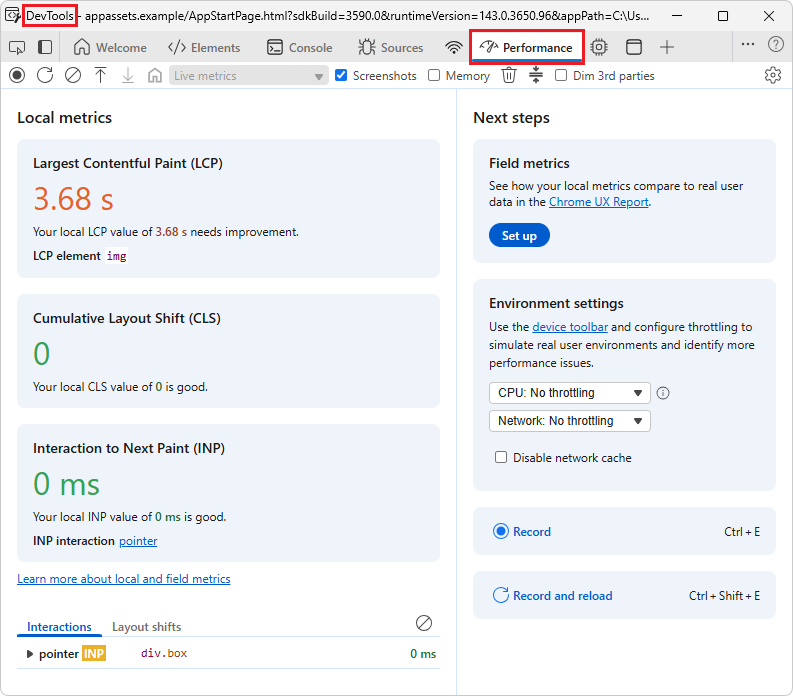
Use Microsoft Edge DevTools to monitor WebView2 content and processes, to identify issues such as high CPU or memory leaks.
Right-click a WebView2 control in a WebView2 app, and then select Inspect. For example, right-click the main, Win32 sample app, and then click Inspect. DevTools opens in an undocked, dedicated browser window.
In DevTools, you can use tools such as the Memory tool and Performance tool:
See also:
- Debug WebView2 apps with Microsoft Edge DevTools
- Performance tool: Analyze your website's performance
- Fix memory problems - the Memory tool.
Inspect with Edge Developer Tools
Use edge://inspect, which opens the Inspect with Edge Developer Tools tab, to monitor WebView2 content and processes, to identify issues such as high CPU or memory leaks:
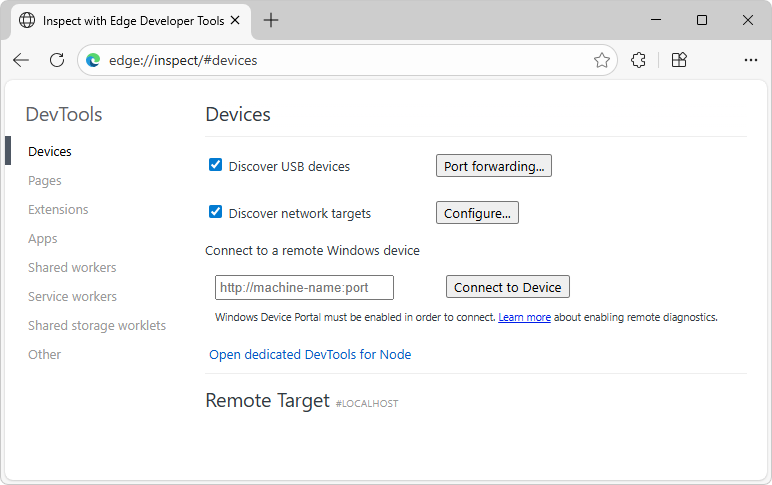
To learn more about how to inspect a WebView2 process by using edge://inspect, see Remote debugging desktop WebView2 WinUI 2 (UWP) apps.
Browser Task Manager
Use Browser Task Manager to monitor WebView2 content and processes, to identify issues such as high CPU or memory leaks.
See Monitor memory use in realtime (Browser Task Manager).
Troubleshooting workflows for performance issues
When performance issues arise in a WebView2 app, use a structured approach to troubleshoot, per the following strategies.
Test with simple content
Load a minimal HTML page.
If performance is still slow with simple content, investigate runtime initialization or host app factors.
If performance is faster with simple content, focus on optimizing your web content.
See also:
Verify the WebView2 Runtime version
Make sure you're running the latest WebView2 Runtime, not an outdated version or fallback Edge install. Update the WebView2 Runtime as needed.
See also:
- Updating the WebView2 Runtime in Set up your Dev environment for WebView2.
- Distribute your app and the WebView2 Runtime
Monitor memory usage
Use Windows Task Manager to check WebView2 process memory.
Unusual growth may indicate a leak—use WPR recordings to debug this further.
See also:
Compare WebView2 with Microsoft Edge
WebView2 uses the same core browser engine as Microsoft Edge. Validate the case with Microsoft Edge, as well as with WebView2, to isolate the issue.