Note
Access to this page requires authorization. You can try signing in or changing directories.
Access to this page requires authorization. You can try changing directories.
Applies to: Microsoft Teams
APPLIES TO:  Meetings
 Events
External meeting assistant tools (such as transcription or note-taking bots) are increasingly used in meetings. While these tools may improve individual productivity, they may also introduce security and compliance risks when they access meetings without the organizer’s awareness or consent.
These bots may:
Record or transcribe meetings without participant awareness.
Store meeting data in third-party systems outside of the organization's compliance boundaries.
Introduce compliance, privacy, and data leakage risks.
Microsoft Teams provides admins with controls to detect and manage external bots when they attempt to join meetings hosted in their organization. Admins can configure meeting policies to require explicit approval before detected bots can join or to automatically block detected bots from joining meetings. These controls help organizations manage access by external meeting assistants and reduce the risk of unwanted bots joining meetings.
How bot detection works
Teams uses built-in detection mechanisms to identify external AI bots based on signals collected during the meeting join process. We utilize a combination of infrastructural and behavioral signals leading to high accuracy levels and detection coverage. Based on the detection result, we mark the participants as bots and enforce the behavior as per the admin policy setting.
In addition to detecting bots based on behavioral and infrastructure signals, Teams supports a bot identification program that allows third-party meeting assistant providers to register their bots with Microsoft. These registered bots use identification markers when joining meetings, enabling Teams to recognize them as known external bots.
Registered bots are distinguished from unverified bots that Teams identifies through its detection mechanisms. In the meeting lobby, registered bots appear in the Waiting section, while unverified bots detected through behavioral and infrastructure signals appear under Suspected threats. This distinction provides meeting organizers with additional context when reviewing participants and deciding whether to admit them. Registration identifies a bot but doesn't automatically grant it permission to join a meeting.
In-meeting awareness and control
When bot detection is enabled, Teams identifies external bots attempting to join meetings and applies the behavior configured by the meeting organizer's assigned meeting policy.
- When detected, require approval before joining: Detected bots are placed in the meeting lobby regardless of the meeting's lobby configuration. Organizers (also presenters, depending on the meeting setting), need to explicitly admit these bots into the meeting. Teams displays additional information and warnings to help prevent accidental admission.
- Block all detected bots: Detected bots are automatically blocked from joining the meeting. They aren't placed in the meeting lobby for organizer approval, and meeting organizers can't admit them.
Tip
If you use the Require approval before joining option, configure meeting lobby settings so that only organizers and co-organizers can admit participants. This configuration reduces the risk of other participants admitting unwanted bots and risking security of your meetings.
Admin policy: Manage external bots and their access
You can manage how external bots are handled using a Teams meeting policy in the Teams Admin Center. Configure this meeting policy at the tenant level with the default org-wide meeting policy or configure for a specific user group/user by creating or modifying the appropriate targeted meeting policy. The setting applies to meetings hosted by users assigned the meeting policy.
Configure policy in Teams Admin Center
- Sign in to the https://admin.teams.microsoft.com.
- In the left navigation, select Meetings > Meeting policies.
- Select the policy you want to modify, or create a new policy.
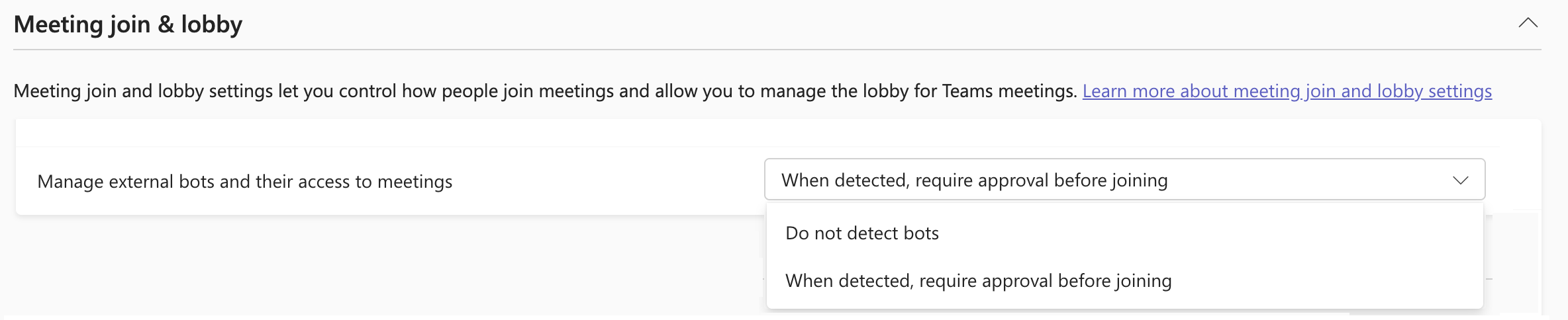
- Under Meeting join & lobby, find Manage external bots and their access to meetings.
- Select the desired value.
- Select Save.
Policy details
Scope: Meetings policies at a user / group level
Options
| Admin Center | PowerShell | Behavior |
|---|---|---|
| Do not detect bots | AllowBots | Bots aren't detected or marked in the lobby or in the meeting. They appear as any other external participant in the meetings and follow the meeting's existing access and lobby settings. |
| When detected, require approval before joining (default) | RequireApprovalWhenDetected | Detected external bots are placed in the meeting lobby and require explicit approval before joining. |
| Block all detected bots | BlockDetectedBots | Detected external bots are automatically blocked from joining meetings. They can't be admitted by meeting organizers or other participants. |
Configure policy using PowerShell
You can use the Set-CsTeamsMeetingPolicy PowerShell cmdlet to manage this policy option. You need to set the "ExternalBotAccessMode" attribute.
To enable the detection of bots and enforcing meeting lobby:
Set-CsTeamsEventsPolicy -Identity "<policy name>" -ExternalBotAccessMode RequireApprovalWhenDetected
To enable the detection of bots and automatically block them from joining meetings:
Set-CsTeamsEventsPolicy -Identity "<policy name>" -ExternalBotAccessMode BlockDetectedBots
To disable detection of bots and the secure lobby experience:
Set-CsTeamsEventsPolicy -Identity "<policy name>" -ExternalBotAccessMode AllowBots
To view the configured policy setting:
Get-CsTeamsMeetingPolicy -Identity "<policy name>" | Select-Object Identity, ExternalBotAccessMode
Best practices
- Use When detected, require approval before joining for a balanced approach that allows organizers to review detected bots before admitting them.
- Use Block all detected bots if your organization requires stronger restrictions on external meeting assistants and doesn't want organizers to admit detected bots.
- Consider testing the blocking policy with a selected group of users before applying it organization-wide.
- Educate organizers about bot risks and practising caution during lobby admission decisions.
- Monitor audit logs for unusual participant activity.
- Avoid disabling bot detection unless required for specific business scenarios.
Known limitations
Bot detection coverage: Teams uses detection mechanisms to identify external bots attempting to join meetings. Some bots may not be detected and may continue to join meetings according to existing meeting access settings. We're constantly improving our detection mechanism and filling in any gaps that are observed. Help improve the system by reporting any undetected external meeting bots to us via the Feedback option in Teams.
Incorrect bot detection: Detection may incorrectly identify a human participant as a bot. How these participants can join depends on the configured policy:
Require approval before joining: Organizers can admit the participant from the lobby and use the This is not a bot option to correct the participant's representation in that meeting.
Block all detected bots: Participants incorrectly identified as bots may be prevented from joining the meeting. Where supported, eligible participants can use the email verification recovery experience to verify their identity and attempt to join.
Scope of protection: The Block all detected bots option applies to bots identified by Teams detection mechanisms. It does not guarantee that all external bots will be blocked.
Related features
Next steps
Assign or update a meeting policy to manage external bots.
Communicate security enhancements lobby experience to meeting organizers in your organization.