Note
Access to this page requires authorization. You can try signing in or changing directories.
Access to this page requires authorization. You can try changing directories.
Overview
IT admins can customize the Recording and Transcription message and the URL of the privacy policy used to notify implicitly or gain explicit consent from meeting participants for the use of recording and transcription during the meeting:
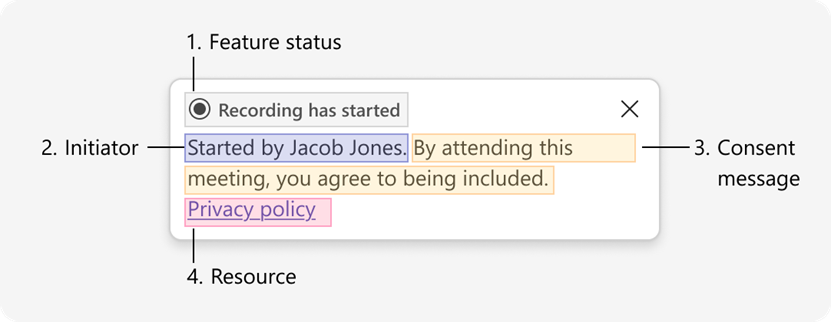
Notification Banner (Implicit or Explicit Consent): When recording or transcription starts, Teams displays a notification banner composed of four elements. Only the following are customizable:
Consent message (#3): Supports plain text and HTML <a> tags for adding multiple custom links.
Resource (Privacy policy) URL (#4): Only the URL can be changed. The display text "Privacy policy" is fixed and cannot be modified.
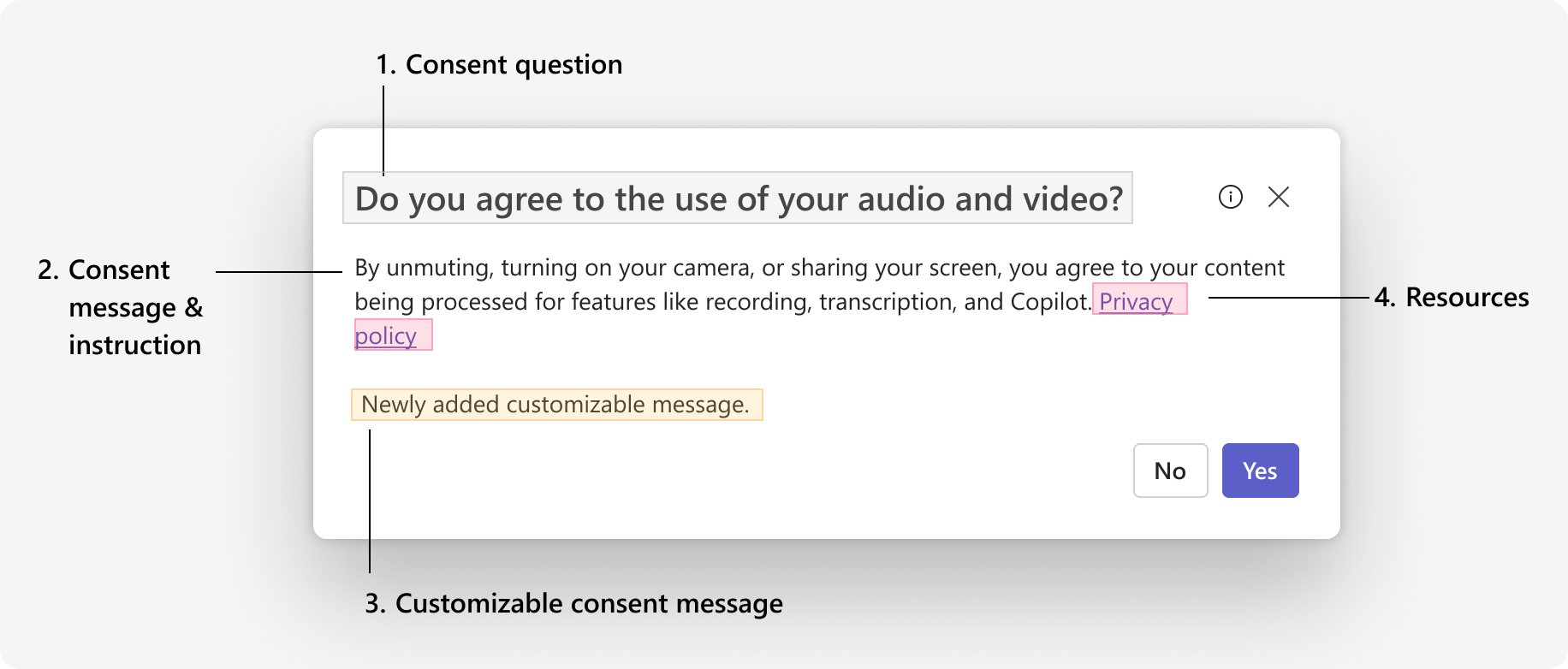
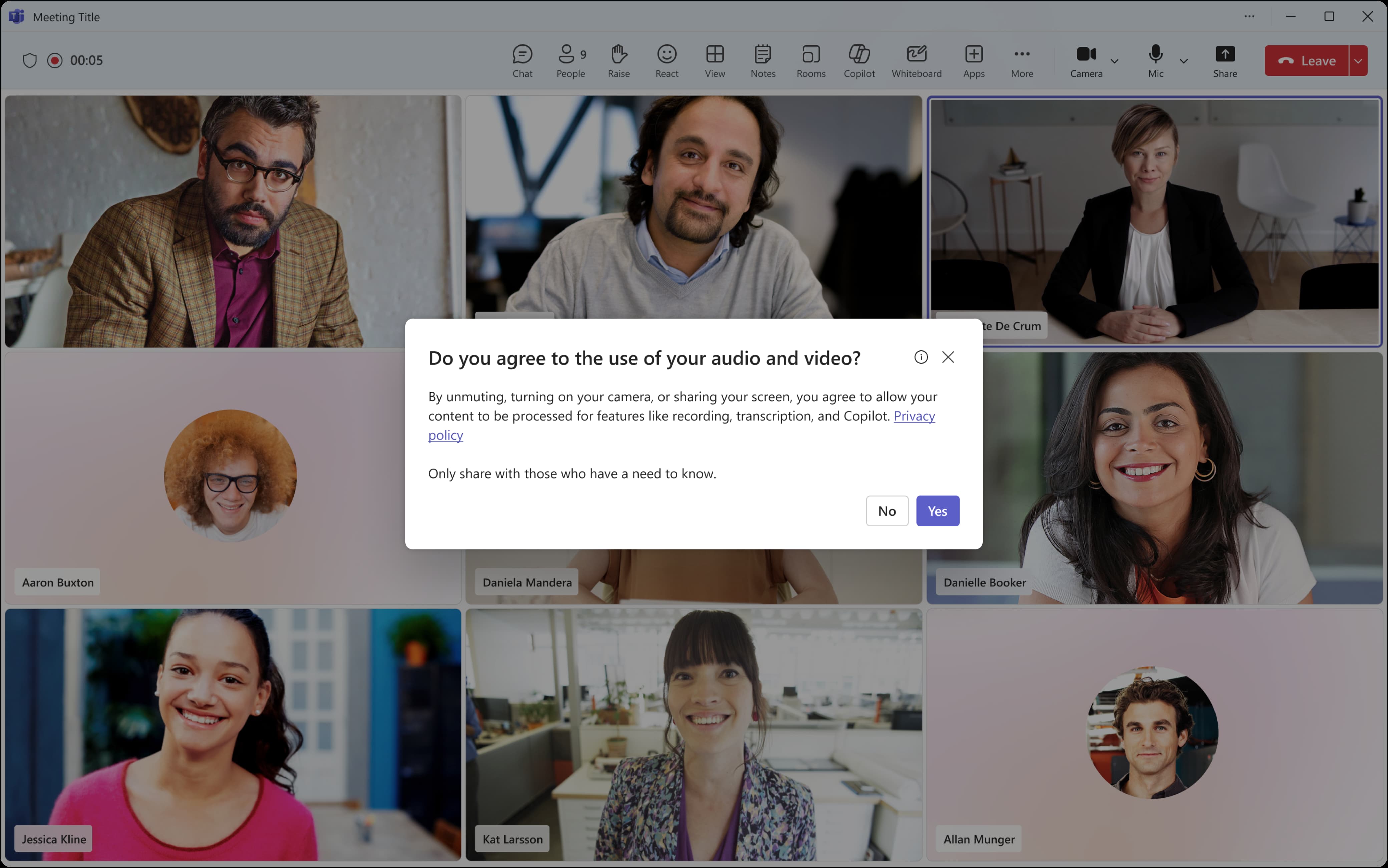
Notification Dialog (Explicit Consent only): For meetings that require explicit consent, Teams displays a consent dialog when a user unmutes/turns on the camera. Due to its instructional nature, customization is limited to:
Customizable consent message (#3): Only supports plain text, HTML <a> tag is not supported.
Resource (Privacy policy) URL (#4): Only the URL can be changed. The display text "Privacy policy" is fixed and cannot be modified.
Note
About how to customize the Resource (privacy policy), refer to Set a custom privacy policy URL.
How to customize
To customize the consent message, follow the steps:
Go to the Teams admin center. Navigate to Meetings → Meeting policies. Select or create a meeting policy where you want to enable custom messages.
In the Recording & transcription section, find the new setting: Show customized in-meeting notification for recording and transcription. Use the toggle to enable or disable custom messages for this policy.
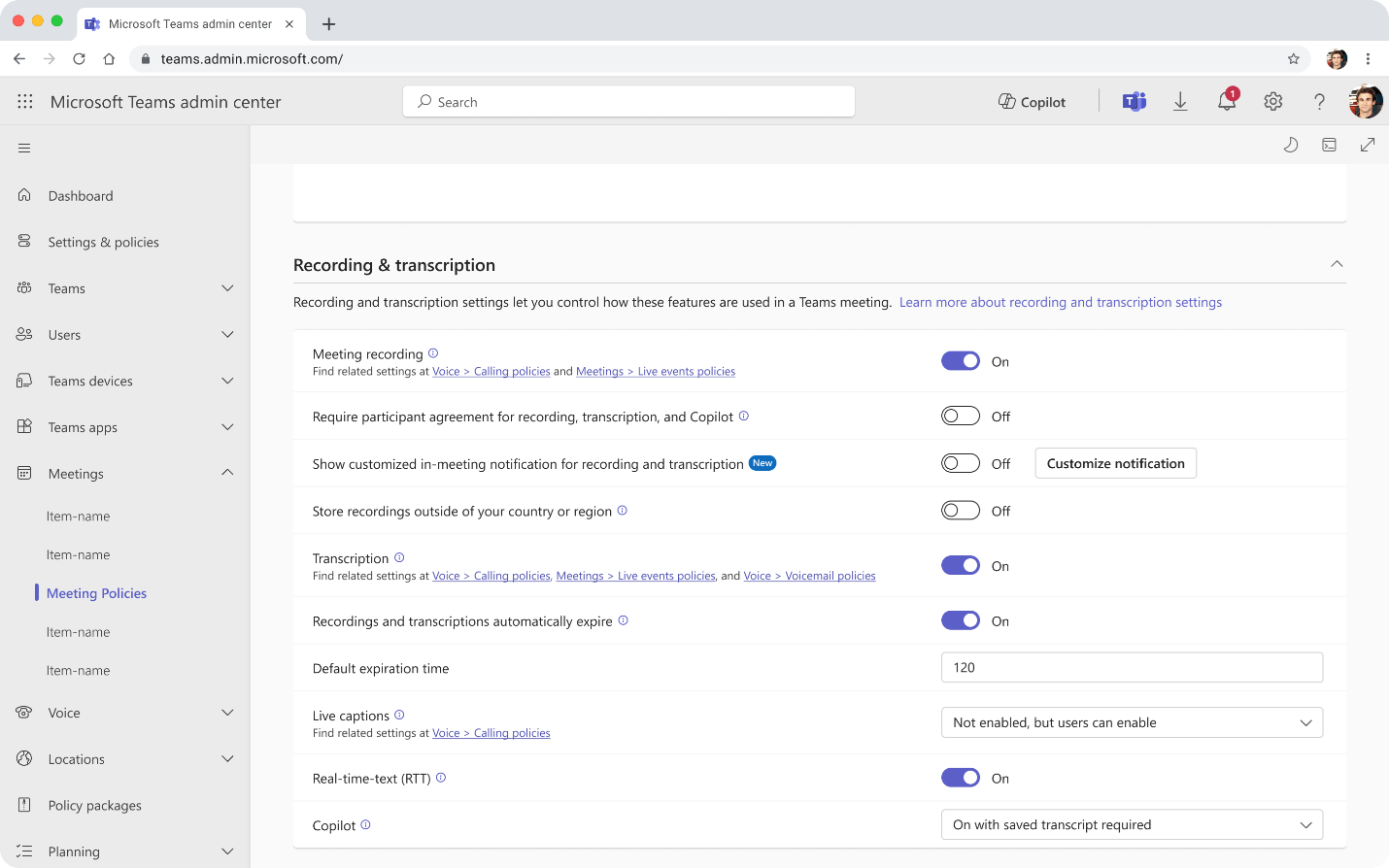
Click the Customize notification button to set your custom message.
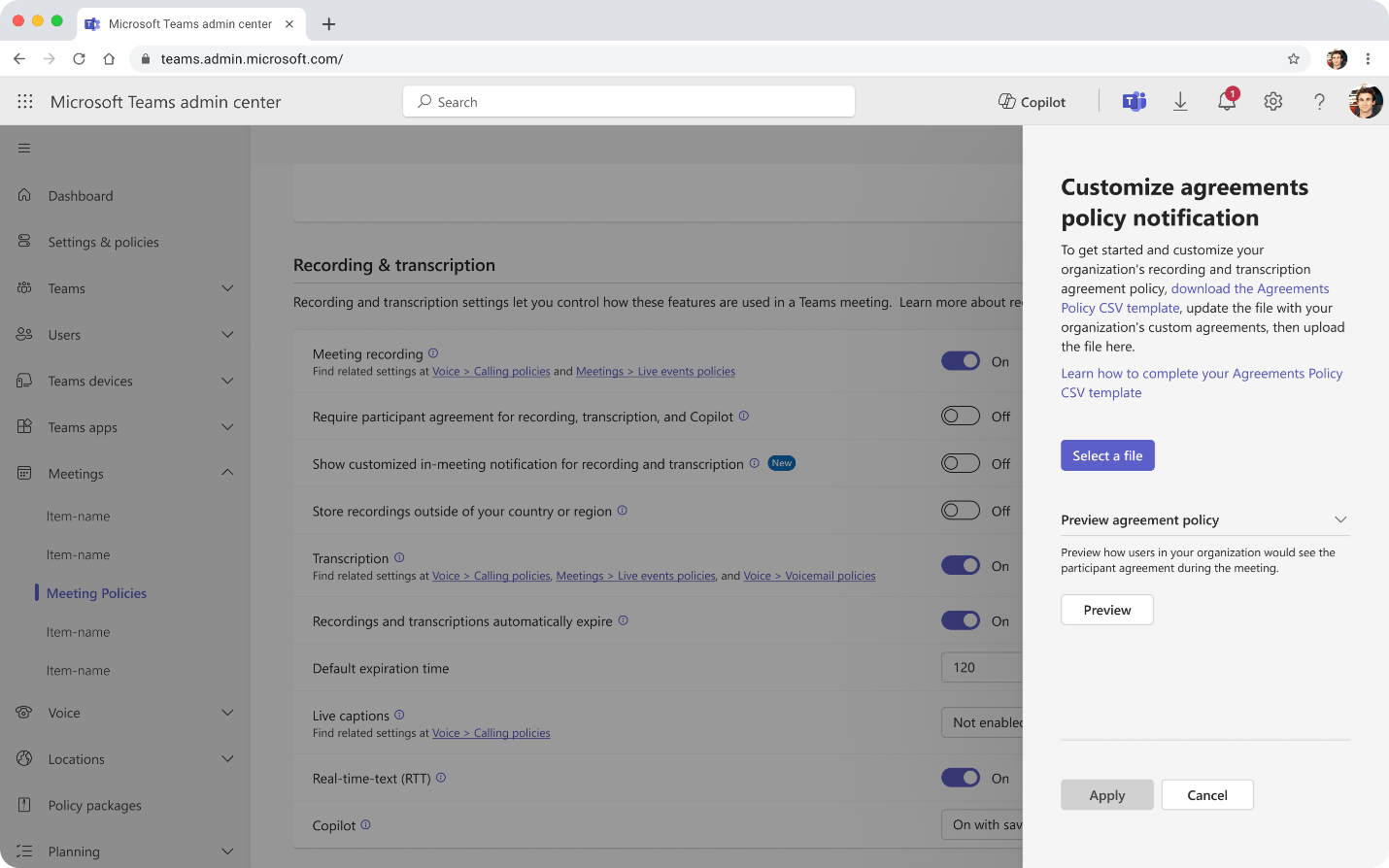
Download the CSV template from the customization panel.
Open the downloaded template, and fill in your custom messages for each scenario and language as needed. (Refer here to learn more about how to fill the template.)
Upload the completed CSV using the Select a file button.
Use the Preview button to see how your changes appear.
Save the changes.
How to fill the CSV template
Warning
In some non-English system languages (for example, German, French, Spanish, Italian, Portuguese, and other European locales), Excel uses a different default CSV delimiter based on regional settings.
To avoid formatting issues, admins using these system languages should edit the CSV template using another plain text editor. Please do not edit or re-save the CSV file using Excel.
The template includes:
First column: Supported languages (refer here to see all the supported languages).
First row: Notification scenarios you can customize.
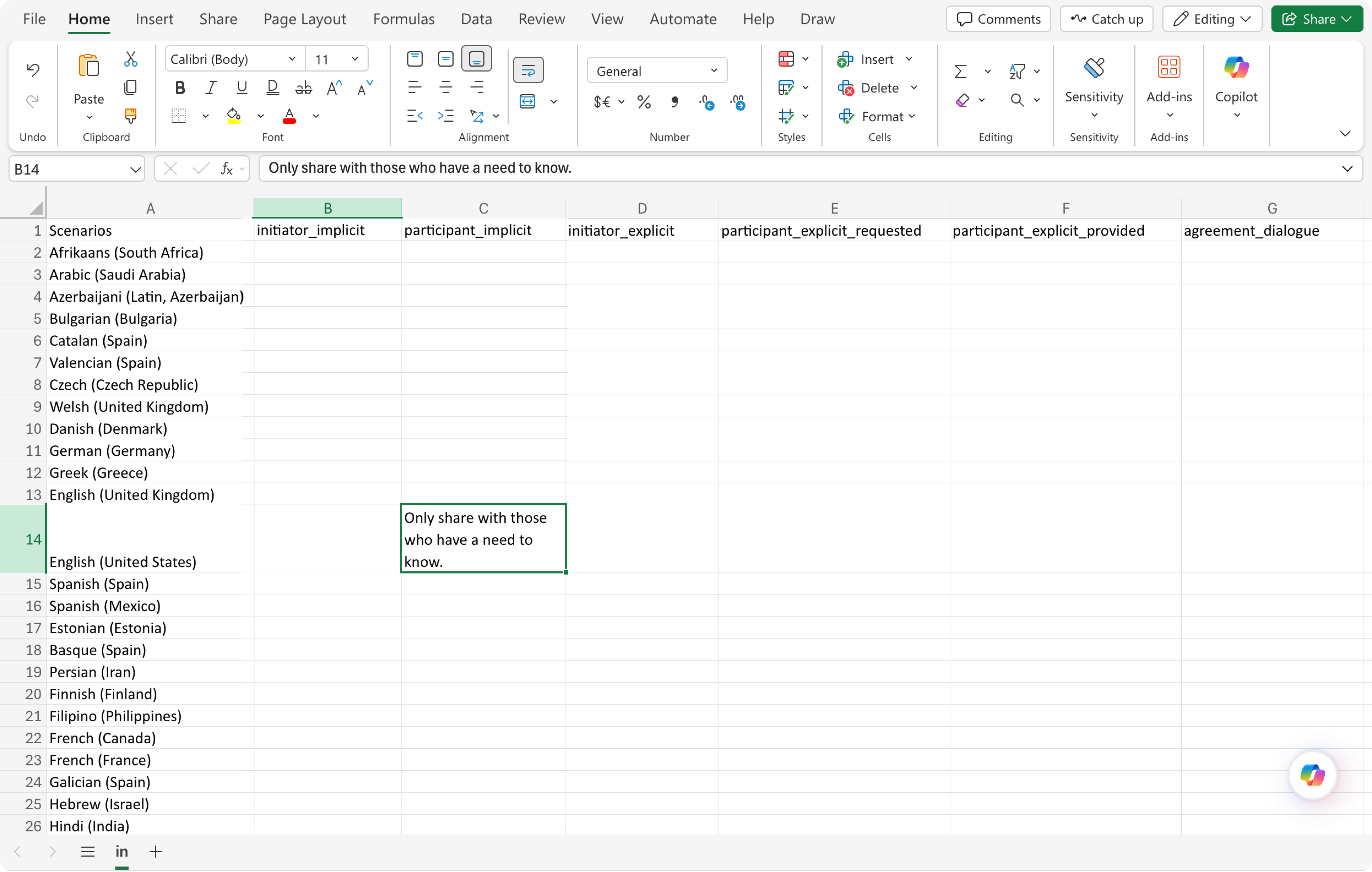
initiator_implicit: For users who start recording or transcription in an implicit consent meeting.
participant_implicit: For users who join an implicit consent meeting where another participant started recording or transcription.
initiator_explicit: For users who start recording or transcription in an explicit consent meeting.
participant_explicit_requested: For users who join an explicit consent meeting where recording or transcription started by others and have not yet provided consent.
participant_explicit_provided: For users who join an explicit consent meeting where recording or transcription started by others and have already provided consent.
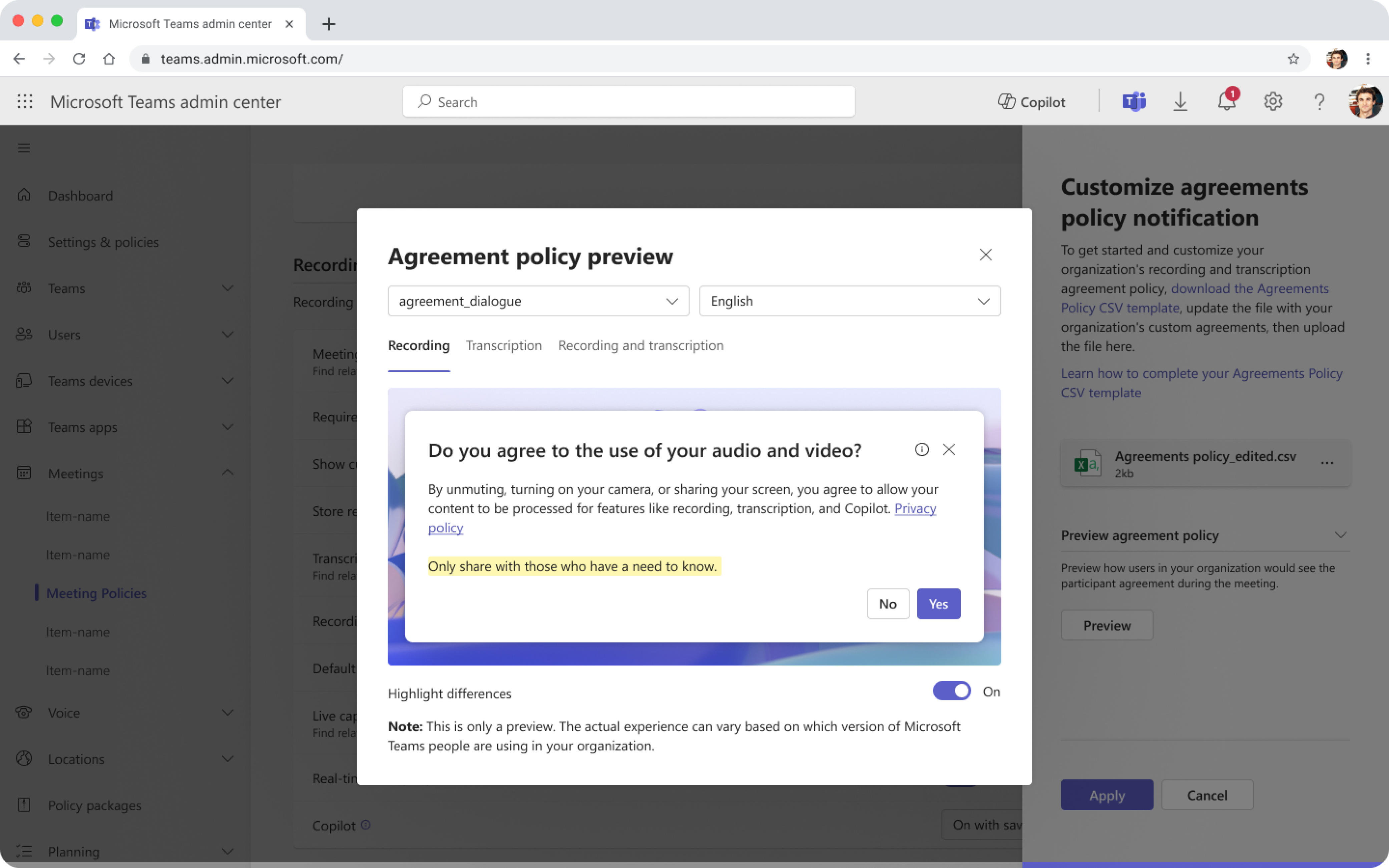
agreement_dialogue: The consent dialog is shown in explicit consent meetings when a user unmutes/turns on the camera.
The message you set appears in the notification for the corresponding scenarios, along with fixed information (such as the initiator’s name and privacy policy) that is always included.
For more details, you can preview your changes by clicking the Preview button before uploading the CSV.
Note
If you don’t want to display any message (excluding the fixed information), you can insert <empty> for the specific language or scenario. In this case, the notification shows only the fixed information.
Note
Custom messages can't exceed 200 characters; longer messages aren't permitted.
How It Works in Teams
Once the custom message is enabled for a meeting policy, all users assigned to that policy see the custom notifications in meetings they organize. All participants in those meetings follow the organizer’s custom message settings.
The message displayed depends on the scenario and the participant’s client language. If there's no custom message for a specific language or scenario, the user sees the default message in Teams.
Note
Custom messages are supported on Teams Windows, macOS, and Web clients. iOS and Android currently support plain text only, with full message customizability coming soon.
Custom messages are not supported in 1:1 calls.
Example case 1: Implicit consent
Edit .csv template: Admins can add custom strings for each implicit scenario and language.
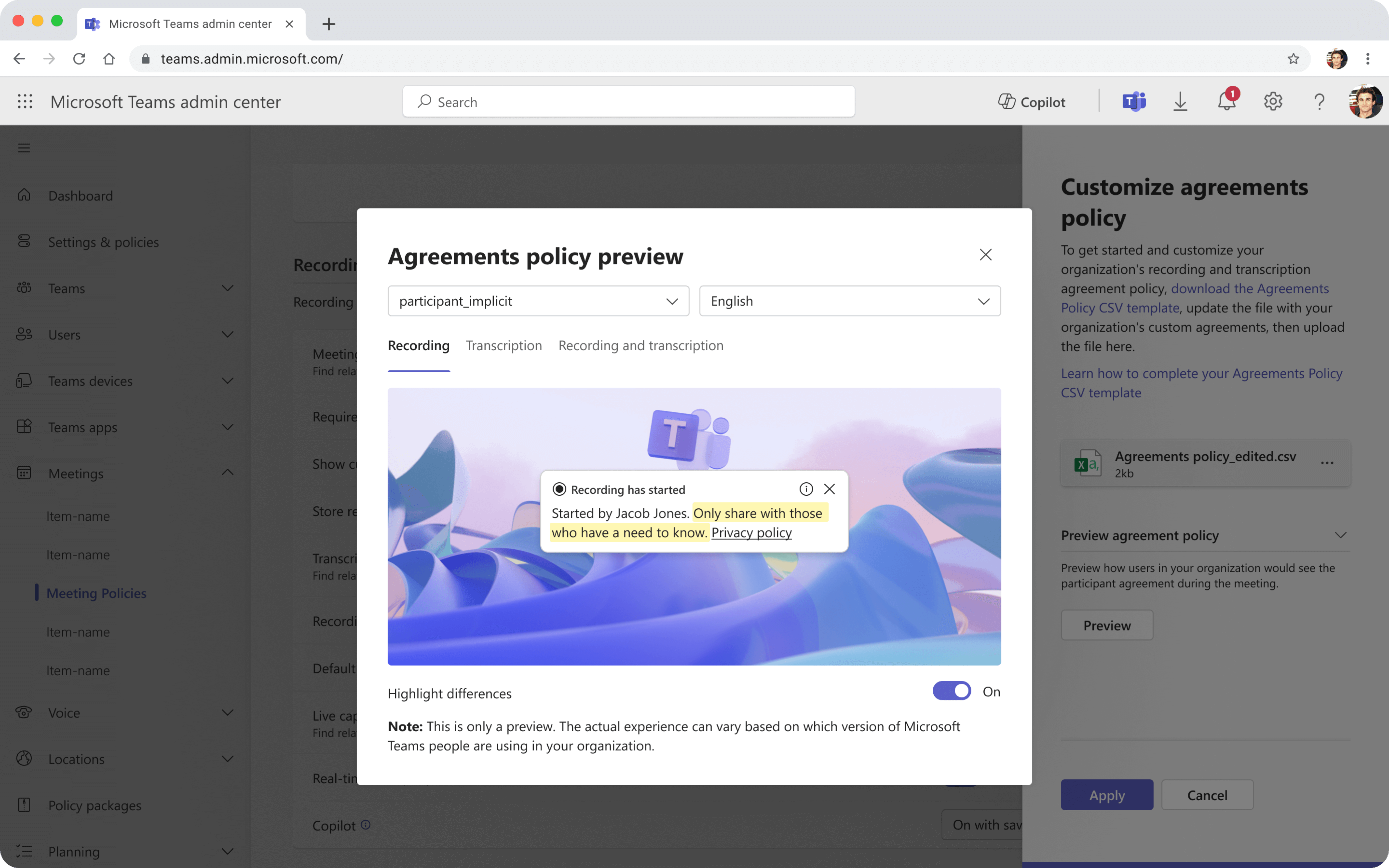
Preview: Once uploaded, the policy preview displays customized strings, with differences highlighted compared to the system defaults.
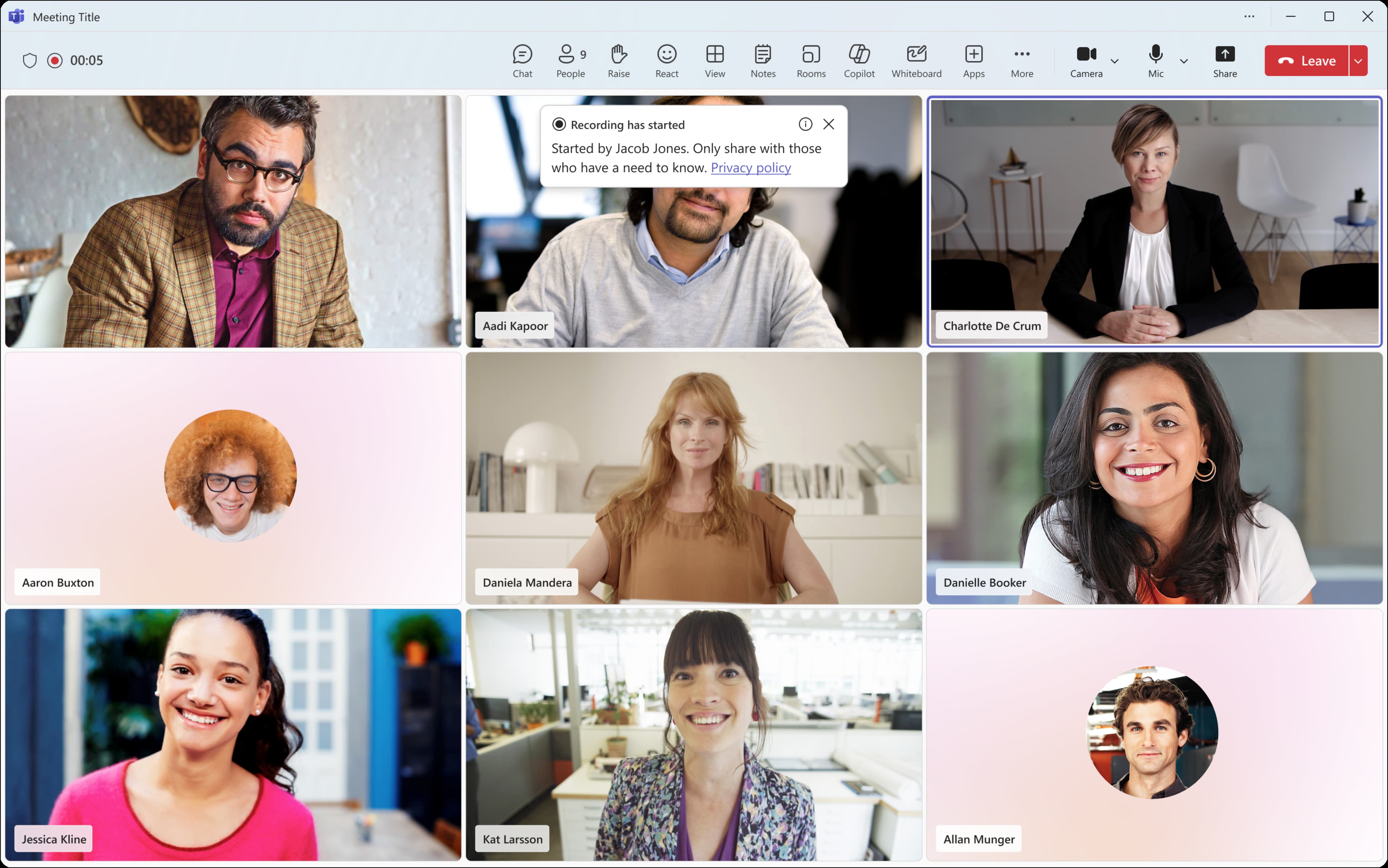
Enabled: Customized strings are visible to meeting participants when the recording or transcription is turned on.
Example case 2: Explicit consent
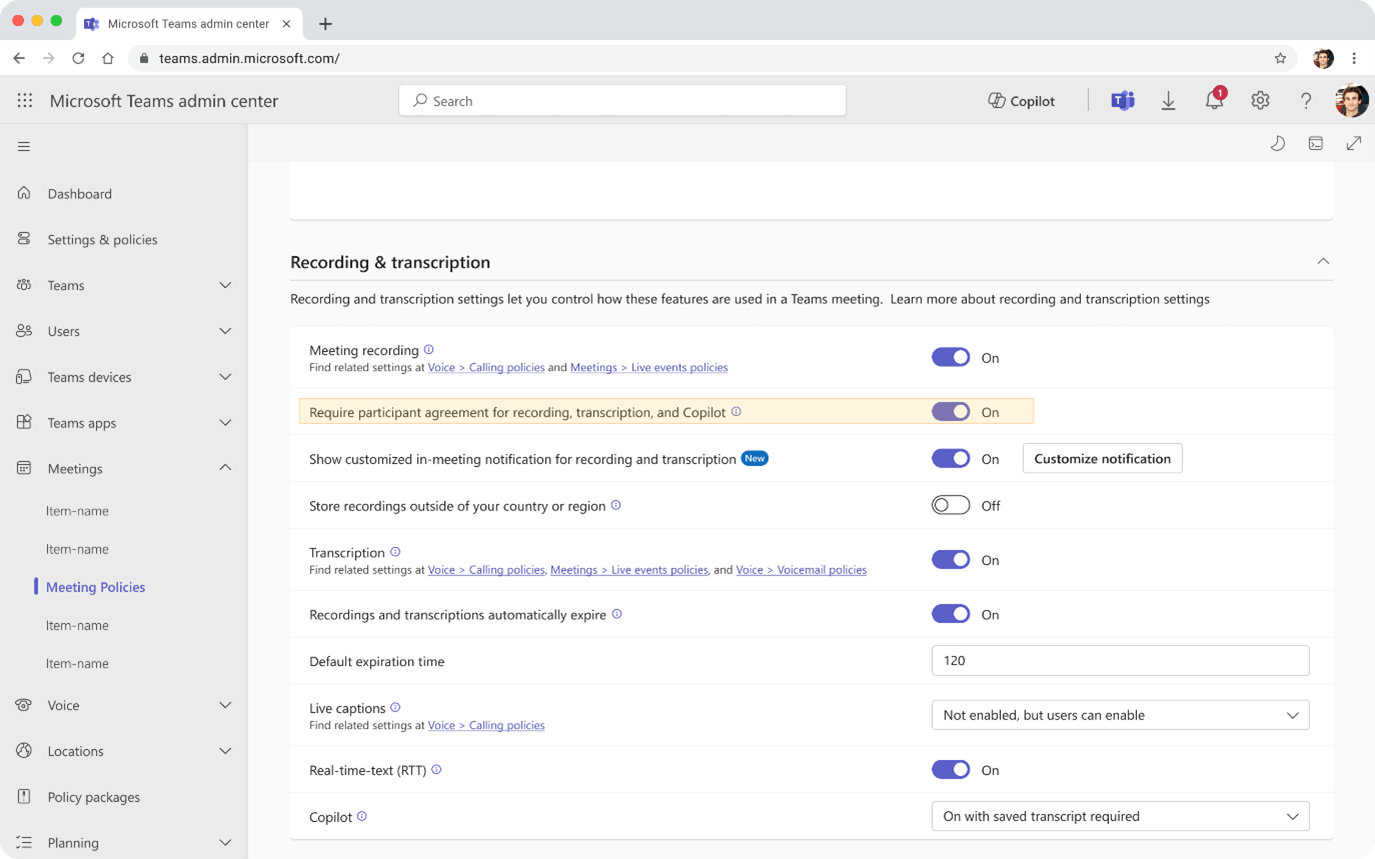
Turn on explicit consent: With this on, users see the "explicit consent scenario" notifications.
Edit .csv template: Admins can locate the scenario key of the explicit scenarios and add custom strings as needed.

Preview: Once uploaded, the policy preview displays customized strings, with differences highlighted compared to the system defaults.
Enabled: Customized strings are visible to meeting participants when the recording or transcription is turned on.

Example case 3: Multiple languages and scenarios
- User A with an implicit policy has custom messages set to:
| Scenarios | initiator_implicit | participant_implicit | initiator_explicit | participant_explicit_requested | participant_explicit_provided | agreement_dialogue |
|---|---|---|---|---|---|---|
| English (United States) | [1] Let everyone know they're being included. | [2] By attending this meeting, you agree to be included. | [3] Started by you. We've asked everyone if they'll agree to be included. | [4] Do you agree to allow your content to be processed for features? | ||
| Chinese (Simplified, China) | [5] 参加此会议即表示你同意被包含在内。 | [6] 你必须同意被包含在内。若要继续,请取消静音、打开摄像头或共享屏幕。 |
User A and B have Teams language set to English (United States), User C uses Chinese (Simplified, China), and User D uses Spanish (Spain).
User A creates a meeting and invites participants B, C, and D.
User A starts recording in the meeting.
User A: sees "[1] Let everyone know they're being included."
User B: sees "[2] By attending this meeting, you agree to be included."
User C: sees "[5] 参加此会议即表示你同意被包含在内。"
User D: sees the default notification text because no custom message was added for
participant_implicitin Spanish (Spain).
Supported Languages and Codes
| Language name | Code |
|---|---|
| Afrikaans (South Africa) | af-ZA |
| Arabic (Saudi Arabia) | ar-SA |
| Azerbaijani (Latin, Azerbaijan) | az-Latn-AZ |
| Bulgarian (Bulgaria) | bg-BG |
| Bosnian (Latin) (Bosnia and Herzegovina) | bs-Latn-BA |
| Catalan (Spain) | ca-ES |
| Valencian (Spain) | ca-Es-VALENCIA |
| Czech (Czech Republic) | cs-CZ |
| Welsh (United Kingdom) | cy-GB |
| Danish (Denmark) | da-DK |
| German (Germany) | de-DE |
| Greek (Greece) | el-GR |
| English (United Kingdom) | en-GB |
| English (United States) | en-US |
| Spanish (Spain) | es-ES |
| Spanish (Mexico) | es-MX |
| Estonian (Estonia) | et-EE |
| Basque (Spain) | eu-ES |
| Persian (Iran) | fa-IR |
| Finnish (Finland) | fi-FI |
| Filipino (Philippines) | fil-PH |
| French (Canada) | fr-CA |
| French (France) | fr-FR |
| Galician (Spain) | gl-ES |
| Hebrew (Israel) | he-IL |
| Hindi (India) | hi-IN |
| Croatian (Croatia) | hr-HR |
| Hungarian (Hungary) | hu-HU |
| Indonesian (Indonesia) | id-ID |
| Icelandic (Iceland) | is-IS |
| Italian (Italy) | it-IT |
| Japanese (Japan) | ja-JP |
| Georgian (Georgia) | ka-GE |
| Kazakh (Kazakhstan) | kk-KZ |
| Korean (Korea) | ko-KR |
| Lithuanian (Lithuania) | lt-LT |
| Latvian (Latvia) | lv-LV |
| Macedonian (North Macedonia) | mk-MK |
| Malay (Malaysia) | ms-MY |
| Maltese (Malta) | mt-MT |
| Norwegian Bokmål (Norway) | nb-NO |
| Dutch (Netherlands) | nl-NL |
| Norwegian Nynorsk (Norway) | nn-NO |
| Polish (Poland) | pl-PL |
| Portuguese (Brazil) | pt-BR |
| Portuguese (Portugal) | pt-PT |
| Romanian (Romania) | ro-RO |
| Russian (Russia) | ru-RU |
| Slovak (Slovakia) | sk-SK |
| Slovenian (Slovenia) | sl-SI |
| Albanian (Albania) | sq-AL |
| Serbian (Cyrillic, Serbia) | sr-Cyrl-RS |
| Serbian (Latin, Serbia) | sr-Latn-RS |
| Swedish (Sweden) | sv-SE |
| Thai (Thailand) | th-TH |
| Turkish (Turkey) | tr-TR |
| Ukrainian (Ukraine) | uk-UA |
| Vietnamese (Vietnam) | vi-VN |
| Chinese (Simplified, China) | zh-CN |
| Chinese (Traditional, Taiwan) | zh-TW |