Note
Access to this page requires authorization. You can try signing in or changing directories.
Access to this page requires authorization. You can try changing directories.
Multiple camera view activates multiple cameras in Microsoft Teams Rooms on Windows capture in room participants in large and complex spaces such as multi-purpose rooms and classrooms. Remote participants can experience multiple camera view in Teams meetings on Microsoft Teams Desktop (Windows and Mac) and Teams Rooms on Windows. It isn't available in peer-to-peer calls or Teams Events.
Prerequisites
- Teams Rooms resource account with an assigned Microsoft Teams Rooms Pro license. For more information, see Microsoft Teams Rooms Licensing.
- Teams Rooms on Windows version 5.2 or later installed.
- Connect a maximum of four Teams certified single stream USB camera peripherals.
Important
Multi-stream intelligent cameras aren't supported in multiple camera configuration. Multiple camera view isn't supported in peer-to-peer (P2P) calls or Teams Events; it's available in scheduled and Meet Now Teams meetings only.
Recommendations
- USB has limited bandwidth. Each camera should be connected to the Microsoft Teams Rooms device USB port directly. If there are insufficient USB ports for all peripheral devices, a USB hub can be used to but it should have only one camera connected to it.
- Older Microsoft Teams Rooms models might not have sufficient capacity to process multiple simultaneous videos. Video freeze or missing video streams might occur. Therefore, the following is our minimum compute recommendation:
- Intel Core i5 processor or above
- For two or three camera setup, minimum Intel 9th Generation CPU
- For four camera setup, minimum Intel 12th Generation CPU
- Cameras should support MJPEG video format.
Set up multiple camera view
Teams Rooms on Windows can send up to four single stream cameras feeds to render on the receiver-side for remote meeting participants to view simultaneously. This feature requires admins to enable the Multiple camera view toggle and map cameras to the desired order that are displayed on the receiver-side.
There are two ways to set up multiple camera view:
Using the admin settings on the device
- In admin settings on-device, go to Settings > Peripherals, and ensure Default Video Camera has been selected.
- Enable Multiple camera view toggle.
- When Multiple camera view is enabled, IntelliFrame toggle is disabled.
- When Multiple camera view is enabled, Video Camera 2 dropdown selection appears. Select a camera.
- Check Preview to see and verify the camera view.
- Continue to select Add Camera until you complete the configuration as desired.
Using Remote Access in the Teams Rooms Pro Management portal
- To manage and remotely access Teams Rooms devices, see Microsoft Teams Rooms Pro management.
- Choose Rooms and select the room device to remotely administer. Under the Rooms tab, select Remote Access, then Start Session.
How remote participants experience multiple camera view
Remote participants can view up to four camera feeds from the room simultaneously in Gallery view. Each feed is shown in a 16:9 aspect ratio, arranged equally within the room’s video tile for an optimized view. Remote participants also have the flexibility to switch between different camera angles for their view only – changing their own view does not affect what others see. Here’s how it works on different Teams clients:
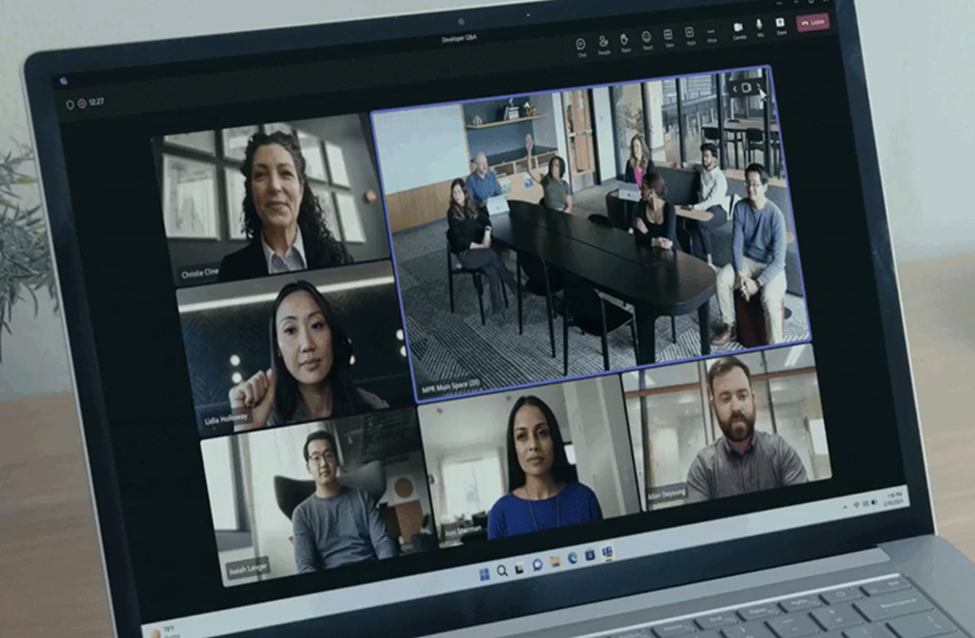
Teams desktop (Windows and Mac): In a Teams meeting, the room’s video appears as a single composite tile showing multiple camera feeds. Remote participants can use the carousel navigation controls (the arrows that appear on either side of the camera icon at the top-right of the room’s video tile) to cycle through the available camera views. For example, a remote participant can choose to see all cameras at once or switch to focus on a specific camera feed by clicking these arrows. If meeting content is being shared, the room’s tile will show only one camera feed at a time, but participants can still use the arrow controls to switch between feeds.
Example of a 2-camera view
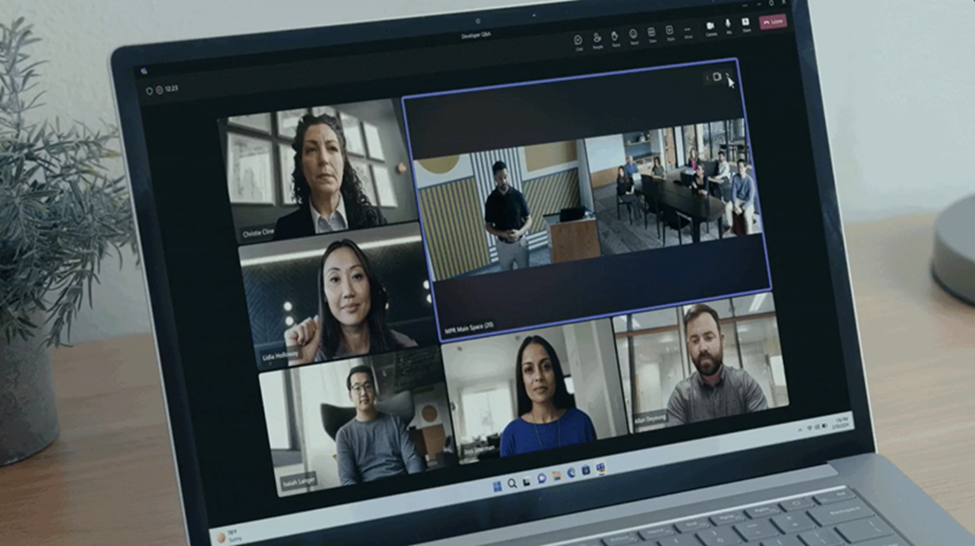
Camera 1
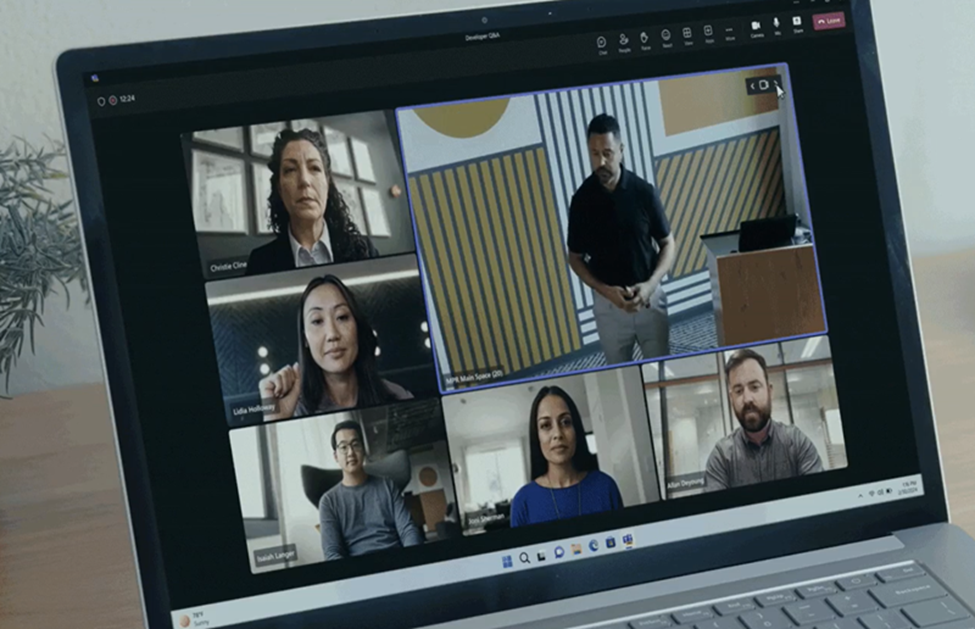
Camera 2
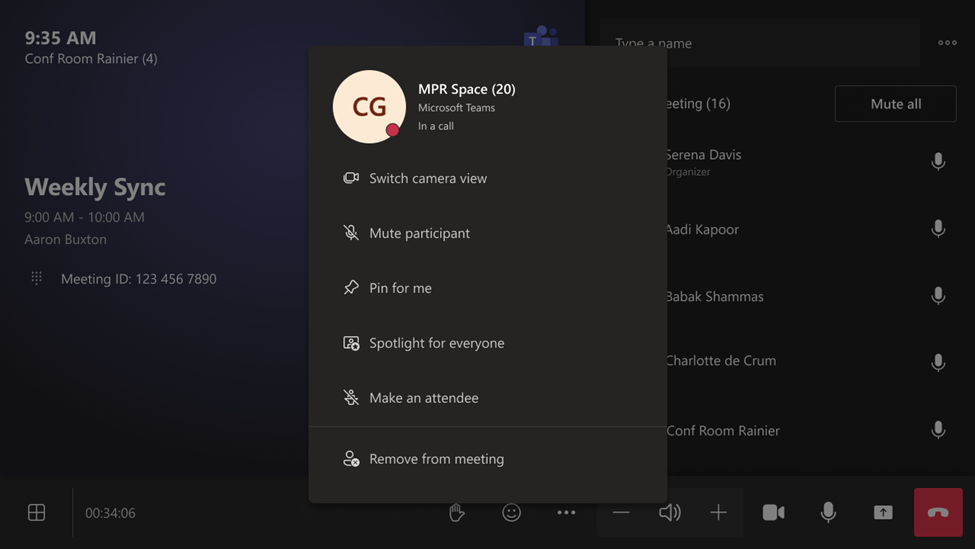
Teams Rooms on Windows: If a remote participant is joining from another Teams Rooms system, they can switch the other room’s camera view using the participant panel on the console or directly on the video tile for touch boards. On the console, in-room participants can locate the room that has multiple cameras, and select Switch camera view from that participant’s contextual menu. Each time this option is selected, the other room will cycle to the next camera feed (looping through all configured cameras).
Teams Rooms on Windows Console