Note
Access to this page requires authorization. You can try signing in or changing directories.
Access to this page requires authorization. You can try changing directories.
Important
File sharing in external (federated) chats is turned off by default. IT Admins must explicitly enable this capability before users can share files with people outside the organization.
Teams allows users to collaborate with people outside their organization through external (federated) chats. When enabled, users can share files and Loop components securely with external people while honoring Microsoft 365, SharePoint/OneDrive, and Entra ID policies.
This article explains:
How file sharing in external chats works
What users experience when the feature is enabled or disabled
How administrators enable and manage the feature
How permissions, access, and identity are handled
What’s available now versus what’s in public preview
How file sharing works in external chats
When file sharing is enabled, users can share files with external participants in 1:1, Group and Meeting chats that use external access (federation). Non‑federated users can access and upload files during a meeting but lose post‑meeting access.
Files are stored in the sender’s OneDrive and shared according to Microsoft 365 sharing policies.
Supported user actions
Users can share files in external chats by:
Uploading a file
Dragging and dropping a file into the message box
Pasting a file link
If file sharing is disabled, users do not see the paperclip (Attach) icon in external chats but can still paste links and share it. Teams treats these links like any other link.
Note
File and Loop sharing is supported when the sender is using Teams for Work. If the sender uses Teams Free and the chat includes participants from Teams for Work, Teams Free users can’t share files or Loop components from their OneDrive, but they can receive and access files and Loop components shared with them by Teams for Work users.
What users experience when file sharing is enabled or disabled
When file sharing is turned OFF (default)
The file attachment option is hidden in external chats
Users can only paste existing links
No files can be uploaded directly to the chat
When file sharing is turned ON
Users see the Attach file (paperclip) icon in external chats.
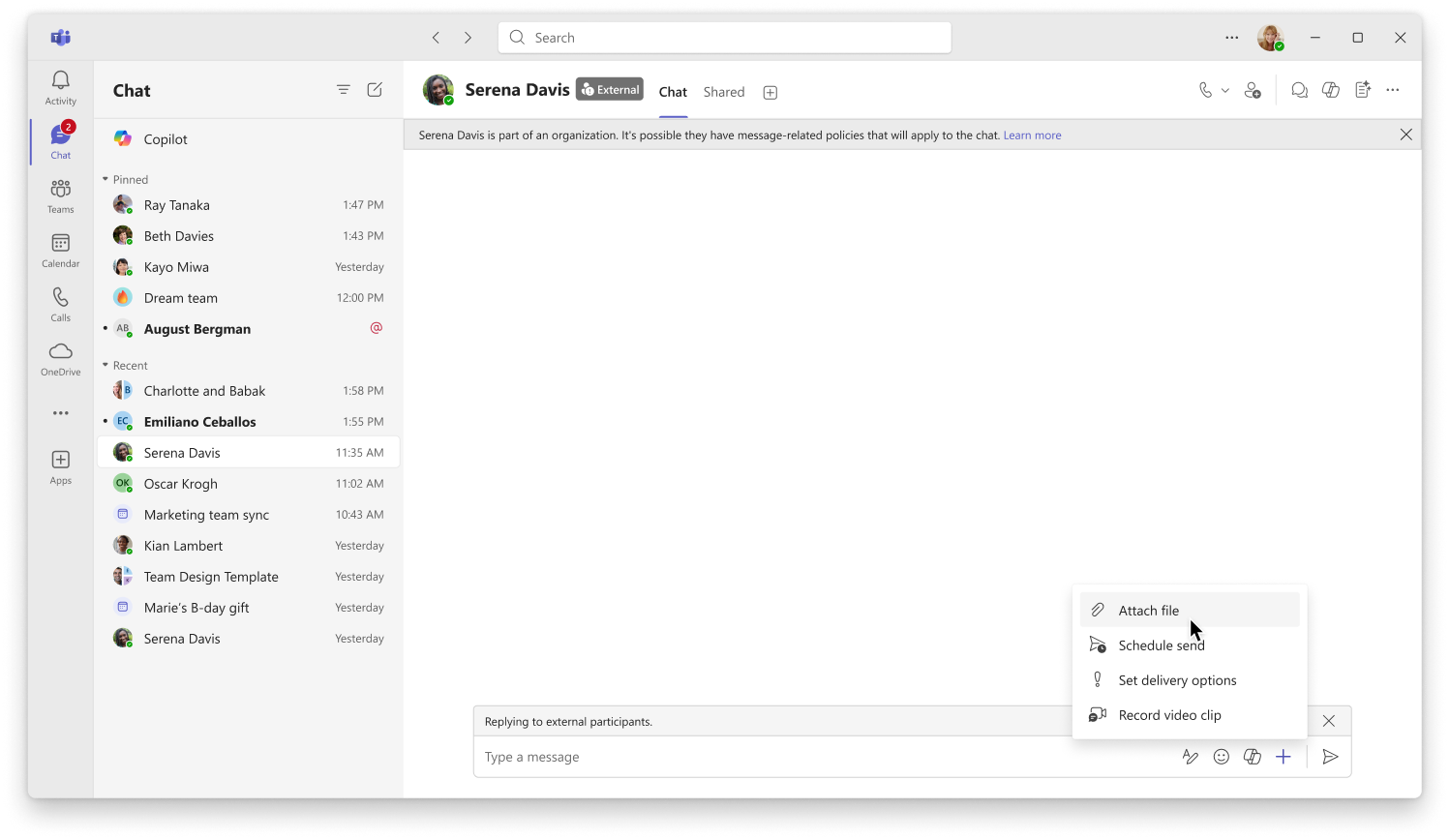
Senders may manually adjust the file permissions based on the audience in the chat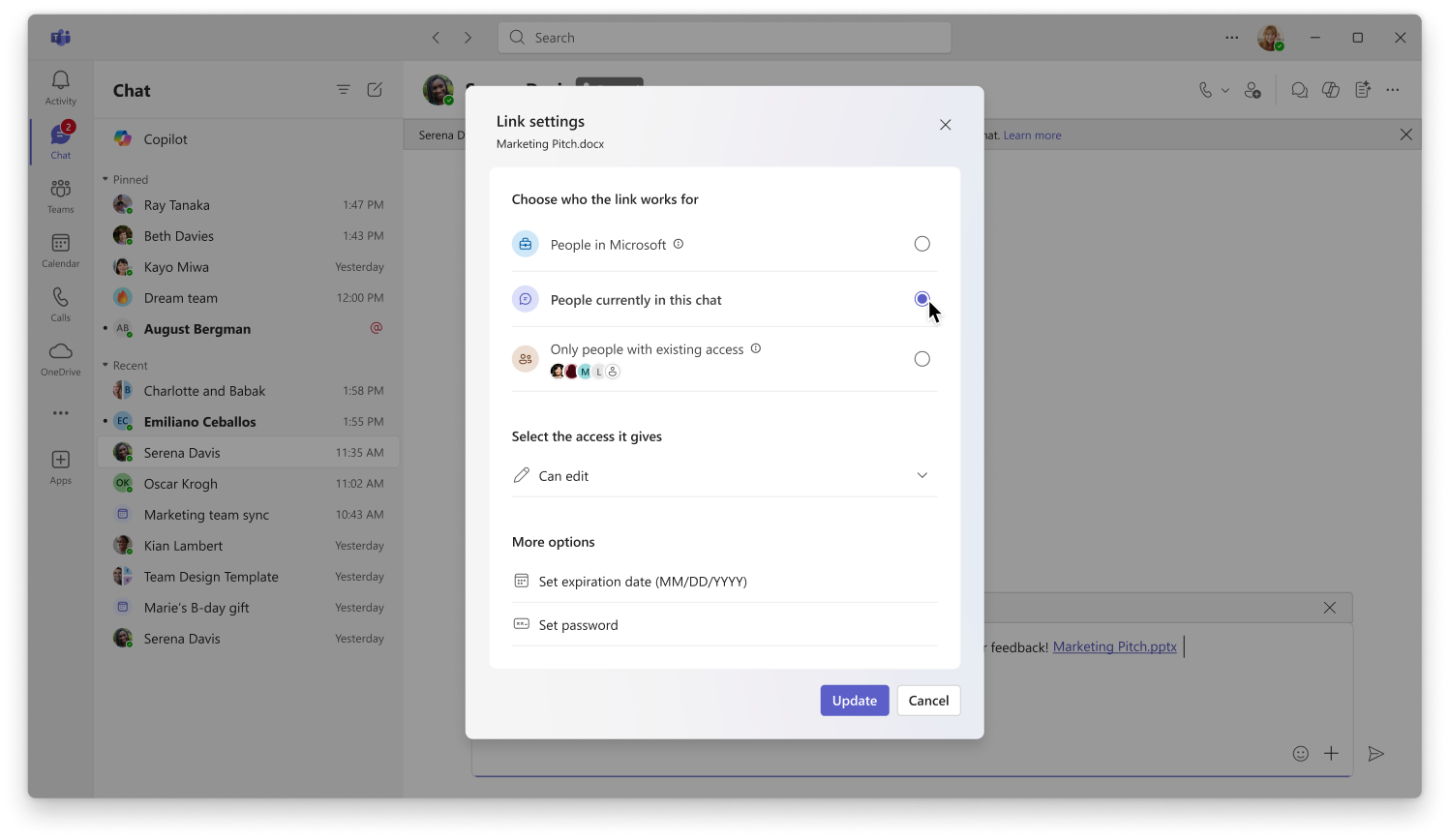
Files display an External label to clearly indicate cross-organization content. File links are shared from the sender’s SharePoint or OneDrive when uploaded to chat.
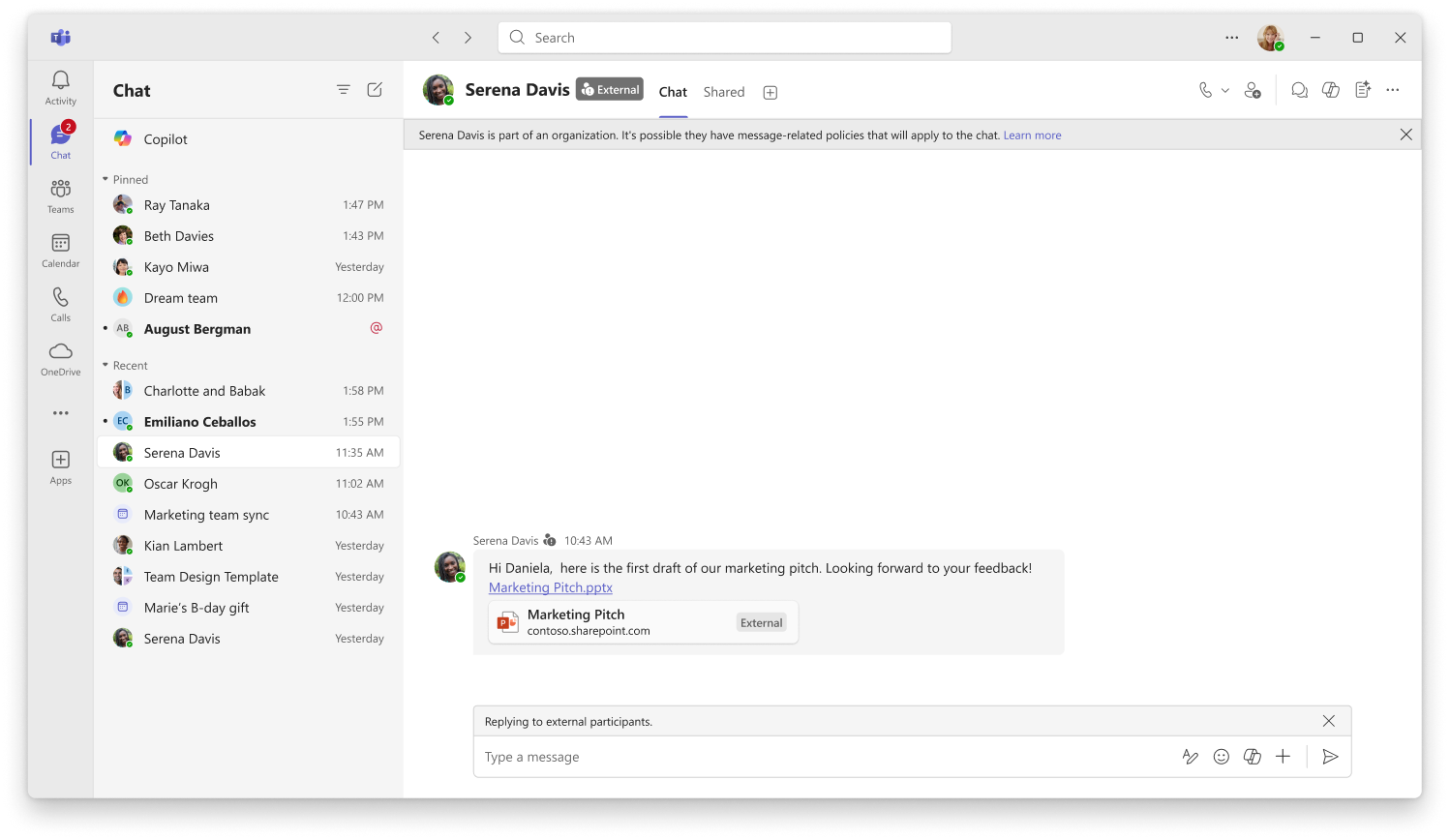
External recipients open files in the browser. If needed, external recipients can request access to the file.
How admins enable and manage the feature
File access is governed by existing OneDrive and SharePoint sharing settings. Enabling file sharing in Teams doesn't override these controls.
Key points:
Sensitivity labels, domain restrictions and malicious link protections continue to apply
External recipients may not have access to shared files by default
Senders may need to manually adjust file permissions
The ability to change permissions depends on OneDrive and SharePoint policies
Admin configuration (required)
File sharing in external chats must be enabled using PowerShell.
Enable file sharing in external chats
Connect-MicrosoftTeams
Set-CsTeamsFilesPolicy -Identity Global -FileSharingInChatsWithExternalUsers Enabled
Verify current configuration
Get-CsTeamsFilesPolicy | Select Identity, FileSharingInChatsWithExternalUsers
Disable file sharing in external chats
Set-CsTeamsFilesPolicy -Identity Global -FileSharingInChatsWithExternalUsers Disabled
Note
Changes can take several hours to propagate before users see the updated experience.
Automatic sharing of Files and Loop components (public preview)
When files and Loop components are uploaded to chat, Teams automatically adds the required permissions to share it with the audience in the external chat. This capability is turned ON by default. If turned OFF, senders may have to manually add permissions to the file and Loop component to allow access by external users.
Note
If file sharing in chats is itself disabled, then enabling automatic sharing has no effect. However, Loop components continue to be shared automatically.
By default, and when enabled:
Files and Loop components shared in external chats are automatically shared with all participants
Senders don't need to manually update sharing permissions
Senders can still modify or revoke access if desired
However, if existing file link is pasted into chat, i.e. not drag and drop or using the file attach option, automatic sharing does not occur. This is intentional: pasting a link represents an explicit user choice to reuse the file’s existing share settings and access scope. Senders can still change the permissions manually.
 Recipient experience
External recipients access files as Entra B2B guests, if allowed by policy
If a guest object doesn’t exist, it's created on demand
External organization may not appear in the recipient’s account / profile menu (or account manager).
External recipients can remove their guest presence at any time by navigating to https://myapps.microsoft.com/ .
Recipients may see:
A consent prompt
Multifactor authentication, depending on tenant policy
Guest access and external collaboration are managed centrally in Microsoft Entra. Administrators can control who can invite guests, what guests can see in the directory, and apply access restrictions and policies through Entra external collaboration settings.
To learn more, see Configure external collaboration – Microsoft Entra External ID.
Tip
For the best experience for external recipients, consider enabling Microsoft Entra B2B for SharePoint and OneDrive external sharing. Entra B2B helps recipients authenticate and access shared files more smoothly. To learn how to enable this integration, see: Microsoft Entra B2B integration for SharePoint & OneDrive - SharePoint in Microsoft 365 | Microsoft Learn.
To disable automatic sharing of Files and Loop components, run the following PowerShell command:
Connect-MicrosoftTeams
Set-CsTeamsMessagingPolicy -Identity Global -AutoShareFilesInExternalChats Disabled
Guest-initiated sharing from home tenant (public preview)
Previously, Entra B2B Guest users could only paste links of documents from their home tenant in Teams chats. Clicking the paper clip icon in chat invokes the OneDrive/SharePoint file picker in the resource tenant. Because guest users don’t have access to the resource tenant’s OneDrive/SharePoint, the upload experience fails.
Now, Entra B2B Guests can:
Share files and Loop components from their home tenant’s OneDrive
Use the same automatic provisioning experience as their home tenant users
Collaborate with files that remain stored in their home organization