Nota
L-aċċess għal din il-paġna jeħtieġ l-awtorizzazzjoni. Tista’ tipprova tidħol jew tibdel id-direttorji.
L-aċċess għal din il-paġna jeħtieġ l-awtorizzazzjoni. Tista’ tipprova tibdel id-direttorji.
Microsoft Defender for Cloud supports continuous export of alerts and recommendations to Azure Event Hubs. If your event hub is behind a firewall, you can allow Defender for Cloud as a trusted service so export can continue. This article explains how to configure that trusted-service access.
Prerequisites
Before you enable trusted-service access, configure continuous export by using one of these methods:
- Set up continuous export in the Azure portal.
- Set up continuous export with Azure Policy.
- Set up continuous export with REST API.
Set up continuous export to the event hub
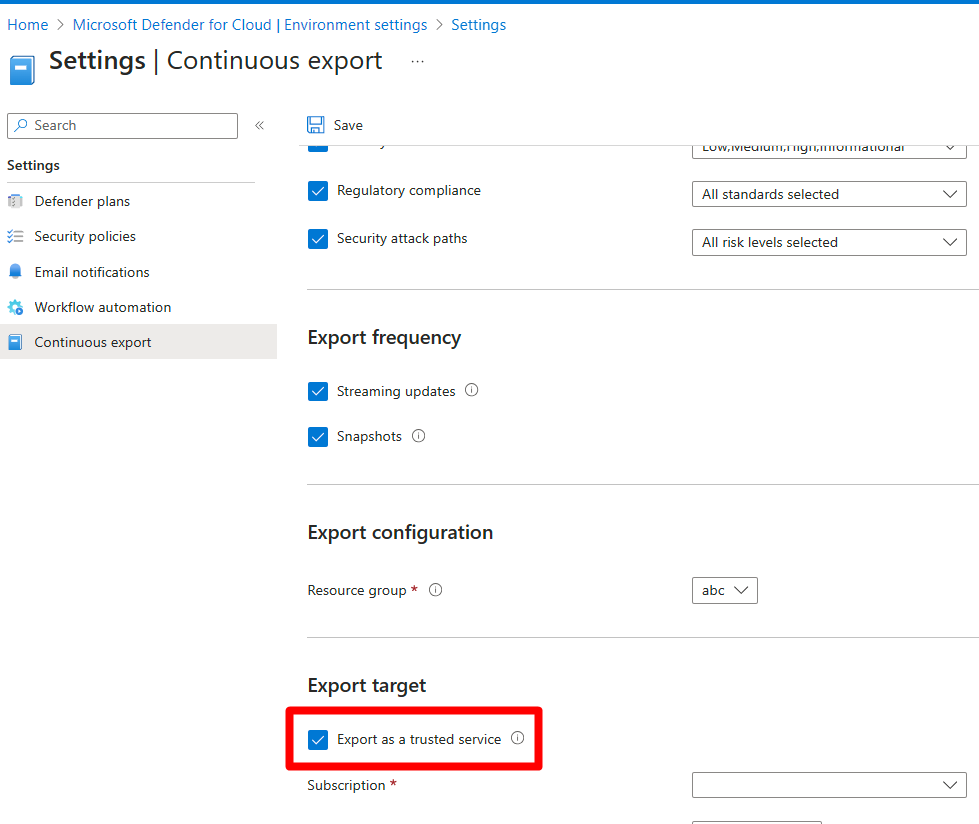
Enable continuous export as a trusted service to send data to an event hub protected by Azure Firewall.
To grant access to continuous export as a trusted service:
Sign in to the Azure portal at portal.azure.com.
Go to Microsoft Defender for Cloud > Environment settings.
Select the relevant resource.
Select Continuous export.
Select Export as a trusted service.
Add the relevant role assignment to the destination event hub
To add the relevant role assignment to the event hub configured as your continuous export destination:
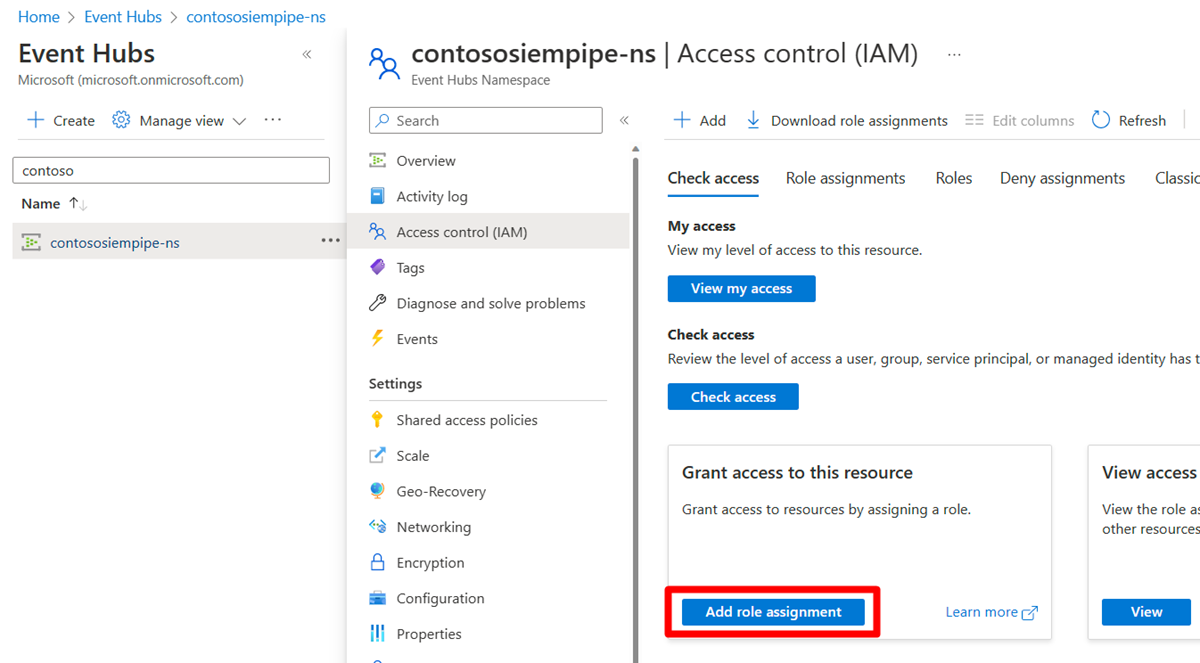
Go to the event hub that you configured as the continuous export destination.
In the resource menu, select Access control (IAM) > Add role assignment.
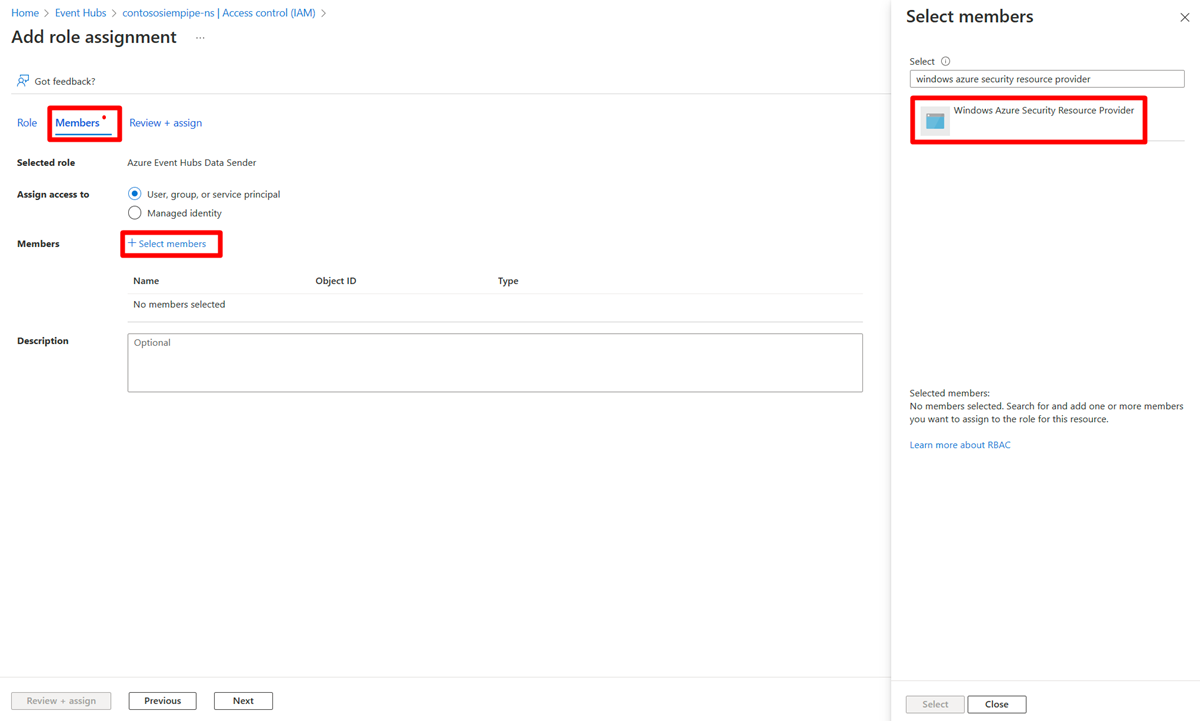
Select Azure Event Hubs Data Sender.
Select the Members tab.
Choose + Select members.
Search for and then select Windows Azure Security Resource Provider.
Select Review + assign.
