Nota
L-aċċess għal din il-paġna jeħtieġ l-awtorizzazzjoni. Tista’ tipprova tidħol jew tibdel id-direttorji.
L-aċċess għal din il-paġna jeħtieġ l-awtorizzazzjoni. Tista’ tipprova tibdel id-direttorji.
Personal and organization-owned devices can be enrolled in Intune. On macOS devices, the Company Portal app or the Apple Setup Assistant authenticates users, and starts the enrollment. Once they're enrolled, they receive the policies you create.
You have the following options when enrolling macOS devices:
This article:
- Describes your Company Portal app options for each enrollment method.
- Provides enrollment recommendations for supported device management scenarios.
- Includes an overview of the administrator and user tasks for each enrollment type.
There's also a visual guide of the different enrollment options for each platform:
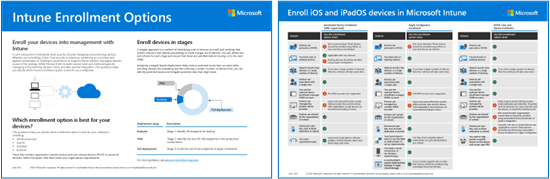
Download PDF version | Download Visio version
Before you begin
For all Intune-specific prerequisites and configurations needed to prepare your tenant for enrollment, go to Enrollment guide: Microsoft Intune enrollment.
Note
For new and existing tenants, there may be a one-time failure when completing Microsoft Entra ID join. This issue can be resolved by manually syncing the device from the Intune admin center, or from the device on the Intune Company Portal website or Company Portal app. If a failure occurs, it will only happen to one device completing Microsoft Entra ID registration for the tenant. A manual sync will resolve this issue for all future enrollments. Alternatively, as a workaround, add the Microsoft Intune Certificate Authority client production app to your tenant. To do so, a Microsoft Entra administrator must create a service principal object, with app ID 3dde09a2-ff4f-4ebd-9b9a-d24a7a819b6f, in PowerShell or Microsoft Graph.
BYOD: Device enrollment
Use for personal or bring your own devices (BYOD). This enrollment option is also known as user approved enrollment.
| Feature | Use this enrollment option when |
|---|---|
| Devices are personal or BYOD. | ✅ |
| Need to enroll a few devices, or a large number of devices (bulk enrollment). | ✅ |
| You have new or existing devices. | ✅ |
| Devices are associated with a single user. | ✅ |
| You use the device enrollment manager (DEM) account. | ✅ Be aware of impact and any limitations using DEM account. |
| Devices are managed by another MDM provider. | ❌ When a device enrolls, MDM providers install certificates and other files. These files must be removed. The quickest way might be to unenroll, or factory reset the devices. If you don't want to factory reset, then contact the MDM provider for guidance. |
| Devices are owned by the organization or school. | ❌ Not recommended for organization-owned devices. Organization-owned devices should be enrolled using Automated Device Enrollment (in this article) or Apple Configurator. You can add the MacBook serial numbers to the corporate device identifiers to mark the devices as corporate. But, by default, devices are marked personal. |
| Devices are user-less, such as kiosk, dedicated, or shared. | ❌ These devices are organization-owned. User-less devices should be enrolled using Automated Device Enrollment (in this article) or Apple Configurator. |
Device enrollment admin tasks
This task list provides an overview.
Be sure your devices are supported.
Be sure the Apple MDM push certificate is added to Intune, and is active. This certificate is required to enroll macOS devices. For more information, go to Get an Apple MDM push certificate.
There isn't a Company Portal app for macOS devices in the Apple App Store, or through VPP. Users must manually download and run the Company Portal app installer package. They sign in with their organization account (
user@contoso.com), and then step through the enrollment. Once they enroll, they must approve the enrollment policy.When they approve, the device is added to your organization Microsoft Entra ID. Then, it's available to Intune to receive your policies.
Be sure to communicate this information with your users.
Device enrollment end user tasks
Your users must do the following steps. For more specific information on the end user steps, go to Enroll your macOS device using the Company Portal app.
- Download and run the Company Portal app installer package.
- Open the Company Portal app, and sign in with their organization account (
user@contoso.com). Once they sign in, they must approve the enrollment policy (System preferences). When users approve, the device is enrolled, and considered managed. If they don't approve, then they're not enrolled, and won't receive your policies.
The Company Portal app detects the installation of the management profile and automatically registers the device, unless it is manually closed by the user. The user must reopen the app to complete device registration. If you're using dynamic groups, which rely on device registration, it's important for users to return to the app and register. Plan to communicate these steps to end users. If you're using Conditional Access (CA) policies, no action is required because any CA-protected app users try to sign in to will prompt them to return to Company Portal to complete device registration.
Tip
If you're using dynamic device groups only for Intune policy and app targeting (not Conditional Access or licensing), consider using assignment filters instead. Filters evaluate at check-in without depending on device registration or group membership processing, which can simplify enrollment workflows.
Users typically don't like enrolling themselves, and may not be familiar with the Company Portal app. Be sure to provide guidance, including what information to enter. For some guidance on communicating with your users, see Planning guide: Step 5 - Create a rollout plan.
Automated Device Enrollment (ADE) (supervised)
Previously called Apple Device Enrollment Program (DEP). Use on devices owned by your organization. This option configures settings using Apple Business or Apple School Manager (ASM). It enrolls a large number of devices, without you ever touching the devices. These devices are purchased from Apple, have your preconfigured settings, and can be shipped directly to users or schools. You create an enrollment policy in the Microsoft Intune admin center, and push this policy to the devices.
For more specific information on this enrollment type, go to Automatically enroll macOS devices with the Apple Business or Apple School Manager.
| Feature | Use this enrollment option when |
|---|---|
| Devices are owned by the organization or school. | ✅ |
| You have new devices. | ✅ |
| You have existing devices. | ✅ To enroll existing devices, go to Enroll Macs after Setup Assistant (opens another Microsoft article). |
| Need to enroll a few devices, or a large number of devices (bulk enrollment). | ✅ |
| Devices are associated with a single user. | ✅ |
| Devices are user-less, such as kiosk or dedicated device. | ✅ |
| Devices are personal or BYOD. | ❌ Not recommended. BYOD or personal devices should be enrolled using Device enrollment (in this article). |
| Devices are managed by another MDM provider. | ❌ To be fully managed by Intune, users must unenroll from the current MDM provider, and then enroll in Intune. Or, you can use Device enrollment to manage specifics apps on the device. Since these devices are organization-owned, we recommend enrolling in Intune. |
| You use the device enrollment manager (DEM) account. | ❌ The DEM account isn't supported. |
ADE admin tasks
This task list provides an overview. For more specific information, go to Automatically enroll macOS devices with the Apple Business or Apple School Manager.
Be sure your devices are supported.
You need access to the Apple Business portal, or the Apple School Manager (ASM) portal.
Be sure the Apple token (
.p7m) is active. For more specific information, go to Set up a macOS ADE token.Be sure the Apple MDM push certificate is added to Intune, and is active. This certificate is required to enroll macOS devices. For more information, go to Get an Apple MDM push certificate.
For ADE with user affinity, use Setup Assistant with modern authentication. Users sign in to the Company Portal app after enrollment to complete Microsoft Entra registration.
Select the Setup Assistant with modern authentication when:
- You want to wipe the device.
- You want to use multifactor authentication (MFA).
- You want to prompt users to update their expired password when they first sign in.
- You want to prompt users to reset their expired passwords during enrollment.
- You want devices registered in Microsoft Entra ID. When they're registered, you can use features available with Microsoft Entra ID, such as Conditional Access.
Note
During the Setup Assistant, users must enter their organization Microsoft Entra credentials (
user@contoso.com). When they enter their credentials, the enrollment starts. If you want, users can also enter their Apple ID to access Apple specific features, such as Apple Pay.After the Setup Assistant completes, users can use the device. When the home screen shows, the enrollment is complete, and user affinity is established. The device isn't fully registered with Microsoft Entra ID, and doesn't show in a user's device list in Microsoft Entra ID.
If users need access to resources protected by Conditional Access or should be fully registered with Microsoft Entra ID, then install the Company Portal app. After it's installed, users open the Company Portal app, and sign in with their organization Microsoft Entra account (
user@contoso.com). During this second login, any Conditional Access policies are evaluated, and Microsoft Entra registration is complete. Users can install and use organizational resources, including LOB apps.
In the Microsoft Intune admin center, go to Devices > Enrollment > macOS > Enrollment program tokens, select a token, and create an enrollment policy. Choose to Enroll with user affinity (associate a user to the device), or Enroll without user affinity (user-less devices or shared devices).
Enroll with user affinity: Setup Assistant authenticates the user, and enrolls the device in Intune. Also choose if users can delete the management profile, called Locked enrollment.
Enroll without user affinity: Setup Assistant enrolls the device in Intune without associating it with a user. Also choose if users can delete the management profile, called Locked enrollment. The Company Portal app isn't used, needed, or supported on enrollments without user affinity.
Important
Intune has ended support for Setup Assistant (legacy) authentication for ADE with user affinity with the October 2026 (2610) service release. Existing profiles that use legacy authentication are automatically updated to Setup Assistant with modern authentication. Already-enrolled devices aren't affected and remain enrolled. For details, see Retirement of Setup Assistant (legacy).
ADE end user tasks
These tasks depend on how administrators tell users to install the Company Portal app. Typically, the fewer steps end users must do to enroll, the higher chance they'll want to enroll.
For more specific information on the end user steps, go to Enroll your macOS device using the Company Portal app.
Enroll with user affinity + Setup Assistant with modern authentication:
When the device is turned on, the Apple Setup Assistant runs. Users enter their Apple ID (
user@iCloud.comoruser@gmail.com) and their organization Microsoft Entra credentials (user@contoso.com).When users enter their Microsoft Entra credentials, the enrollment starts.
The Setup Assistant can prompt the user for additional information. When it completes, users can use the device. When the home screen shows, the enrollment is complete and user device affinity is established. Users will see your apps and policies on the device.
Users open the Company Portal app you installed, and sign in with their organization credentials (
user@contoso.com) again.
Enroll without user affinity: No actions. Be sure your users don't install the Company Portal app.
Users typically don't like enrolling themselves, and may not be familiar with the Company Portal app. Be sure to provide guidance, including what information to enter. For some guidance on communicating with your users, see Planning guide: Step 5 - Create a rollout plan.
Direct enrollment
Use on devices owned by your organization that don't need user device affinity.
These devices are organization-owned, and use Apple Configurator. The only purpose is to be a kiosk-style device. They aren't associated with a single or specific user. These devices are commonly used to scan items, print tickets, get digital signatures, manage inventory, and more.
For more specific information on this enrollment type, go to Use Direct Enrollment for macOS devices.
| Feature | Use this enrollment option when |
|---|---|
| You need a wired connection, or are having a network issue. | ✅ |
| Your organization doesn't want administrators to use the Apple Business or ASM portals, or doesn't want to set up all the requirements. | ✅ The idea of not using the Apple Business or ASM portals is to give administrators less control. |
| A country/region doesn't support Apple Business or Apple School Manager (ASM). | ✅ If your country/region supports ABS or ASM, then devices should be enrolled using Automated Device Enrollment (in this article). |
| Devices are owned by the organization or school. | ✅ |
| You have new or existing devices. | ✅ |
| Need to enroll a few devices, or a large number of devices (bulk enrollment). | ✅ If you have a large number of devices, then this method takes some time. |
| Devices are associated with a single user. | ❌ Not recommended. Devices that need user affinity should be enrolled using Automated device enrollment (ADE). |
| Devices are user-less, such as kiosk or dedicated device. | ✅ |
| Devices are personal or BYOD. | ❌ Not recommended. BYOD or personal devices should be enrolled using MAM (opens another Microsoft article), or BYOD: Device enrollment (in this article). |
| Devices are managed by another MDM provider. | ❌ To be fully managed by Intune, users need to unenroll from the current MDM provider, and then enroll in Intune. Or, you can use MAM to manage specifics apps on the device. Since these devices are organization-owned, we recommend enrolling in Intune. |
| You use the device enrollment manager (DEM) account. | ❌ The DEM account isn't supported. |
Direct enrollment admin tasks
This task list provides an overview. For more specific information, go to macOS Direct Enrollment.
Be sure your devices are supported.
Be sure the Apple MDM push certificate is added to Intune, and is active. This certificate is required to enroll macOS devices. For more information, go to Get an Apple MDM push certificate.
In the Microsoft Intune admin center, create an enrollment policy. Select Enroll without user affinity (user-less devices or shared devices). With user-less devices:
- Users can't use apps that require a user, including the Company Portal app. The Company Portal app isn't used, needed, or supported on enrollments without user affinity. Be sure users don't install the Company Portal app from the Apple app store.
- Enroll with user affinity is available in the UI, but it won't work. Don't select this option. If you need user affinity, then use Automated Device Enrollment (in this article).
When the enrollment policy is ready, export the policy, and copy the file to the macOS device. Double-click the file to install the enrollment policy.
For more information on this enrollment option, and its prerequisites, go to macOS Direct Enrollment.
Direct enrollment end user tasks
Enroll without user affinity: No actions. Be sure they don't install the Company Portal app from the Apple app store.
