Nota
L-aċċess għal din il-paġna jeħtieġ l-awtorizzazzjoni. Tista’ tipprova tidħol jew tibdel id-direttorji.
L-aċċess għal din il-paġna jeħtieġ l-awtorizzazzjoni. Tista’ tipprova tibdel id-direttorji.
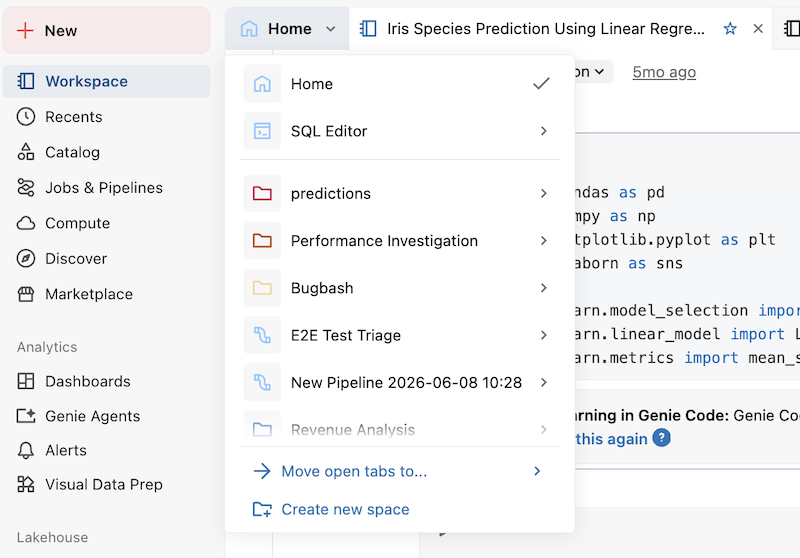
Spaces are an organizational tool you can use to group your work, focusing the editor window on a single folder or set of open tabs. Each space is a saved editor setup, anchored to a folder.
Spaces can be created manually, or automatically by opening a pipeline or Declarative Automation Bundles. You can also open a Git folder as a space from the workspace browser. Spaces are private to each user account.
When you're in a space:
- Your open tabs are saved with the space.
- The sidebar file tree opens at the space's folder.
- The workspace search bar defaults to searching in the folder.
Each space has a name and an accent color, so they're easy to tell apart.
Note
Spaces in the editor are a different concept from Genie spaces, which are used for natural-language data exploration in AI/BI Genie.
Create a space
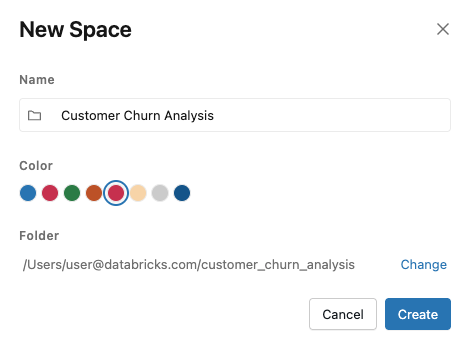
To manually create a new space:
- To the left of the open editor tabs, click the spaces dropdown (if you aren't in a space, this says Home or SQL Editor).
- Click Create new space.
- Enter a Name for the space.
- (Optional) Pick an accent Color.
- Pick a Folder to anchor the space. By default, your user folder is selected. Click Change to pick a different folder.
- Click Create space.
Move open tabs to a space
You can move your current open tabs into a dedicated space, either an existing one or a new one.
Move tabs to an existing space
- In the spaces list dropdown menu, click Move open tabs to... → Existing space.
- Select the destination space.
- Click Move tabs.
Your tabs are then moved into the destination space. The editor switches to the destination space.
Save open tabs as a new space
- In the spaces list dropdown menu, click Move open tabs to... → New space.
- Enter a name and (optionally) pick a color and folder.
- Click Create space.
A new space is created with your tabs already open in it. The editor switches to the new space.
Open a pipeline, Declarative Automation Bundles, or Git folder as a space
Spaces are also created automatically for some folder types when you navigate to them from the workspace browser, the Recents page, or search:
- Pipelines: Opens that pipeline's space. If no space exists, one is created and named after the pipeline, with its folder as its root.
- Declarative Automation Bundles: Opens that bundle's space. If no space exists, one is created and named after the bundle, with its folder as its root.
- Git folders: From the workspace browser, click the space icon next to a Git folder name to open it as a space.

These spaces include asset-specific tools alongside the standard space behavior:
- Pipeline spaces include the Lakeflow Pipelines Editor. See Develop and debug ETL pipelines with the Lakeflow Pipelines Editor.
- Declarative Automation Bundles spaces include the deployment panel. See Author bundles in the workspace.
Switch spaces
Click a space in the spaces list to switch to it. When you switch:
- Tabs in the current space are preserved, and the new space's tabs are restored.
- The file browser opens at the new space's root folder.
- Search defaults to the new space's root folder.
- If the space has asset-specific tools (pipeline editor, Declarative Automation Bundles deployment panel), those appear in the editor.
To open a space in a new browser tab, hover over the chevron (›) next to its name and select Open space in new tab.
Return to your last space
The editor remembers your space for each browser tab:
- New browser tabs open in the Home space.
- When you return to the editor in a browser tab where you were already working, you're taken back to the last space you created and opened.
Rename, recolor, or change a space's folder
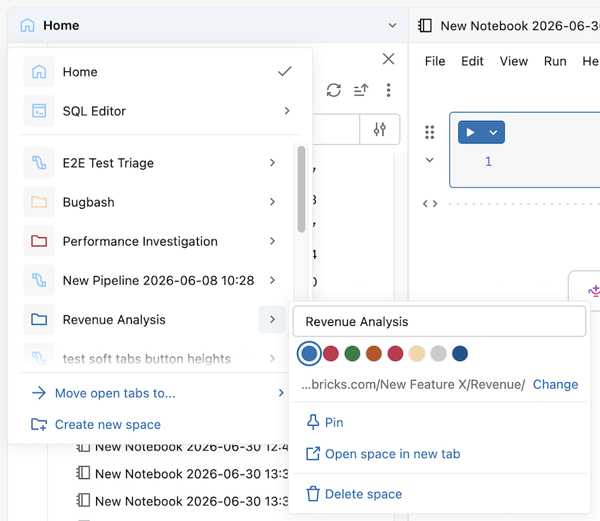
Hover over the chevron (›) next to a space's name to access its actions. Here you can edit the space's name and color, pin the space to the top of the list, and update the folder it's anchored to.
Changes take effect immediately.
Delete a space
Hover over the chevron (›) next to a space's name and select Delete Space. A confirmation dialog appears. To skip the confirmation next time, select Do not show this again before confirming.
Deleting a space removes the space from your list and closes its saved tabs. Your notebooks, files, and folders remain in the workspace, only the space and its saved tab set are removed.