Nota
L-aċċess għal din il-paġna jeħtieġ l-awtorizzazzjoni. Tista’ tipprova tidħol jew tibdel id-direttorji.
L-aċċess għal din il-paġna jeħtieġ l-awtorizzazzjoni. Tista’ tipprova tibdel id-direttorji.
Note
The Retail Interest Group by Dynamics 365 Commerce has moved from Yammer to Viva Engage. If you don't have access to the new Viva Engage community, fill out this form (https://aka.ms/JoinD365commerceVivaEngageCommunity) to be added and stay engaged in the latest discussions.
This article describes how to create a size, style, or color variant group for a product in Microsoft Dynamics 365 Commerce.
Dynamics 365 Commerce supports multiple variants for products. You can set up variant groups for different product categories. For example, you can create a size group for t-shirts with sizes extra small, small, medium, large, and extra large, or you can create a color group that includes all available colors of a product. You add variant groups before adding products.
In this article, you create and configure a size group. Use similar procedures for adding and configuring style groups and color groups.
Create a size group
To create a size group, follow these steps:
- In the navigation pane, go to Modules > Retail and commerce > Products and categories > Variant groups > Size groups.
- On the action pane, select New.
- In the Size group box, enter a name for the size group.
- In the Description box, enter an appropriate description.
- On the action pane, select Save.
Add attributes to the size group
To add attributes to a size group, follow these steps:
- In the navigation pane, go to Modules > Retail and commerce > Products and categories > Variant groups > Size groups.
- In the navigation pane, select a size group.
- Under Size group lines, select Add.
- In the Size box, enter a string representing the size (for example, "XL").
- In the Size name box, enter a name for the size (for example, "Extra Large").
- In the Replenishment weight box, enter a number representing the replenishment weight.
- In the Number in barcode box, enter a number representing the barcode.
- In the Display order box, enter a number representing the display order.
- When finished adding sizes, select Save on the action pane.
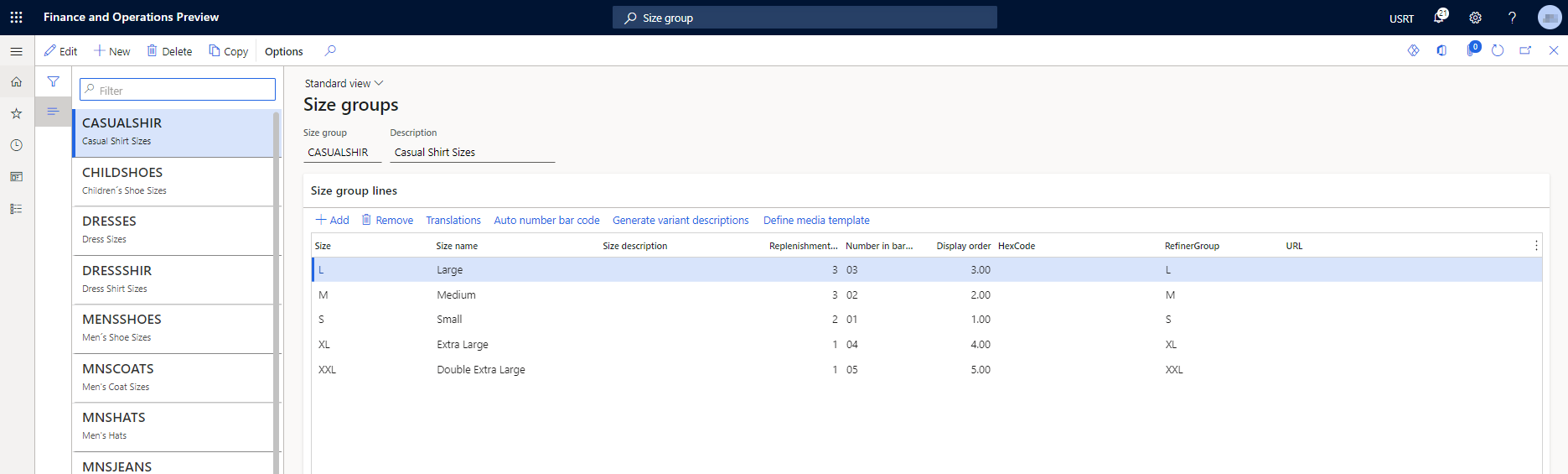
The following image shows an example of a size group for "casual shirt sizes."