Nota
L-aċċess għal din il-paġna jeħtieġ l-awtorizzazzjoni. Tista’ tipprova tidħol jew tibdel id-direttorji.
L-aċċess għal din il-paġna jeħtieġ l-awtorizzazzjoni. Tista’ tipprova tibdel id-direttorji.
Note
The Retail Interest Group by Dynamics 365 Commerce has moved from Yammer to Viva Engage. If you don't have access to the new Viva Engage community, fill out this form (https://aka.ms/JoinD365commerceVivaEngageCommunity) to be added and stay engaged in the latest discussions.
This article explains the capabilities for managing other order charges for channel orders by using advanced auto charges features in Microsoft Dynamics 365 Commerce.
When you enable the advanced auto charges features, orders created in any supported Commerce channel (point of sale (POS), call center, and online) can take advantage of the auto charges configurations that you define in the ERP application for both header and line-level related charges.
In releases before Retail version 10.0, auto charge configurations are only accessible by orders created in e-commerce and call center channels. In versions 10.0 and later, POS-created orders can use the auto charges configurations. That way, extra miscellaneous charges can systematically be added to sales transactions.
When you use releases before version 10.0, the POS user is prompted to manually enter a shipping fee during the creation of a "ship all" or "ship selected" POS transaction. While the miscellaneous charges capabilities of the application are utilized in respect to how the charges are written to the order, no systematic calculation is provided – the calculation relies on the user's input to determine the value of the charges. The charges can only be added as a single "shipping" related charges code and can't easily be edited or changed in the POS after they're created.
The use of manual prompts to add shipping charges is still available in versions 10.0 and later. If an organization doesn't enable the Advanced Auto-charges parameter, the POS prompts for manual entry of charges remain the same.
By using the advanced auto charges feature, POS users can have systematic calculations for any defined miscellaneous charges based on auto charges setup tables. In addition, users have the ability to add or edit an unlimited number of additional charges and fees to any POS sales transaction at the header or line-level (for a cash and carry or customer order).
Enable advanced auto charges
On the Retail and Commerce > Headquarters setup > Parameters > Commerce parameters page, go to the Customer orders tab. On the Charges FastTab, set Use advanced auto-charges to Yes.
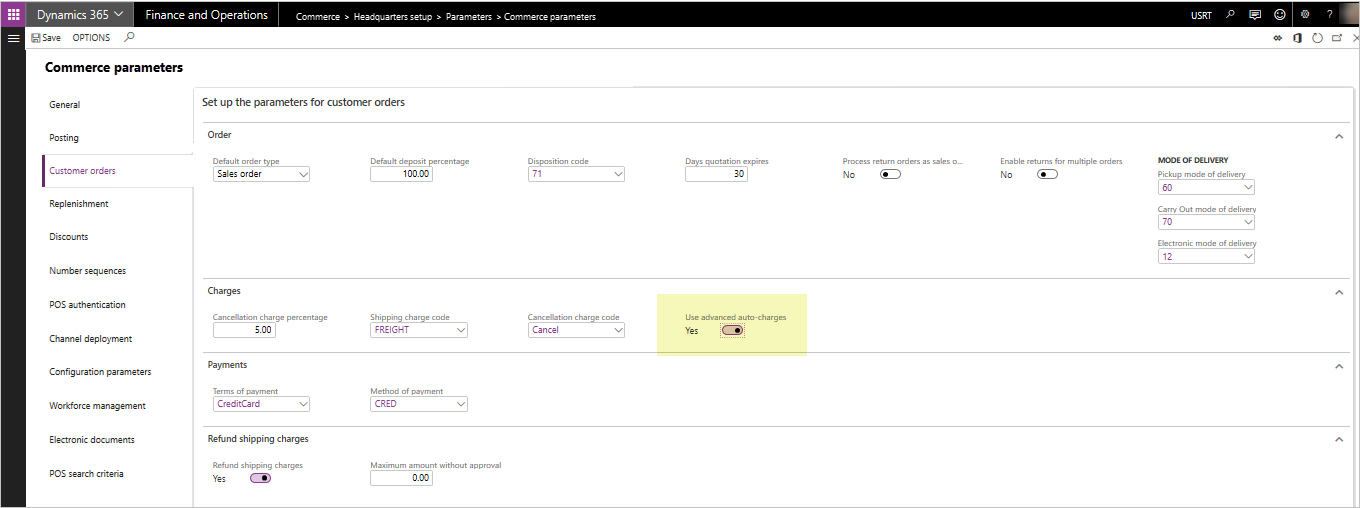
When you enable advanced auto charges, you no longer need to manually enter a shipping charge at the POS terminal when creating a ship-all or ship-selected customer order. POS order charges are systematically calculated and added to the POS transaction (if a corresponding auto charges table that matches the criterion of the order being created is found). Users can also add or maintain header or line-level charges manually through newly added POS operations that can be added to the POS screen layouts.
When you enable advanced auto charges, the existing Commerce parameters for Shipping charges code and Refund shipping charges are no longer used. These parameters are only applicable if the Use advanced auto charges parameter is set to No.
Before you enable this feature, ensure that you train and test your employees, because the enabled feature changes the business process flow of how shipping or other charges are calculated and added to POS sales orders. Make sure that you understand the impact of the process flow to the creation of transactions from POS. For call center and e-commerce orders, the impact of enabling advanced auto charges is minimal. Call center and e-commerce applications continue to have the same behavior they have had historically related to the auto charges tables to calculate extra order fees. Call center channel users continue to have the ability to manually edit any system calculated auto charges at the header or line level, or manually add additional miscellaneous charges at the header or line level.
Add POS operations
To ensure advanced auto charges work properly in your POS application environment, add new POS operations. Add these operations to your POS screen layouts and deploy them to the POS devices as you deploy advanced auto charges. If you don't add these operations, users can't manage or maintain miscellaneous charges on the POS transactions. They have no way to adjust or change the charges values that the system calculates based on auto charges configurations. At minimum, deploy the Manage charges operation to your POS layout.
The new operations are as follows.
- 142 - Manage charges – Use this operation to allow POS users to view and edit miscellaneous charges for the POS transaction that the system adds either manually or systematically through auto charges calculations.
- 141 - Add header charges – Use this operation to give the user the ability to manually add a header-level miscellaneous charge to any POS sales transaction (and select the charges code to use).
- 140 - Add line charges – Use this operation to give the user the ability to manually add a line level miscellaneous charge to any POS sales transaction line (and select the charges code to use).
- 143 - Recalculate charges – Use this operation to perform a full recalculation of the charges for the sales transaction. The system recalculates any previously user-overwritten auto charges based on the current cart configuration.
As with all POS operations, configure security to require manager approval to execute the operation.
You can add the preceding POS operations to the POS layout even if the Use advanced auto-charges parameter is disabled. In this scenario, organizations get the added benefits of being able to view manually added charges and edit them by using the Manage charges operation. Users can also use the Add header charges and Add line charges operations for POS transactions even when the Use advanced auto-charges parameter is disabled. The Recalculate charges operation has less functionality if used when the Use advanced auto-charges parameter is disabled. In this scenario, nothing is recalculated and any charges manually added to the transaction are reset to $0.00.
Use case examples
This section presents sample use cases to help you understand the configuration and usage of auto charges and miscellaneous charges within the context of channel orders. These examples illustrate the behavior of the application when the Use advanced auto-charges parameter is enabled.
Auto charges header charges example
Use case scenario
A retailer wants to automatically add charges for freight when transactions are created in any Commerce channel that require a shipment of products to the customer. The retailer offers two methods of delivery: Ground and Air. If a customer chooses Ground delivery and the order value is less than $100, the retailer wants to charge the customer a freight charge of $10.00. If the order is over $100 in value and the customer chooses ground shipping, the customer isn't charged any extra freight fees. If the customer chooses the Air method of delivery for all orders, regardless of their total value, the customer pays a freight fee of $20.00.
Setup and configuration
This scenario requires the configuration of two auto charges tables.
Go to Accounts receivable > Charges setup > Auto charges.
Configure two different header-level auto charges. Configure one for the "Ground mode" of delivery and one for the "Air mode" of delivery. For this scenario, configure them to be used for "All customers."
For the ground delivery charges, in the lines section of the Auto-charges page, define a charge that you apply for orders between $.01 and $100 as $10.00. Create another charges line to indicate orders over $100.01 have no charges.
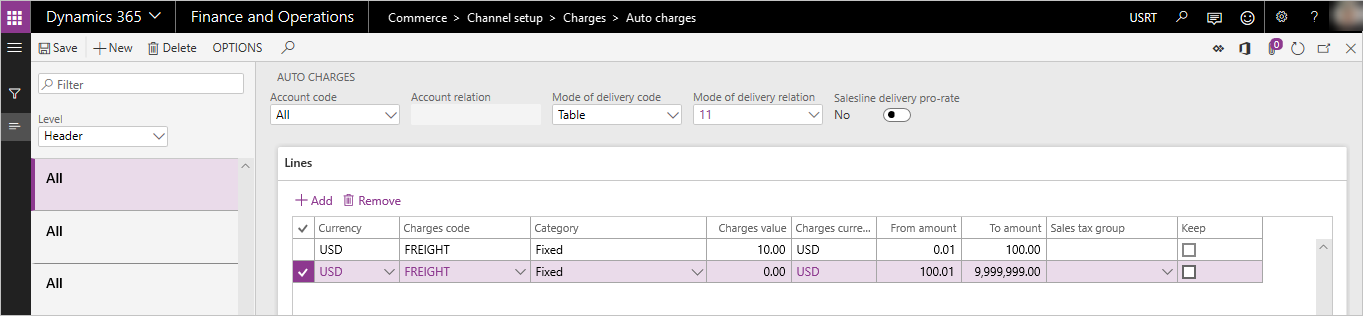
For the air delivery charges, in the lines section of the auto charges form, define a charge of $20.00 that you apply to all orders (between a value of $.01 to $9,999,999).
Send the changes to the Commerce Scale Unit/Channel DB so that the POS can utilize them by running the 1040 distribution schedule job.
Sales processing for this scenario
After the preceding configuration steps are completed and the changes are applied to the channel database, any customer order or sales transaction created in the POS, call center, or e-commerce channels that have the ground or air delivery methods set at the header level will utilize these charges and automatically apply them to the sale.
At this time, the charges apply to all sales transactions created within the legal entity that use these delivery modes, because there's no functionality to designate that an auto charge configuration only applies to a specific selling channel.
For POS and e-commerce scenarios, because there's no clearly defined "header" on these orders, header-level charges only apply if all sales lines on the transaction are set to ship with the exact same mode of delivery. If there are "mixed-modes" of fulfillment on the transactions created by POS or e-commerce, only line-level auto charges are considered and applied.
In call center scenarios, the user has control over the setting of the delivery mode at the order header, therefore header-level charges apply for these orders even if some of the sales lines are configured to use a different mode of delivery. Header-level charges for call center orders are always based on the mode of delivery that is defined at the order header level of the sales order.
Auto charges line charges example
Use case scenario
A retailer wants to add an extra charge to the customer for setup fees when the customer purchases a particular model of computer. This computer requires additional nonoptional setup actions that the retailer performs for the customer. The retailer informs customers that there's an extra fee for this setup. The retailer prefers to manage the charges related to this fee separately from the product sales price for financial reporting purposes. A setup fee of $19.99 is charged to the customer when this specific computer is purchased in any channel.
Setup and configuration
This scenario requires the configuration of one line-level auto charges table.
Go to Accounts Receivable > Charges setup > Auto charges.
Set the Level drop-down menu to Line, and create a new auto charges record for all customers and for the specific product or product group where the setup fees are charged.
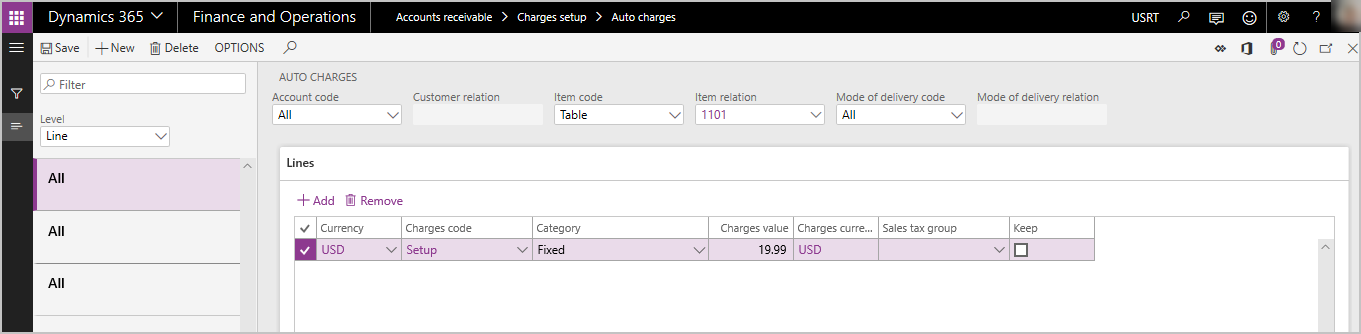
Send the charges to the Commerce Scale Unit/Channel DB so that the POS can use them by running the 1040 distribution schedule job.
Sales processing for this scenario
After the preceding configurations steps are completed and the changes are applied to the channel database, any customer order or sales transaction created in the POS, call center, or e-commerce channels that have this item on the order will trigger a line-level charge to be systematically added to the order total.
At this time, the charges apply to any sales line that matches the configuration of the line-level auto charges within the legal entity, as there's no functionality to configure a line-level auto charge to apply only to a specific selling channel.
Manual header charges example
Use case scenario description
A retailer makes an exception to typical processes by offering a special home delivery of products to customers who order products in the store. The retailer and the customer agree that the customer pays an extra $25 handling fee for this service. The order-taker adds this extra fee to the transaction. Because the fee is a blanket fee and isn't related to any single product on the order, use a header charge.
Setup and configuration
Make sure the charges code that you use in this scenario is properly configured. Go to Accounts Receivable > Charges setup > Charges to define an appropriate charges code for the scenario.
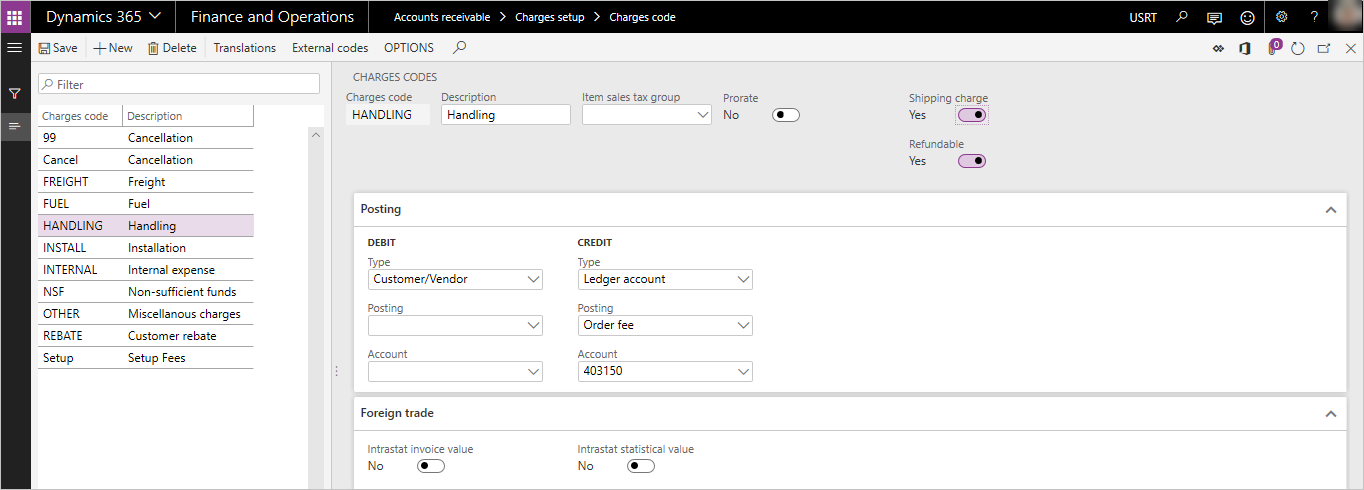
If the charge is a "shipping" related charge for shipping related discounts or promotions, set Shipping charge on the charges code to Yes. If this charge is also allowed to be systematically refunded during the processing of a return transaction in the POS application, set Refundable to Yes. The Refundable flag is only applicable when the Use advanced auto-charges parameter is set to Yes.
Send the charges to the Commerce Scale Unit/Channel DB so that the POS can use them by running the 1040 distribution schedule job.
You must configure the Add header charge operation in your POS screen layout so that a button that the user can access from POS can call this operation (operation 141). You must also distribute the screen layout changes to the channel through the distribution schedule function.
Sales processing of manual header charges
To run the scenario in the POS application, the POS user creates the sales transaction as usual, adding the products and any other configurations to the sale. The user runs the Add header charge operation before collecting payment. The operation prompts the user to select a charges code and enter the charges value. When the user finishes the process, the charge is added to the sales order as a header-level charge.
You can apply this process in the call center by using the existing Charges feature found on the Sell tab on the toolbar. On the Maintain charges page, the user can add a new charges line to the order header.
Manual line charges example
Use case scenario
A customer requests that two of the five items on their sales order be gift-wrapped. The retailer offers this optional service for a fee of $2.00 per item. The order-taker needs to add these fees to the specific items that need to be gift-wrapped.
Setup and configuration
Make sure the charges code that you use in this scenario is properly configured. Go to Accounts Receivable > Charges setup > Charges to define an appropriate charges code for the scenario.
If the charge is a shipping-related charge for the purpose of shipping related discounts or promotions, set the Shipping charge on the charges code to Yes. If the charge can be systematically refunded during the processing of a return transaction in the POS application, set Refundable to Yes. The Refundable flag is only applicable when the Use advanced auto-charges parameter is set to Yes.
Send the charges to the Commerce Scale Unit/Channel DB so that the POS can use them by running the 1040 distribution schedule job.
Configure the Add line charge operation in your POS screen layout so that a button accessible to the user from POS can call this operation (operation 140). You must also distribute the screen layout changes to the channel through the distribution schedule function.
Sales processing of the manual line charge
To execute the scenario in the POS application, the POS user creates the sales transaction as usual, adding the products and any other configurations to the sale. Before collecting payment, the user selects the specific line where the charge applies from the POS item list display and executes the Add line charge operation. The user is prompted to select a charges code and enter the charges value. Once the user completes the process, the charge links to the line and adds to the order total as a line level charge. The user can repeat the process to add more line charges to other items lines on the transaction if needed.
You can apply the same process in the call center by using the "maintain charges" feature found under the Financials drop-down menu in the Sales order lines section on the Sales order page. Selecting this option opens the Maintain charges page where the user can add a new line-specific charge to the transaction.
Additional features
Editing charges on a POS sales transaction
Add the Manage charges operation (142) to the POS screen layout so that users can view and edit or override any system-calculated or manually created header or line-level charges. If you don't add the operation, users can't adjust the value of the charges on the POS transaction, nor can they view the details of the charges such as the type of charges code tied to the charge.
On the Manage charges page in POS, users can view both header and line-level charges details. They can use the Edit function available on this page to make changes to the amount charged to a specific charges line. Once a charges line is overwritten manually, the system doesn't recalculate it unless the user initiates the Recalculate charges operation.
If you configure the Charge override reason code on the Commerce parameters setup page, prompt users to provide a reason code when they modify charges in the POS application.
If users capture reason codes for overwritten charges, a new report is also available to review and audit these overrides. The report can be found in Retail and Commerce > Inquiries and reports > Charge override history.
Refunding charges on a POS return transaction
If you set the Use advanced auto-charges parameter to Yes, the existing Commerce parameter for Refund shipping charges is no longer applicable. To indicate which charges should be systematically refunded to a customer when using advanced auto charges, ensure the related charges code is configured as Refundable on the Charges code setup page. Make sure that the settings are synchronized to your Commerce channel databases through distribution schedule processing.
Tip
For guidance to help you ensure that line-level refundable charges are calculated based on the quantity that is returned, see Refundable charges are miscalculated based on the quantity returned.
Refunding charges on a return order transaction
Charges aren't systematically refunded to Return orders created in Commerce. Users must select the Copy charges option when creating the Return order. If users don't select Copy charges, charges from the original sales transaction aren't automatically refunded. If users select Copy charges, all charges are copied to the return order and the user can manually edit or remove any charges they don't want refunded. The call center return order process currently doesn't acknowledge the Refundable flag on the Charges code setup.
Configuring POS receipts to show charges
Add the following receipt elements to the receipt line and footer to support the advanced auto charges functionality.
- Line Shipping Charges – Use this line-level element to recap specific charges codes that you apply to the sales line. Only charges codes that you flag as Shipping charges on the Charges code page display here.
- Line Other Charges – Use this line-level element to recap any nonshipping specific charge codes that you apply to the sales line. Line Other Charges are charges codes where you don't enable the Shipping flag on the Charges code page.
- Order Shipping Charges Details – This footer-level element displays the descriptions of the charge codes you apply to the order that you flag as Shipping charges on the Charges code setup page.
- Order Shipping Charges – This footer-level element shows the dollar value of the shipping-related charges.
- Order Other Charges Details – This footer-level element displays the description of the charges codes you apply to the order that aren't flagged as shipping-related charges.
- Order Other Charges – This footer-level element displays the dollar value of the other charges that aren't shipping-related.
Add free text fields to the receipt footer to define the areas where charges are recapped.
Preventing charges from being calculated until the POS order is completed
Some organizations might prefer to wait until the user finishes adding all of the sales lines to the POS transaction before calculating charges. To prevent calculation of charges as you add items to the POS transaction, turn on the Manual charge calculation parameter in the Functionality profile used by the store. When you enable this parameter, the POS user must use the Calculate totals operation when they complete adding the products to the POS transaction. The Calculate totals operation then triggers the calculation of any auto charges for the order header or lines as applicable.
Charges override reports
If users manually override the calculated charges or add a manual charge to the transaction, auditors can view this data in the Charge Override History report. Access the report from Retail and Commerce > Inquiries and reports > Charge Override History. The data needed for this report is imported from the channel database into HQ through the "P" distribution schedule jobs. Therefore, information about overrides that users perform in the POS might not be immediately available on this report until this job uploads the store transaction data into HQ.