Nota
L-aċċess għal din il-paġna jeħtieġ l-awtorizzazzjoni. Tista’ tipprova tidħol jew tibdel id-direttorji.
L-aċċess għal din il-paġna jeħtieġ l-awtorizzazzjoni. Tista’ tipprova tibdel id-direttorji.
Note
The Retail Interest Group by Dynamics 365 Commerce has moved from Yammer to Viva Engage. If you don't have access to the new Viva Engage community, fill out this form (https://aka.ms/JoinD365commerceVivaEngageCommunity) to be added and stay engaged in the latest discussions.
This article describes the pickup information module and explains how to add it to checkout pages in Microsoft Dynamics 365 Commerce.
Use the pickup information module in a checkout module to show order pickup information. Customers can view available pickup dates and time slots, and then select a suitable time to pick up their order. For example, a customer can choose to pick up an order at 3 PM on March 21 from the San Francisco store.
You must configure pickup time slots for the appropriate stores in Commerce headquarters. For more information, see Create and update time slots for customer pickup.
If you create a pickup information module on a checkout page but don't define time slots for the store that the customer selects for pickup, the module shows information but the user can't select any time slots. Time slots are optional and aren't required to place an order.
If a customer selects multiple items for pickup across multiple stores, the pickup information module lets the user select a time slot for each store, if time slots are available.
Note
Support for time slots and the checkout pickup information module is available in Dynamics 365 Commerce version 10.0.15 and later.
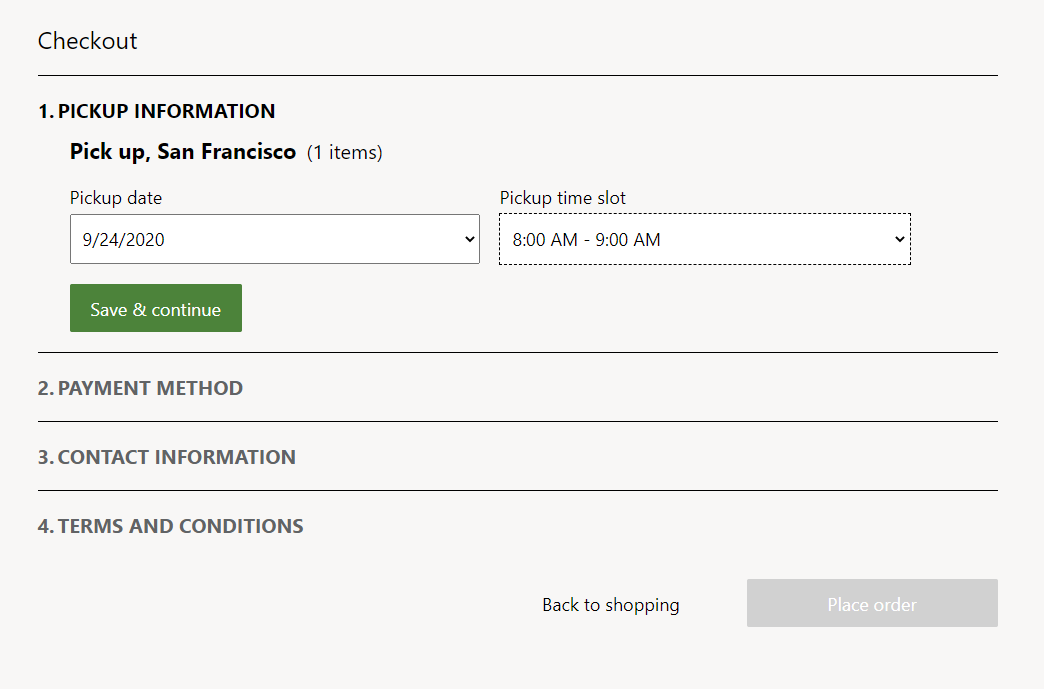
The following illustration shows an example of time slot selection through the pickup information module on a checkout page.
Module properties
- Heading – Enter a heading for the module.
Show time slot information after an order is placed
After an order is placed, you can view information about the selected time slot in the order confirmation module and the order details module. Both these modules have a Show timeslot information property. Before they can show the selected time slot during the order process, set this property to True.
Add a checkout pickup information module to a page
For instructions about how to add a pickup information module to a checkout page and set the required properties, see Checkout module.
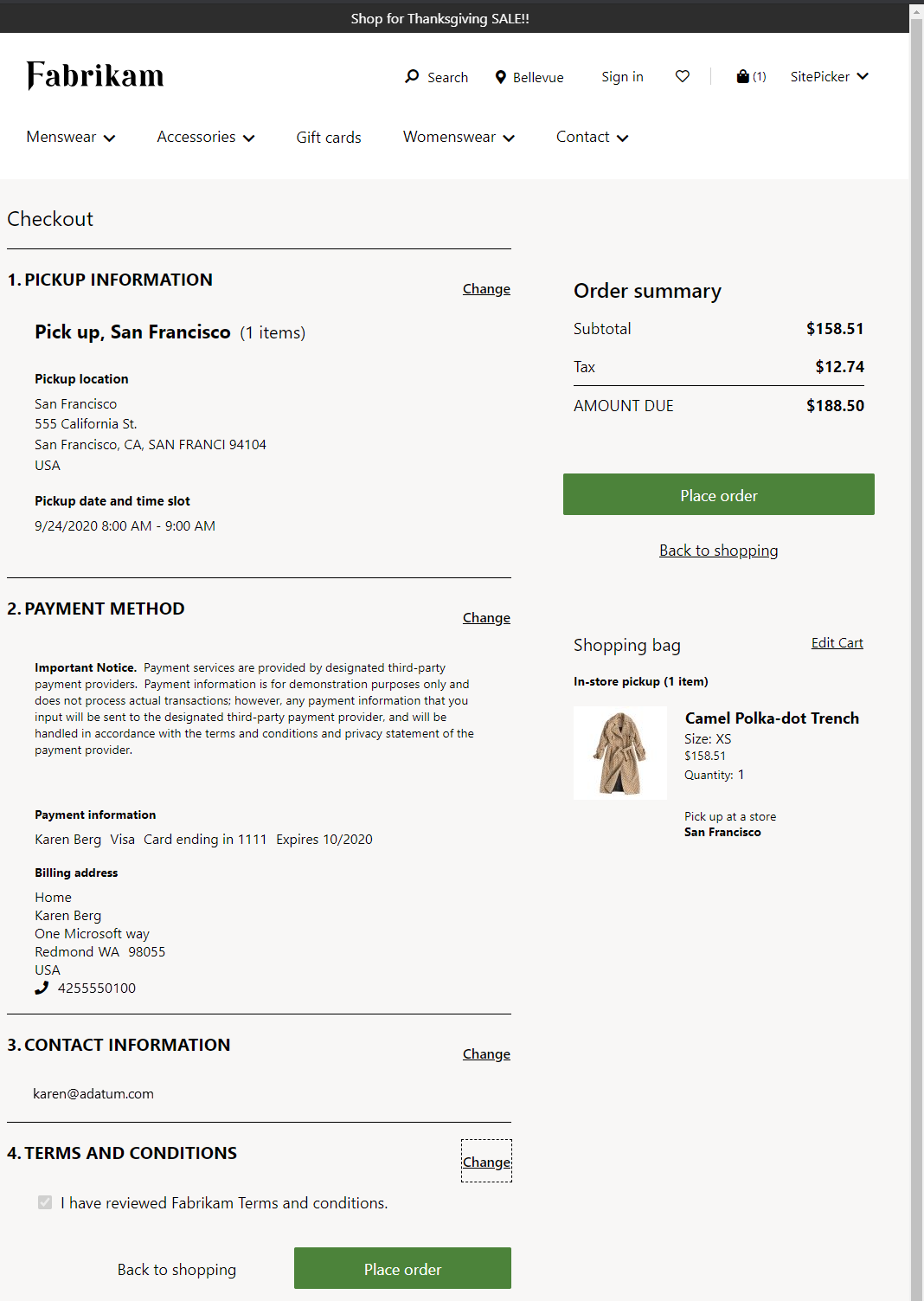
The following illustration shows an example of an e-commerce checkout page that includes time slots for pickup line items.