Nota
L-aċċess għal din il-paġna jeħtieġ l-awtorizzazzjoni. Tista’ tipprova tidħol jew tibdel id-direttorji.
L-aċċess għal din il-paġna jeħtieġ l-awtorizzazzjoni. Tista’ tipprova tibdel id-direttorji.
Omnichannel for Customer Service offers a suite of capabilities that extend the power of Dynamics 365 Customer Service Enterprise to enable organizations to instantly connect and engage with their customers across digital messaging channels. An additional license is required to access Omnichannel for Customer Service. For more information, see the Dynamics 365 Customer Service pricing overview and Dynamics 365 Customer Service pricing plan pages.
The Ongoing conversation report shows ongoing conversations from the last 2 hours that are currently being handled by customer service representatives (service representatives or representatives) in your organization and that aren't yet closed. Learn how to access the report. The report displays those conversations that have the open, active, wrap-up, or waiting status. Learn more in Understand conversation states.
This report provides a holistic view of the conversations in real time. It includes details about subject, status, active service representative details, queue, channel, wait time, handle time, and customer sentiment. Learn more in Overview of Omnichannel real-time analytics dashboards.
Note
- Autorefresh isn’t available for the ongoing conversations Power BI page. You must refresh the page manually to see the latest conversations and then perform the corresponding actions.
- Digital messaging, chat, and voice channels only are supported.
- The reports are prefiltered based on the queues you're logged in to as a supervisor. So you see metrics and conversations relevant to the assigned queues only.
Learn more about the metrics that are shown on the Ongoing conversation report.
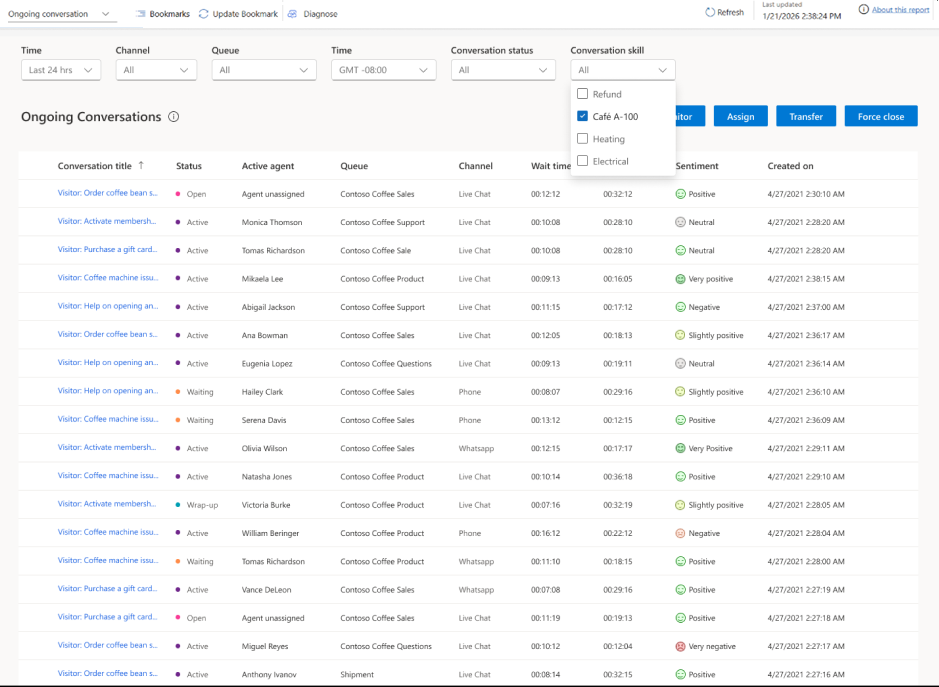
You can perform different actions, such as assign or transfer a conversation, as described in the following sections.
Note
Actions like assign, transfer, monitor, or force close conversations aren't supported in model-customized reports.
Assign or transfer conversations
You can view service representative skills and proficiency, availability, and available capacity. These insights help you manage and allocate resources effectively. You can assign or transfer conversations only to service representatives who are part of the current queue. You can manage the queues for service representatives. Learn more in Manage users.
Refer to the following table to see when assign and transfer are enabled, depending on the various conversation states.
| Type | Conversation state | Assign | Transfer |
|---|---|---|---|
| Record | Open | Assign to queue | Not enabled |
| Record | Open | Assign to representative | Not enabled |
| Record | Active | Not enabled | Transfer to representative |
| Record | Wrap-up | Not enabled | Not enabled |
| Record | Waiting | Enabled | Enabled |
Assign conversations
In the Copilot Service workspace app, go to the dashboard view selector, and then select the Ongoing Conversations report.
Select a conversation in an Open state, and then select Assign.
In the Assign conversations dialog, select Find an agent or Find a queue. If you select Find an agent, only those service representatives whose presence matches with one of the allowed presence values in the workstream configuration are displayed.
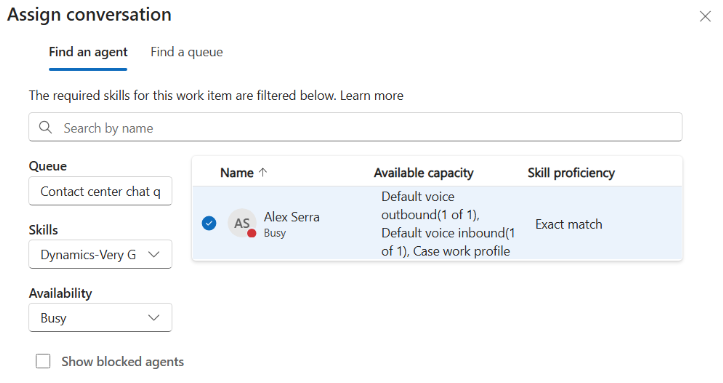
If you select Find a queue, all other queues—except the one to which the conversation is currently assigned—are displayed.
Select Assign.
Transfer conversations
Once a conversation is assigned to a representative, it's in the Active state. You can select the conversation and transfer it.
Select a conversation in the Active or Waiting state, and then select Transfer.
In the Transfer conversation dialog, select a representative from the list of service representatives that appears. A list of service representatives belonging to the same queue and whose presence matches with one of the allowed presence values in the workstream configuration is displayed.
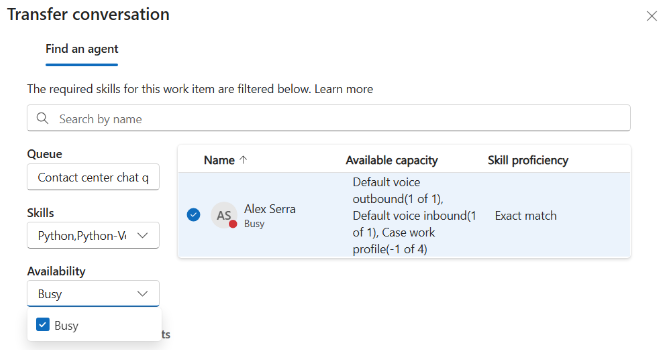
Select Transfer. The system transfers the selected conversation to the representative.
Monitor conversations
Listen to an ongoing conversation. When you select Monitor, you receive a message that indicates that monitoring started. This action applies to active conversations that the service representative accepted, conversations in a wrap-up state, and conversations that are in a waiting state only. If you have the representative app open in multiple tabs or browsers, the monitored conversation opens in the one where you select Monitor. Other browsers remain as-is.
From the dashboard view selector, select the Ongoing Conversations report. The list of conversations that your service representatives are currently handling appears.
Select a conversation that you want to monitor, and then select Monitor. The conversation page opens.
Optionally, to join a conversation, select Join chat in the communication panel.
Both the service representative and the customer receive notifications when you join a conversation. Depending on your requirements, you can consult with the service representative and customer. Learn more in View communication panel.
Force close conversations
Note
We recommend that you use the Force close option cautiously because it closes the customer conversation immediately.
Forcibly close a conversation by closing the work item. When you select Force close, a confirmation message appears. You must select Proceed to close the work item.
From the dashboard view selector, select the Ongoing Conversations report.
Select a conversation and then select Force Close.
The participants receive a notification that a supervisor ended their conversation.
Related information
- Use report metrics
- Manage real-time analytics reports in Omnichannel for Customer Service
- Overview of Omnichannel real-time analytics dashboard
- View and understand the Voice report in Omnichannel real-time analytics
- View and understand the Agent report in Omnichannel real-time analytics
- View and understand the Summary report in Omnichannel real-time analytics