Nota
L-aċċess għal din il-paġna jeħtieġ l-awtorizzazzjoni. Tista’ tipprova tidħol jew tibdel id-direttorji.
L-aċċess għal din il-paġna jeħtieġ l-awtorizzazzjoni. Tista’ tipprova tibdel id-direttorji.
Inspections aren't limited to a basic list of questions. Use branching and conditional logic to create dynamic inspections that automatically adjust, displaying different questions or steps depending on how the technician answers. You can also streamline your processes by copying inspections, adding translations, importing and exporting inspection definitions, and associating inspections with assets to help build comprehensive service histories.
Watch a brief video overview:
Add branching and conditional logic
An inspection can look and act differently depending on how the technician answers. Add branching and conditional logic in the Logic section of the inspection designer. The inspection must be in a draft status.
In Field Service, change to the Settings area. Under Work Orders, select Inspection Templates.
Open a draft inspection, select the Logic tab, and then Create rule.
To define a condition, select a question and response.
Define the action for the selected response.
Make Page visible: If an inspection includes more than one page, show a specific page when the condition is true.
Show the question: Show a specific question when the condition is true.
A question's visibility maps to a single rule. If you want multiple questions to determine whether the question is shown, add more conditions to the rule.
Change to Required: Make the question required when the condition is true.
Skip to question: Skip to a specific question when the condition is true.
Continue to add conditions and actions if needed and then select Apply rule & close.
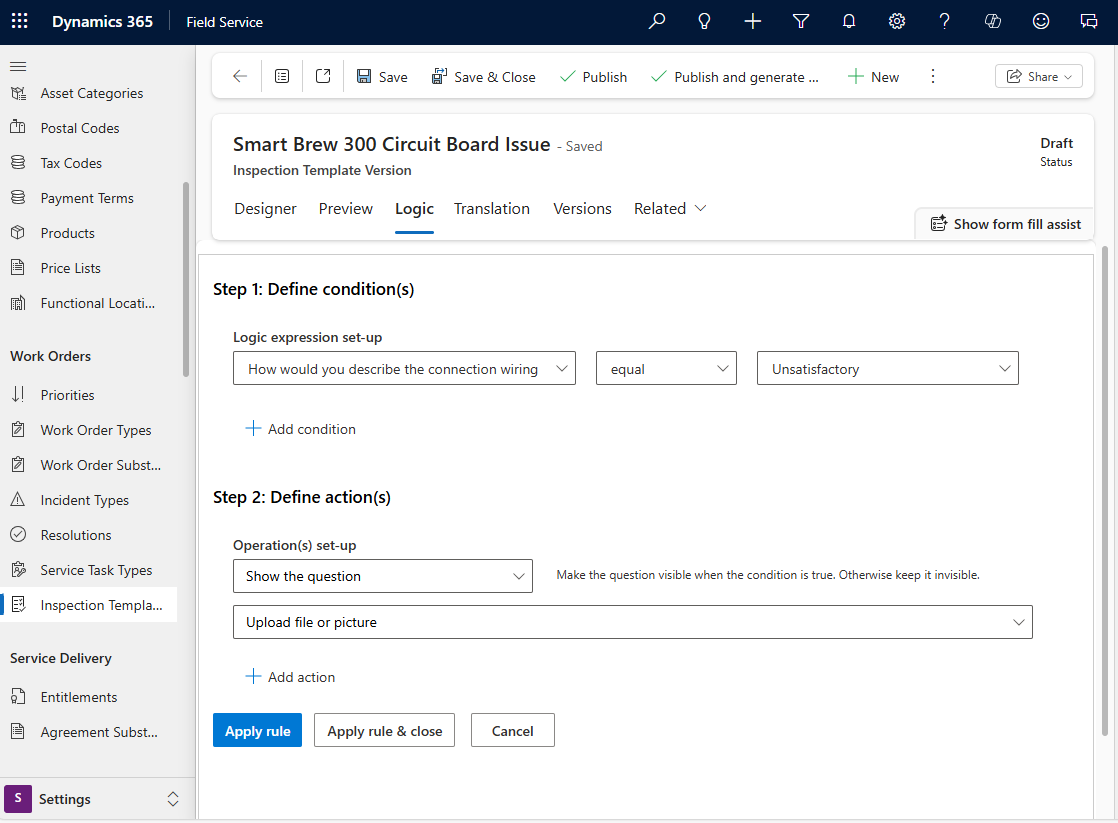
Add other rules if needed and then select save and publish.
Copy an inspection
Copy an inspection to quickly create similar inspections.
In Field Service, change to the Settings area. Under Work Orders, select Inspection Templates.
Select the checkbox to the left of the inspection you want to copy.
Select Copy in the command bar.
Modify the new inspection draft as needed. Learn more in Create inspection.
Save and publish.
Create a new version of an inspection
When you publish an inspection, it becomes read-only. To change it, you need to create a new version. Previous versions of published templates aren't saved. If you revise a published template, once the revised template is published, the original template is no longer available.
Revising an inspection doesn't change service tasks retroactively. Service tasks keep the inspection version that was active when the task was created.
Open the published inspection.
Select Revise in the command bar.
The system creates a new version of the inspection in a draft status.
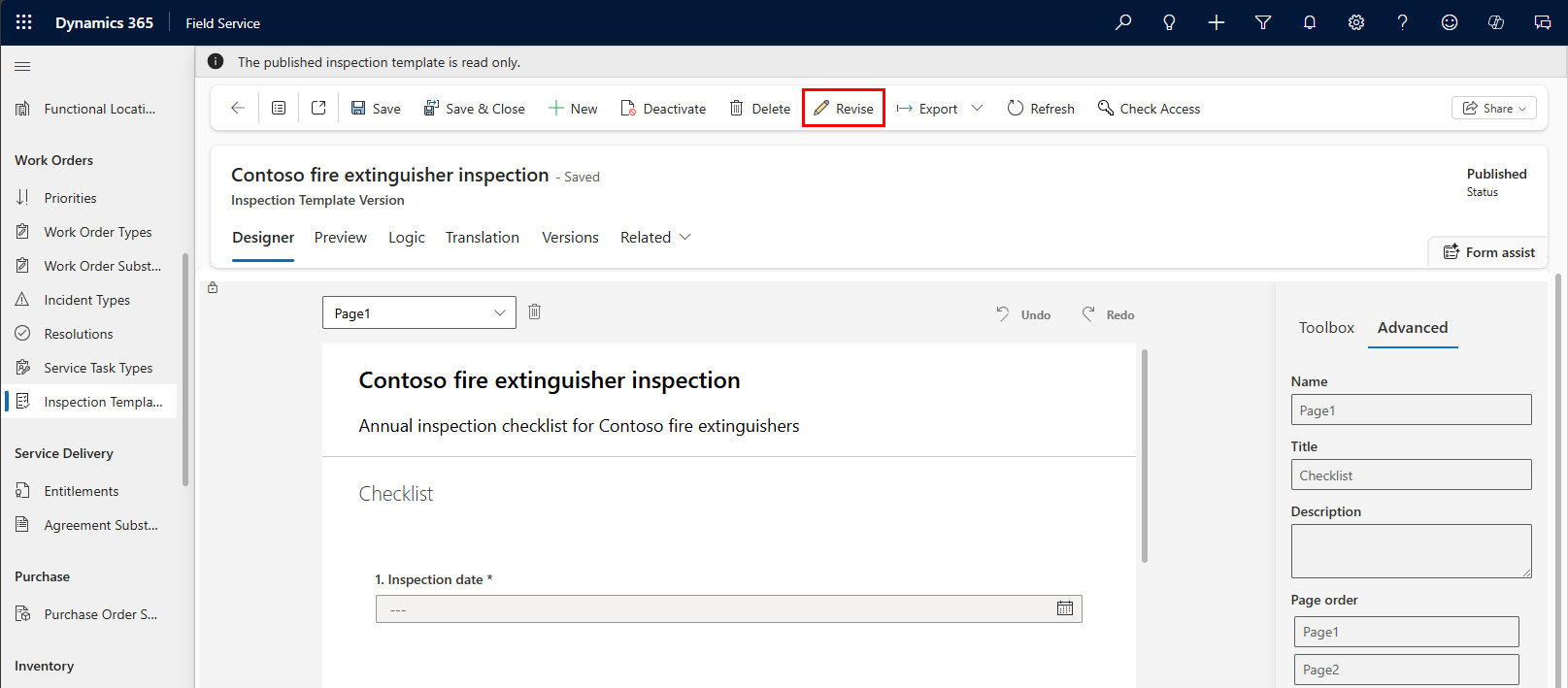
Modify the draft as needed.
To use the new version and replace the current one, select Publish.
Export an inspection as a PDF file
Export an inspection as a PDF file to send the questions in an email. Although the questions can be answered in the file, they no longer interact with the Dynamics 365 system (for example, lookups don't work), and they don't flow back into Field Service.
Open the inspection you want to export.
Select Export > Export to PDF to download the file.
Export inspection responses as a PDF file
Export inspection responses as a PDF file to share them by email, for instance. This option doesn't support custom date or number formats, right-to-left languages, Hindi, or Chinese.
Open the work order that contains the inspection response you want to export.
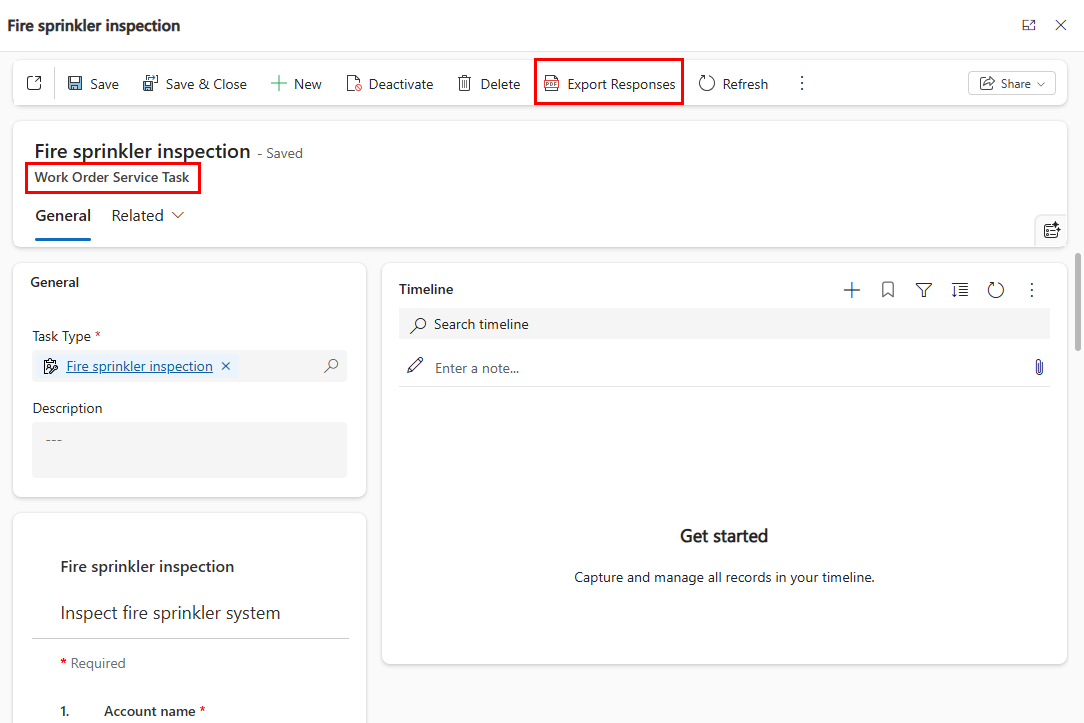
Select the Tasks tab and open the service task.
Select Export Responses to download them as a PDF file.
Export an inspection to JSON
Administrators can export inspections as JSON objects to import them to another environment. For example, from a test environment to a production environment.
Open the inspection you want to export.
Select Export > Export to json to download the file in JSON format.
Add translations
Add a variation of an inspection for each language your technicians speak.
Important
Turn on languages in your environment to let technicians view translated inspections in the mobile app.
Open the draft inspection and then select the Translation tab.
Select a language from the list and enter the translation for each question.
Save and publish the inspection.
Associate inspections with customer assets
Associate an inspection to a customer asset to let technicians know which asset to inspect and to build a service history.
Open the work order that contains the inspection.
Select the Tasks tab and open the service task.
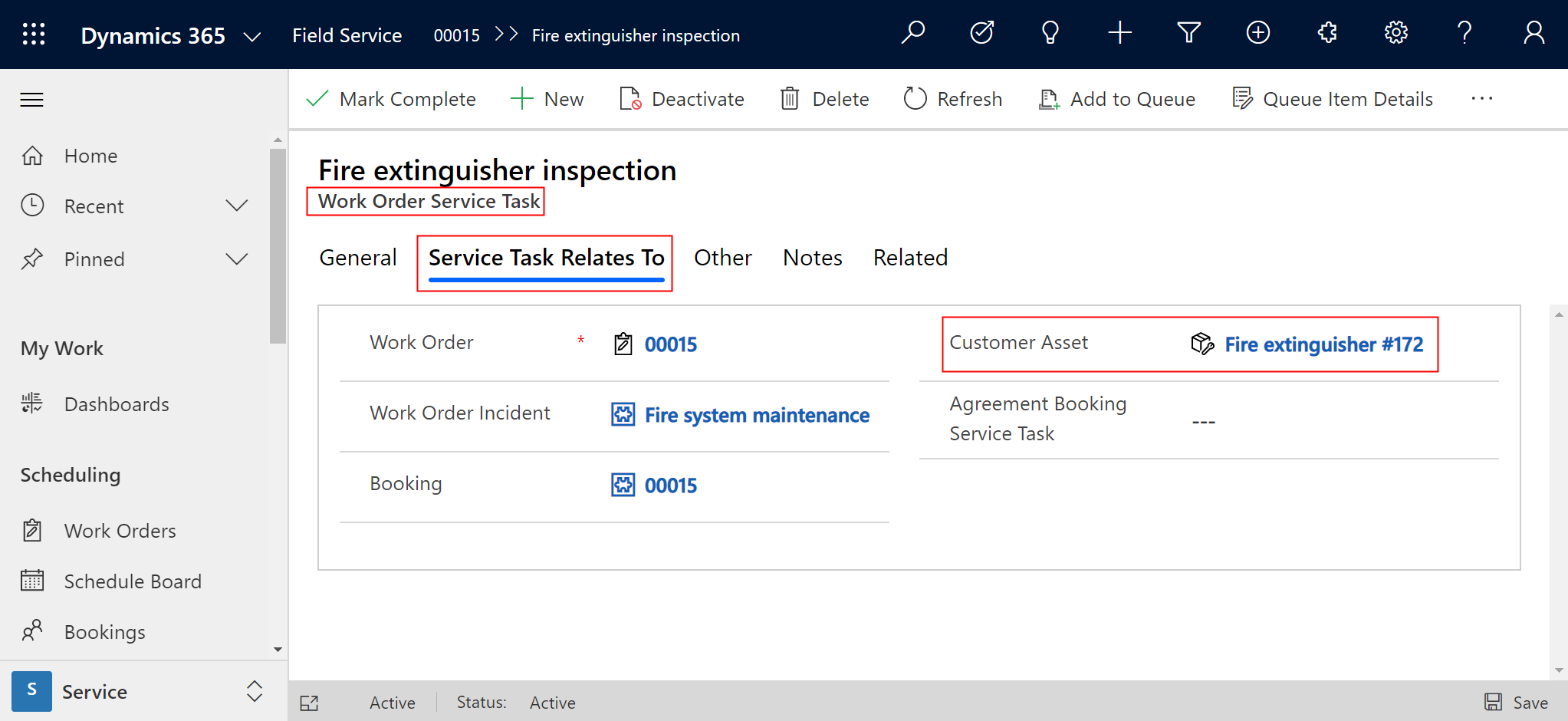
Select the Service Task Relates To tab. For Customer Asset, select the asset or create it.
Tip
Relate a work order incident type to a customer asset and the related work order service tasks are automatically related to the customer asset.
Inspecting multiple assets at a location
If technicians need to inspect multiple customer assets at a location, you have two options:
- Create an inspection with one question for each asset and relate the inspection to a single service task. A single service task with multiple questions is quicker to fill out.
- Create a work order service task for each asset, each with one inspection. Work order service tasks related to customer assets can build a service history. Creating service tasks for customer assets helps to build that service history.