Nota
L-aċċess għal din il-paġna jeħtieġ l-awtorizzazzjoni. Tista’ tipprova tidħol jew tibdel id-direttorji.
L-aċċess għal din il-paġna jeħtieġ l-awtorizzazzjoni. Tista’ tipprova tibdel id-direttorji.
In this article, you learn how to create a OneLake shortcut that points to data inside another Fabric item in your tenant.
For an overview of shortcuts, see OneLake shortcuts. To create shortcuts programmatically, see OneLake shortcuts REST APIs.
Prerequisites
A lakehouse or KQL database in OneLake. If you don't have one of these, create a test lakehouse by following these steps: Create a lakehouse.
Create a shortcut
Open your lakehouse or KQL database.
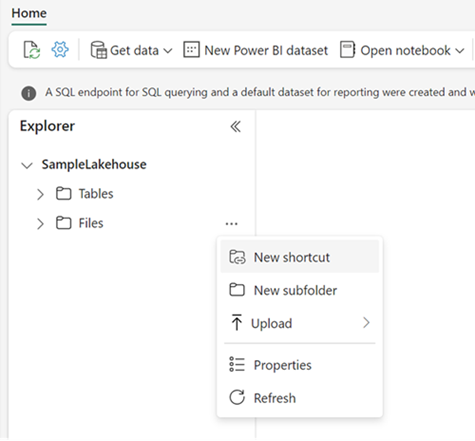
Right-click on a directory within the Explorer pane.
Create a new shortcut from the menu.
- In a lakehouse, select New shortcut, New table shortcut, or New schema shortcut depending on your lakehouse settings.
- In a KQL database, select + > New > OneLake shortcut.
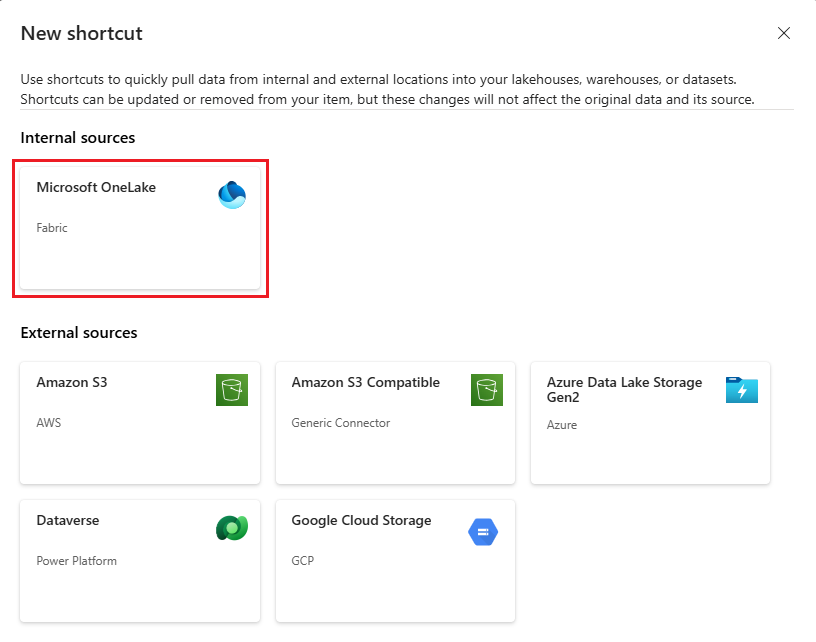
Under Internal sources, select Microsoft OneLake.
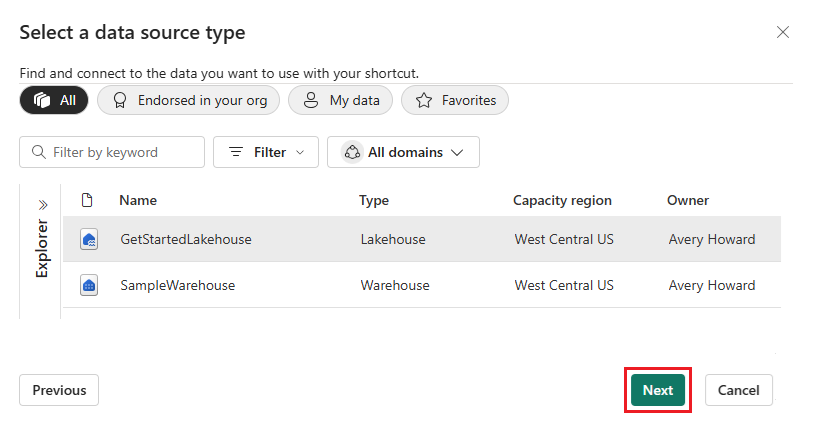
Select the data source that you want to connect to, and then select Next.
Tip
If you want to connect to data in a different Fabric tenant, follow the steps to create a Cross-tenant OneLake shortcut.
Select a Connection method:
Pass-through (default): Each user's own identity is used to access the target data. Continue to the next step.
Delegated identity: A configured connection identity is used to access the target data instead of each user's identity. If you select this option, select Connect and then configure the connection. For more information, see Delegated authentication.
To configure a delegated connection:
- Select Existing connection and choose a connection from the list, or select New connection to create one.
- For a new connection, enter the connection details:
- Path: Confirm or enter the OneLake path.
- Connection: Select Create new connection.
- Connection name: Enter a recognizable name.
- Authentication kind: Choose Organizational account or Service principal.
- For Organizational account, select Sign in and complete authentication.
- For Service principal, enter the tenant ID, application (client) ID, and client secret.
- For Organizational account, select Sign in and complete authentication.
- Select Next.
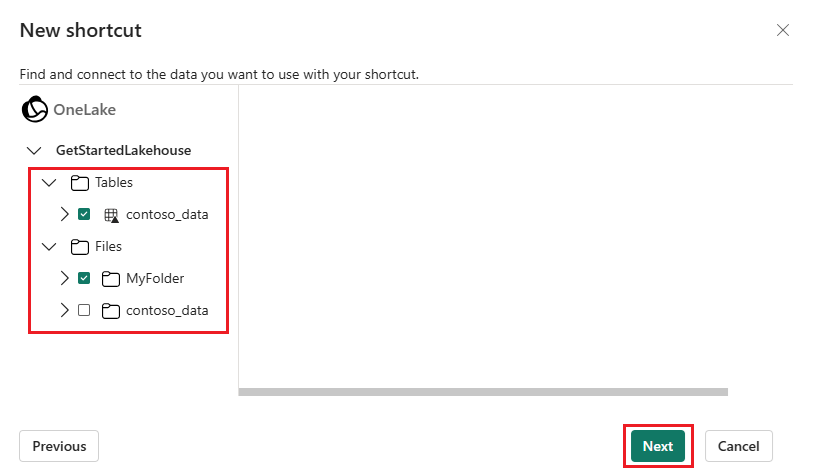
Expand Files or Tables to view the available subfolders. Subfolders in the tables directory that contain valid Delta or Iceberg tables are indicated with a table icon. Files or unidentified folders in the tables section are indicated with a folder icon.
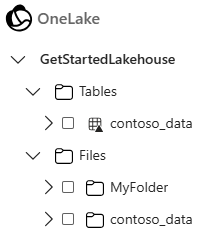
Select one or more subfolders to connect to, then select Next.
You can select up to 50 subfolders when creating shortcuts in OneLake.
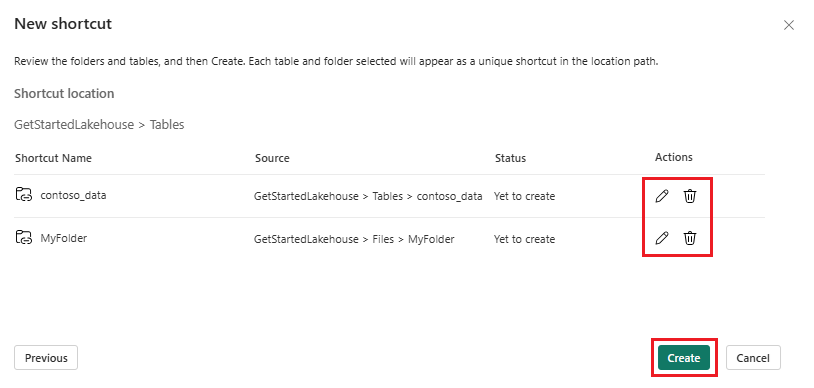
Review your selected shortcut locations. Use the edit action to change the default shortcut name. Use the delete action to remove any undesired selections. Select Create to generate shortcuts.
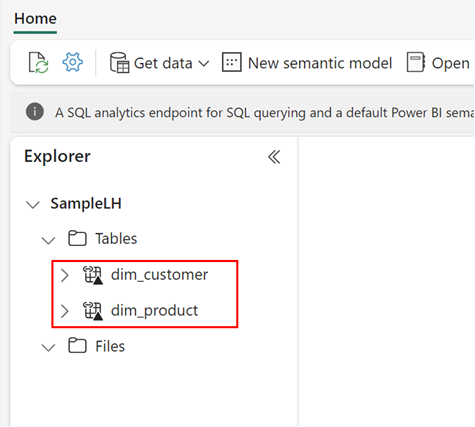
The lakehouse automatically refreshes. The shortcut appears under the selected directory in the Explorer pane. You can differentiate a regular file or table from the shortcut from its properties. The properties have a Shortcut Type parameter that indicates the item is a shortcut.
To edit or delete an existing shortcut, see Edit or delete a OneLake shortcut.