Nota
L-aċċess għal din il-paġna jeħtieġ l-awtorizzazzjoni. Tista’ tipprova tidħol jew tibdel id-direttorji.
L-aċċess għal din il-paġna jeħtieġ l-awtorizzazzjoni. Tista’ tipprova tibdel id-direttorji.
Note
This connector is owned and provided by SingleStore.
Summary
| Item | Description |
|---|---|
| Release State | General Availability |
| Products | Power BI (Semantic models) Power BI (Dataflows) Fabric (Dataflow Gen2) |
| Authentication Types Supported | Basic Windows |
Capabilities supported
- Import
- DirectQuery (Power BI semantic models)
- Advanced options
- Native SQL statement
Note
Existing reports created using the SingleStoreODBC.Query (CustomSQL functionality) function call continue to be supported. SingleStore recommends using native database queries for new reports.
Connect to SingleStore
To connect Microsoft Power BI Desktop to SingleStore DB or Managed Service:
In the Home ribbon, from the Get Data list, select More.
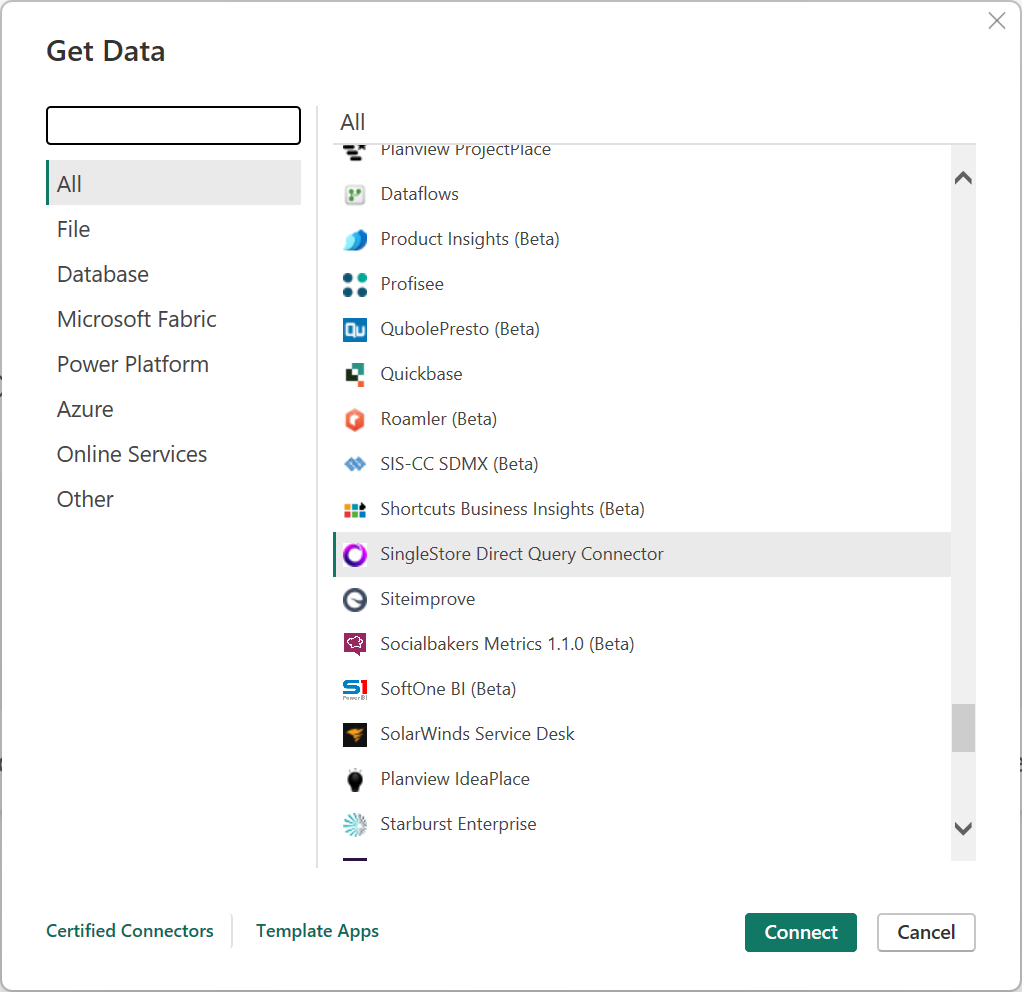
In the Get Data dialog, select SingleStore Direct Query Connector.
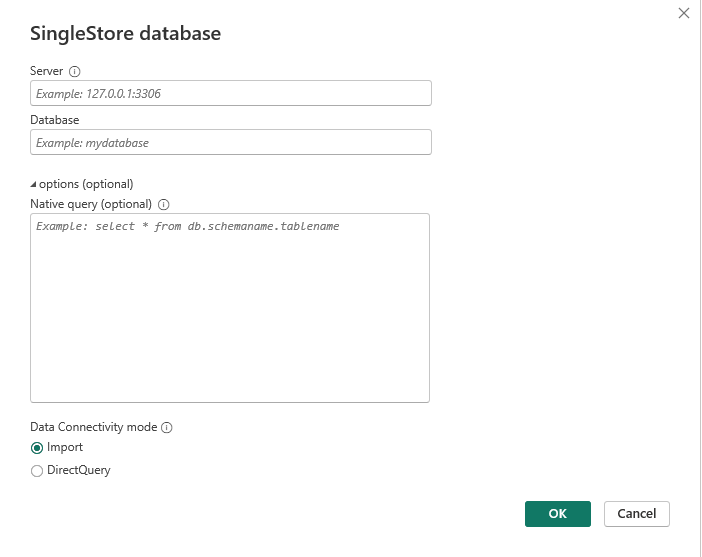
In the connection configuration dialog, enter or select the following values:
- Server: Enter the IP address or the hostname of the SingleStore cluster.
- Database: Enter the name of the SingleStore database to connect with.
- Data Connectivity mode: Select Import or DirectQuery.
- (Optional) To ingest data using a native database query, enter the SQL query in the Native query box.
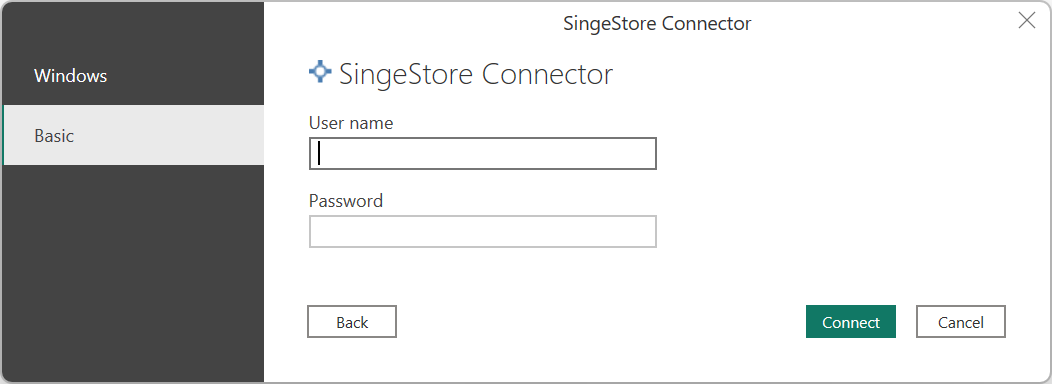
In the SingleStore Direct Query Connector dialog box, in the left pane, select the authentication type (Windows or Basic).
Note
SingleStoreDB Cloud users can only use Basic authentication.
For Windows authentication, set up a SingleStore server for Kerberos authentication. Then select the Connect button.
Note
You need to run Power BI with the user account that maps to the SingleStore user. Therefore, if the Windows user is
administrator@domain, the database user must beadministrator. You might need to create the database user.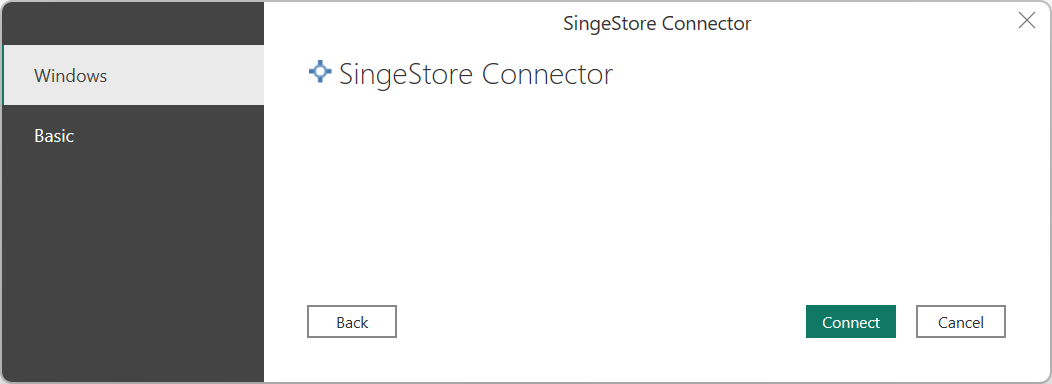
For Basic authentication, enter the username and password used to connect to SingleStore, and then select the Connect button.
After you authenticate, for Import or DirectQuery mode, in the Navigator dialog box, choose the tables you want and select the Load button.
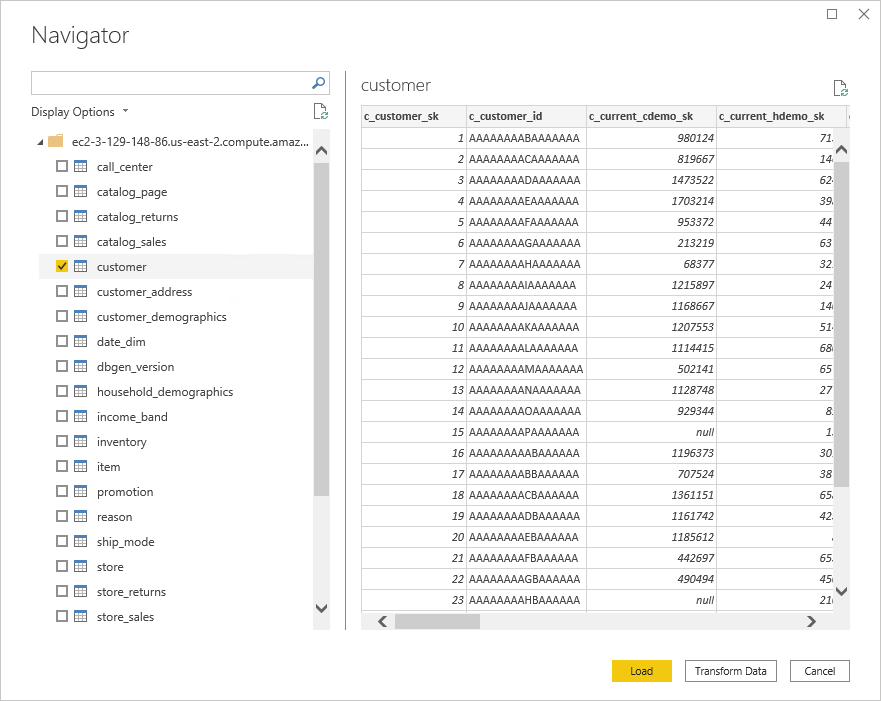
You can now use Power BI to explore SingleStore data.
Limitations of native database queries
- To run a native database query by using the connector, you must have read-only access to the SingleStore databases.
- DDL queries aren't supported.
- If you specify the SQL query outside the connector dialog (the connection configuration step), Power BI might prompt you to approve the query for your credentials.
For more information, see Limitations and issues.
Modify credentials
To modify the credentials used to connect to SingleStore:
In the File ribbon, select Options and settings > Data source settings.
In the Data source settings dialog, select SingleStore Direct Query Connector, and then select Edit Permissions.