Nota
L-aċċess għal din il-paġna jeħtieġ l-awtorizzazzjoni. Tista’ tipprova tidħol jew tibdel id-direttorji.
L-aċċess għal din il-paġna jeħtieġ l-awtorizzazzjoni. Tista’ tipprova tibdel id-direttorji.
Microsoft Purview Data Map supports automated scanning of on-premises, multicloud, and software as a service (SaaS) data sources.
When you run a scan, the process starts to ingest metadata from the registered data sources. At the end of the scan and curation process, you get curated metadata that includes technical metadata. This metadata can include data asset names such as table names or file names, file size, columns, and data lineage. For structured data sources, schema details are also captured. A relational database management system is an example of this type of source.
The curation process applies automated classification labels on the schema attributes based on the scan rule set you configure. If your Microsoft Purview account is connected to the Microsoft Purview portal, sensitivity labels are applied.
Important
If you have any Azure Policies that prevent updates to storage accounts, these policies cause errors for the Microsoft Purview scanning process. See Create an Azure policy exclusion for Microsoft Purview to create an exception for Microsoft Purview accounts.
Why do you need best practices to manage data sources?
Best practices help you:
- Optimize cost.
- Build operational excellence.
- Improve security compliance.
- Gain performance efficiency.
Register a source and establish a connection
The following design considerations and recommendations help you register a source and establish a connection.
Design considerations
- Use collections to create the hierarchy that aligns with the organization's strategy, such as geographical location, business function, or source of data. The hierarchy defines the data sources to register and scan.
- By design, you can't register data sources multiple times in the same Microsoft Purview account. This architecture helps you avoid the risk of assigning different access control to the same data source.
Design recommendations
If multiple teams consume the metadata of the same data source, register and manage the data source at a parent collection. Then, create corresponding scans under each subcollection. In this way, relevant assets appear under each child collection. The map view groups sources without parents in a dotted box. No arrows link them to parents.
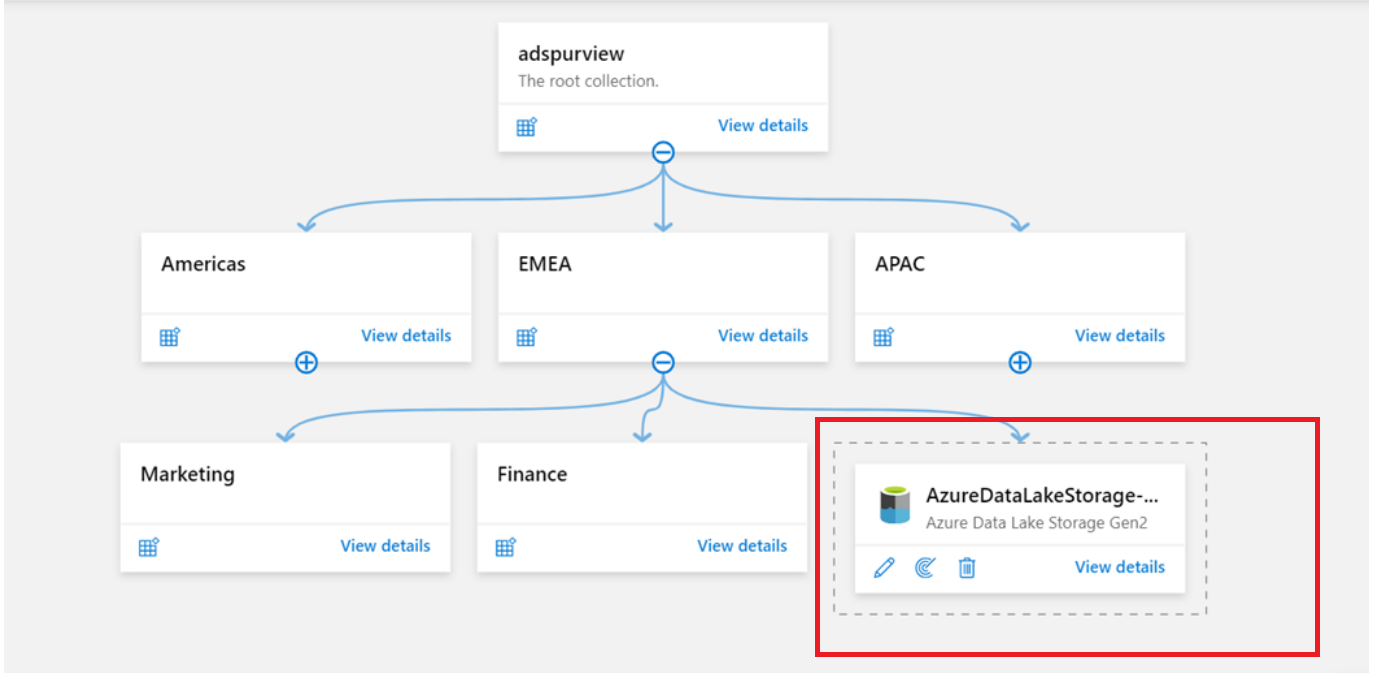
Use the Azure Multiple option if you need to register multiple sources, such as Azure subscriptions or resource groups, in the cloud. For more information, see the following documentation:
After you register a data source, you can scan the same source multiple times. Different teams or business units might use the same source in different ways.
For more information on how to define a hierarchy for registering data sources, see Best practices on collections architecture.
Scanning
The following design considerations and recommendations are organized based on the key steps involved in the scanning process.
Design considerations
- After you register the data source, set up a scan to manage automated and secure metadata scanning and curation.
- Scan setup includes configuring the name of the scan, scope of scan, integration runtime, scan trigger frequency, scan rule set, and resource set uniquely for each data source per scan frequency.
- Before you create any credentials, consider your data source types and networking requirements. This information helps you decide which authentication method and integration runtime you need for your scenario.
Design recommendations
After you register your source in the relevant collection, plan and follow the order shown in this example when you set up the scan. This process order helps you avoid unexpected costs and rework.

Identify your classification requirements from the system in-built classification rules. Or create specific custom classification rules, as necessary. Base them on specific industry, business, or regional requirements, which aren't available out of the box:
- See the classification best practices.
- See how to create a custom classification and classification rule.
Create scan rule sets before you configure the scan. When you create the scan rule set, ensure the following points:
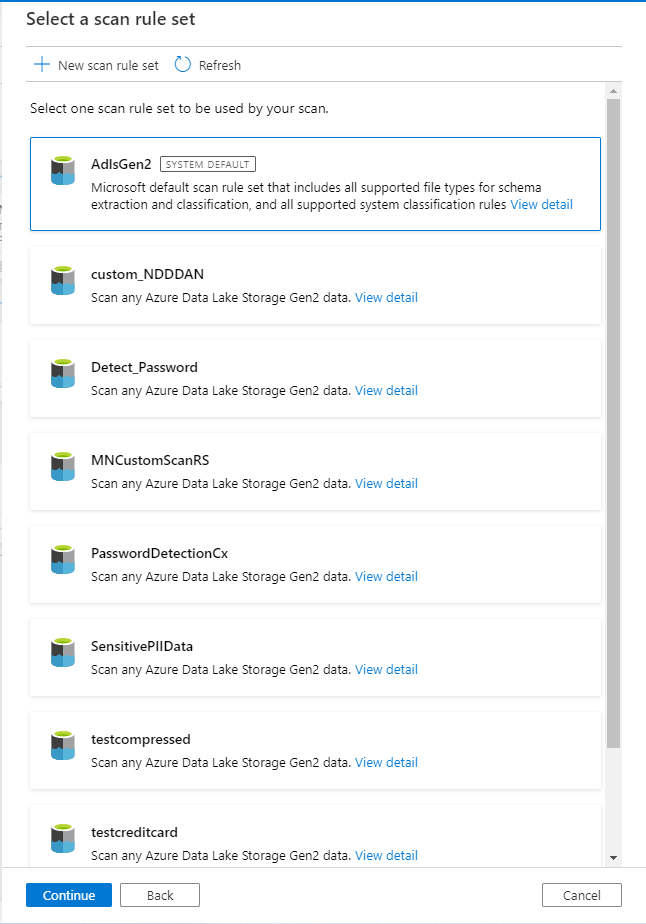
Verify if the system default scan rule set is sufficient for the data source you're scanning. Otherwise, define your custom scan rule set.
The custom scan rule set can include both system default and custom rules, so clear those options that aren't relevant for the data assets you're scanning.
Where necessary, create a custom rule set to exclude unwanted classification labels. For example, the system rule set contains generic government code patterns for the planet, not just the United States. Your data might match the pattern of some other type, such as "Belgium Driver's License Number."
Limit custom classification rules to most important and relevant labels to avoid clutter. You don't want to have too many labels tagged to the asset.
If you modify the custom classification or scan rule set, a full scan is triggered. Configure the classification and scan rule set appropriately to avoid rework and costly full scans.
Note
When you scan a storage account, Microsoft Purview uses a set of defined patterns to determine if a group of assets forms a resource set. You can use resource set pattern rules to customize or override how Microsoft Purview detects which assets are grouped as resource sets. The rules also determine how the assets are displayed within the catalog. For more information, see Create resource set pattern rules. This feature has cost considerations. For information, see the Microsoft Purview pricing site.
Set up a scan for the registered data sources. - Scan name: By default, Microsoft Purview uses the naming convention SCAN-[A-Z][a-z][a-z], which isn't helpful when you're trying to identify a scan that you ran. Use a meaningful naming convention. For instance, you could name the scan environment-source-frequency-time as DEVODS-Daily-0200. This name represents a daily scan at 0200 hours.
Authentication: Microsoft Purview offers various authentication methods for scanning data sources, depending on the type of source. It could be Azure cloud or on-premises or non-Microsoft sources. Follow the least-privilege principle for the authentication method in this order of preference:
- Microsoft Purview MSI - Managed Service Identity (for example, for Azure Data Lake Storage Gen2 sources)
- User-assigned managed identity
- Service principal
- SQL authentication (for example, for on-premises or Azure SQL sources)
- Account key or basic authentication (for example, for SAP S/4HANA sources)
For more information, see the how-to guide to manage credentials.
Note
If you enable a firewall for the storage account, you must use the managed identity authentication method when you set up a scan. When you set up a new credential, the credential name can only contain letters, numbers, underscores, and hyphens.
Integration runtime
- For more information, see Network architecture best practices.
- If self-hosted integration runtime (SHIR) is deleted, any ongoing scans that rely on it fail.
- When you use SHIR, make sure that the memory is sufficient for the data source you're scanning. For example, when you use SHIR for scanning an SAP source, if you see "out of memory error":
- Ensure the SHIR machine has enough memory. The recommended amount is 128 GB.
- In the scan setting, set the maximum memory available as some appropriate value, for example, 100.
- For more information, see the prerequisites in Scan to and manage SAP ECC Microsoft Purview.
Scope scan
- When you set up the scope for the scan, select only the assets that are relevant at a granular level or parent level. This practice ensures that the scan cost is optimal and performance is efficient. All future assets under a certain parent are automatically selected if the parent is fully or partially checked.
- Some examples for some data sources:
- For Azure SQL Database or Data Lake Storage Gen2, you can scope your scan to specific parts of the data source. Select the appropriate items in the list, such as folders, subfolders, collections, or schemas.
- For Oracle, Hive Metastore Database, and Teradata sources, you can specify a specific list of schemas to be exported through semicolon-separated values or schema name patterns.
- For Google Big query, you can specify a specific list of datasets to be exported through semicolon-separated values.
- When you create a scan for an entire AWS account, you can select specific buckets to scan. When you create a scan for a specific AWS S3 bucket, you can select specific folders to scan.
- For Erwin, you can scope your scan by providing a semicolon-separated list of Erwin model locator strings.
- For Cassandra, you can specify a specific list of key spaces to be exported through semicolon-separated values or through key spaces name patterns.
- For Looker, you can scope your scan by providing a semicolon-separated list of Looker projects.
- For Power BI tenant, you might only specify whether to include or exclude personal workspace.
- In general, use ignore patterns where they're supported, based on wild cards (for example, for data lakes) to exclude temp, config files, RDBMS system tables, or backup or STG tables.
- When you scan documents or unstructured data, avoid scanning a huge number of such documents. The scan processes the first 20 MB of such documents and might result in longer scan duration.
Scan rule set
- When you select the scan rule set, make sure to configure the relevant system or custom scan rule set that you created earlier. - You can create custom file types and fill in the details accordingly. Currently, Microsoft Purview supports only one character in Custom Delimiter. If you use custom delimiters, such as ~, in your actual data, you need to create a new scan rule set.
Scan type and schedule
- You can configure the scan process to run full or incremental scans.
- Run the scans during nonbusiness or off-peak hours to avoid any processing overload on the source.
- The initial scan is a full scan, and every subsequent scan is incremental. You can schedule subsequent scans as periodic incremental scans. Learn more about the supported schedule options.
- The frequency of scans should align with the change management schedule of the data source or business requirements. For example:
- If the source structure could potentially change weekly, the scan frequency should be in sync. Changes include new assets or fields within an asset that are added, modified, or deleted.
- If the classification or sensitivity labels need to be up to date on a weekly basis, perhaps for regulatory reasons, the scan frequency should be weekly. - If partition files are added every week in a source data lake, you might schedule monthly scans. You don't need to schedule weekly scans because there's no change in metadata. This suggestion assumes there are no new classification scenarios.
- The maximum duration that the scan can run is seven days, possibly because of memory issues. This time period excludes the ingestion process. If progress isn't updated after seven days, the scan is marked as failed. The ingestion (into catalog) process currently doesn't have any such limitation.
Canceling scans
- Currently, you can cancel or pause scans only if the status of the scan transitions into an "In Progress" state from "Queued" after you trigger the scan.
- Canceling an individual child scan isn't supported.
Points to note
- If you remove a field, column, table, or file from the source system after a scan runs, Microsoft Purview only shows the removal after the next scheduled full or incremental scan.
- You can delete an asset from a Microsoft Purview catalog by selecting Delete under the asset name. This action doesn't remove the object in the source. If you run a full scan on the same source, the scan reingests the object in the catalog. If you run an incremental scan, the deleted asset isn't picked up unless the object is modified at the source. For example, if a column is added or removed from the table.
- To understand the behavior of subsequent scans after manually editing a data asset or an underlying schema through the classic Microsoft Purview governance portal, see classic catalog asset details.
- For more information, see how to view, edit, and delete assets.