Operational visibility
The Operational Visibility page is one of three default pages on the Inventory Visibility app. It provides results for real-time, on-hand inventory queries that you can set. Furthermore, it provides visibility into reservation posting and allocation based on different dimension combinations.
You can turn on the OnHandReservation feature by going to the Configuration page and selecting the Feature Management & Settings tab. When this feature is turned on, you can post reservation requests from the Operational Visibility page. Before you get started, you'll need to open and authenticate the Inventory Visibility app. To do so, follow the instructions at Use the Inventory Visibility app.
On-hand query
If you go to the Operational Visibility page on the left pane of the Inventory Visibility app, the Onhand Query tab should be the first tab that's open on the page. The tab should resemble the following screenshot.
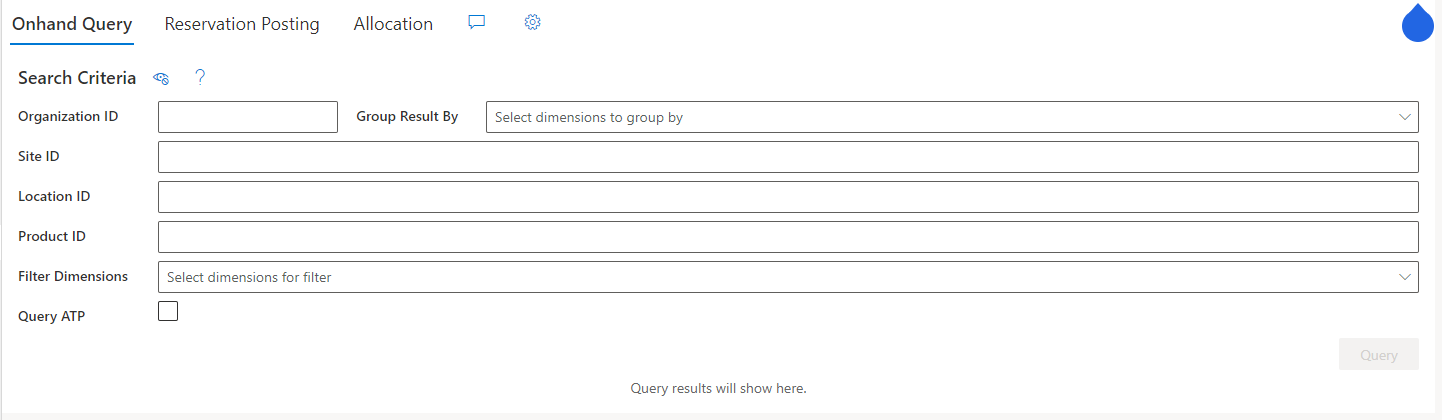
The Onhand Query tab lets you query the real-time, on-hand inventory. To set up and run a query, enter the Organization ID, Site ID, and Location ID values that you want to query. Then, in the Product ID field, enter one or more product IDs to get an exact match for your query. If you leave this field blank, the results will include all products at a specified site and location.
For more granular results, you can select group-by dimensions in the Group Result By field. For instance, you can group your query results by color. To get even more specific on your queries, you can find items that match a specific dimension value (such as color=blue). To do so, select a dimension in the Filter Dimensions field and then enter your target dimension value. When you're done setting up the query, select Query. You should receive a green message for successful queries and a red message for failures. If you receive a failure message, ensure that your query criteria are correct or that your bearer token hasn't expired.
Reservation posting
You can post reservation requests by using the Reservation Posting tab on the Operational Visibility page. You can't post a reservation request without enabling the OnHandReservation feature. After you've selected the tab, it should resemble the following screenshot.
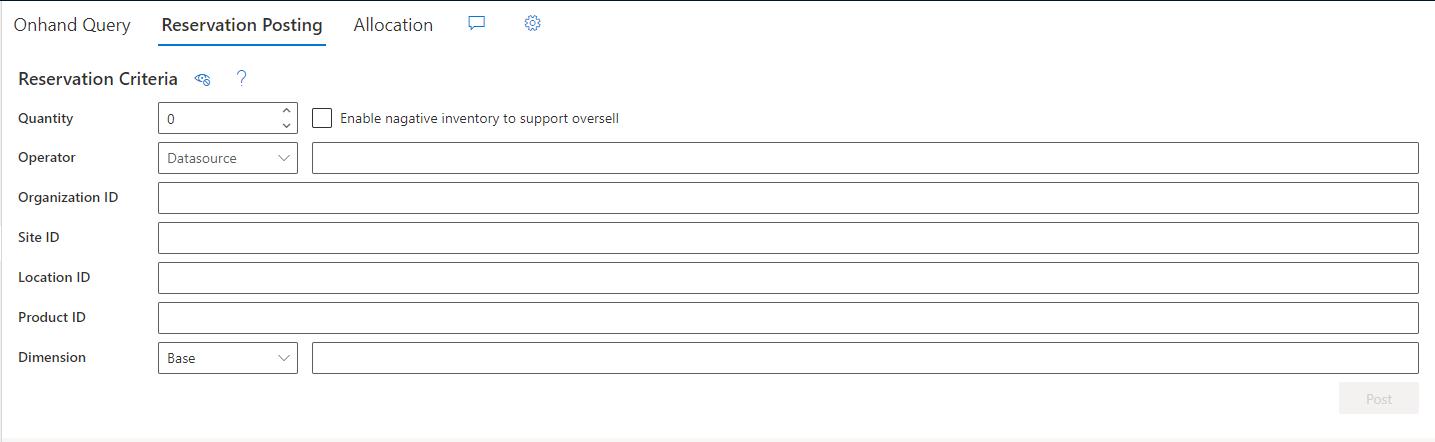
To make a soft reservation request through the user interface (UI), specify the quantity to be soft reserved in the Quantity field. If you want to prevent your stock from being oversold or over-reserved, make sure that you clear the Enable negative inventory to support oversell checkbox. In the Operator field, specify the data source and physical measure that applies to the soft-reserved quantity. Then, enter the Organization ID, Site ID, Location ID, and Product ID values that you want to query. To narrow your results further, select a data source, dimensions, and dimension values by the Dimension field.