Lingwa
Nota
L-aċċess għal din il-paġna jeħtieġ l-awtorizzazzjoni. Tista’ tipprova tidħol jew tibdel id-direttorji.
L-aċċess għal din il-paġna jeħtieġ l-awtorizzazzjoni. Tista’ tipprova tibdel id-direttorji.

Windows AI Foundry provides a variety of artificial intelligence (AI) features through a suite of Windows AI APIs and hardware-abstracted AI inferencing capabilities enabled through Windows machine learning (ML). The Windows AI APIs enable AI capabilities without the need to find, run, or optimize your own machine learning (ML) model. The models that power Windows AI Foundry run locally on supported Windows 11 devices—including Copilot+ PCs with NPUs, devices with supported GPUs, and devices that meet the recommended CPU specifications—and can run continuously in the background.
Supported hardware
Windows AI APIs are expanding beyond Copilot+ PCs to support a broader range of hardware. The following table shows the current hardware support for each API.
Note
On a Copilot+ PC, supported APIs always run on the NPU. The GPU and CPU columns describe expansion to non-Copilot+ devices — they are not alternative backends you can opt into on a Copilot+ PC.
| API | NPU (Copilot+ PC) | GPU | CPU |
|---|---|---|---|
| Phi Silica | ✅ Available | ✅ Available (NVIDIA and AMD) | ❌ Not supported |
| Text Recognition (OCR) | ✅ Available | ❌ Not supported | ❌ Not supported |
| Speech Recognition | ✅ Available | ❌ Not supported | ✅ Available (optional, removable) |
| Video Super Resolution | ✅ Available | ❌ Not supported | ✅ Available |
| Image Super Resolution | ✅ Available | ❌ Not supported | ❌ Not supported |
| Image Description | ✅ Available | ❌ Not supported | ❌ Not supported |
| Image Segmentation | ✅ Available | ❌ Not supported | ❌ Not supported |
| Object Erase | ✅ Available | ❌ Not supported | ❌ Not supported |
| Image Generation | ✅ Available (optional, removable) | ❌ Not supported | ❌ Not supported |
Note
GPU support for Phi Silica is available on NVIDIA GeForce RTX 30 series and newer (6+ GB vRAM) and AMD Radeon RX 9060 series and newer (6+ GB vRAM). GPU inference requires Developer Mode to be enabled (Settings > System > For developers) and the latest GPU driver installed directly from the manufacturer (see Phi Silica — GPU driver requirements). Video Super Resolution and Speech Recognition run on any CPU but perform best on devices that meet the recommended specifications (4 physical cores, 3 GHz or higher base clock, 32 MB or more of L3 cache). See the individual API pages for details and a runtime check.
Model availability
The way the underlying AI model reaches a device depends on the API:
- Phi Silica — On Copilot+ PCs the model is preinstalled on the NPU. On GPU and CPU devices the model is not preinstalled — it is downloaded on demand the first time your app calls
EnsureReadyAsync. Downloads can be several GB and run in the background through Windows Update. End users can remove or reinstall the model at Settings > System > AI Components. Apps should checkGetReadyStatefirst and show a consent dialog before triggering the download. See Phi Silica — Model availability and download for the recommended UX pattern. - AI Image Generation — Runs on the NPU only, but the model is not preinstalled because of its install size. It is downloaded on demand the first time your app calls
EnsureReadyAsync, and users can later remove it at Settings > System > AI Components. Apps should checkGetReadyStatefirst and show a consent dialog before triggering the download. See AI Image Generation — Model availability and download for the recommended UX pattern. - Video Super Resolution — The VSR model ships with the Windows App SDK on every supported hardware path. There is no first-run download, consent step, or removable model. See Video Super Resolution — Recommended CPU specifications.
- Speech Recognition — On Copilot+ PCs the model is preinstalled on the NPU. On CPU-only devices the model is not preinstalled — it is downloaded on demand the first time your app calls
EnsureReadyAsync, and users can later remove it at Settings > System > AI Components. Apps should checkGetReadyStatefirst and show a consent dialog before triggering the download on CPU. See Speech Recognition — Model availability and download for the recommended UX pattern.
See the Windows AI APIs with WinUI sample app for how to use Microsoft Foundry on Windows with WinUI.
Important
The following is a list of Windows AI features and the Windows App SDK release in which they are currently supported. See Overview of available APIs later in this topic for brief descriptions.
[Version 2.2.2-experimental9 (June 2026 Experimental)] - Phi Silica on GPU (requires Windows Insider Experimental Channel build)
Version 1.8.0 (1.8.250907003) - Phi Silica (Limited Access Feature), Conversation Summarization (Text Intelligence), Object Erase
Version 1.8 Preview (1.8.0-preview) - LoRA fine-tuning for Phi Silica, Text Rewriter Tone (Text Intelligence)
Private preview - Semantic Search
Version 1.7.1 (1.7.250401001) - All other APIs
Build your first AI-powered Windows app
Tip
To improve accessibility and readability, this page displays still images by default. In some cases, you can click an image to see an animated version.
To build your first Windows app with Visual Studio and some simple Windows AI APIs, just meet the prerequisites and use the provided example code in Get started building an app with Windows AI APIs.
From there, you can jump into short tutorials that build an app leveraging specific Windows AI APIs such as the Phi Silica walkthrough, Imaging walkthrough and OCR walkthrough.
Try the APIs and models on your PC
AI Dev Gallery is a demo app—available from the Microsoft Store—that lets you quickly download, try out, and use Windows AI APIs and models.
In AI Dev Gallery, select the Windows AI APIs tab menu item, then select the Phi Silica sample. If the model is already available on your device, then that sample will run straight away. Otherwise, select Request model to download the model. Once downloaded, that sample will be activated. Learn more about the AI Dev Gallery in What is the AI Dev Gallery?.
Overview of available APIs
Here are a few ready-to-use AI features that you can tap into from your Windows app:
Phi Silica
Important
Phi Silica is being replaced by Aion Instruct, a new on-device model. Aion Instruct begins rolling out to Windows Insider Preview devices in October 2026 and to retail devices in November 2026, at which point Phi Silica will be removed. See Get started with Phi Silica for transition details and timeline.
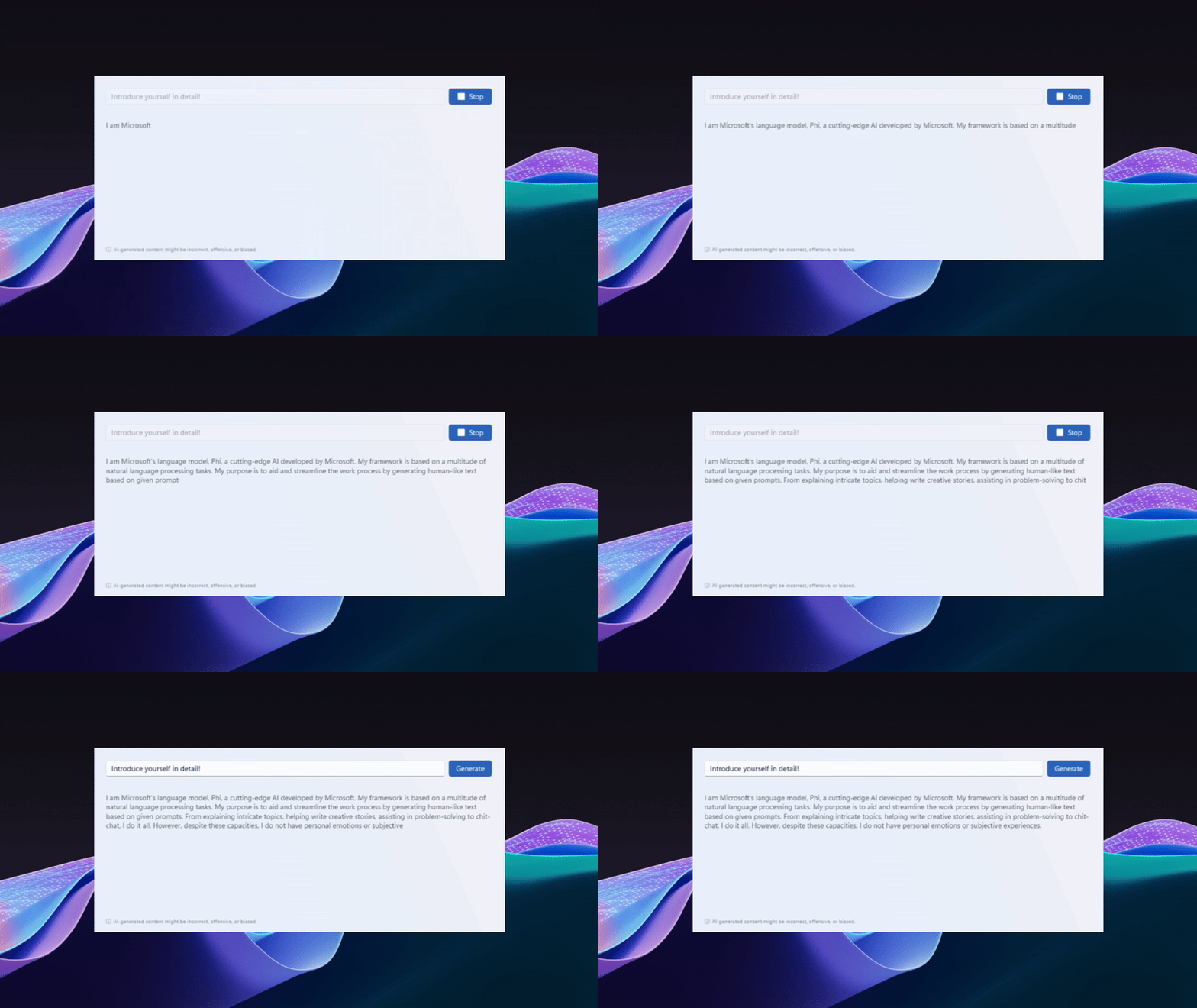
Similar to Large Language Models (LLM), Phi Silica is a Small Language Model (SLM) developed by Microsoft Research to perform language-processing tasks on a local device (see Get started with Phi Silica). Phi Silica is designed for Windows devices with a Neural Processing Unit (NPU) or a supported GPU, allowing text generation and conversation features to run in a high performance, hardware-accelerated way directly on the device. Phi Silica is not available in China.
Text recognition
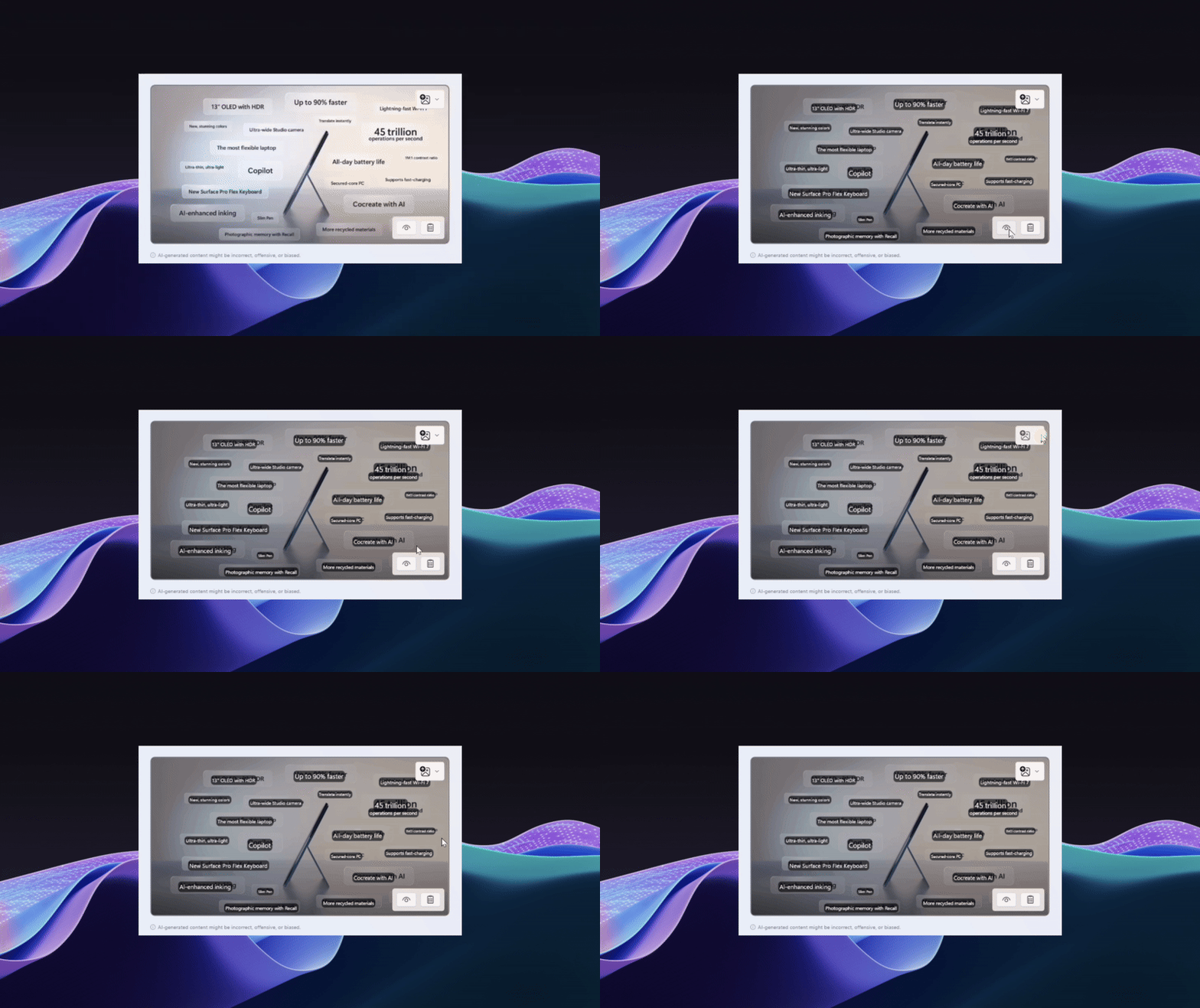
The text recognition APIs enable the recognition of text in an image, and the conversion on a local device of different types of documents (such as scanned paper documents, PDF files, and images captured by a digital camera) into editable and searchable data (see Get started with AI text recognition).
Imaging
Scale and sharpen images (Image Super Resolution), identify objects within an image (Image Object Extractor), generate natural-language descriptions of images (Image Description), and remove objects from images (Object Erase). See Get Started with AI imaging.
Image Super Resolution
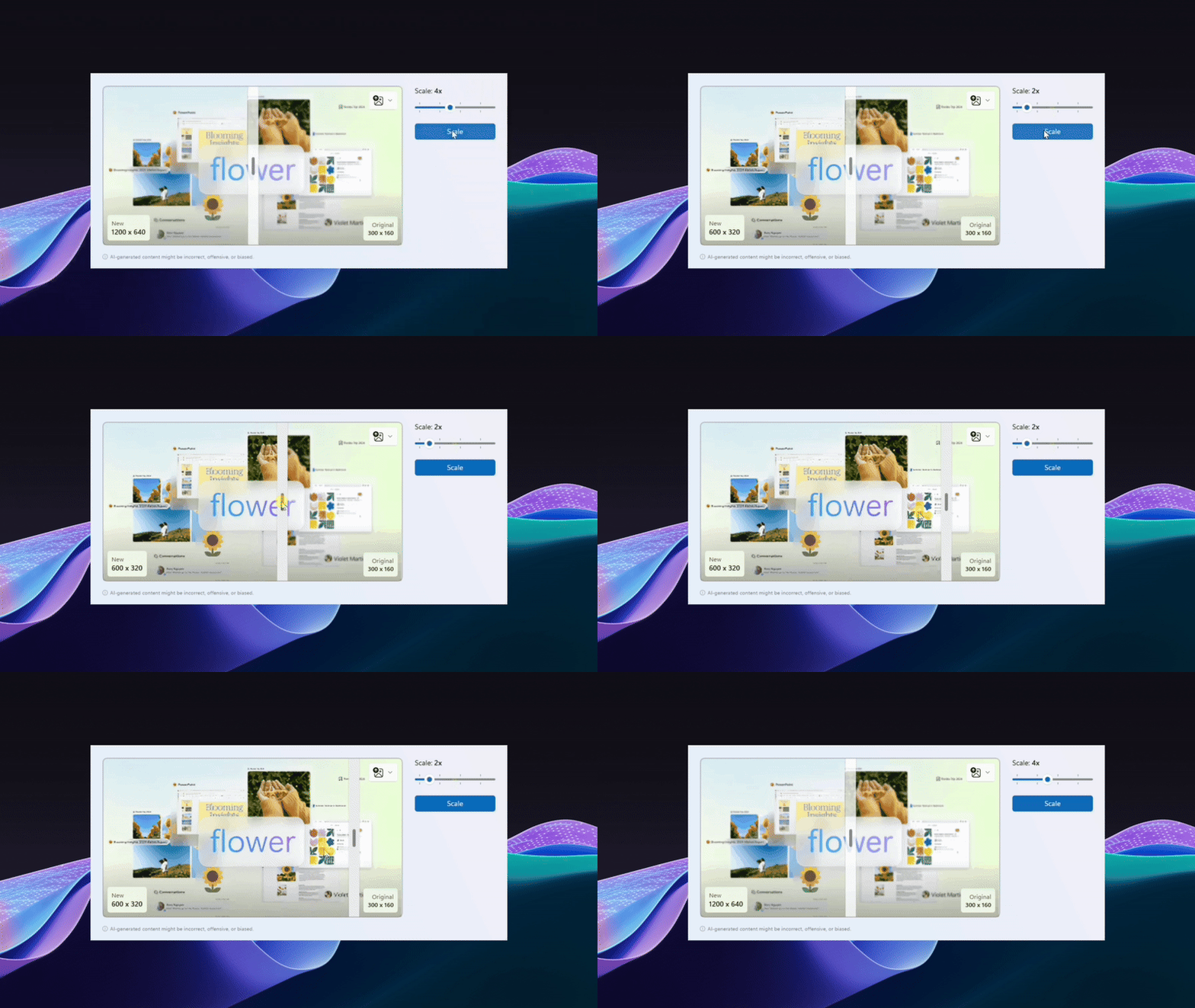
The Image Super Resolution APIs enable image sharpening and scaling.
Also see Image Super Resolution.
Image Object Extractor
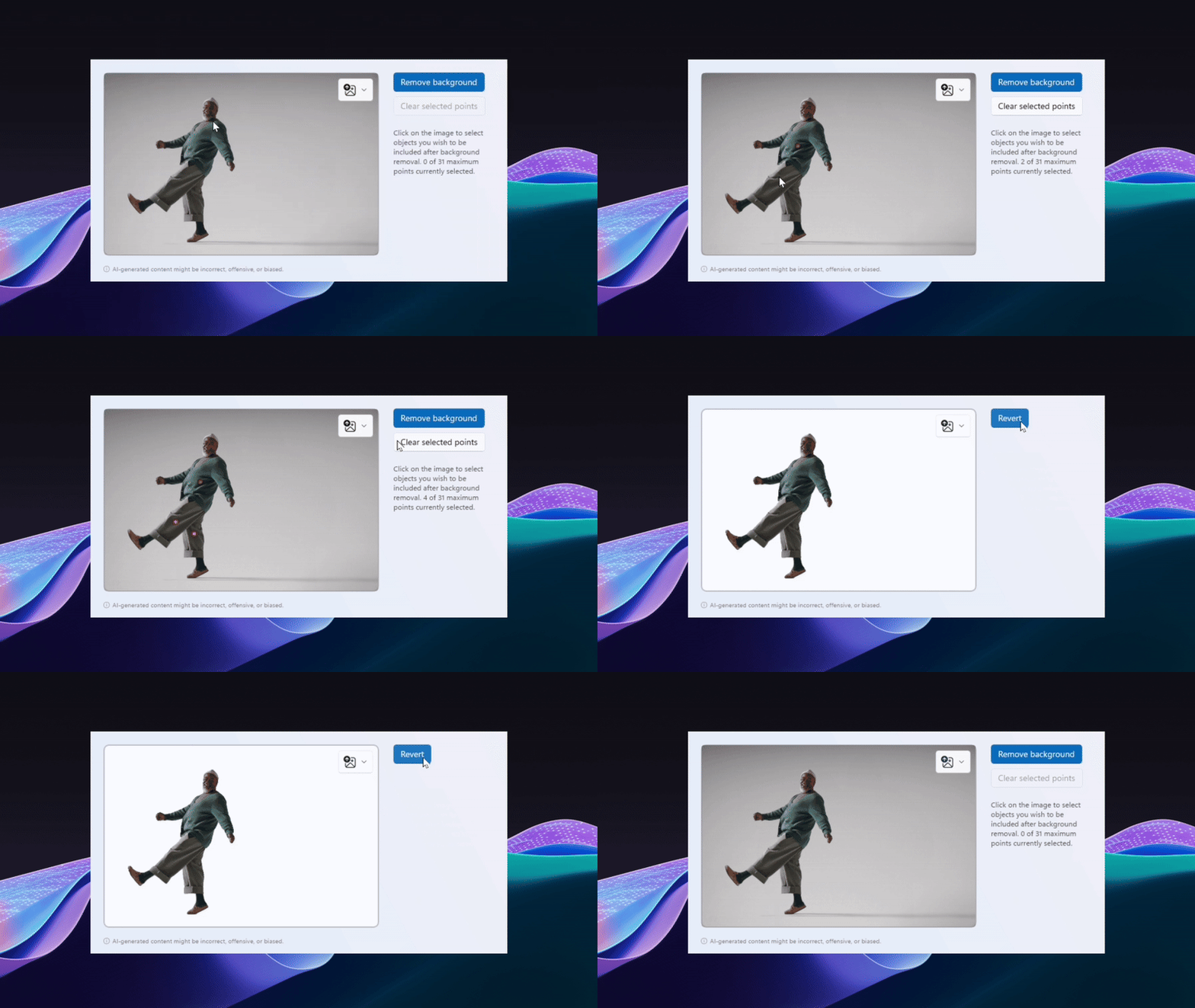
The Image Object Extractor APIs enable identifying objects within images.
Also see Image Object Extractor.
Image Description
The Image Description APIs describes images in natural language.
Note
Image Description features are not available in China.
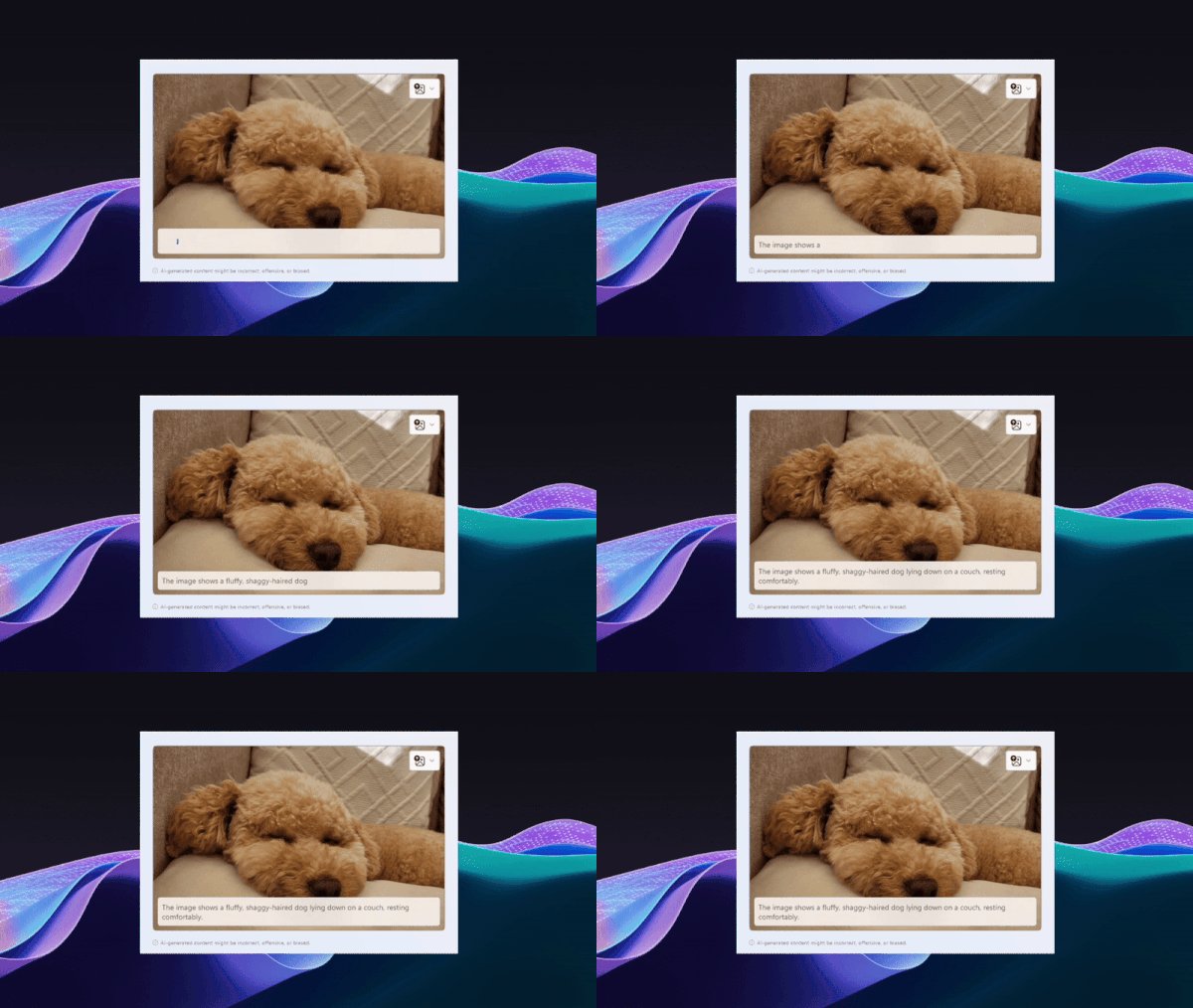
Also see Image Description
Object Erase
You can use the Object Erase APIs to remove objects from images.
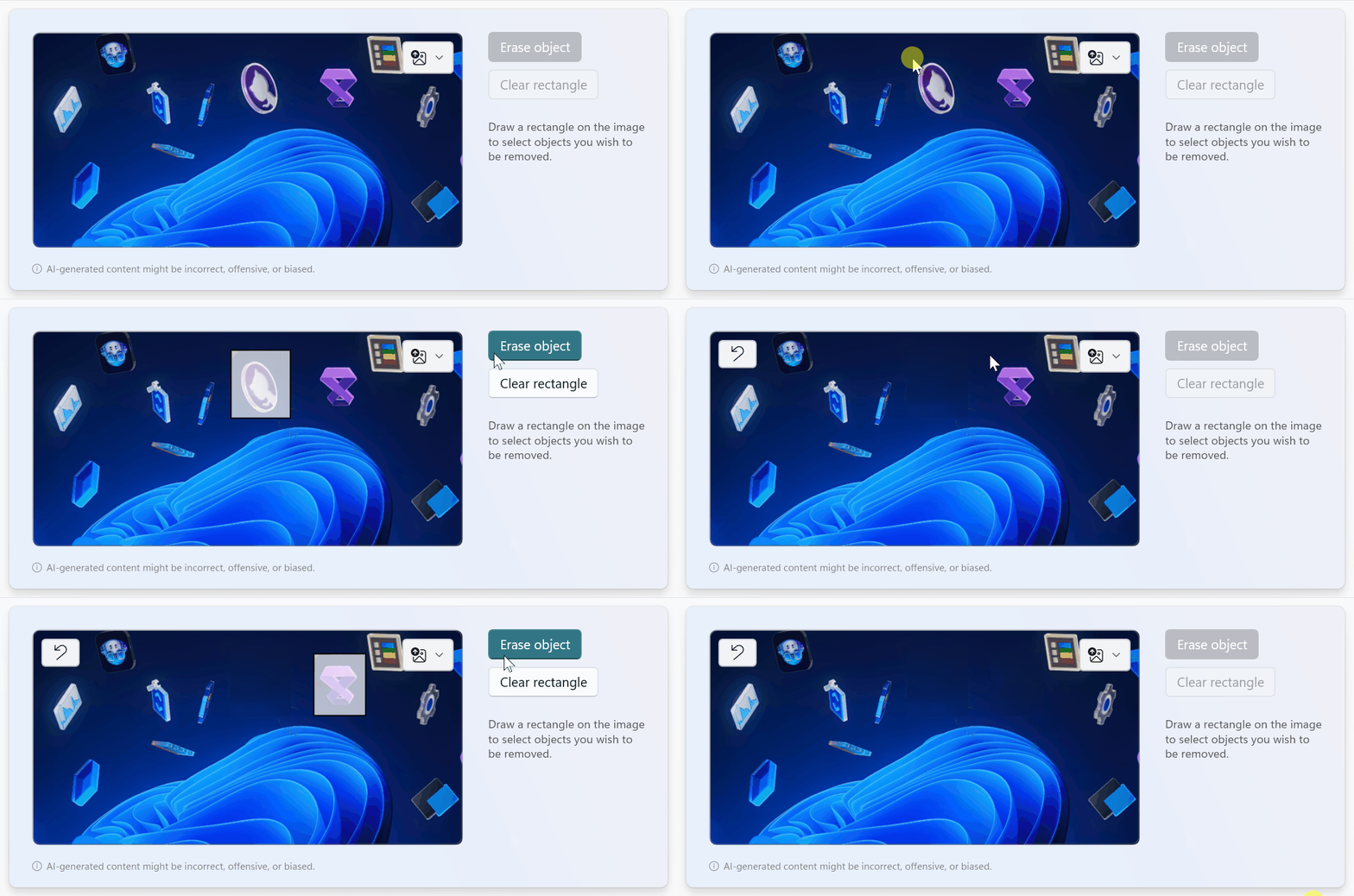
Also see Object Erase
Planned features
The following capabilities are planned but not yet available for use:
- Live Translation (Not yet supported). Help everyone using Windows—including those who are deaf or hard of hearing—better understand audio by viewing captions of spoken content (even when the audio content is in a language that's different from the system's preferred language).
Content moderation
Learn how content is moderated by the Windows AI APIs, and how you can adjust sensitivity filters. See Content safety moderation with the Windows AI APIs.
When utilizing AI features, we recommend that you review: Developing Responsible Generative AI Applications and Features on Windows.
Additional resources
- Code samples and tutorials. A collection of samples that demonstrate a variety of ways to use AI to enhance your Windows apps.
- Integrate AI in enterprise apps using Windows AI APIs. Watch the demo session from the November 2024 Microsoft Ignite conference.
- Provide feedback on these APIs and their functionality by creating a new Issue in the Windows App SDK GitHub repo or by responding to an existing issue.