Merk
Tilgang til denne siden krever autorisasjon. Du kan prøve å logge på eller endre kataloger.
Tilgang til denne siden krever autorisasjon. Du kan prøve å endre kataloger.
In Microsoft Defender for Cloud, you can exempt protected resources from Defender for Cloud security recommendations. This article describes how to review, manage, and delete exempted resources.
Review exempted resources in the portal
When you exempt a resource, it doesn't prompt security recommendations. You can review and manage exempted resources in the Defender for Cloud portal.
Tip
As of January 2026, exemptions are managed from a central location. Go to Defender for Cloud > Environment settings > Exemptions box, or go to Azure Policy > Exemptions. If you can't find previously visible exemptions, check that you're viewing the correct subscription or management group scope, and ensure you have Microsoft.Authorization/policyExemptions/read permission.
Review exempted resources on the Recommendations page
Sign in to the Azure portal.
Go to Defender for Cloud > Recommendations.
Select Recommendation status.
Select Exempted.
Select Apply.
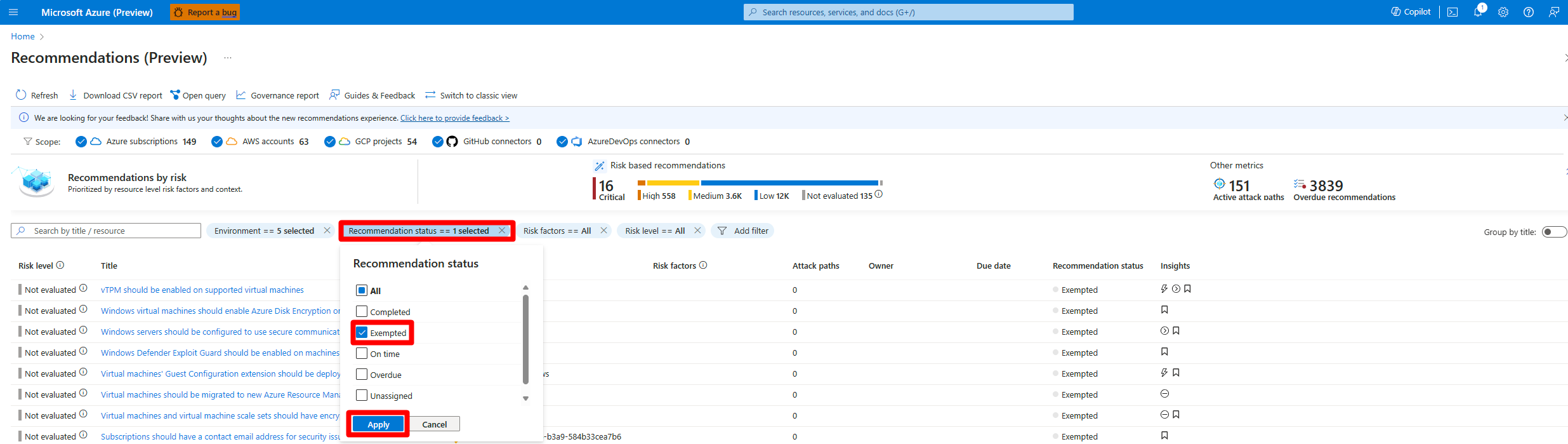
Select a resource to review it.
Review exempted resources on the Inventory page
Sign in to the Azure portal.
Go to Defender for Cloud > Inventory.
Select Add filter.
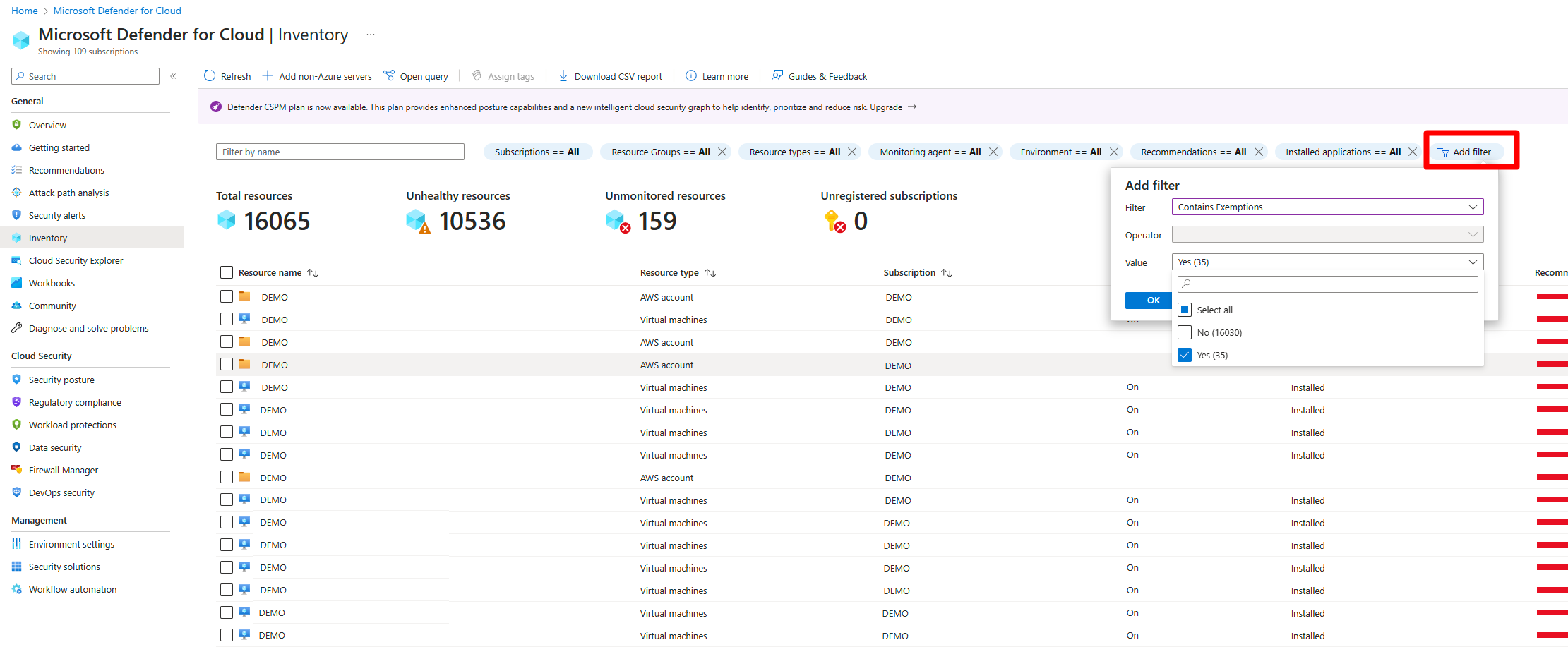
Select Contains exemptions.
Select Yes.
Select OK.
Review exempted resources with Azure Resource Graph
Azure Resource Graph (ARG) provides instant access to resource information across your cloud environments with robust filtering, grouping, and sorting capabilities. You can quickly and easily query information by using Kusto Query Language (KQL).
To view all recommendations that have exemption rules:
Sign in to the Azure portal.
Go to Defender for Cloud > Recommendations.
Select Open query.
Enter the following query.
Select Run query.
securityresources
| where type == "microsoft.security/assessments"
// Get recommendations in useful format
| project
['TenantID'] = tenantId,
['SubscriptionID'] = subscriptionId,
['AssessmentID'] = name,
['DisplayName'] = properties.displayName,
['ResourceType'] = tolower(split(properties.resourceDetails.Id,"/").[7]),
['ResourceName'] = tolower(split(properties.resourceDetails.Id,"/").[8]),
['ResourceGroup'] = resourceGroup,
['ContainsNestedRecom'] = tostring(properties.additionalData.subAssessmentsLink),
['StatusCode'] = properties.status.code,
['StatusDescription'] = properties.status.description,
['PolicyDefID'] = properties.metadata.policyDefinitionId,
['Description'] = properties.metadata.description,
['RecomType'] = properties.metadata.assessmentType,
['Remediation'] = properties.metadata.remediationDescription,
['Severity'] = properties.metadata.severity,
['Link'] = properties.links.azurePortal
| where StatusDescription contains "Exempt"
To view all policy exemptions for a specific subscription, run the following query in Azure Resource Graph Explorer:
policyresources
| where type == "microsoft.authorization/policyexemptions"
| where subscriptionId == "<your-subscription-id>"
Delete an exemption
To delete an exemption, you need the Microsoft.Authorization/policyExemptions/delete permission at the scope where the exemption was created.
Important
When you delete an exemption, Defender for Cloud re-evaluates the previously exempted resources. Resources that don't meet the recommendation requirements return to an Unhealthy state, which can lower your secure score. Allow up to 24 hours for the re-evaluation to complete.
If you receive a "Failed to delete the exemption(s)" error or a deleted exemption reappears:
Check permissions. Verify that you have delete permissions at the scope where the exemption was created, not just at the subscription level.
Check exemption state. Run the following query in Azure Resource Graph Explorer to find exemptions:
policyresources
| where type == "microsoft.authorization/policyexemptions"
| where subscriptionId == "<your-subscription-id>"
Handle orphaned exemptions. If an exemption has no associated policy assignment, try adding an assignment first, then delete the exemption. You can also use Azure CLI or PowerShell to delete the exemption:
Remove-AzPolicyExemption -Name "<exemption-name>" -Scope "<scope>"Wait for synchronization. Portal changes can take up to 30 minutes to reflect. If the exemption reappears, the issue might be related to backend synchronization. Contact support if the problem persists.
Understand secure score impact
The exemption type that you select determines how secure score is affected:
| Scenario | Secure score impact |
|---|---|
| Exemption type: Mitigated | Exempt resources count as healthy. Score increases. |
| Exemption type: Waiver | Exempt resources are excluded from the calculation. Neutral impact. |
| Preview recommendations | No impact on secure score regardless of status. |
| Disable rule applied | The finding is excluded from evaluation. Score might increase. |
Resolve an exemption that doesn't update the recommendation status
After you create an exemption, the recommendation status might not update or might still show unhealthy. Defender for Cloud evaluates resources periodically, typically every 12-24 hours. Allow up to 24 hours for the exemption to take effect.
If the recommendation still shows resources as unhealthy after 24 hours:
Verify exemption scope. Ensure the exemption covers the specific resources that show as unhealthy. Check whether the exemption is at the correct scope level (management group, subscription, or resource).
Check resource-level permissions. Subscription-scoped role assignments might not provide sufficient access to manage exemptions on individual resources. Verify that your RBAC role covers the resource or resource group level for the specific resource you want to exempt.
Check exemption type. Waiver exemptions exclude resources from the secure score calculation, but resources might still show in recommendations. Mitigated exemptions should show resources as healthy.
Verify the recommendation evaluates the exempted policy. Some recommendations are based on multiple policies. Ensure you exempted the correct underlying policy.
Ensure the exemption was created from Defender for Cloud. Exemptions created in Azure Policy instead of Defender for Cloud might not fully integrate.
Go to Defender for Cloud > Recommendations.
Select Exempt.
Check for initiative conflicts. If the same recommendation exists in multiple initiatives, you might need a separate exemption for each initiative. Newly assigned initiatives might override existing exemptions.
Recreate the exemption. Delete and recreate the exemption by using Defender for Cloud. Allow up to 24 hours for reevaluation.
Resolve permission errors at management group level
You can create exemptions at the subscription level but receive permission errors at the management group level. A common error message is: "...does not have permission to perform action(s) on the linked scope(s) or the linked scope(s) are invalid."
To resolve permission errors at the management group level:
Assign permissions at the management group level. Subscription-level permissions don't inherit upward.
Go to Management group > Access control (IAM).
Assign Security Admin or the appropriate role at the management group level.
Verify role assignment scope. Custom roles must be assigned at the management group level, not only at the subscription level. Use Azure CLI to verify:
az role assignment list --scope "/providers/Microsoft.Management/managementGroups/<mg-name>"Check policy assignment scope. If the policy is assigned at the management group level, the exemption must be created there. Verify the policy assignment location in Azure Policy.
Find exemptions that aren't visible in the portal
If previously visible exemptions no longer appear, or you can't find where exemptions are listed:
Check the centralized exemptions view. As of January 2026, exemptions are managed from a central location.
- Go to Defender for Cloud > Environment settings > Exemptions box, or go to Azure Policy > Exemptions.
Verify scope and filters. Exemptions are visible at the scope where they were created. Check whether you're viewing the correct subscription or management group.
Check permissions. Ensure you have
Microsoft.Authorization/policyExemptions/readpermission at the correct scope level.
Resolve duplicate or conflicting exemptions
Multiple exemptions on the same resource for the same recommendation can cause unexpected behavior, such as conflicting exemption types or statuses that don't update correctly. Maintain a single authoritative exemption per recommendation and resource combination.
Identify duplicate exemptions
Run the following query in Azure Resource Graph Explorer to find resources with multiple exemptions:
policyresources
| where type == "microsoft.authorization/policyexemptions"
| where subscriptionId == "<your-subscription-id>"
| summarize ExemptionCount = count(), ExemptionNames = make_list(name) by tostring(properties.policyAssignmentId), tostring(properties.resourceSelectors)
| where ExemptionCount > 1
Clean up duplicate exemptions
Sign in to the Azure portal.
Go to Defender for Cloud > Environment settings > Exemptions.
Filter by the affected subscription or resource group.
Review the overlapping exemptions.
Review all exemptions.
Delete the extra exemptions.
To delete duplicate exemptions in bulk with PowerShell:
# List all exemptions for a specific policy assignment
$exemptions = Get-AzPolicyExemption -PolicyAssignmentIdFilter "<policy-assignment-id>"

# Review and remove duplicates (keep the first, remove the rest)
$exemptions | Select-Object -Skip 1 | ForEach-Object {
    Remove-AzPolicyExemption -Id $_.Id -Force
}
Important
After you clean up duplicate exemptions, allow up to 24 hours for Defender for Cloud to re-evaluate the affected resources. If the recommendation status doesn't update, verify that the remaining exemption has the correct scope and type.
Get a notification when users create exemptions
To keep track of how users exempt resources from recommendations, we created an Azure Resource Manager template (ARM template). The template deploys a logic app playbook and all necessary API connections to notify you when an exemption is created.
- Learn more about the playbook by reading the blog post How to keep track of Resource Exemptions in Microsoft Defender for Cloud.
- Locate the ARM template in the Microsoft Defender for Cloud GitHub repository.
- Use this automated process to deploy all components.