Merk
Tilgang til denne siden krever autorisasjon. Du kan prøve å logge på eller endre kataloger.
Tilgang til denne siden krever autorisasjon. Du kan prøve å endre kataloger.
Warning
Building agents in AI Playground is a legacy approach. To build and test agents, use the Agent Bricks CLI and run your agent locally with agentbricks dev. To query models from code, see Query foundation and embedding models.
The AI Playground is a chat environment for Large Language Models (LLMs). In the playground, you can interactively test, prompt, and compare LLMs, as well as prototype tool-calling agents and question-answering bots.
Requirements
- Your Databricks workspace must be in a region that supports Foundation Models. See Model serving features availability.
- To prototype agents, your workspace must be in a region that supports Custom Agents. See Agent features availability.
- Models called in AI Playground may be subject to license requirements and use policies. See Applicable model terms.
- Unity Catalog, to add Unity Catalog functions as tools, such as the built-in
system.ai.python_execfunction.
Note
If Playground is not available in your workspace, reach out to your Databricks account team for more information.
Use AI Playground
To use the AI Playground:
- Select Playground from the left navigation pane under AI/ML.
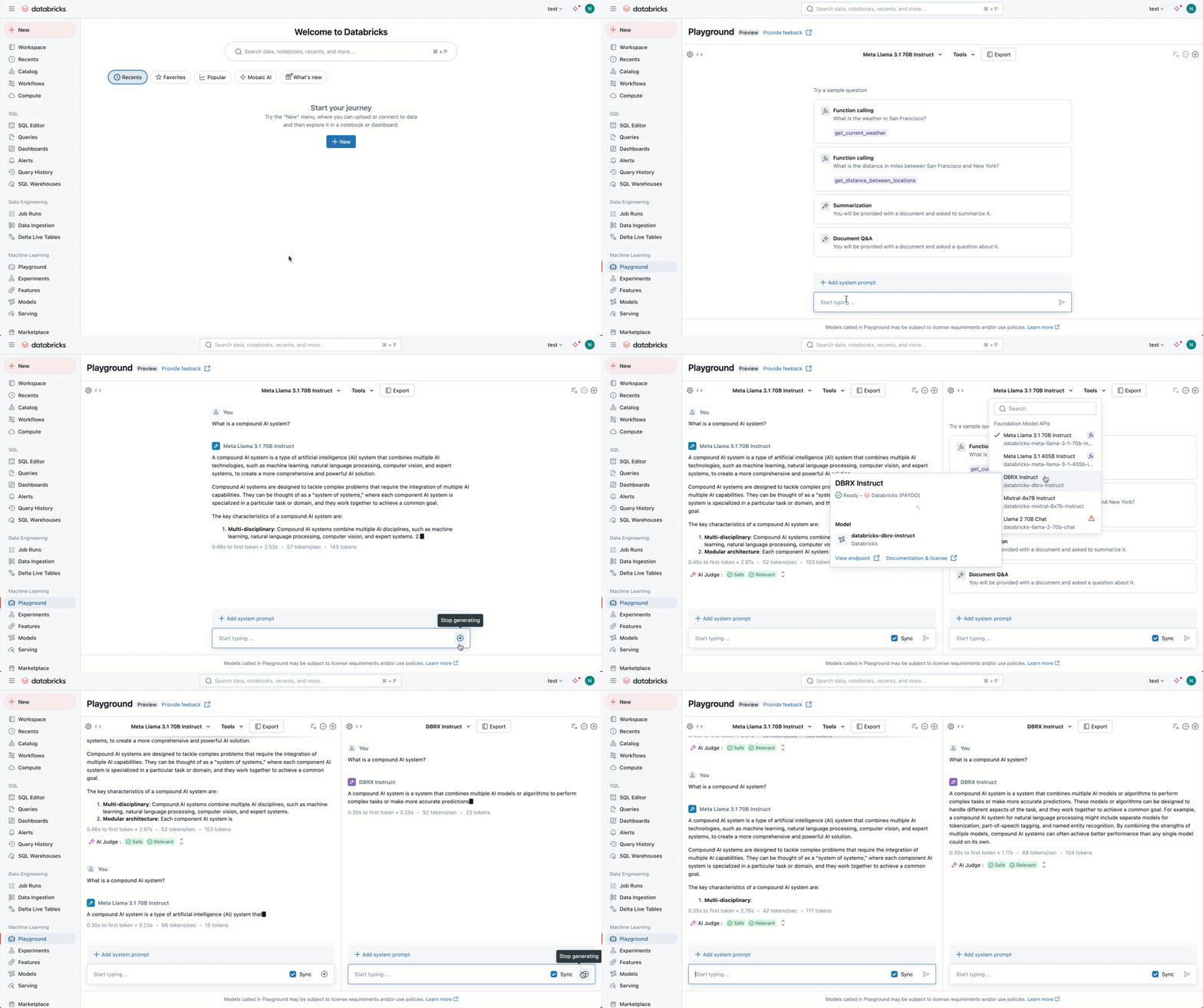
- Select the model you want to interact with using the dropdown list on top.
- You can do either of the following:
- Type in your question or prompt.
- Select a sample AI instruction from those listed in the window.
- You can select the + to add an endpoint. Doing so allows you to compare multiple model responses side-by-side.
To query Unity Gateway model services in the playground and see how gateway features apply to your requests, see Query model services in AI Playground.
Prototype AI agents in AI Playground
To build an agent in code and deploy it, Databricks recommends the Agent Bricks CLI. See Agent Bricks quickstart. To try tools and retrieval without code, use the following steps in AI Playground.
Prototype a tool-calling agent
Tools allow LLMs to do more than generate language. Tools can query external data, run code, and take other actions. AI Playground gives you a no-code option to prototype tool-calling agents:
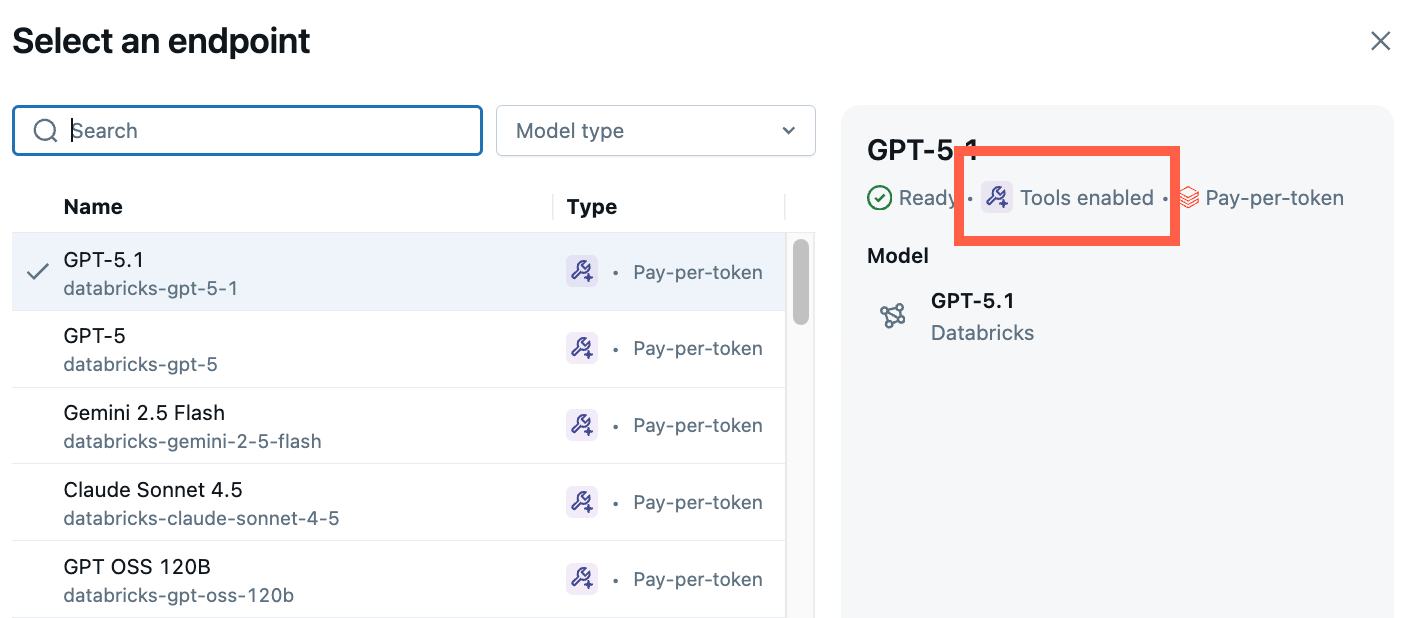
In the Playground, choose a model labeled Tools enabled.
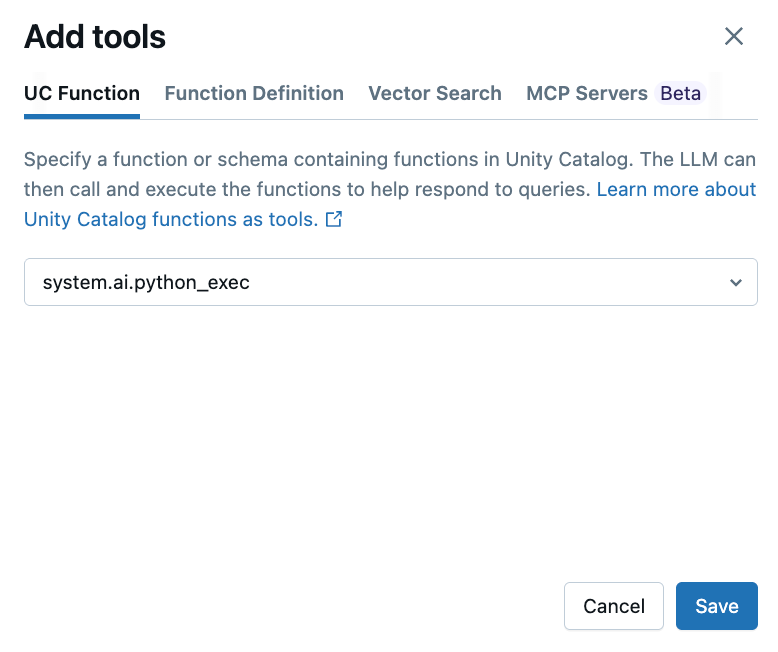
Select Tools > + Add tool and select the built-in Unity Catalog function,
system.ai.python_exec.This function lets your agent run arbitrary Python code.
Other tool options include:
- UC Function: Select a Unity Catalog function for your agent to use.
- Function definition: Define a custom function for your agent to call.
- AI Search: Specify an AI Search index. If your agent uses an AI Search index, its response cites the sources used.
- MCP: Specify Model Context Protocol (MCP) servers to use managed Databricks MCP servers or external MCP servers.
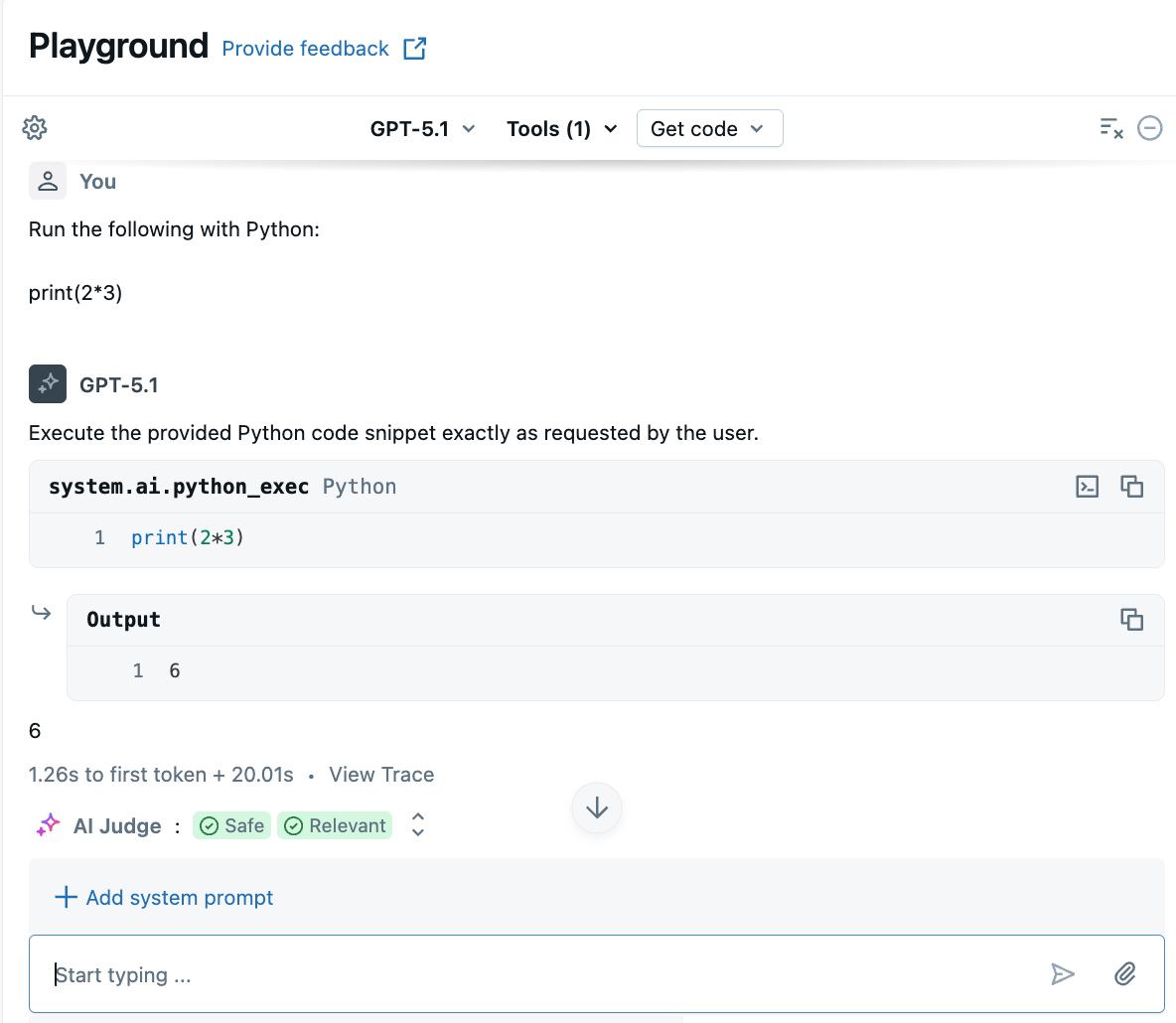
Ask a question that involves generating or running Python code. You can try different variations on your prompt phrasing. If you add multiple tools, the LLM selects the appropriate tool to generate a response.
Prototype a RAG question-answering bot
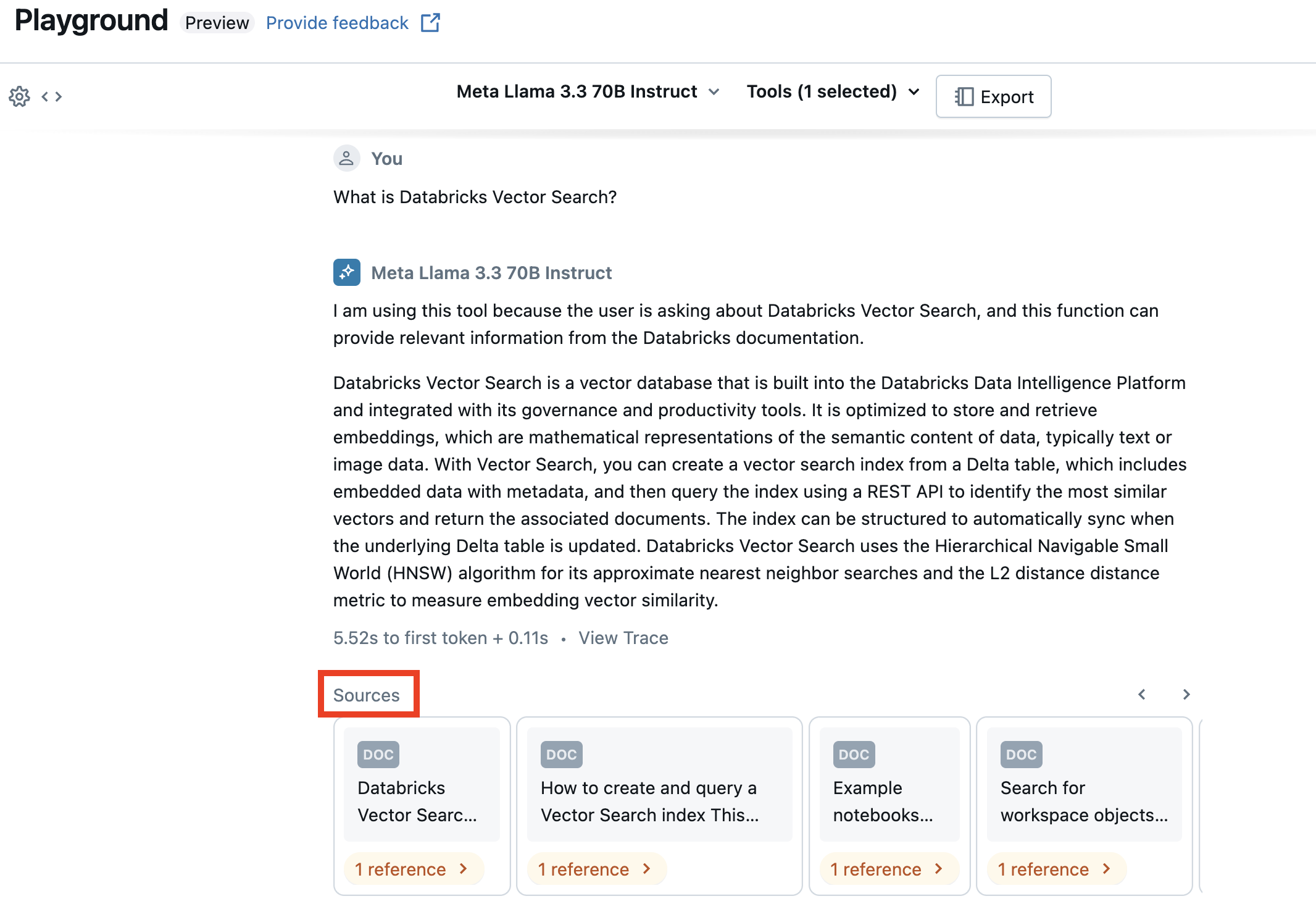
If you have an AI Search index set up in your workspace, you can prototype a retrieval-augmented generation (RAG) question-answering bot. This type of agent uses documents in an AI Search index to answer questions based on those documents.
Click Tools > + Add tool. Then, select your AI Search index.
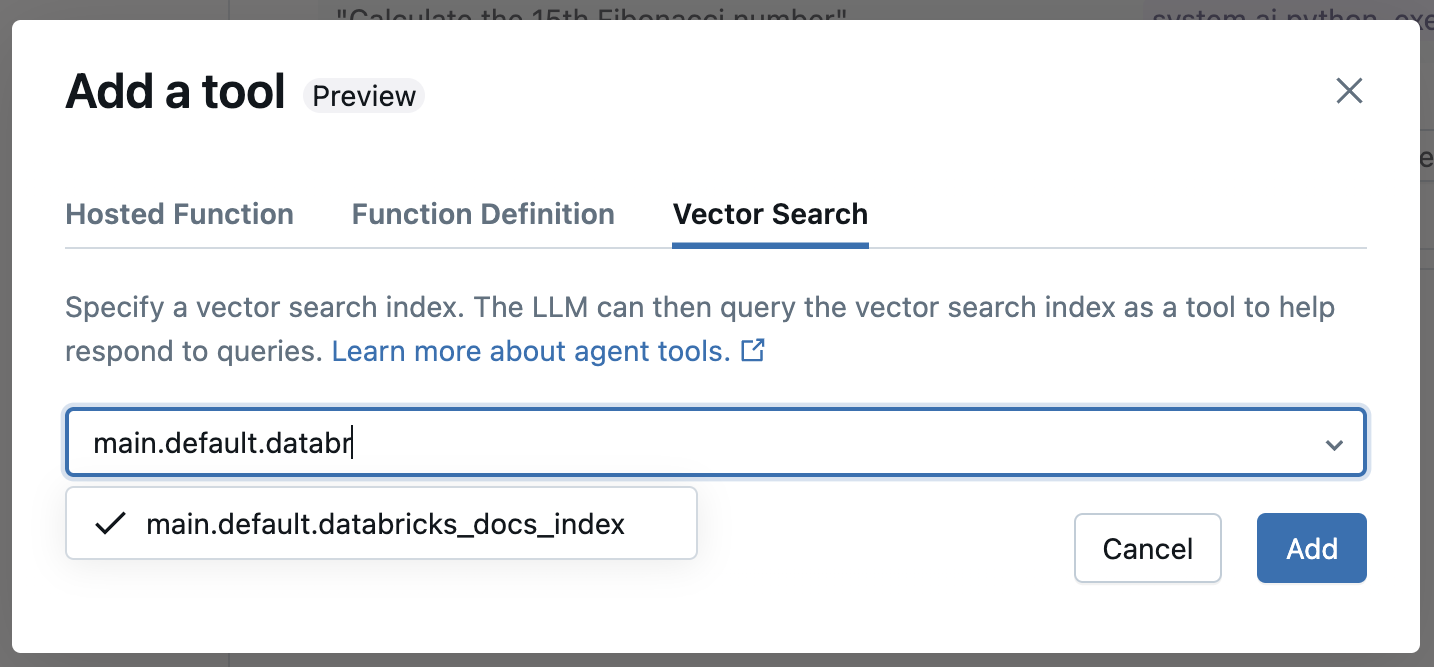
Ask a question related to your documents. The agent can use the index to look up relevant information and cites any documents used in its answer.
To set up an AI Search index, see Create an AI Search index.
Export your agent
After testing your agent in AI Playground, export it so that you can deploy, evaluate, and iterate on it outside the Playground. AI Playground offers two export paths:
- Export to Databricks Apps (recommended): Installs a deployable agent app from the
agent-openai-agents-sdktemplate, including a built-in chat UI, MCP tool wiring, and authentication. Choose this path for new agents. - Create agent notebook (legacy): Generates a Python notebook that defines the agent and deploys it to a Model Serving endpoint. Choose this path if Databricks Apps is not available in your workspace or region.
Export to Apps (recommended)
The Export to Databricks Apps option generates a deployed agent app that's ready to chat with. The app uses the same model, system prompt, and tools (including MCP servers and AI Search indexes) that you configured in the Playground.
Before you export, make sure your workspace meets the following requirements:
- Databricks Apps must be enabled in your workspace. See Set up your Databricks Apps workspace and development environment.
- The endpoint you select must support tools.
- The Managed MCP Servers preview must be enabled in your workspace. See Manage Azure Databricks previews.
To export the agent:
In the Playground, click Get code > Export to Databricks Apps.
In the Export to Databricks Apps dialog, set the following:
- App Name: A unique name that starts with
agent-and contains only lowercase letters, numbers, and hyphens (for example,agent-research-assistant). - App Description: A short description of what the agent does.
- MLflow Experiment: Select an existing MLflow experiment to use for tracing and evaluation, or create a new one.
- App Name: A unique name that starts with
Click Export. Azure Databricks does the following:
- Validates that the app name is available.
- Installs the
agent-openai-agents-sdktemplate into your workspace and grants the app permissions for the resources it needs. These resources include the MLflow experiment, serving endpoint, and any MCP servers, Unity Catalog functions, Genie Agents, or AI Search indexes that you added as tools. - Generates
agent_server/agent.pyfrom your Playground configuration so the deployed agent matches what you tested.
When the success dialog appears, click View Agent to open the deployed app and chat with it using the built-in UI.
To customize the agent code, configure authentication, add evaluation, or redeploy with Declarative Automation Bundles (DABs), see Run agents on Databricks Apps using the legacy agent server.
Create agent notebook (legacy)
After testing your agent in AI Playground, click Get code > Create agent notebook to export your agent to a Python notebook.
After you export the agent code, Azure Databricks saves a folder with a driver notebook to your workspace. This driver defines a tool-calling ResponsesAgent, tests the agent locally, uses code-based logging, registers, and deploys the agent using Custom Agents.
Note
The exported notebook uses a legacy agent authoring workflow that deploys the agent to Model Serving. Databricks recommends authoring agents using Databricks Apps instead. See Run agents on Databricks Apps using the legacy agent server.