Merk
Tilgang til denne siden krever autorisasjon. Du kan prøve å logge på eller endre kataloger.
Tilgang til denne siden krever autorisasjon. Du kan prøve å endre kataloger.
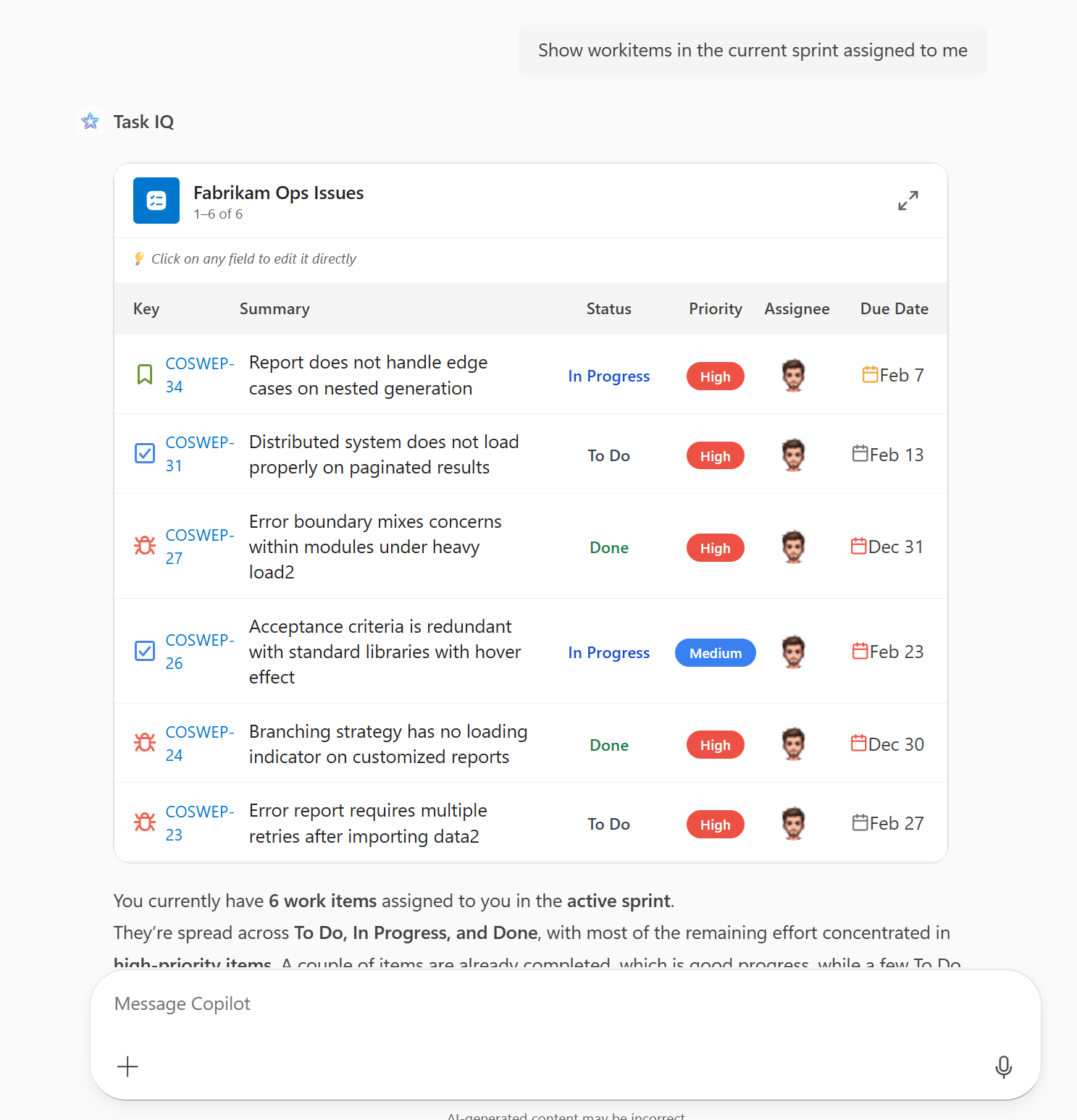
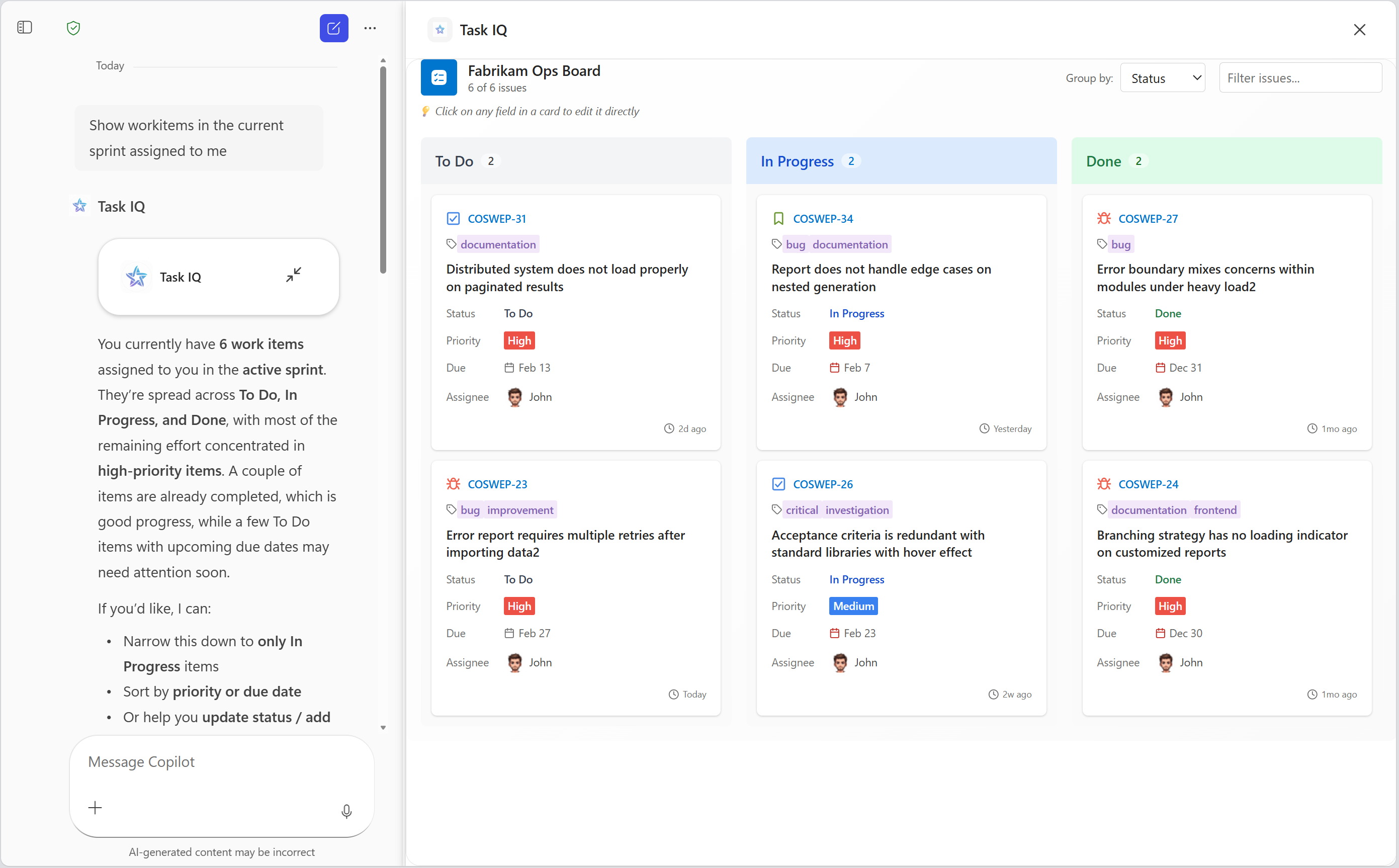
You can add interactive UI widgets to your declarative agents by adding a Model Context Protocol (MCP) server-based action to your agent and extending the MCP tools used by the agent to include UI. Microsoft 365 Copilot supports UI widgets created using the following methods.
- MCP Apps - an extension to MCP that enables MCP servers to deliver interactive user interfaces to hosts.
- OpenAI Apps SDK - tools to build ChatGPT apps based on the MCP Apps standard with extra ChatGPT functionality.
For example MCP server plugins, see MCP based interactive UI samples for Microsoft 365 Copilot on GitHub.
For details on which MCP Apps or OpenAI Apps SDK capabilities are supported, see Supported capabilities.
Prerequisites
- Requirements specified in Requirements for Copilot extensibility options
- A remote MCP server that provides UI widgets or that you can modify to implement UI widgets
- A tool to view MCP server responses, such as MCP Inspector
- Visual Studio Code
- Microsoft 365 Agents Toolkit (version 6.6.1 or later)
MCP server requirements
- Authentication - OAuth 2.1 and Microsoft Entra single sign-on (SSO) are supported. Anonymous authentication is supported for development purposes. For details on authentication, see Configure authentication for API plugins in agents.
- Allowed URLs - the following URLs should be allowed by both your MCP server and your identity provider.
- Widget host URL for CORS - Copilot renders widget UI under an MCP server-specific host with the following URL:
{hashed-mcp-domain}.widget-renderer.usercontent.microsoft.com, where{hashed-mcp-domain}is the SHA-256 hash of your MCP server's domain. You can use the Widget Host URL Generator to generate the host URL based on your MCP server URL. - OAuth 2.1 redirect URIs:
https://teams.microsoft.com/api/platform/v1.0/oAuthRedirectfor Copilothttps://vscode.dev/redirectfor Visual Studio Code to fetch tools using the Agents Toolkit
- Microsoft Entra SSO redirect URIs:
https://teams.microsoft.com/api/platform/v1.0/oAuthConsentRedirectfor Copilot- Visual Studio Code doesn't currently support SSO for fetching tools
- Widget host URL for CORS - Copilot renders widget UI under an MCP server-specific host with the following URL:
- UI widgets - UI widgets must be implemented according to the MCP Apps or OpenAI Apps SDK requirements.
Best practices
User experience design
For details on UX design best practices, see User experience guidelines for interactive UI widgets in declarative agents.
Verify API availability
Not all window.openai.* APIs are available on every platform or host. APIs that are unsupported are undefined. Always check API availability and provide a fallback if the API is unavailable.
Examples
This simple pattern avoids runtime errors by checking before calling the API.
if (window.openai.callTool) {
  const result = await window.openai.callTool({ name: 'myTool', params: {} });
} else {
  // Handle unsupported case — show fallback UI, skip the feature, etc.
}
In this example, a button to enter fullscreen mode is rendered only if the host supports the requestDisplayMode API.
function FullScreenButton() {
  // Don't render the button if the host doesn't support it
  if (!window.openai.requestDisplayMode) {
    return null;
  }

  return (
    <button onClick={() => window.openai.requestDisplayMode({ mode: 'fullscreen' })}>
      Enter Fullscreen
    </button>
  );
}
Alternatively, your widget can check availability of all APIs that it uses at startup and enable/disable features accordingly.
interface PlatformCapabilities {
  canCallTools: boolean;
  canChangeDisplayMode: boolean;
  canSendMessages: boolean;
}

function detectCapabilities(): PlatformCapabilities {
  return {
    canCallTools: !!window.openai.callTool,
    canChangeDisplayMode: !!window.openai.requestDisplayMode,
    canSendMessages: !!window.openai.sendMessage,
  };
}

// Use at widget startup
const capabilities = detectCapabilities();

if (!capabilities.canCallTools) {
  // Show a reduced-functionality experience
}
Create a declarative agent
Open Visual Studio Code and select the Microsoft 365 Agents Toolkit icon in the left-hand Activity Bar.
Select Create a New Agent/App in the Agents Toolkit task pane.
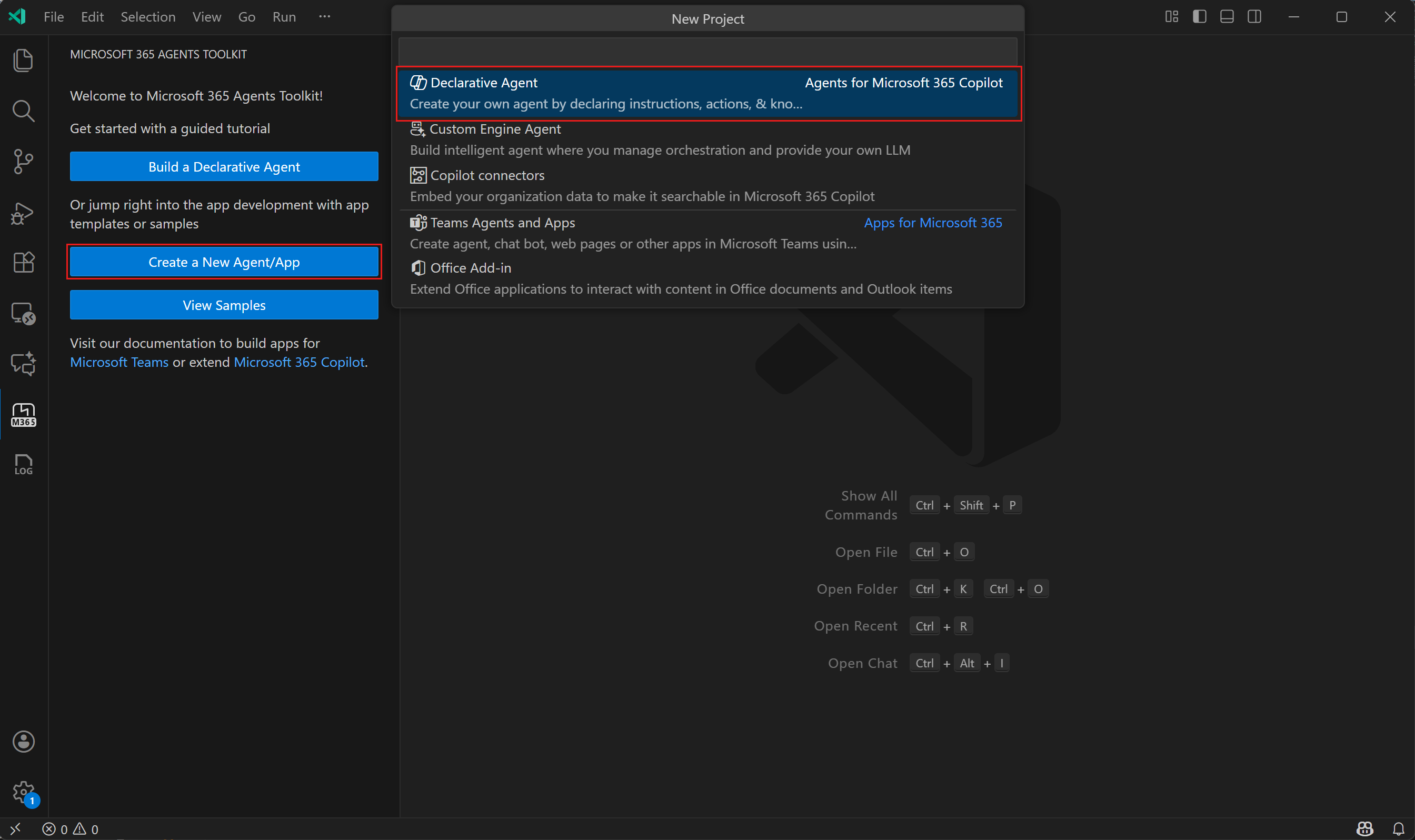
Select Declarative Agent.
Select Add an Action, then select Start with an MCP Server. If prompted, choose Remote MCP server.
Enter URL to your MCP server.
Choose a location for the agent project.
Enter a name for the agent.
When you complete these steps, Agents Toolkit generates the required files for the agent and opens a new Visual Studio Code window with the agent project loaded.
Update and sideload the agent
Open the .vscode/mcp.json file. Select the Start button in the file editor.
Select the ATK: Fetch action from MCP button in the file editor, then select ai-plugin.json.
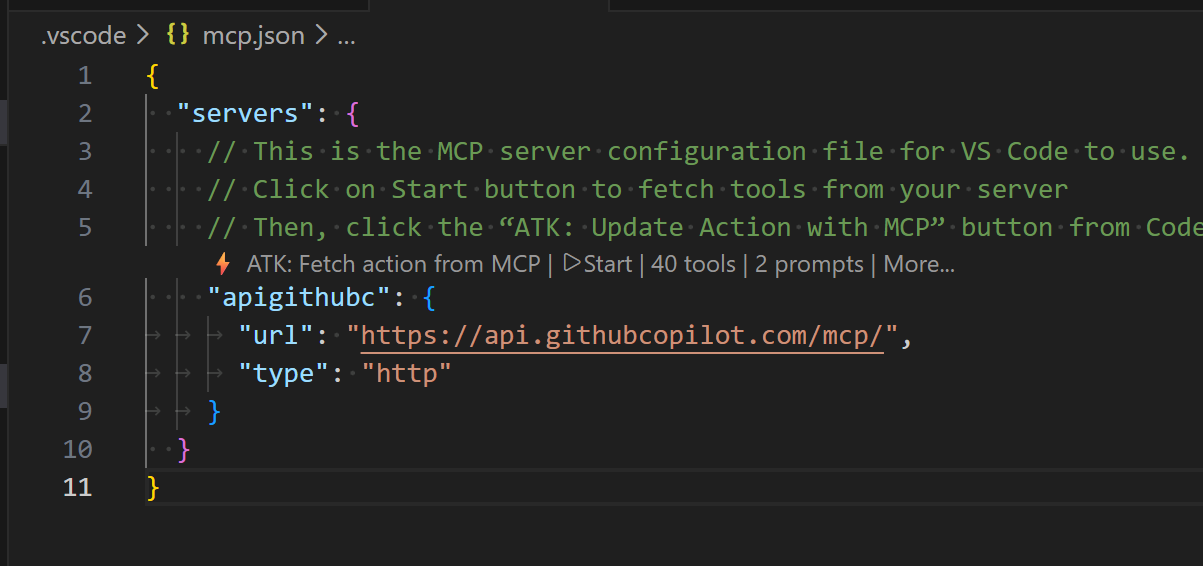
Select the tools for the agent to use and select OK. Be sure to select at least one tool that has a UI widget.
Select the applicable authentication type.
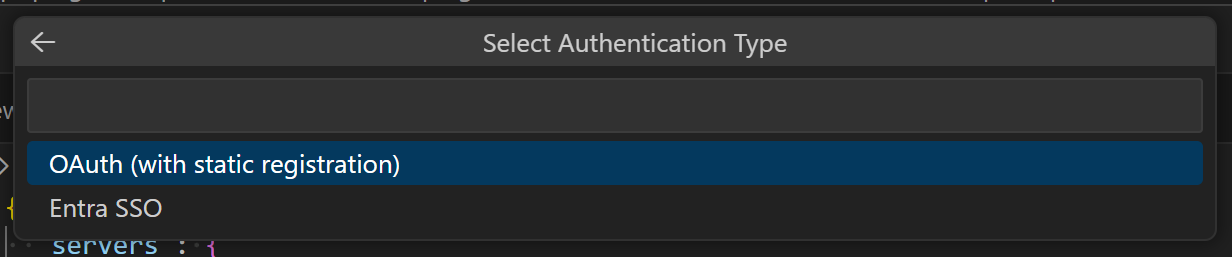
Important
If your MCP server is in development and doesn't implement authentication, this step is skipped. You need to manually add authentication to your manifest once you add authentication to your server.
Select the Microsoft 365 Agents Toolkit icon in the left-hand Activity Bar.
In the Accounts pane, select Sign in to Microsoft 365. (If you're already signed in, continue to the next step).
Confirm that both Custom App Upload Enabled and Copilot Access Enabled display under your Microsoft 365 account. If they don't, check with your organization admin. See Requirements for Copilot extensibility options for details.
In the Lifecycle pane, select Provision.
If prompted, add your authentication details.
Wait for the toolkit to report that it finishes provisioning.
Test the agent
- Open your browser and go to https://m365.cloud.microsoft/chat.
- Select your agent in the left-hand sidebar. If you don't see your agent, select All agents.
- Ask the agent to do something that invokes your MCP server.
- Allow the agent to connect to the MCP server when prompted.
- The agent renders the UI widget.
Supported capabilities
Microsoft 365 Copilot supports the following capabilities.
Component bridge
| OpenAI Apps SDK | MCP Apps equivalent | Supported? |
|---|---|---|
window.openai.toolInput |
app.ontoolinput |
✅ |
window.openai.toolOutput |
app.ontoolresult |
✅ |
window.openai.toolResponseMetadata |
app.ontoolresult → params._meta |
✅ |
window.openai.widgetState |
— | ✅ |
window.openai.setWidgetState(state) |
Not directly available. Use alternative mechanisms including app.updateModelContext() |
✅ |
window.openai.callTool(name, args) |
app.callServerTool({ name, arguments }) |
✅ |
window.openai.sendFollowUpMessage({ prompt }) |
app.sendMessage({ ... }) |
✅ |
window.openai.uploadFile(file) |
— | ❌ |
window.openai.getFileDownloadUrl({ fileId }) |
— | ❌ |
window.openai.requestDisplayMode(...) |
app.requestDisplayMode({ mode }) |
✅ (full screen only) |
window.openai.requestModal(...) |
— | ❌ |
window.openai.notifyIntrinsicHeight(...) |
app.sendSizeChanged({ width, height }) |
✅ |
window.openai.openExternal({ href }) |
app.openLink({ url }) |
✅ |
window.openai.setOpenInAppUrl({ href }) |
— | ✅ |
window.openai.theme |
app.getHostContext()?.theme |
✅ |
window.openai.displayMode |
app.getHostContext()?.displayMode |
✅ |
window.openai.maxHeight |
app.getHostContext()?.viewport?.maxHeight |
✅ |
window.openai.safeArea |
app.getHostContext()?.safeAreaInsets |
✅ |
window.openai.view |
— | ✅ |
window.openai.userAgent |
app.getHostContext()?.userAgent |
✅ |
window.openai.locale |
app.getHostContext()?.locale |
✅ |
| — | app.ontoolinputpartial |
❌ |
| — | app.ontoolcancelled |
❌ |
| — | app.getHostContext()?.availableDisplayModes |
❌ |
| — | app.getHostContext()?.toolInfo |
❌ |
| — | app.onhostcontextchanged |
❌ |
| — | app.onteardown |
❌ |
| — | app.sendLog({ level, data }) |
❌ |
| — | app.getHostVersion() |
❌ |
| — | app.getHostCapabilities() |
✅ |
Tool descriptor _meta fields
| OpenAI Apps SDK | MCP Apps equivalent | Supported? |
|---|---|---|
_meta["openai/outputTemplate"] |
_meta.ui.resourceUri |
✅ |
_meta["openai/widgetAccessible"] |
_meta.ui.visibility (string[]) |
❌ |
_meta["openai/visibility"] |
_meta.ui.visibility (string[]) |
✅ |
_meta["openai/toolInvocation/invoking"] |
— | ❌ |
_meta["openai/toolInvocation/invoked"] |
— | ❌ |
_meta["openai/fileParams"] |
— | ❌ |
_meta["securitySchemes"] |
— | ❌ |
Tool descriptor annotations
| OpenAI Apps SDK | MCP Apps equivalent | Supported? |
|---|---|---|
readOnlyHint |
readOnlyHint |
✅ |
destructiveHint |
destructiveHint |
❌ |
openWorldHint |
openWorldHint |
❌ |
idempotentHint |
idempotentHint |
❌ |
Component resource _meta fields
| OpenAI Apps SDK | MCP Apps equivalent | Supported? |
|---|---|---|
_meta["openai/widgetDescription"] |
— | ❌ |
_meta["openai/widgetPrefersBorder"] |
_meta.ui.prefersBorder |
❌ |
_meta["openai/widgetCSP"] |
_meta.ui.csp |
✅ |
_meta["openai/widgetDomain"] |
_meta.ui.domain |
❌ |
| — | _meta.ui.permissions |
❌ |
Properties in CSP object
| OpenAI Apps SDK | MCP Apps equivalent | Supported? |
|---|---|---|
connect_domains |
connectDomains |
✅ |
resource_domains |
resourceDomains |
✅ |
frame_domains |
frameDomains |
❌ |
redirect_domains |
— | ❌ |
| — | baseUriDomains |
❌ |
Host-provided tool result _meta fields
| OpenAI Apps SDK | MCP Apps equivalent | Supported? |
|---|---|---|
_meta["openai/widgetSessionId"] |
— | ❌ |
Client-provided _meta fields
| OpenAI Apps SDK | MCP Apps equivalent | Supported? |
|---|---|---|
_meta["openai/locale"] |
_meta["openai/locale"] |
✅ |
_meta["openai/userAgent"] |
_meta["openai/userAgent"] |
✅ |
_meta["openai/userLocation"] |
_meta["openai/userLocation"] |
✅ |
_meta["openai/subject"] |
— | ❌ |