Merk
Tilgang til denne siden krever autorisasjon. Du kan prøve å logge på eller endre kataloger.
Tilgang til denne siden krever autorisasjon. Du kan prøve å endre kataloger.
Styling text in Xamarin.Forms
Styles can be used to adjust the appearance of labels, entries, and editors. Styles can be defined once and used by many views, but a style can only be used with views of one type.
Styles can be given a Key and applied selectively using a specific control's Style property.
Built-In Styles
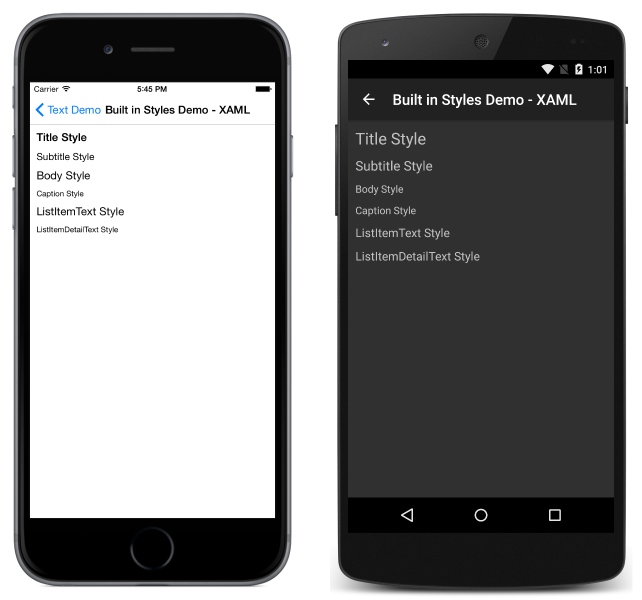
Xamarin.Forms includes several built-in styles for common scenarios:
BodyStyleCaptionStyleListItemDetailTextStyleListItemTextStyleSubtitleStyleTitleStyle
To apply one of the built-in styles, use the DynamicResource markup extension to specify the style:
<Label Text="I'm a Title" Style="{DynamicResource TitleStyle}"/>
In C#, built-in styles are selected from Device.Styles:
label.Style = Device.Styles.TitleStyle;
Custom Styles
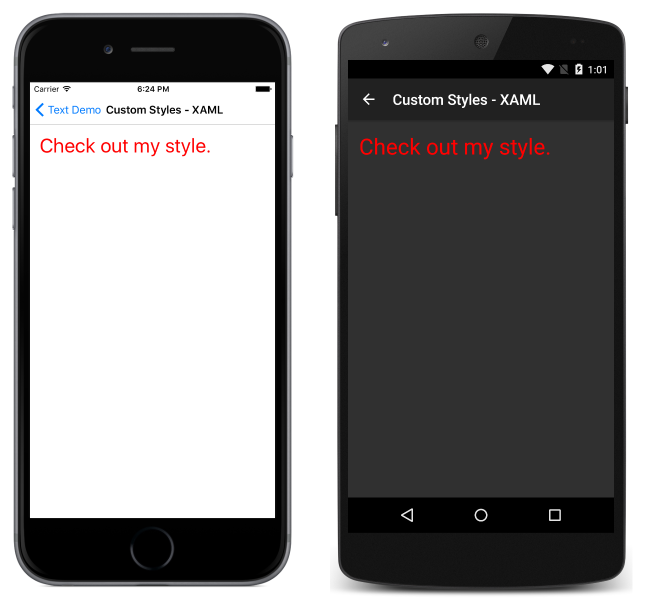
Styles consist of setters and setters consist of properties and the values the properties will be set to.
In C#, a custom style for a label with red text of size 30 would be defined as follows:
var LabelStyle = new Style (typeof(Label)) {
    Setters = {
        new Setter {Property = Label.TextColorProperty, Value = Color.Red},
        new Setter {Property = Label.FontSizeProperty, Value = 30}
    }
};

var label = new Label { Text = "Check out my style.", Style = LabelStyle };
In XAML:
<ContentPage.Resources>
    <ResourceDictionary>
        <Style x:Key="LabelStyle" TargetType="Label">
            <Setter Property="TextColor" Value="Red"/>
            <Setter Property="FontSize" Value="30"/>
        </Style>
    </ResourceDictionary>
</ContentPage.Resources>

<ContentPage.Content>
    <StackLayout>
        <Label Text="Check out my style." Style="{StaticResource LabelStyle}" />
    </StackLayout>
</ContentPage.Content>
Note that resources (including all styles) are defined within ContentPage.Resources, which is a sibling of the more familiar ContentPage.Content element.
Applying Styles
Once a style has been created, it can be applied to any view matching its TargetType.
In XAML, custom styles are applied to views by supplying their Style property with a StaticResource markup extension referencing the desired style:
<Label Text="Check out my style." Style="{StaticResource LabelStyle}" />
In C#, styles can either be applied directly to a view or added to and retrieved from a page's ResourceDictionary. To add directly:
var label = new Label { Text = "Check out my style.", Style = LabelStyle };
To add and retrieve from the page's ResourceDictionary:
this.Resources.Add ("LabelStyle", LabelStyle);
label.Style = (Style)Resources["LabelStyle"];
Built-in styles are applied differently, because they need to respond to accessibility settings. To apply built-in styles in XAML, the DynamicResource markup extension is used:
<Label Text="I'm a Title" Style="{DynamicResource TitleStyle}"/>
In C#, built-in styles are selected from Device.Styles:
label.Style = Device.Styles.TitleStyle;
Accessibility
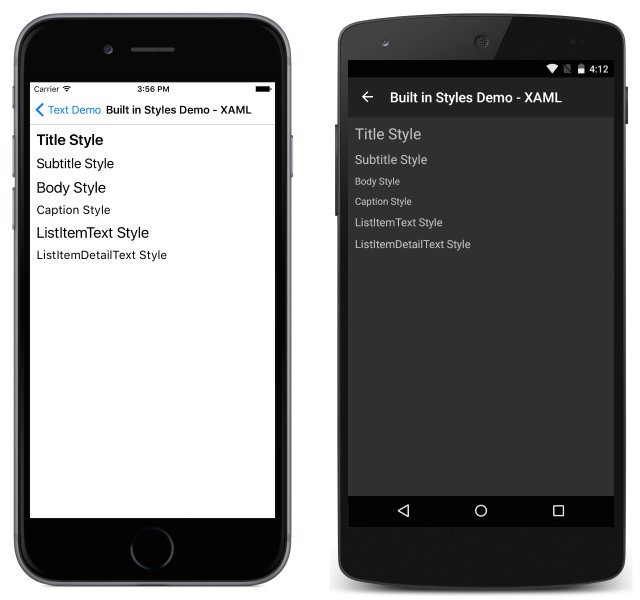
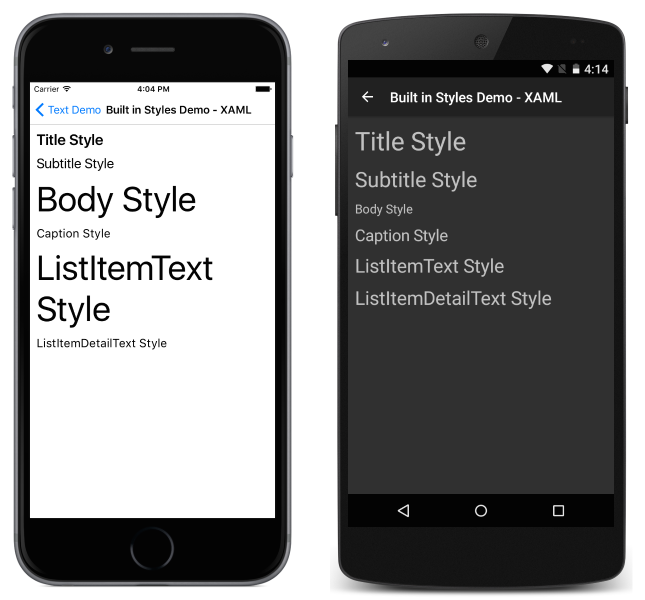
The built-in styles exist to make it easier to respect accessibility preferences. When using any of the built-in styles, font sizes will automatically increase if a user sets their accessibility preferences accordingly.
Consider the following example of the same page of views styled with the built-in styles with accessibility settings enabled and disabled:
Disabled:
Enabled:
To ensure accessibility, make sure that built-in styles are used as the basis for any text-related styles within your app, and that you are using styles consistently. See Styles for more details on extending and working with styles in general.