Exercise - Configure your SharePoint Framework development environment
- 15 minutes
In this exercise, you'll set up your local developer environment with everything you need to start creating SharePoint Framework components.
Install a code editor
You'll need a text editor to edit your code files. There are no requirements for what you need in a text editor.
The rest of this lab, and most of the examples you'll find from Microsoft, use Visual Studio Code.
Install Node.js
The tools used in compiling, debugging, and packaging SharePoint Framework projects are built using Node.js, which is a runtime that enables JavaScript to run locally versus in a browser. So, the first step is to install the runtime, Node.js, before installing the required tools.
Note
Node.js is available in two different releases: the long-term support release (also known as: LTS) is the most stable version that is recommended for most users while the current version contains the latest features.
Before installing Node.js, you should verify that you haven't installed it previously. Open a command prompt or terminal (depending on your developer platform) and execute the following command:
node -v
If a version number is returned, you already have Node.js. The version(s) of Node.js you can use depends on the environment(s) you'll be targeting.
If you're building projects for SharePoint Server 2016, then you need to use the SharePoint Framework v1.1.0 due to the server-side version dependencies. This means you should install Node.js v6.x. For more information on SharePoint Framework development with SharePoint Server 2016, see SharePoint Framework development with SharePoint Server 2016 Feature Pack 2 and SharePoint Framework development for SharePoint Server 2016 with Feature Pack 2 for information about how to address a versioning issue with one of Yeoman's dependencies.
If you're building projects for SharePoint Server 2019, then you need to use the SharePoint Framework v1.4.1 because of the server-side version dependencies. This means you should install Node.js v6.x or v8.x. For more information on SharePoint Framework development with SharePoint Server 2019, see SharePoint Framework development with SharePoint Server 2019 and Definitive guide for developers: SharePoint Framework for SharePoint Server 2019.
If you're building projects for SharePoint Server Subscription Edition with the 23H1 update, then you need to use the SharePoint Framework v1.5.1 because of the server-side version dependencies. This means you should install Node.js v6.x or v8.x. For more information on SharePoint Framework development with SharePoint 2019, see SharePoint Framework development with SharePoint Server 2019 and Definitive guide for developers: SharePoint Framework for SharePoint Server SE.
If you're building projects for SharePoint Online, then it's recommended that you install the latest Node.js v22.x LTS release.
If you already have a version of Node.js that's compatible with the environment(s) you'll be targeting, then skip to the next section.
Open a browser and navigate to the Node.js Foundation site: https://www.nodejs.org.
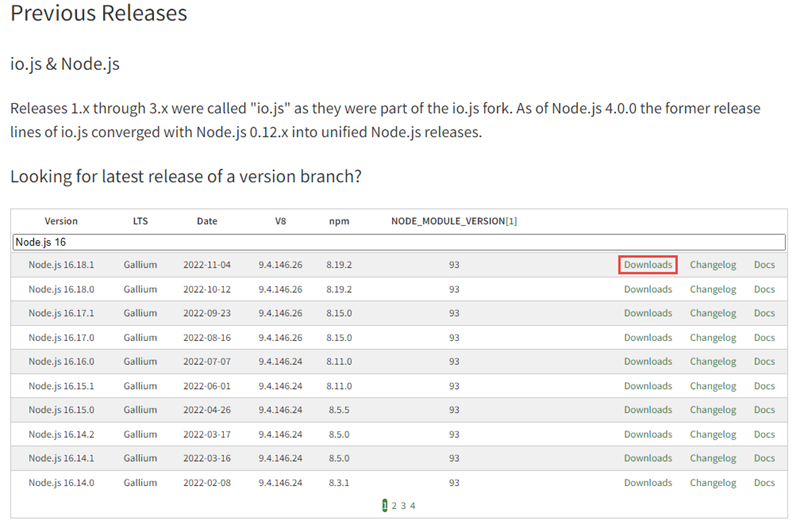
The current LTS version might not be compatible with the current version of the SharePoint Framework, so you'll navigate further into the site to ensure you download the appropriate installer.
Select Downloads from the top menu navigation then select the version of Node you want to install for your platform using a node version manager:
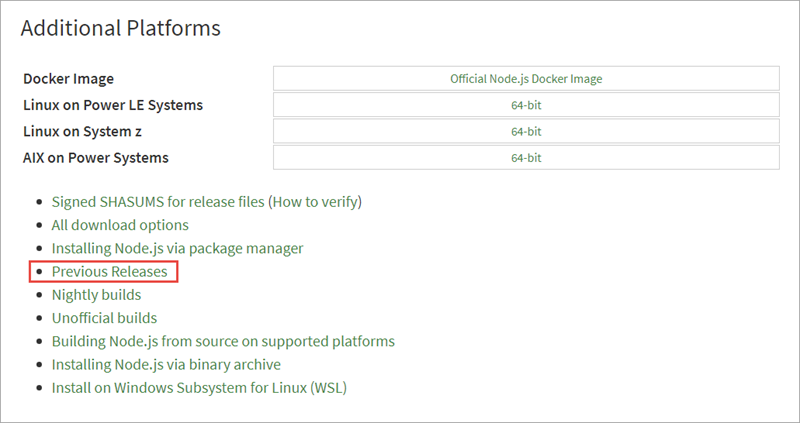
Or, select the pre-built installer for your platform:
Run the installer, accepting all the default options. This will install Node.js and npm. npm is a package manager that Node.js uses, similar to .NET's NuGet.
Important
The remainder of the material in this module assumes that you're building projects for SharePoint Online.
Install required tools
The SharePoint Framework development experience uses a set of tools built on Node.js that are popular among web developers. These tools are built on Node.js, which means they can be used on any platform and will work the same way. This includes Windows, macOS, and Linux.
Install Yeoman
Yeoman is a scaffolding engine, which executes generators that prompt the user with questions. Based on the answers to these questions, Yeoman then creates the folders and files defined by the generator.
Open a command prompt / terminal window and execute the following command to install Yeoman globally with npm:
npm install yo --global
Install Heft CLI
Heft is a task runner utility. It's similar to MSBuild, a tool used by .NET developers and Visual Studio to compile projects, package solutions, and start a debugging experience.
To install the Heft CLI, open a command prompt / terminal window and execute the following command:
npm install @rushstack/heft --global
Install the SharePoint Framework Yeoman generator
Microsoft has created a Yeoman generator for scaffolding SharePoint Framework projects.
To install the latest version of the SharePoint Framework Yeoman generator globally with npm, open a command prompt / terminal window and execute the following command:
npm install @microsoft/generator-sharepoint --global
To install a specific version of the SharePoint Framework Yeoman generator globally with npm, open a command prompt / terminal window and execute the following command:
npm install @microsoft/generator-sharepoint@[version number] --global
For example:
npm install @microsoft/generator-sharepoint@1.5.1 --global
Summary
In this exercise, you set up your local developer environment with everything you need to start creating SharePoint Framework components.
Test your knowledge
Tilbakemeldinger
Var denne siden nyttig?
Nei
Trenger du hjelp med dette emnet?
Vil du prøve å bruke Spør Learn for å klargjøre eller veilede deg gjennom dette emnet?