View list data in Power BI reports in Business Central
Dynamics 365 Business Central includes a FactBox control element on several key list pages that provides additional insight into the data in the list. As you move between rows in the list, the report is updated and filtered for the selected entry. You can create custom reports to display in this control, but a few rules are in place for you to follow when creating the reports. These rules help ensure that the custom reports provide the desired behavior.
Report dataset
When you create the report in Power BI Desktop, make sure that you specify the data source or web service that contains the data that is related to the list that you want to associate the report with. For example, if you want to create a report for the Sales List, ensure that the dataset contains information that is related to sales.
To filter data on the reports based on the record that is selected from the list page, the primary key must be used as a report filter. The primary keys need to be part of your dataset for the reports to filter correctly. In most cases, the primary key for a list is the No. field.
Define the report filter
The report is required to have a basic report filter (not a page or visual filter and not an advanced filter) to filter correctly in the Power BI Fact Box Control. The filter that is passed to the Power BI report from each list page will be based on the primary key, as described in the previous section.
To set the filter, complete the following steps:
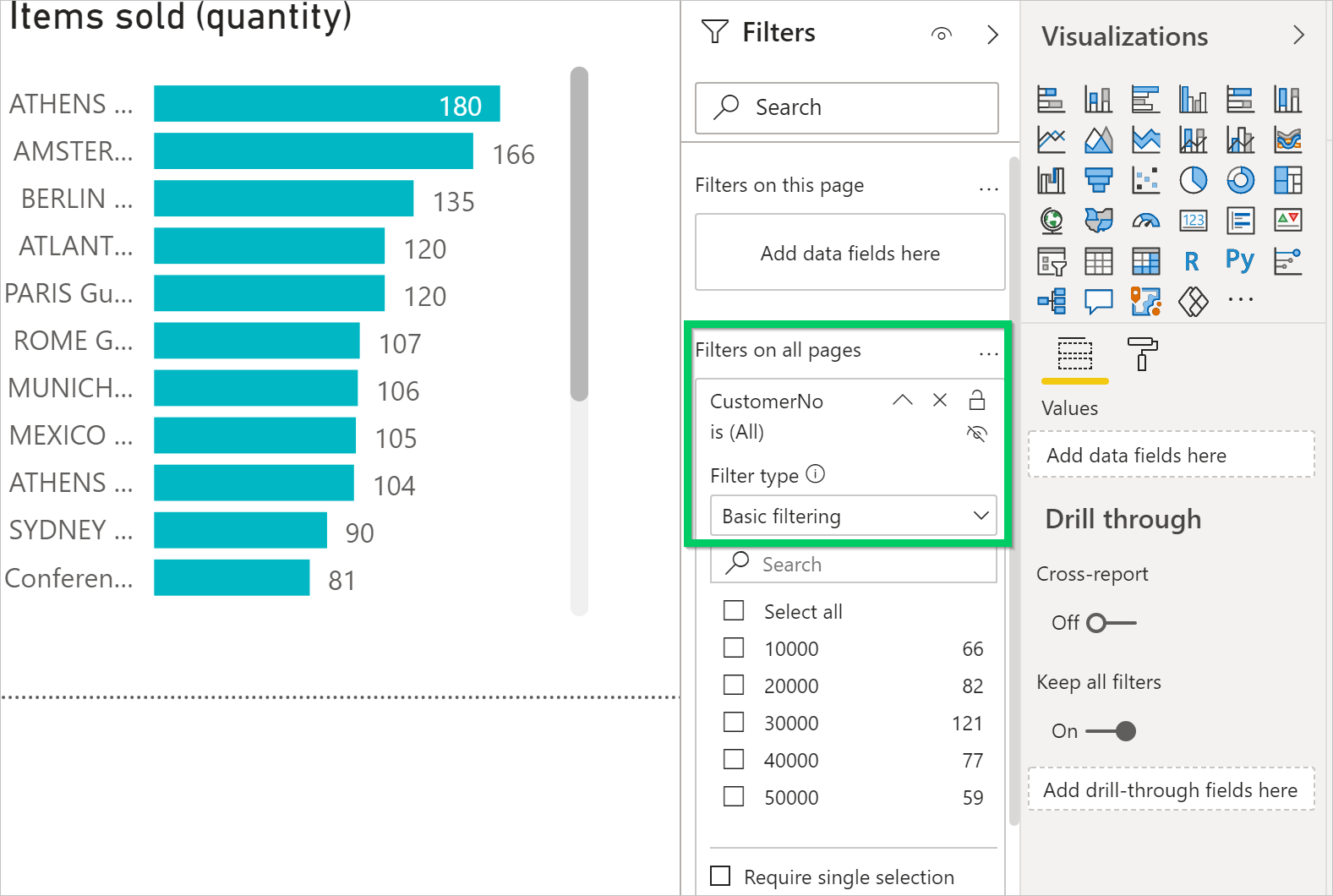
In the Filters, select the primary key field from the list of available fields.
Drag the field to the Filters pane and drop it in the Filters on all pages box.
Set the Filter type to Basic filtering. It can't be page, visual, or advanced filter.
Report size and color
The size of the report must be set to 325 pixels by 310 pixels. This size provides the proper scaling of the report in the available space of the Power BI FactBox control in Business Central. To define the size of the report, place focus outside of the report layout area, and then select the paint roller icon.
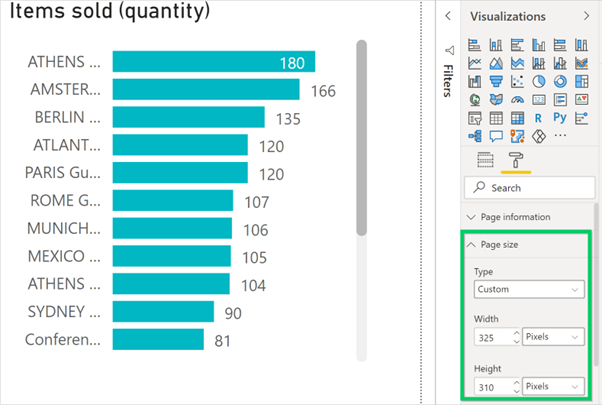
You can change the width and height of the report by choosing Custom in the Type field. If you want the background of the report to blend with the background color of the Power BI FactBox control, set the report background color to #FFFFFF (white).
Use the Business Central theme file to build reports with the same color styling as the Business Central apps. For more information, see Using the Business Central report theme.
Reports with multiple pages
With Power BI, you can create a single report with multiple pages. The visuals that you want to see in the Business Central list pages must be on the first page of the report in Power BI.
The Power BI FactBox can show only the first page of your report. If you want to see other pages, you must expand the report and use tabs at the bottom of the report to navigate to other pages.
Save your report
When you save your report, it is a best practice that the name of the report contains the name of the list page that you want to display the report in. For example, the word Vendor must be contained somewhere in the report name for reports that you want to make available on the Vendor list.
This practice is not a requirement; however, it makes the process of
selecting reports quicker. When the report selection page opens from a
list page, it's automatically applied a filter based on the page name.
The filter has the syntax: @*<caption>*, like @*Vendors*. This filtering
is done to limit the reports that are displayed. Users can clear the filter
to get a full list of reports available in Power BI.
Test the report
Once the report's been published to your workspace, it should be available from the Power BI FactBox on the list page in Business Central.
To test it, complete the following steps.
Open Business Central and go to the list page.
If you don't see the Power BI FactBox, go the action bar, then select Actions > Display > Show/Hide Power BI Reports.
In the Power BI FactBox, choose Select Reports, and then select the Enable option for the report, then select OK.
If designed correctly, the report will display.
Troubleshooting
This topic explains how to fix problems that you might run into when you try to view a Power BI report for a list page in Business Central.
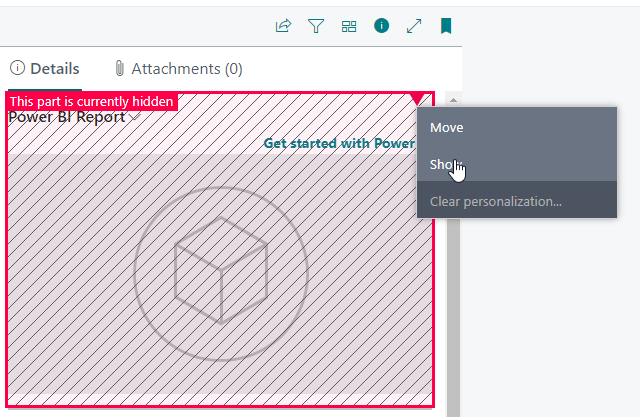
- You can't see the Power BI FactBox on a list page - By default, the Power BI FactBox is hidden from view. Previously, the Power BI part visibility on list pages was controlled by a combination of the Show/Hide Power BI Reports action on the page and personalization of the page's FactBox. In the current release, the Show/Hide Power BI Reports action is removed, and visibility relies only on personalization.
You can't see the report in the Select Report pane - The report's name doesn't contain the name of the list page that's being shown. Clear the filter to get a full list of Power BI reports available.
The report is loaded but blank, not filtered, or filtered incorrectly - Verify the report filter contains the right primary key. In most cases, this field is the No. field, but in the G/L Entry table, for example, you must use the Entry No. field.
Report is loaded, but it shows a page you didn't expect - Verify that the page you want displayed is the first page in your report.
Report appears with an unwanted gray boarder, or it's too small or too large - Verify that the report size is set to 325 pixels x 310 pixels. Save the report, and then refresh the list page.