Merk
Tilgang til denne siden krever autorisasjon. Du kan prøve å logge på eller endre kataloger.
Tilgang til denne siden krever autorisasjon. Du kan prøve å endre kataloger.
This article assumes that you already set up your project to use OpenXR (in other words, you imported the required packages and chosen settings for the OpenXR plug-in). If you didn't do this, see our articles describing how to set up a new OpenXR project with MRTK or without MRTK.
Different remoting configurations available in Unity Mixed Reality OpenXR plugin:
In all of the following scenarios, inputs from the HoloLens--gaze, gesture, voice, and spatial mapping--are sent to the PC, where content is rendered in a virtual immersive view. The rendered frames are then sent to the HoloLens.
- Standalone Holographic AppRemoting App: A Standalone or UWP Unity App is built after doing the following steps:
- In Unity, on the menu bar, navigate to File > Build Settings > Project Settings, and then select XR Plug-in Management.
- Select Holographic remoting remote app feature group and make sure that Initialize XR on Startup isn't selected.
It is a remote app that is connected to a "Holographic Remoting Player App" that runs on the HoloLens.
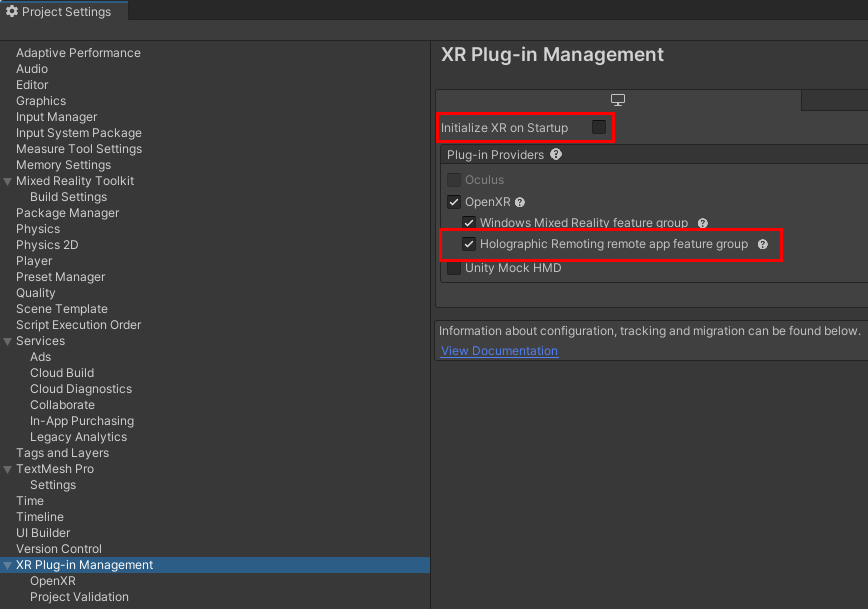
- Holographic AppRemoting App in regular Play Mode:
- In Unity, on the menu bar, navigate to File > Build Settings > Project Settings >, and then select XR Plug-in Management.
- Select Holographic remoting remote app feature group and make sure that Initialize XR on Startup isn't selected.
- Click the Play button.
It can be used to test the above remote app's functionality without building it in regular play mode and connect to a "Holographic Remoting Player App" that runs on the HoloLens.
- Holographic Remoting for Play Mode:
- In Unity, on the menu bar, select Mixed Reality > Remoting > Holographic Remoting for Play Mode.
- Click the Play button.
By using a "Holographic Remoting Player App", you can quickly debug your HoloLens 2 app without building and deploying a full project on the HoloLens.
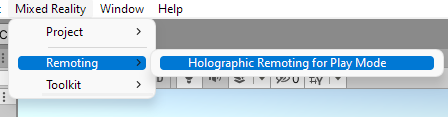
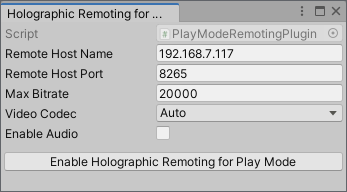
Note: Enabling Holographic Remoting for Play Mode in Cofiguration 3 above only manages the remoting connection. All the Holographic AppRemoting API methods either display a warning message or return false and events are never triggered for the duration of the Play Mode connection using remoting. To test Holographic AppRemoting APIs in Play Mode, use Configuration 2 using normal play mode and establish the AppRemoting connection.
The following table describes the App Remoting API behavior in different configurations:
| Mixed Reality OpenXR Plugin's AppRemoting API | Holographic App Remoting App (or) Holographic App Remoting App in regular play mode | App using Holographic Remoting for Play Mode |
|---|---|---|
| StartConnectingToPlayer | This functionality is supported | This functionality isn't supported and emits a warning message |
| StartListeningForPlayer | This functionality is supported | This functionality isn't supported and emits a warning message |
| Disconnect | This functionality is supported | This functionality isn't supported and emits a warning message |
| StopListening | This functionality is supported | This functionality isn't supported and emits a warning message |
| IsReadyToStart | This functionality is supported | This functionality isn't supported and emits a warning message |
| TryGetConnectionState | This functionality is supported | This function returns false |
| TryLocateUserReferenceSpace | This functionality is supported | This function returns false |
| ReadyToStart | This functionality is supported | This event is never triggered |
| Connected | This functionality is supported | This event is never triggered |
| Disconnecting | This functionality is supported | This event is never triggered |