Notitie
Voor toegang tot deze pagina is autorisatie vereist. U kunt proberen u aan te melden of mappen te wijzigen.
Voor toegang tot deze pagina is autorisatie vereist. U kunt proberen om mappen te wijzigen.
Microsoft Copilot works within the Microsoft 365 service boundary. It uses the same data protection, access control, and compliance capabilities that already apply across Microsoft 365.
This article describes the data protection architecture for Microsoft Copilot. It explains:
- How Copilot works with Microsoft Purview sensitivity labels and encryption.
- How SharePoint and OneDrive access controls affect what Copilot can discover and reference.
- Where Copilot interaction data is stored and how you can audit, discover, and retain it.
This article is for IT administrators who want to understand how data flows through Copilot and how existing Microsoft 365 protections apply. For deployment steps and remediation guidance, see Secure & governed data foundation for Microsoft Copilot: A deployment blueprint.
Tip
To learn more about how Microsoft Copilot uses your data, see:
How Microsoft Copilot works with sensitivity labels and encryption
Copilot honors Microsoft Purview sensitivity labels and encryption when it grounds responses and generates content. These protections help keep sensitive content from being returned to users who aren't authorized to use it.
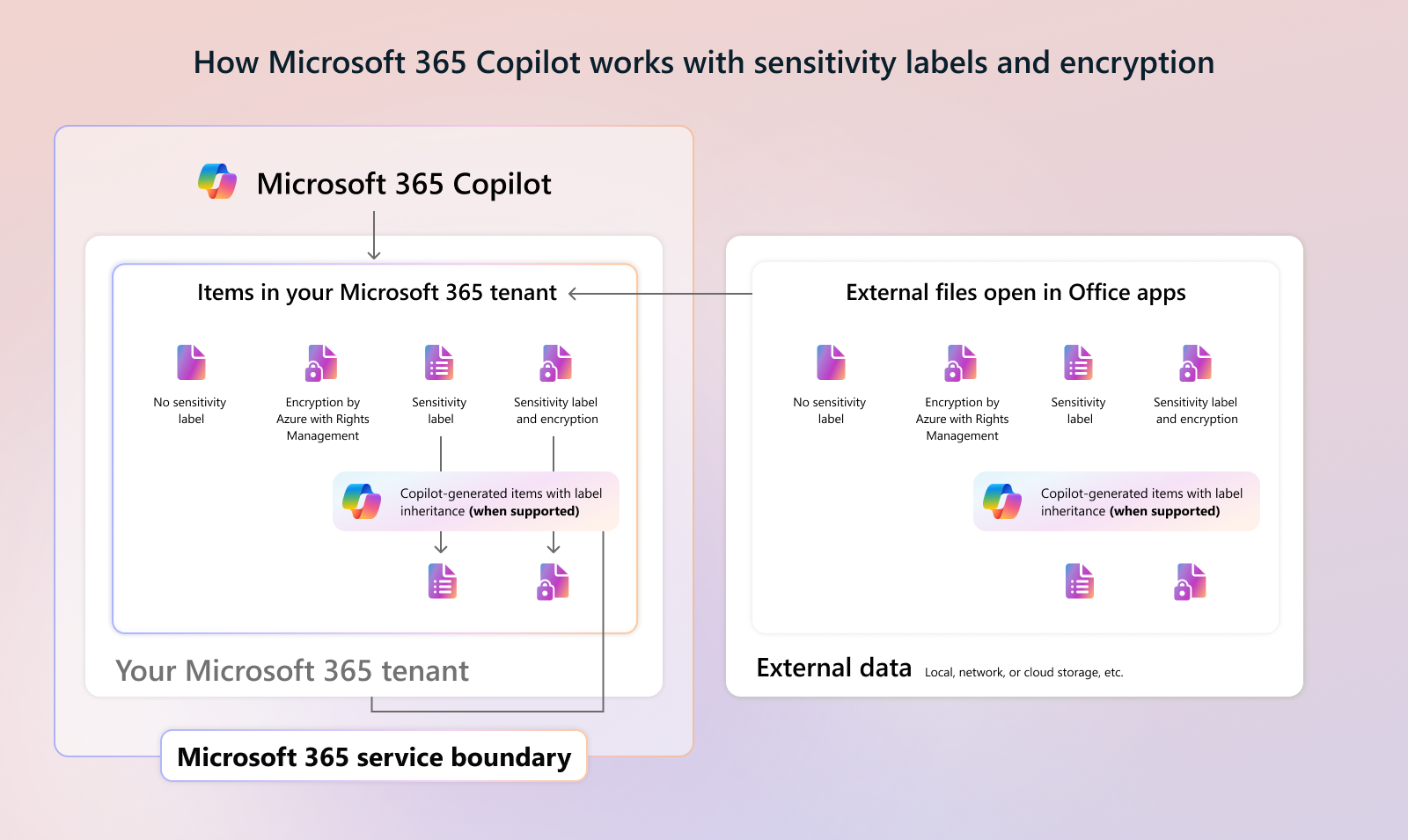
The diagram shows how Copilot handles content based on its protection:
- Permissions come first. Copilot only summarizes or references content that the user is already authorized to access.
- Encrypted content requires EXTRACT and VIEW. When content is encrypted, whether by a sensitivity label or by Azure Rights Management without a label, the user must have both the VIEW and EXTRACT usage rights for Copilot to summarize or return the content.
- VIEW without EXTRACT limits what Copilot returns. If the user has VIEW but not EXTRACT, Copilot doesn't summarize the content, but it can return a link so the user can open it outside Copilot. When this content is open in an app, the user can't use Copilot with it.
- Labels are shown in Copilot Chat. When Copilot Chat returns data from labeled items, it can display the sensitivity label. If the response draws on items with different labels, the label with the highest priority is shown.
- New content can inherit labels. When Copilot creates new content from labeled items, the label with the highest priority is applied to the new content, where label inheritance is supported.
- Files outside your tenant are protected while they're open. When a labeled or encrypted file stored outside Microsoft 365 (for example, on local storage, a network share, or another cloud service) is open in an Office app, Copilot honors the same protection settings.
Note
Some protection configurations further limit what Copilot and agents can access:
- User-defined permissions: Copilot and agents can't access unopened documents in SharePoint and OneDrive that are labeled and encrypted with user-defined permissions. There are two exceptions: the label is a default sensitivity label that extends SharePoint permissions to downloaded documents, or the user references the document directly by typing "/". In both cases, the user must also have the EXTRACT usage right. Copilot can always use these documents when they're open in the app. Label inheritance isn't supported for content encrypted with user-defined permissions.
- Double Key Encryption (DKE): Copilot and agents can't access content protected by DKE. If a DKE-protected item is open, Copilot isn't available in the app.
- Teams meetings and chats: Copilot and agents don't currently recognize sensitivity labels that protect Teams meetings and chats.
To learn more, see:
- Get started with sensitivity labels
- Microsoft Purview strengthens information protection for Copilot
- Considerations to manage Microsoft 365 Copilot for security and compliance
How SharePoint and OneDrive access controls affect Copilot
Copilot respects existing SharePoint and OneDrive permissions. If content is already overshared, Copilot can surface it to anyone who has access. SharePoint, OneDrive, and Microsoft Purview controls help limit what Copilot can discover and reference without changing the underlying user permissions.
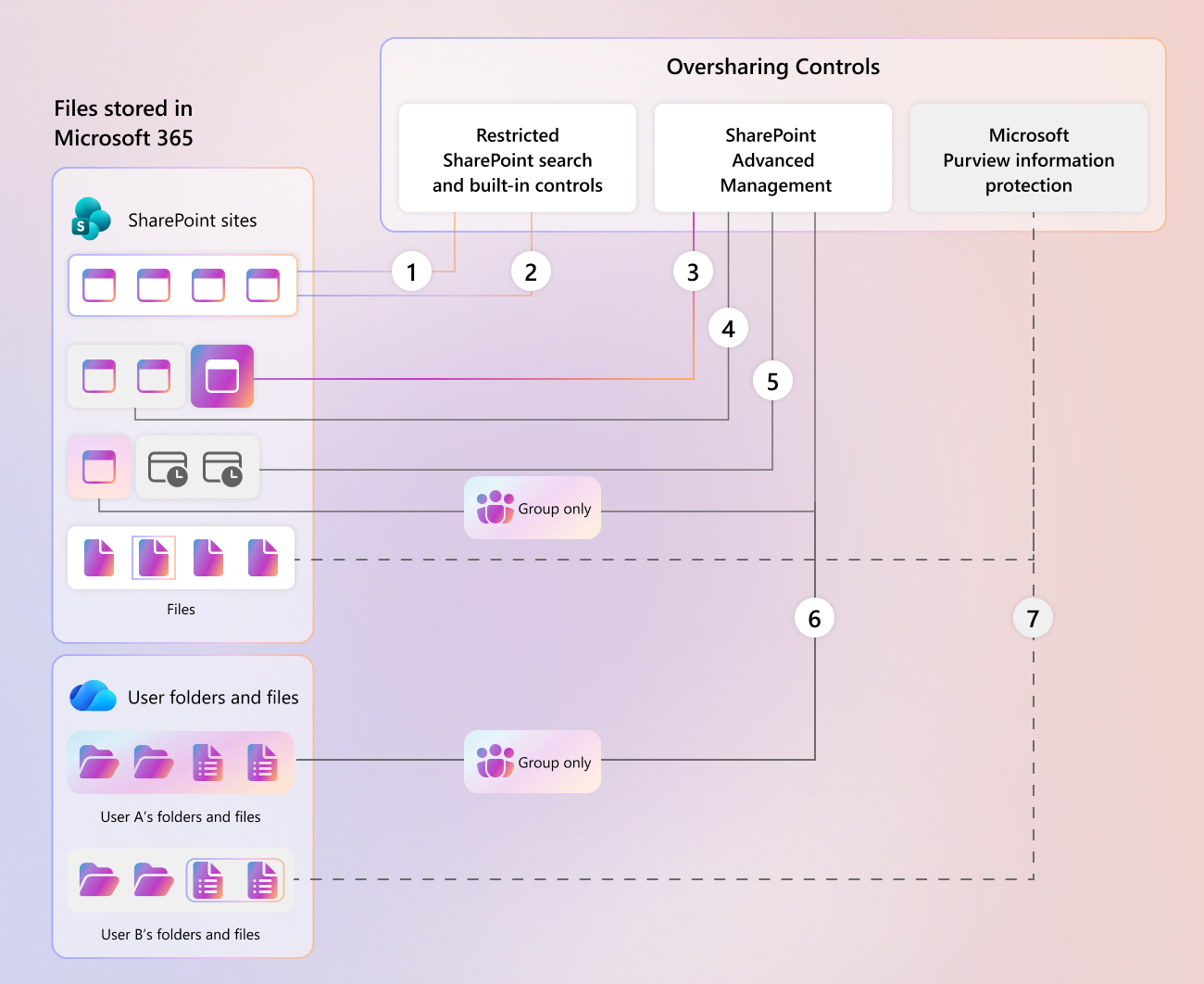
These controls include:
- Search and discovery controls like Restricted Content Discovery limit which sites and content appear in Copilot and in organization-wide search.
- Access and membership controls limit who can access a site or its content. For example, restricted access control for SharePoint sites and OneDrive limits access to members of a specific group.
- Governance and lifecycle policies help reduce oversharing over time. Examples include site access reviews and inactive site policies in SharePoint Advanced Management.
- Information protection policies use sensitivity labels and Microsoft Purview Data Loss Prevention (DLP) to help protect individual files. A DLP policy for Copilot can keep Copilot from summarizing labeled files and emails. Copilot can still return a link so the user can open the item outside Copilot.
For prescriptive guidance, see Secure & governed data foundation for Microsoft Copilot: A deployment blueprint and Learn about using Microsoft Purview Data Loss Prevention to protect interactions with Microsoft 365 Copilot.
Where Copilot usage data is stored and how it's audited
Microsoft 365 services store Copilot interaction data. You can audit, discover, and retain this data by using Microsoft Purview.
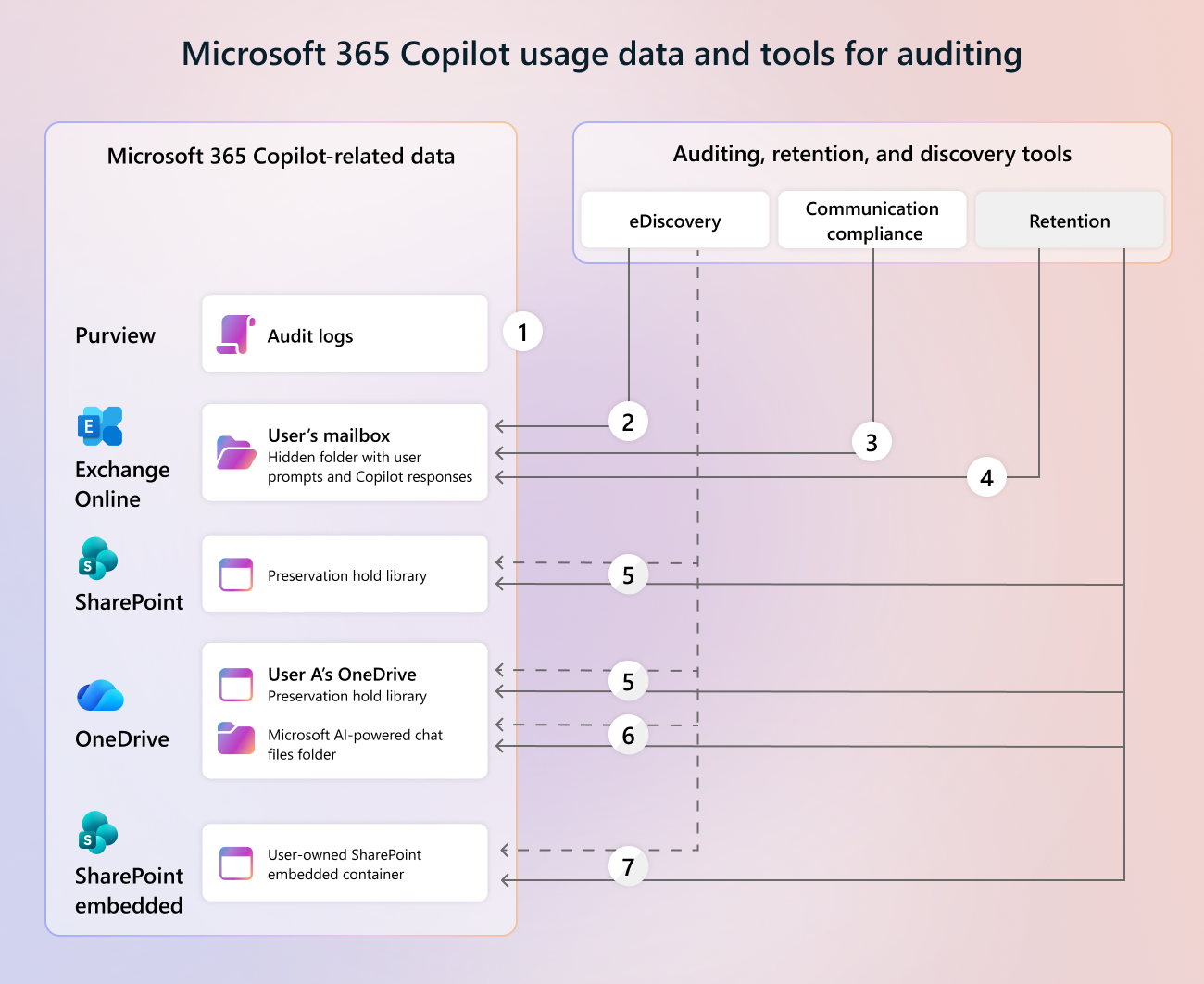
The following locations store Copilot-related data:
Audit logs (Microsoft Purview Audit): Microsoft Purview Audit automatically logs Copilot interactions. Each audit record shows who interacted with Copilot, when and where the interaction took place, and which files, sites, or other resources Copilot accessed to generate the response. Audit records don't contain the text of prompts or responses. To view that text, use eDiscovery or Data Security Posture Management (DSPM) for AI.
The user's mailbox (Exchange Online): A hidden folder in the user's mailbox stores user prompts and Copilot responses. You can search this content by using eDiscovery, monitor it by using Communication Compliance, and manage it by using retention policies.
Preservation Hold libraries (SharePoint and OneDrive): When a retention policy for cloud attachments applies, the Preservation Hold library of the SharePoint site or OneDrive account where the file is stored keeps versions of files that Copilot referenced.
Files uploaded to Copilot Chat (OneDrive): This folder in the user's OneDrive stores files that users upload to Copilot Chat.
Copilot Pages and Copilot Notebooks (SharePoint Embedded): A user-owned SharePoint Embedded container stores Copilot Pages and Copilot Notebooks. Loop My workspace uses the same container. For details, see Overview of Copilot Pages and Copilot Notebooks storage.
Retention and deletion of this data follow your configured Microsoft Purview retention policies.
To learn more, see:
- Audit logs for Copilot and AI applications
- Learn about retention for Copilot
- Use Microsoft Purview to manage data security & compliance for Microsoft Copilot & Microsoft Copilot Chat