Note
Access to this page requires authorization. You can try signing in or changing directories.
Access to this page requires authorization. You can try changing directories.
A virtual table is a custom table in Microsoft Dataverse that has columns containing data from an external data source. Virtual tables appear in your app to users as regular table records, but contain data that is sourced from an external database, such as an Azure SQL Database. Rows based on virtual tables are available in all clients including custom clients developed using the Dataverse web services.
In the past, to integrate the disparate data sources you would need to create a connector to move data or develop a custom plug-in, either client or server-side. However, with virtual tables you connect directly with an external data source at runtime so that specific data from the external data source is available in an environment, without the need for data replication.
Virtual tables are made up of three main components, a data provider, a data source row, and a virtual table. The data provider consists of plug-ins and a data source table. The data source is a table row in Dataverse, which includes metadata that represents the schema of the connection parameters. Each virtual table references a data source in the table definition.
Dataverse includes several virtual connector providers, such as SQL Server, SharePoint, Fabric, and so on, that you can use to connect a common external data source. Dataverse also has an OData v4 Data provider that can be used to connect to an OData data source. For more information, see Create virtual tables using the virtual connector provider and OData v4 Data Provider configuration, requirements, and best practices
Alternatively, developers can build their own data providers. Data providers are installed in an environment as a solution. More Information: Developer Documentation: Get started with virtual tables
Virtual table benefits
- Developers can implement plugins to read, update or delete external data using the Dataverse web services and Plug-in Registration tool.
- System customizers user Power Apps (make.powerapps.com) to create virtual tables that are used to access external data without writing any code.
- End users work with the rows created by the virtual table to view the data in columns, grids, search results, and Fetch XML-based reports and dashboards.
Create a virtual table
You create a virtual table just like any other table in Dataverse with the addition of a few extra attributes described here.
- In Power Apps (make.powerapps.com), go to Solutions, and then open the unmanaged solution you want or create a new one.
- From the solution, select the Objects tab on the left pane, and then select New > Table > Virtual table.
- Select the connector you want, and then select Next. Several connectors types are available for popular data sources such as Azure Databricks, SharePoint, SQL Server, Snowflake, Microsoft Fabric, Salesforce, Oracle Database, and PostgreSQL.
- Follow the instructions on your screen to create the virtual table. More information: Create virtual tables using the virtual connector provider
Important
Several options, such as Access Teams, Queues, and Quick Create, aren't available with virtual tables. More Information: Considerations when you use virtual tables
Add a data source to use for virtual tables
Developers can create a custom plug-in to use as the data provider for a virtual table. Alternatively, you can use one of the available providers. For more information, see Create virtual tables using the virtual connector provider and OData v4 Data Provider configuration, requirements, and best practices
Sign in to Power Apps (make.powerapps.com), and then select Settings (gear) > Advanced settings.
Select Administration > Virtual entity data sources.
On the command bar, select New.
On the Select Data Provider dialog box, select a data provider, and then select Ok.
Data Provider Description Custom data provider If you imported a data provider plug-in, the data provider appears here. For more information, see Developer Documentation: Get started with virtual tables OData v4 Data Provider Dataverse includes an OData Data Provider that can be used with OData v4 web services. More Information OData v4 Data Provider configuration, requirements, and best practices Depending on the data provider, enter a Name, URL, and Timeout, and then select Save.
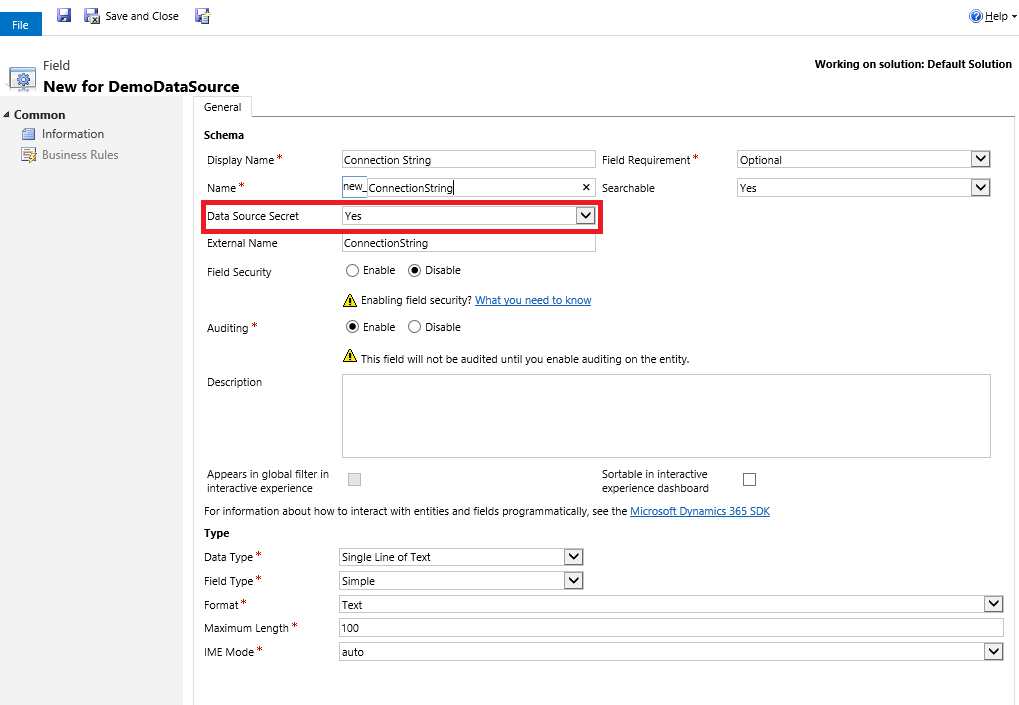
Add a secured column to a data source
You create columns for a data source in the same way as any other table. For data that is encrypted or sensitive, enable the Data Source Secret attribute on the custom column of the data Source. For example, to secure a column that contains a database connection string.
Note
The Data Source Secret attribute is only available with columns added to a Data Source form.
Considerations when you use virtual tables
Virtual tables have these restrictions.
- Existing tables cannot be converted to virtual tables.
- By default, virtual tables contain only a Name and Id column. No other system managed columns, such as Status or Created On/Modified On are supported.
- Virtual tables don't support custom columns with the Currency, Image, or Customer data types.
- Virtual tables don't support auditing.
- Virtual table columns can't be used in rollups or calculated columns.
- A virtual table can't be an activity type of table.
- Dashboards and charts are not supported with virtual tables.
- Many features that affect table table rows cannot be enabled with virtual tables. Examples include queues, knowledge management, SLAs, duplicate detection, change tracking, mobile offline capability, column security, Dataverse search, and Power Pages solutions.
- Virtual tables are organization owned and don't support the row-level Dataverse security concepts. We recommend that you implement your own security model for the external data source.
- Column metadata properties that validate on update don’t apply to virtual tables. For example, a Whole Number column on a virtual table column may be set to have a minimum value of zero. However, since the value is coming from an external data source, a query will return values less than zero when retrieved from a virtual table. The minimum value property is not implied in the query. You would still need to filter the values to be greater than 0 if that’s what is desired.
- Virtual tables don't support change tracking and cannot be synchronized by using a Dataverse feature, such as the Data Export Service or Azure Synapse Link for Dataverse.
- Virtual tables that use the included OData v4 data provider are enabled on outbound port 443.
- Business process flows are not supported with virtual tables. More information: Unexpected error received when a user activates a business process flow
Unexpected error received when a user activates a business process flow
When a user attempts to activate a business process flow, they may receive an "unexpected error" message. Viewing the log file the following log entry is displayed.
ErrorCode: 0x80040216 Message: System.Web.HttpUnhandledException: Exception of type 'System.Web.HttpUnhandledException' was thrown. ---> Microsoft.Crm.CrmException: Business process flow cannot be enabled for Virtual Entity
This issue occurs because virtual tables don't support business process flows.
See also
Create virtual tables using the virtual connector provider
OData v4 Data Provider requirements and best practices
Create and edit tables
Configure virtual tables in Power Pages