Note
Access to this page requires authorization. You can try signing in or changing directories.
Access to this page requires authorization. You can try changing directories.
Use the List rows action to retrieve multiple rows at once from Microsoft Dataverse with a structured query.
Get a list of rows
Follow these steps to add the List rows action to your flow to return up to 5,000 accounts from the Accounts table in Dataverse.
Power Automate allows you to use either the new designer or the classic designer to configure your cloud flow. The steps are similar in both designers. Learn more (with examples) in Identify differences between the new designer and the classic designer.
- Select the plus sign (+) > Add an action.
- On the Add an action screen, enter list rows in the Search field.
- Under Microsoft Dataverse, select List rows (Preview).
- On the Parameters tab to the left, select Accounts in the Table Name dropdown menu.
- Close the screen by selecting (<<).
Turn on pagination to request more than 5,000 rows
To get more than 5,000 rows from a query automatically, turn on the Pagination feature from Settings.
When you set pagination and the number of rows exceeds the threshold you configure, the response doesn't include the @odata.nextLink parameter to request the next set of rows. Turn off pagination so that the response includes the @odata.nextLink parameter that you can use to request the next set of rows. Go to Skip token to learn how to use it.
Content throughput limits and message size limits apply to ensure general service guarantees.
Select the List rows card.
On the pane to the left, select the Settings tab > Networking.
Move the Pagination slider to the On position if not already turned on.
In Threshold, enter the maximum number of rows requested. The maximum configurable threshold is 100,000.
Internally, this number is rounded off in increments of the default page size. For example, if that page size is 5,000, and you enter 7,000, the number of rows returned is 10,000.
Advanced options
The advanced options for the List Rows action let you sort, filter, arrange, and extend the results of a query.
Set options in the action configuration pane.
To see the options, select the List rows card.
In the Parameters tab, select an advanced option in the Advanced parameters dropdown menu.


Return full metadata
This setting controls whether to load all columns from the table or just the essential ones for better performance. If you don't set it, the action automatically returns full metadata if your flow uses dynamic content or expressions that need it.
Select columns
Enter a comma-separated list of columns to return, such as name,createdon,preferredcontactmethodcode,emailaddress1,telephone1 for the Account table.
Filter rows
Use this field to define an OData-style filter expression to narrow down the set of rows that Dataverse returns, such as createdon ge 2021-01-01T00:00:00-00:00 for rows with createdon greater than or equal to the year 2021.
Learn how to filter rows to construct Filter Query expressions.
Replace certain characters, such as &, #, and +, with their URL-encoded equivalent. For more information, see URL encode special characters.
Important
Filter expressions can't contain this string, $filter=, because it only applies when you use the APIs directly.
Sort by
Use this field to define an OData-style expression that defines the order in which items are returned, such as name desc. Use the asc or desc suffix to indicate ascending or descending order, respectively. The default order is ascending.
Expand query
Use this field to specify an OData-style expression that defines the data that Dataverse returns from the related tables, such as primarycontactid($select=contactid,fullname) to use the account's primarycontactid to retrieve the fullname column from the related contact with ID contactid in the response.
There are two types of navigation properties that you can use in Expand Query:
Single-valued navigation properties correspond to lookup columns that support many-to-one relationships and allow you to set a reference to another table.
Collection-valued navigation properties correspond to one-to-many or many-to-many relationships.
If you include only the name of the navigation property, you receive all the properties for the related rows. Learn more in Join tables using OData.
To use it in a flow step, enter this OData expression in the Expand Query field: primarycontactid(contactid,fullname). This is how to get the contactid and fullname columns for the primarycontactid of each account.
Row count
Use the Row count setting to specify the number of rows you want Dataverse to return.
Fetch XML Query
Currently, you can't use Aggregation queries when using the List rows action with FetchXML queries. You can use the distinct operator though.
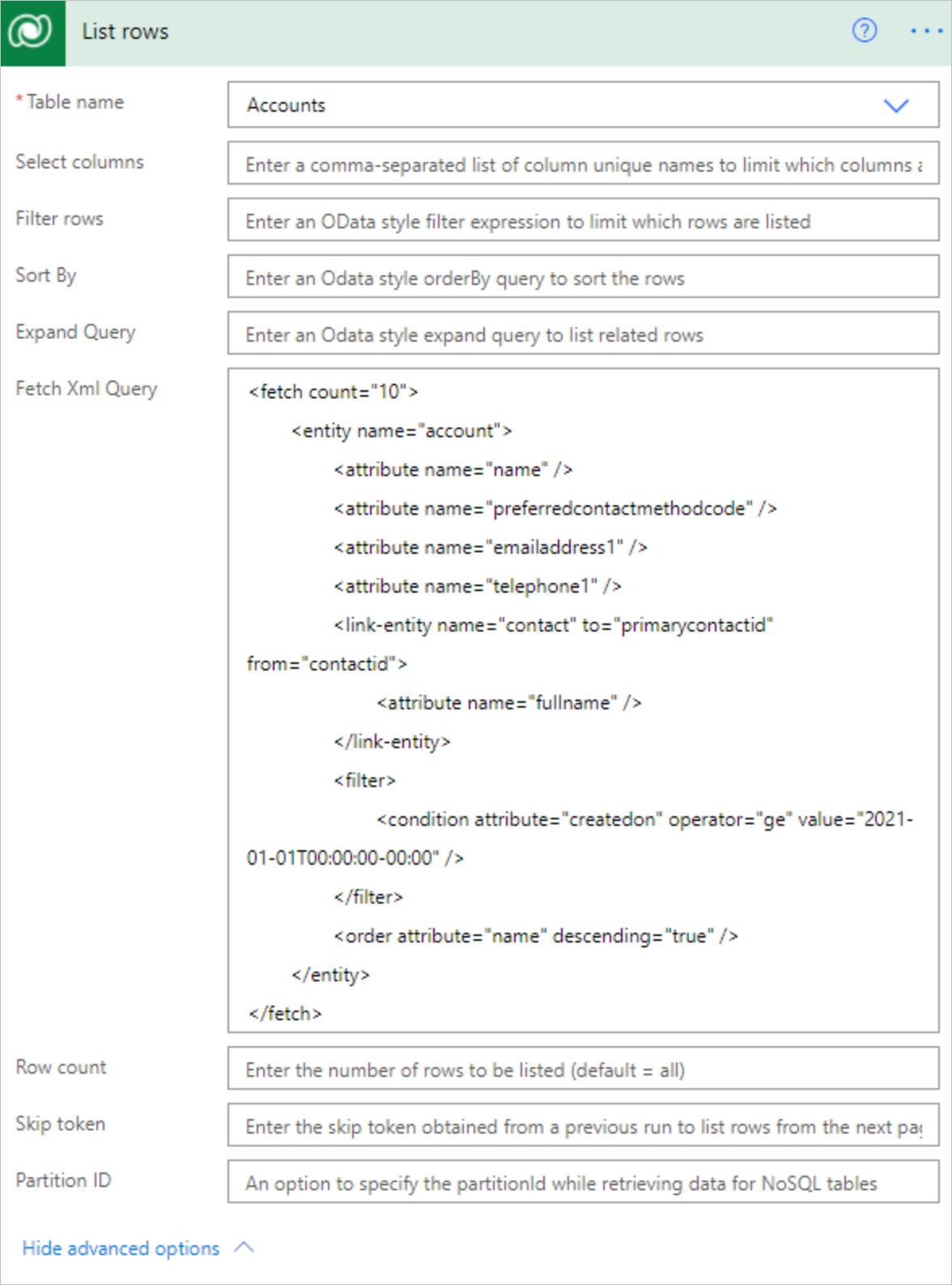
Use a Dataverse-style FetchXML query, which offers more flexibility for building custom queries. These queries can be useful when you work with a table that has multiple related tables or when you handle pagination. The following screenshot shows how to use FetchXML.
Important
The pagination setting doesn't support FetchXML queries. To request more than 5,000 rows, you need to manage paging directly with the FetchXML query.
Example FetchXML query for the Account table:
<fetch count="10">
   <entity name="account">
      <attribute name="name" />
      <attribute name="preferredcontactmethodcode" />
      <attribute name="emailaddress1" />
      <attribute name="telephone1" />
         <link-entity name="contact" to="primarycontactid" from="contactid">
               <attribute name="fullname" />
      </link-entity>
      <filter>
         <condition attribute="createdon" operator="ge" value="2021-01-01T00:00:00-00:00" />
      </filter>
      <order attribute="name" descending="true" />
   </entity>
</fetch>
The distinct operator isn't currently supported directly in FetchXML queries from the List rows action, but you can use the union function to remove duplicate rows. For example, you can use the Select action to transform the response of the List rows connection to the specific array format you need, then create a variable with the expression union(body('Select'),body('Select')) to get an array with distinct rows.
Skip token
Power Automate applies content throughput limits and message size limits to ensure general service guarantees. To work within these limits, use pagination to return a smaller number of rows in a batch, rather than the default limits on number of table rows returned.
If you don't use pagination, the default page limit is 5,000 rows.
To use pagination, implement a loop to parse the \@odata.nextLink value in the JSON response, extract the skip token, and then send another request until you list the number of rows that you need.
HTTP/1.1 200 OK
Content-Type: application/json; odata.metadata=minimal
OData-Version: 4.0
Content-Length: 402
Preference-Applied: odata.maxpagesize=3

{
   "@odata.context":"[Organization URI]/api/data/v9.1/$metadata#accounts(name)",
   "value":[
      {
         "@odata.etag":"W/\"437194\"",
         "name":"Fourth Coffee (sample)",
         "accountid":"7d51925c-cde2-e411-80db-00155d2a68cb"
      },
      {
         "@odata.etag":"W/\"437195\"",
         "name":"Litware, Inc. (sample)",
         "accountid":"7f51925c-cde2-e411-80db-00155d2a68cb"
      },
      {
         "@odata.etag":"W/\"468026\"",
         "name":"Adventure Works (sample)",
         "accountid":"8151925c-cde2-e411-80db-00155d2a68cb"
      }
   ],
   "@odata.nextLink":"[Organization URI]/api/data/v9.1/accounts?$select=name&$skiptoken=%3Ccookie%20pagenumber=%222%22%20pagingcookie=%22%253ccookie%2520page%253d%25221%2522%253e%253caccountid%2520last%253d%2522%257b8151925C-CDE2-E411-80DB-00155D2A68CB%257d%2522%2520first%253d%2522%257b7D51925C-CDE2-E411-80DB-00155D2A68CB%257d%2522%2520%252f%253e%253c%252fcookie%253e%22%20/%3E"
}
Partition ID
Specify the partitionId while retrieving data for elastic tables. To learn more, see Partitioning and horizontal scaling for elastic tables.