Note
Access to this page requires authorization. You can try signing in or changing directories.
Access to this page requires authorization. You can try changing directories.
This article describes how to refresh a semantic model that was created from an Excel workbook on a local drive. For information about refreshing workbooks stored in the cloud, see Refresh a semantic model created from an Excel workbook on OneDrive or SharePoint Online.
What’s supported?
Uploading local Excel workbooks to Power BI workspaces and configuring refresh for them is no longer supported. Instead, you can:
- Download existing local workbooks from your Power BI workspace and then import them again. For more information, see Migrate your Excel workbooks.
- Publish your Excel data model as a Power BI semantic model and schedule refresh.
- Import Excel workbooks from OneDrive and SharePoint Document libraries to view them in Power BI.
If you publish your Excel data model as a Power BI semantic model, Refresh Now and Schedule Refresh is supported where Power Query or Power Pivot is used to connect to any of the following data sources and load data into the Excel data model.
Important
Semantic models created using the legacy Excel import experience in the Power BI service stop refreshing after July 31, 2026, and stop loading after August 31, 2026. To check whether your semantic models are affected and learn how to migrate them, see Migrate from the legacy Excel and CSV import experience.
Power BI Gateway - Personal
- All online data sources shown in Power Query.
- All on-premises data sources shown in Power Query except for Hadoop file (HDFS) and Microsoft Exchange.
- All online data sources shown in Power Pivot.
- All on-premises data sources shown in Power Pivot except for Hadoop file (HDFS) and Microsoft Exchange.
On-premises data gateway
On-premises data gateway supports refresh for the following data sources:
- Analysis Services Tabular
- Analysis Services Multidimensional
- SQL Server
- SAP HANA
- Oracle
- Teradata
- File
- Folder
- SharePoint list (on-premises)
- Web
- OData
- IBM DB2
- MySQL
- Sybase
- SAP BW
- IBM Informix Database
- ODBC
Keep the following notes in mind:
A gateway must be installed and running in order for the Power BI service to connect to on-premises data sources and refresh the semantic model.
Refresh is supported for worksheet data if it's stored and imported from OneDrive. To learn more, see Refresh a dataset created from an Excel workbook on OneDrive, or SharePoint Online.
When you refresh a semantic model created from a published Excel data model, only the data queried from data sources is refreshed.
If you change the structure of the data model in Excel or Power Pivot, for example, create a new measure or change the name of a column, those changes aren't copied to the semantic model. If you make such changes, republish the workbook.
If you expect to make regular changes to the structure of your workbook and you want those changes to be reflected in the semantic model in the Power BI service without having to republish, consider putting your workbook on OneDrive. The Power BI service automatically refreshes both the structure and worksheet data from workbooks stored and imported from OneDrive.
How do I make sure data is loaded to the Excel data model?
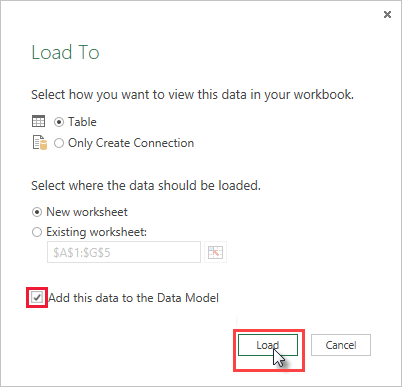
When you use Power Query to connect to a data source, you have several options where to load the data. Power Query is Get & Transform data in Excel 2016. To make sure you load data into the data model, you must select the Add this data to the Data Model option in the Load To dialog.
Note
The images here show Excel 2016.
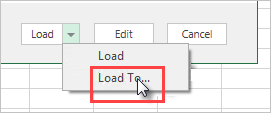
In Navigator, select Load To…
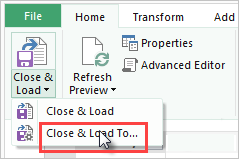
Or, if you select Edit in Navigator, you open the Query Editor. There you can select Close & Load To….
Then in Load To, make sure you select Add this data to the Data Model.
What if I use Get External Data in Power Pivot?
No problem. Whenever you use Power Pivot to connect to and query data from an on-premises or online data source, the data is automatically loaded to the data model.
How do I schedule refresh?
When you set up a refresh schedule, Power BI connects directly to the data sources using connection information and credentials in the semantic model to query for updated data, then loads the updated data into the semantic model. Any visualizations in reports and dashboards based on that semantic model in the Power BI service are also updated.
For details on how to setup schedule refresh, see Configure Schedule Refresh.
When things go wrong
When things go wrong, it's usually because Power BI can't sign into data sources, or if the dataset connects to an on-premises data source, the gateway is offline. Make sure Power BI can sign into data sources. If a password you use to sign into a data source changes, or Power BI gets signed out from a data source, be sure to try signing into your data sources again in Data Source Credentials.
Be sure to leave the Send refresh failure notification email to me selected. You want to know right away if a scheduled refresh fails.
Important
Refresh isn't supported for OData feeds connected to and queried from Power Pivot. When using an OData feed as a data source, use Power Query.
Troubleshooting
Sometimes refreshing data might not go as expected. Typically problems are caused by an issue connected with a gateway. Take a look at the gateway troubleshooting articles for tools and known issues.
Related content
More questions? Try the Power BI Community