Note
Access to this page requires authorization. You can try signing in or changing directories.
Access to this page requires authorization. You can try changing directories.
Applies to: ✅ Power BI mobile apps
Important
Q&A experiences retire in December 2026. Use Copilot for Power BI, which provides a more advanced and integrated way to query your data by using natural language. For more details and recommended alternatives, see Deprecating Power BI Q&A.
The easiest way to learn about your data is to ask questions in your own words. In this tutorial, you use the Q&A virtual analyst in the Microsoft Power BI mobile app on your iPad or iPhone to ask questions and view featured insights about sample data.
The Q&A virtual analyst is a conversational BI experience that accesses Q&A data in the Power BI service. It suggests insights, and you can type or speak questions.
In this tutorial, you:
- Install the Power BI mobile app for iOS
- Download a Power BI sample dashboard and report
- See what featured insights the mobile app suggests
Q&A virtual analyst
Use a conversational BI experience that suggests initial insights, lets you type or speak natural language questions, and returns visuals you can expand, annotate, or mark as a favorite.
Key capabilities:
- Inline suggestions for fields, measures, or keywords
- Voice input for dictation
- Iterative refinement (for example: "show sales" → "by item" → "as line chart")
- Select and hold a result to expand it or take more actions
Ask questions
- Type "show sales".
- Add "by item".
- Add "as column chart" or select a chart icon.
- Select and hold the visual, then select Expand.
Use voice
- Select the Q&A virtual analyst icon.
- Select the microphone and say "average unit price by time."
- Select Send to show the answer.
- Select Clear text (X) to start a new question.
Help and feedback
- Type "help" or "hi" for tips.
- Select and hold a visual, then select positive or negative feedback to improve future responses. Feedback is anonymous.
Improve results
Enhance synonyms, descriptions, and default aggregations to improve Q&A interpretation. For more information, see Make your data work well with Q&A and the Q&A virtual analyst.
Prerequisites
- Sign up for Power BI: If you aren't signed up, sign up for a free trial.
- Install the Power BI app for iOS: Download the iOS app from the Apple App Store to your iPad or iPhone.
- Download sample data: Download the Opportunity Analysis Sample to your Power BI service account. See Install built-in samples for instructions. Select the Opportunity Analysis Sample.
After you complete the prerequisites and download the sample data, view the samples on your iOS device.
Try featured insights
On your iPhone or iPad, open the Power BI app and sign in with the same Power BI credentials you use in the browser.
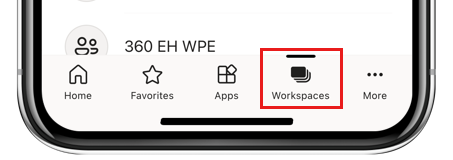
On the home page, tap the Workspaces icon.
In My Workspaces, select the Opportunity Analysis Sample dashboard.
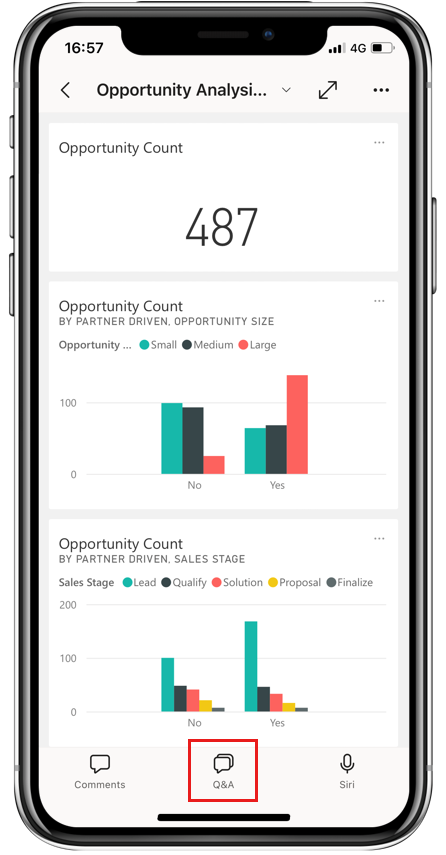
On the Opportunity Analysis Sample dashboard, tap the Q&A virtual analyst icon.
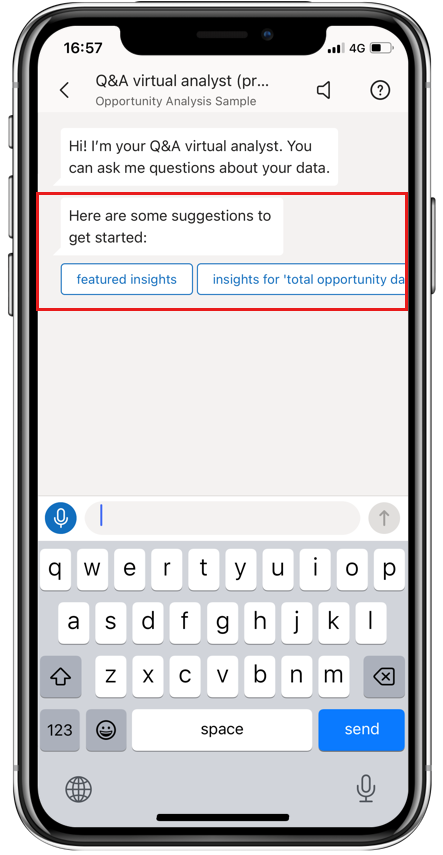
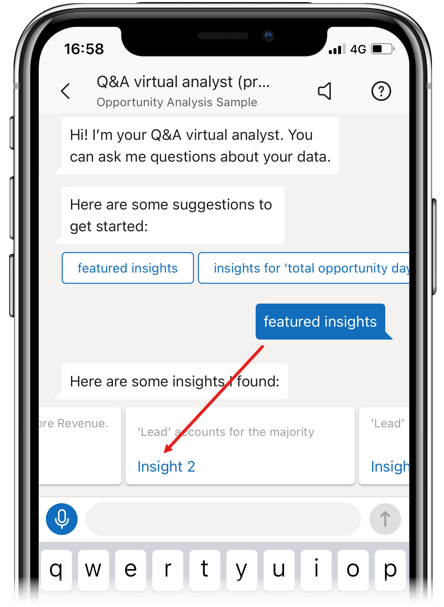
The Q&A virtual analyst offers some suggestions to get started.
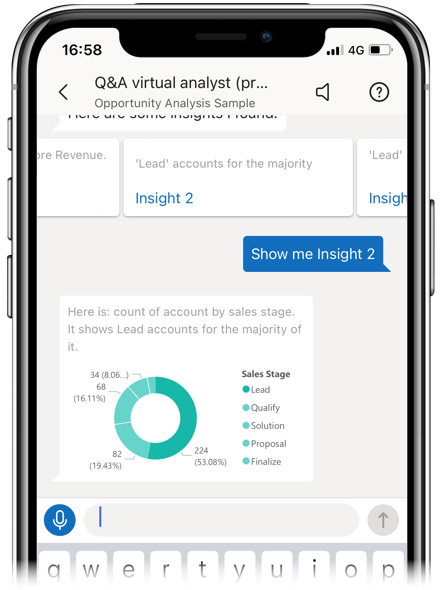
Tap featured insights. When suggestions appear, scroll right and tap Insight 2.
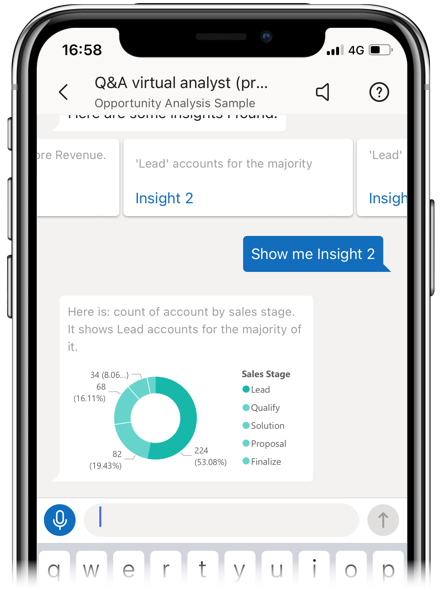
The Q&A virtual analyst displays Insight 2.
Tap the chart to open it in focus mode.
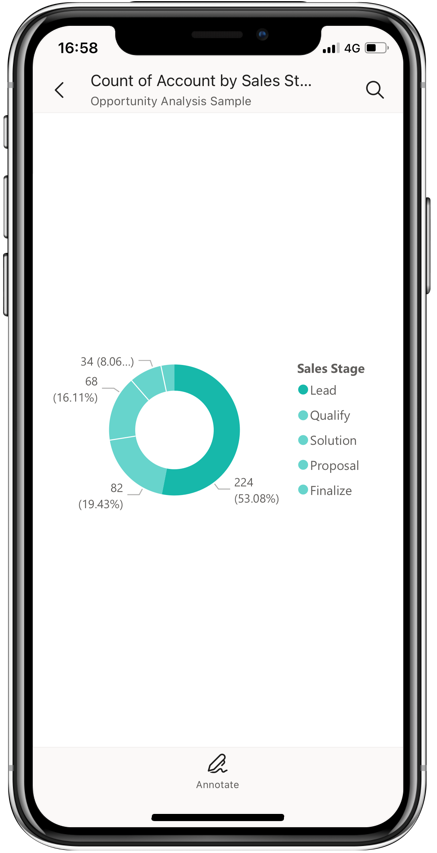
Tap the Back arrow to return to the Q&A virtual analyst.
Clean up resources
When you finish the tutorial, delete the Opportunity Analysis sample dashboard, report, and semantic model. For instructions, see Clean up resources.
Related content
Try the Q&A virtual analyst in the Power BI iOS mobile app to explore sample insights. Then, learn more about Q&A in the Power BI service.