Note
Access to this page requires authorization. You can try signing in or changing directories.
Access to this page requires authorization. You can try changing directories.
Summary
| Property | Value |
|---|---|
| Connector |  Azure Resource Graph Azure Resource Graph |
| Products | Power BI (semantic models) Power Query Online |
| Release state | General availability |
| Category | Azure |
| Authentication kinds | Microsoft Entra ID |
| Data source kind | AzureResourceGraph |
| Function Reference Documentation | AzureResourceGraph.Query |
Note
Some capabilities might be present in one product but not others due to deployment schedules and host-specific capabilities.
Prerequisites
An Azure subscription. Go to Get Azure free trial.
You must have appropriate rights in Azure role-based access control (Azure RBAC) with at least read access to the resources you want to query.
Tip
If you participated in the private preview, be sure to delete the AzureResourceGraph.mez preview file. Failure to do so might result in your test custom connector being used by Power Query inadvertently instead of the newly certified connector.
Supported capabilities
- Import
- Advanced options
- Scope by subscription(s) and/or management group(s)
Parameters
Entry point: AzureResourceGraph.Query
Required parameter count: 1
See https://learn.microsoft.com/azure/governance/resource-graph/samples/starter?tabs=azure-cli for starter query samples.
| Parameter | Display name | Required | Type | Group | Description | Allowed values | Sample values | Nullable | Additional metadata | Declared allowed values |
|---|---|---|---|---|---|---|---|---|---|---|
| query | Query | Yes | text | The resources query. See sample queries: https://learn.microsoft.com/azure/governance/resource-graph/samples/starter?tabs=azure-cli | "Resources \n | project name, type\n | limit 5\n | order by name asc" | false | {"Formatting.IsCode": true, "Formatting.IsMultiLine": true} | |||
| scope | Scope | No | nullable text | Select query scope. If a management group or a subscription is not selected, the query scope is all resources. | "Tenant"; "Subscription"; "Management group" | true | ["Tenant", "Subscription", "Management group"] | |||
| subscription | Subscription Id(s) | No | nullable text | If you've selected a subscription scope, enter the Azure subscriptions to execute the query against. | "subscription 1, subscription 2" | true | ||||
| managementGroup | Management group Id(s) | No | nullable text | If you've selected a management group scope, enter the Azure management groups to execute the query against. | "Management group 1, Management group 2" | true | ||||
| options | Advanced Options | No | nullable record | Advanced Options | true |
Fields in options
| Field | Display name | Required | Type | Group | Description | Allowed values | Sample values | Nullable | Optional | Declared allowed values |
|---|---|---|---|---|---|---|---|---|---|---|
| options.resultTruncated | $resultTruncated | No | logical | Advanced Options | If you want query results not to be truncated, set this value to false. By default, this is set to true and return up to 1000 records. | true; false | true | false | true | [true, false] |
Connect from Power Query Desktop
To connect to Azure Resource Graph from Power Query Desktop:
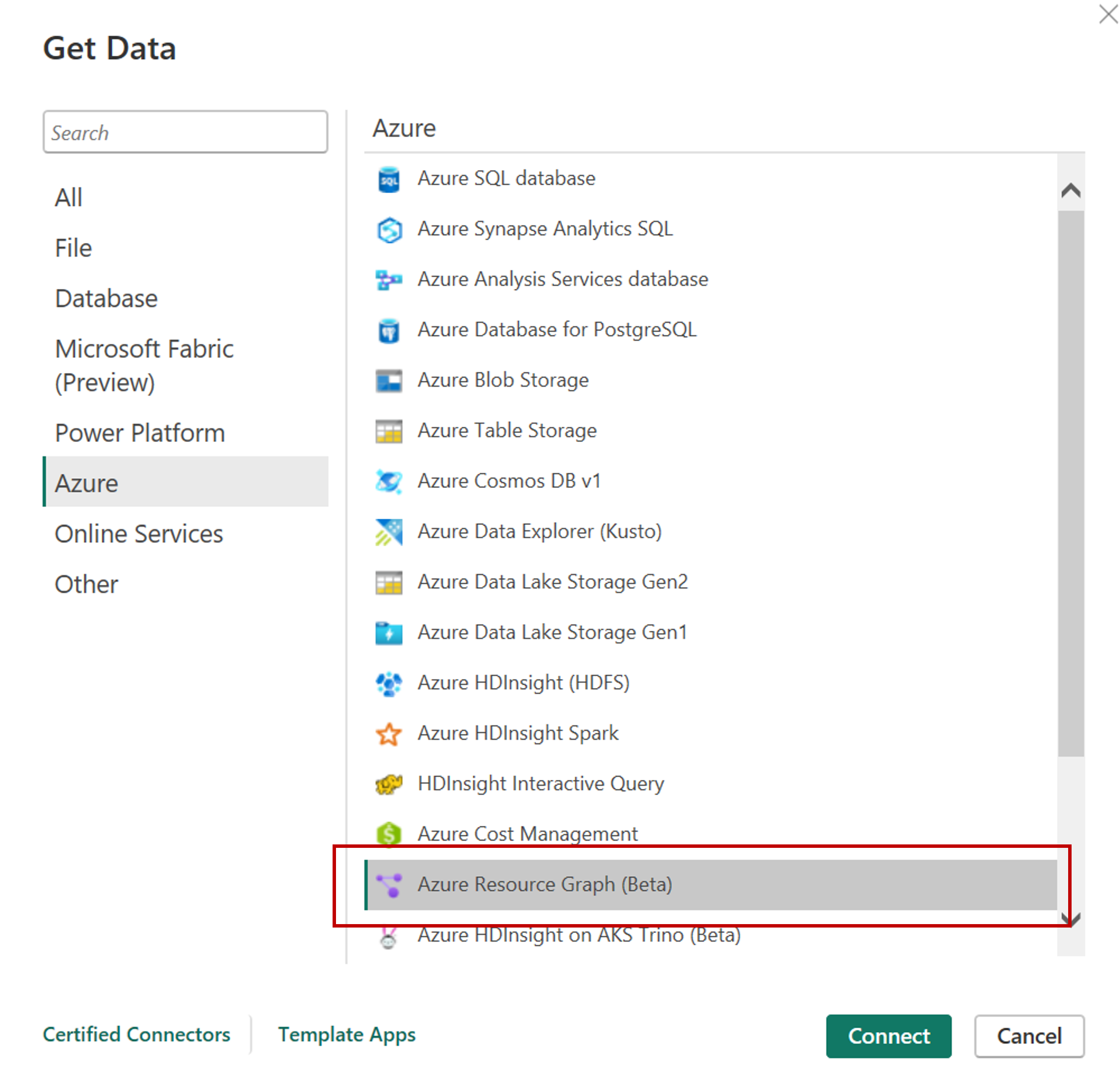
In Get Data, select Azure or search for Azure Resource Graph, and then select Azure Resource Graph. More information: Where to get data
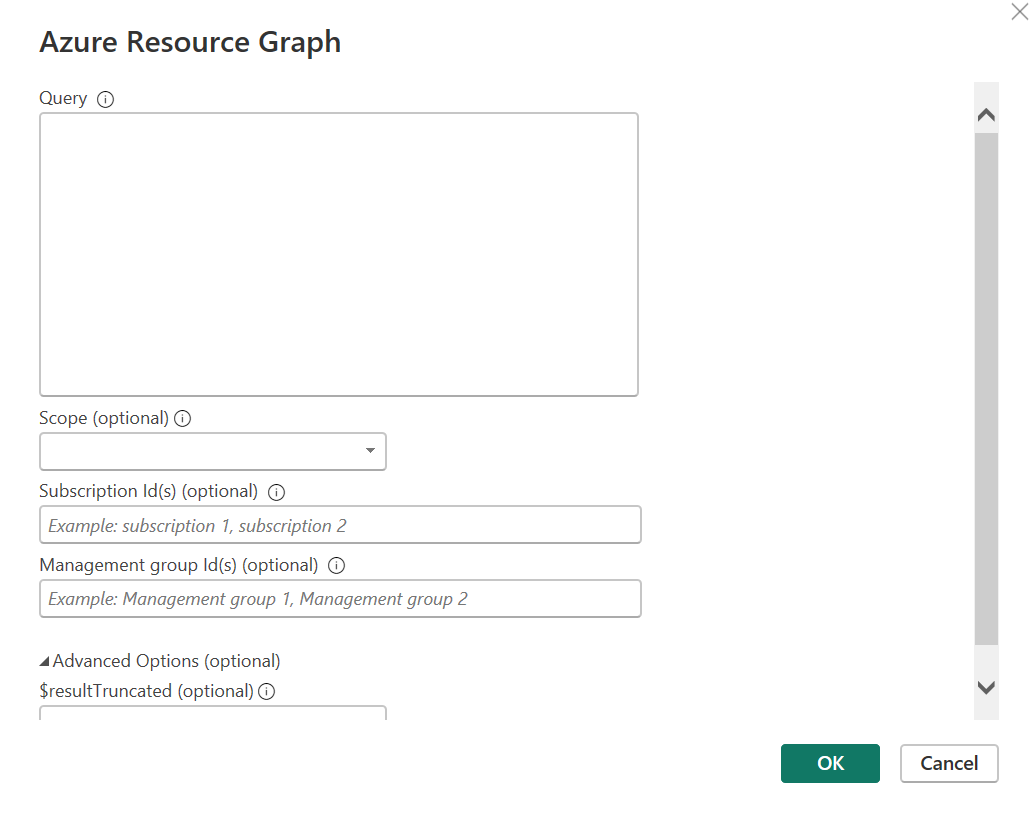
In the Azure Resource Graph dialog box, fill in the query and any optional fields, such as Scope.
Note
You can scope queries to either subscription or management group level, if neither option is chosen the query will execute at the tenant level by default.
If you're connecting to this site for the first time, select Sign in and input your credentials. Then select Connect.
In Navigator, select the tables you require, then either load or transform the data.
Connect from Power Query Online
To connect to Azure Resource Graph from Power Query Online:
In Choose data source, select Azure or search for Azure Resource Graph, and then select Azure Resource Graph. More information: Where to get data
In Connect to data source, fill in the query and any optional fields, such as Scope.
Sign in to your organizational account.
When you're successfully signed in, select Next.
In Choose data, select the data you require, and then select Transform Data.
Note
Expect longer wait times for large query results.
Additional information
Advanced options
Power Query provides an advanced option that you can add to your query if needed.
| Advanced option | Description |
|---|---|
| Scope | Specify whether you want to query at the subscription or management level. If you don't select either subscription or management, the query automatically applies to the tenant level by default. |
| Subscription Id(s) | Specify any specific subscriptions you want to query against. Enter each subscription ID separated by commas. This field is required if you select the subscription scope. |
| Management Group Id(s) | Specify any specific management groups you want to query against. Enter each management group separated by commas. This field is required if you select management group scope. |
| $resultTruncated | If you would like to retrieve more than 1,000 records, set $resultTruncated to FALSE. By default, Azure Resource Graph returns only up to 1,000 records. |
Related content
For more information about the Azure Resource Graph (ARG) Power BI connector, refer to these resources: