Note
Access to this page requires authorization. You can try signing in or changing directories.
Access to this page requires authorization. You can try changing directories.
Note
This connector is owned and provided by Smartsheet.
Summary
| Property | Value |
|---|---|
| Connector |  Smartsheet Smartsheet |
| Products | Power BI (semantic models) Power Query Online |
| Release state | General availability |
| Authentication kinds | OAuth |
| Data source kind | SmartsheetGlobal |
| Function Reference Documentation | SmartsheetGlobal.ContentsSmartsheetGlobal.Query |
| Support link | Contact the connector owner. |
Note
Some capabilities might be present in one product but not others due to deployment schedules and host-specific capabilities.
Prerequisites
Before you can sign in to Smartsheet, you must have a Smartsheet account.
Supported capabilities
- Import
Supported Smartsheet Regions
The Smartsheet connector supports the Smartsheet US region (https://app.smartsheet.com) and Smartsheet EU region (https://app.smartsheet.eu).
Parameters
Entry point: SmartsheetGlobal.Contents
Required parameter count: 1
Returns a table of sheets, reports, folders, and workspaces from the Smartsheet API
Returns a nested table of available sheets, reports, folders, and workspaces from the Smartsheet API.
| Parameter | Display name | Required | Type | Description | Allowed values | Nullable | Allowed value metadata | Declared allowed values |
|---|---|---|---|---|---|---|---|---|
| region | Region | Yes | text | The Smartsheet region to connect to. | "US" (US); "EU" (EU) | false | [{"Metadata": {"Documentation.Caption": "US", "Documentation.Name": "RegionType.US"}, "Value": "US"}, {"Metadata": {"Documentation.Caption": "EU", "Documentation.Name": "RegionType.EU"}, "Value": "EU"}] | ["US", "EU"] |
| options | No | nullable record | true |
Connect from Power Query Desktop
Select Get Data from the Home ribbon in Power BI Desktop.
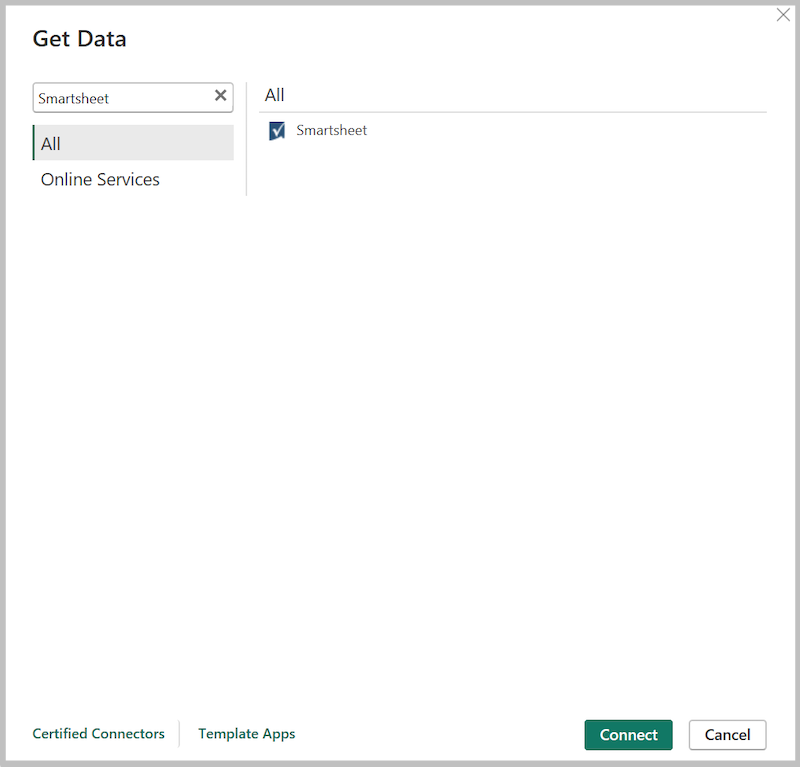
In the search box, enter Smartsheet, select Smartsheet, and then select Connect.
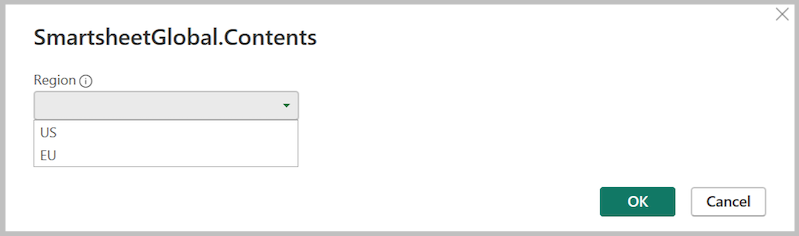
Select the region to connect to.
If you're getting data through the Smartsheet connector for the first time, a third-party notice is displayed. Select Don't warn me again with this connector if you don't want this message to be displayed again, and then select Continue.
To sign in to your Smartsheet account, select Sign in.
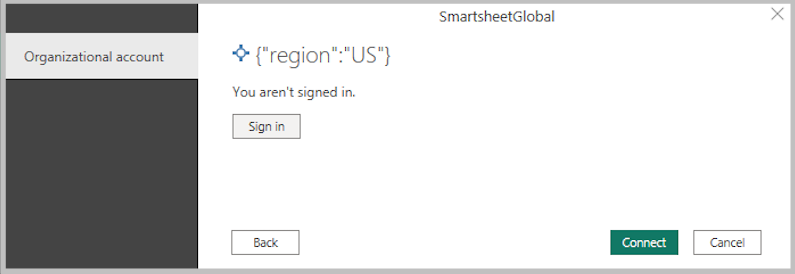
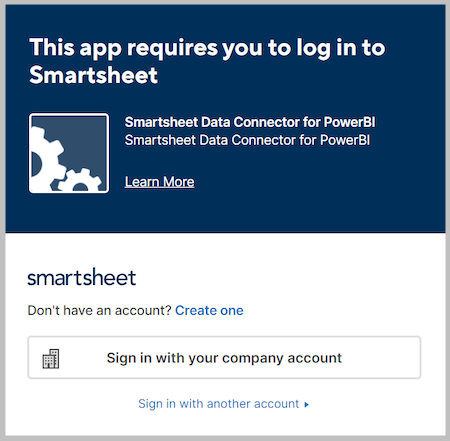
In the Smartsheet window that appears, select your sign in method and provide your credentials to sign in to your Smartsheet account.
Upon first sign in, you're prompted to allow the connector access to Smartsheet. Select Allow.
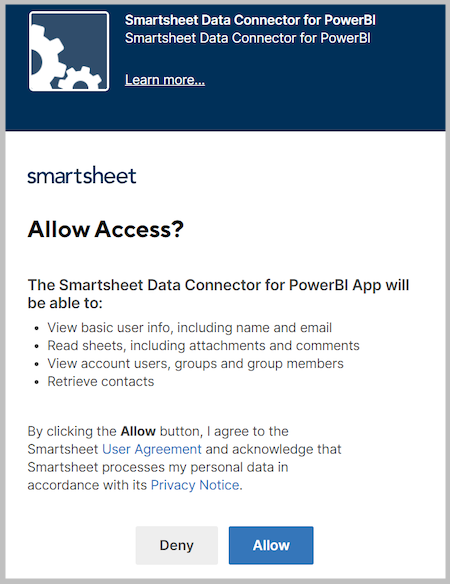
Once successfully signed in, select Connect.
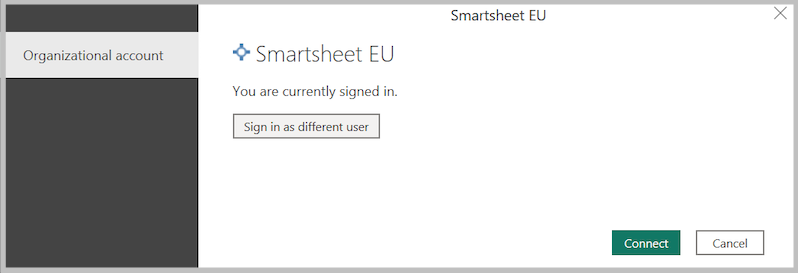
Once the connection is established, you see the folders and workspaces you have access to within the Navigator dialog. Select the data you want to import and then select Load.

Connect from Power Query Online
To connect to Smartsheet data:
Select Smartsheet from the Power Query Connect to data source page.
In the Smartsheet dialog, select your Region (US or EU).
Select Sign in to sign in with your Smartsheet account.
In the Smartsheet sign-in window, enter your credentials and allow the connector to access your Smartsheet data.
Once you successfully sign in, select Next.
In the Choose data page, select the sheets, folders, or workspaces you want to load, and then select Transform data to transform the data in Power Query Editor.
Additional information
Getting Help
If you run into problems when connecting to your data, Contact Support.