Note
Access to this page requires authorization. You can try signing in or changing directories.
Access to this page requires authorization. You can try changing directories.
Note
This connector is owned and provided by Zendesk.
Summary
| Property | Value |
|---|---|
| Connector |  Zendesk Zendesk |
| Products | Power BI (semantic models) Power Query Online |
| Release state | General availability |
| Authentication kinds | Zendesk Auth |
| Data source kind | ZendeskData |
| Function Reference Documentation | ZendeskData.Contents |
Prerequisites
Before you can sign in to Zendesk, you must have a Zendesk account (username/password).
Supported capabilities
- Import
Parameters
Entry point: ZendeskData.Contents
Required parameter count: 1
Returns a table with relevant Zendesk data.
| Parameter | Display name | Required | Type | Description | Sample values | Nullable | Additional metadata |
|---|---|---|---|---|---|---|---|
| url | Zendesk URL | Yes | text | Full Zendesk url with subdomain, starting with https:// | "https://company.zendesk.com" | false | {"Documentation.Category": "", "Documentation.Examples": [], "Documentation.LongDescription": "The type that represents a text URI.", "Documentation.Name": "Uri.Type", "Documentation.Description": "The type that represents a text URI."} |
| options | Options | No | nullable record | Options such as [TestConnection] | "[TestConnection = true]" | true |
Connect from Power Query Desktop
To connect to Zendesk data:
Select Get Data from the Home ribbon in Power BI Desktop. Select Online Services from the categories on the left, select Zendesk Data (Beta), and then select Connect.
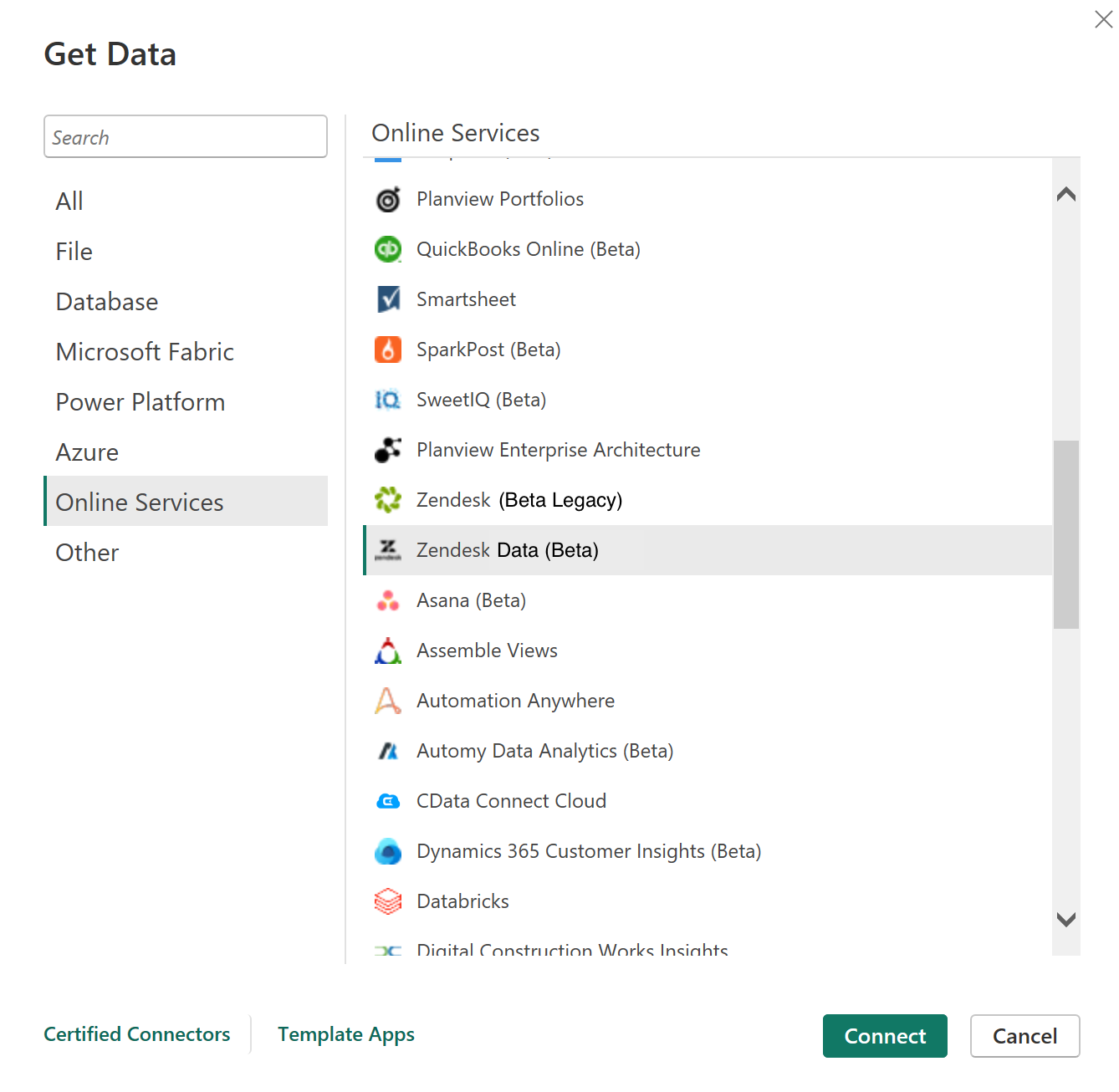
If you're getting data through the Zendesk Data connector for the first time, a preview connector notice is displayed. Select Don't warn me again with this connector if you don't want this message to be displayed again, and then select Continue.
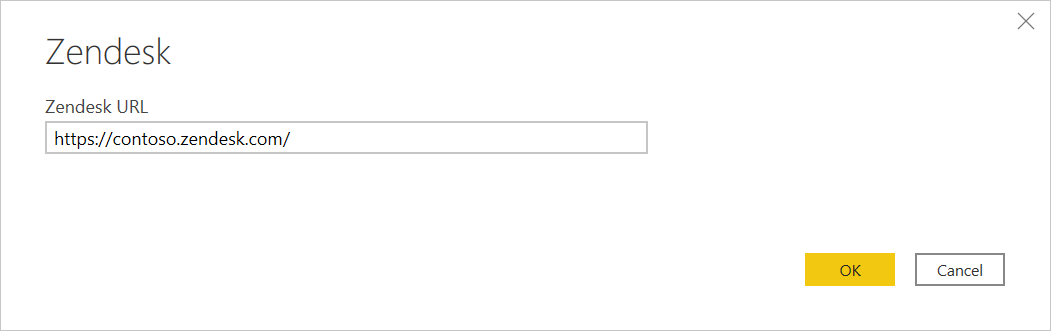
Enter the Zendesk URL location that you want to access, and the select OK.
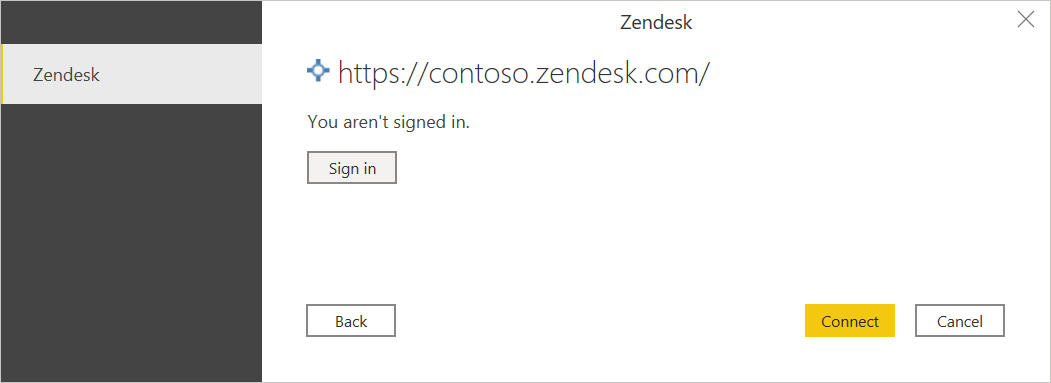
To sign in to your Zendesk account, select Sign in.
In the Zendesk window that appears, provide your credentials to sign in to your Zendesk account.
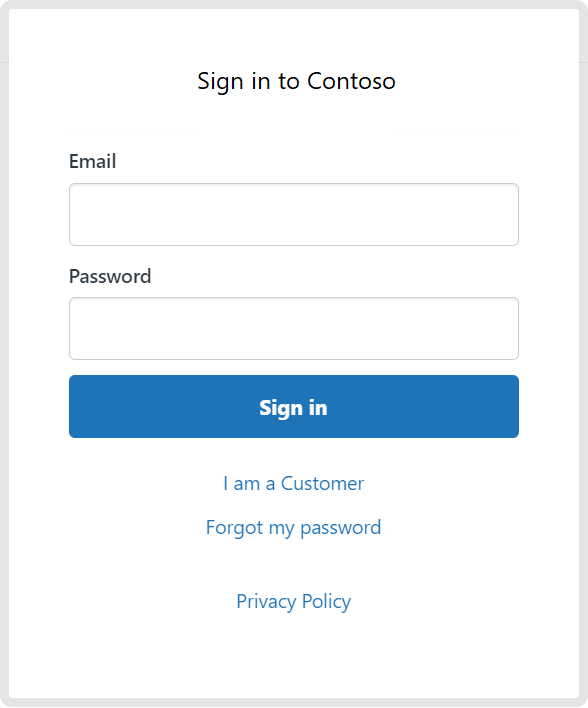
Select Sign in.
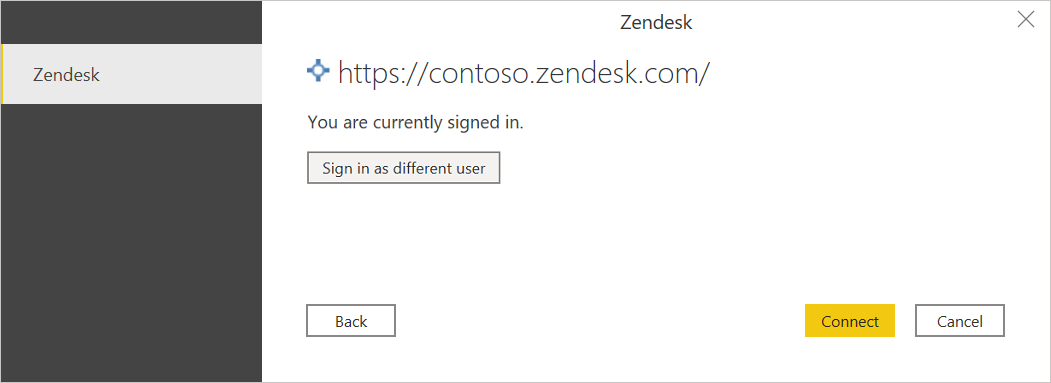
Once you successfully sign in, select Connect.
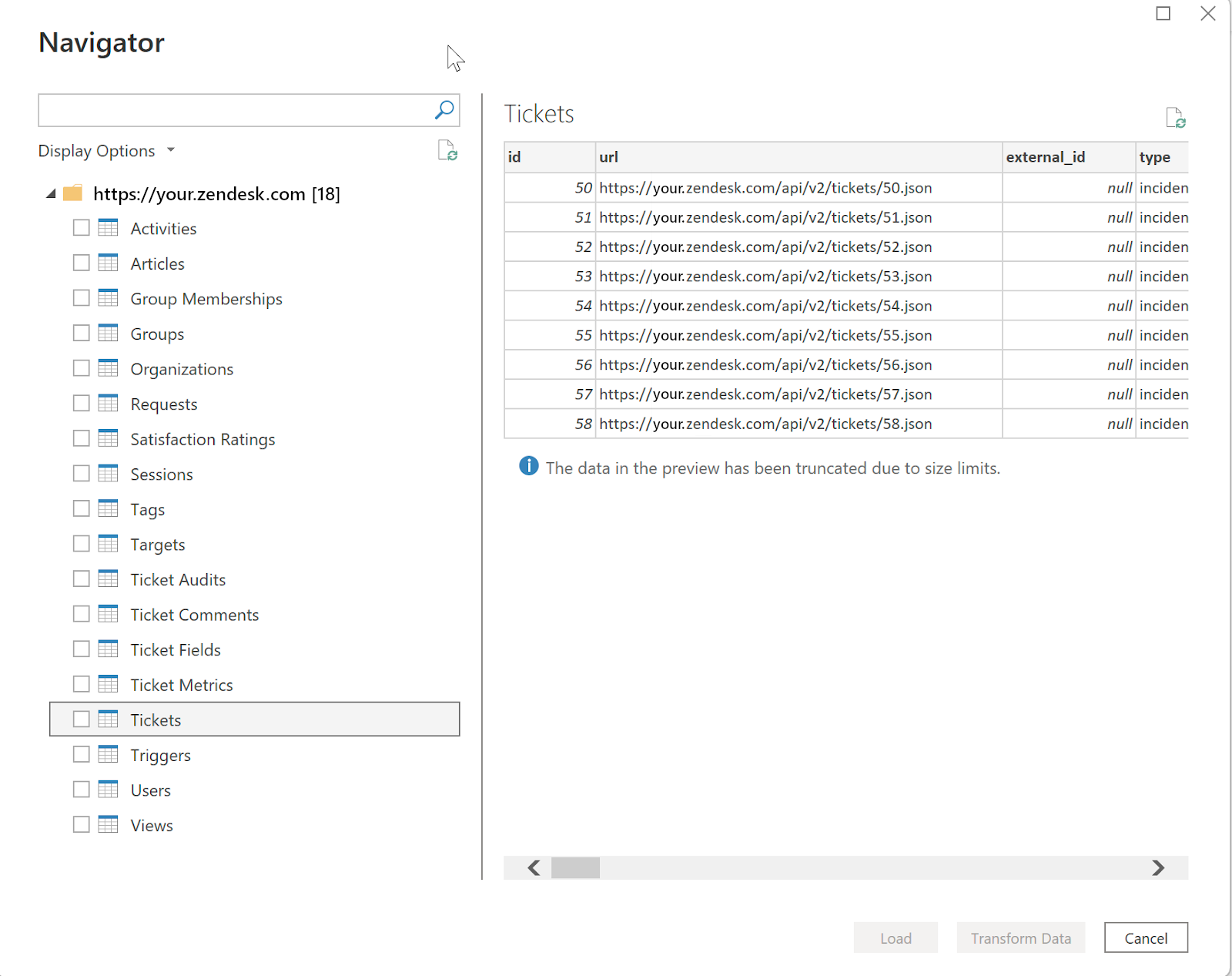
In Navigator, select the information you want, then either select Load to load the data or Transform Data to continue transforming the data in Power Query Editor.
Related content
You might also find the following information useful: