Note
Access to this page requires authorization. You can try signing in or changing directories.
Access to this page requires authorization. You can try changing directories.
You can sort a table in Power Query by one column or multiple columns. For example, take the following table with the columns named Competition, Competitor, and Position.
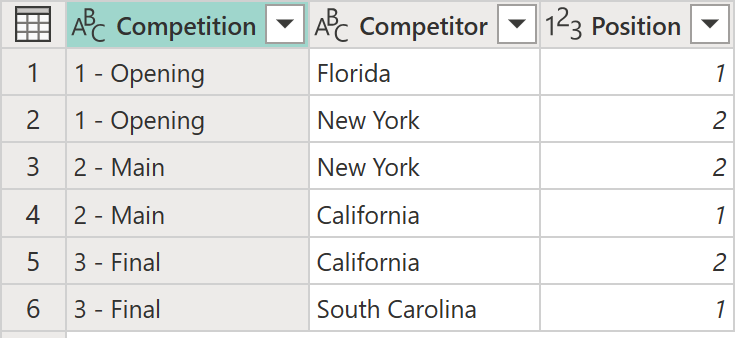
Table with Competition, Competitor, and Position columns. The Competition column contains 1 - Opening in rows 1 and 6, 2 - Main in rows 3 and 5, and 3-Final in rows 2 and 4. The Position row contains a value of either 1 or 2 for each of the Competition values.
For this example, the goal is to sort this table by the Competition and Position fields in ascending order.
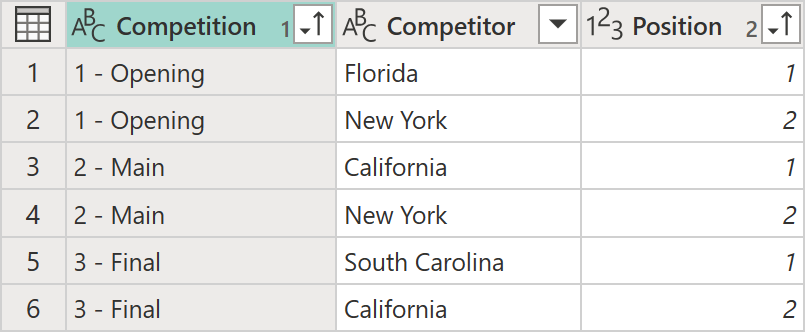
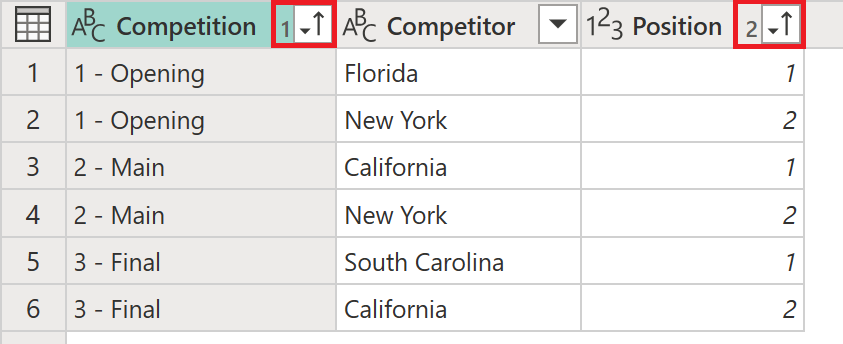
Table with Competition, Competitor, and Position columns. The Competition column contains 1 - Opening in rows 1 and 2, 2 - Main in rows 3 and 4, and 3-Final in rows 5 and 6. The Position row contains, from top to bottom, a value of 1, 2, 1, 2, 1, and 2.
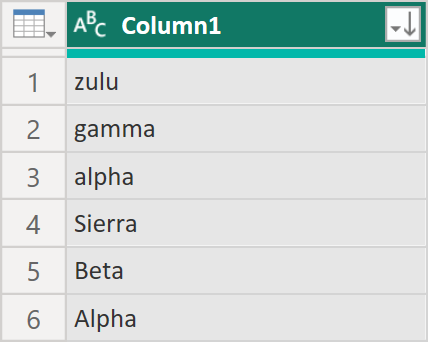
Sort ascending sorts alphabetical rows in a column from A to Z, then a to z. Sort descending sorts alphabetical rows in a column from z to a, then Z to A. For example, examine the following unsorted column:
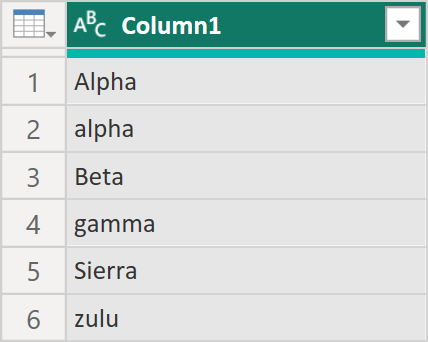
When sorted using sort ascending, an alphabetical column is sorted in the following way:
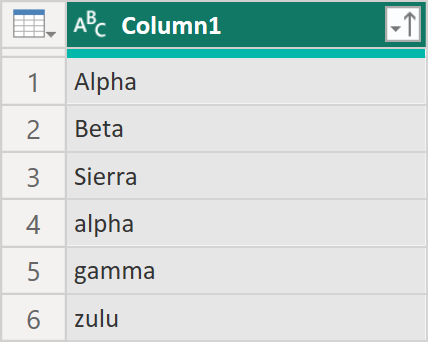
When sorted using sort descending, an alphabetical column is sorted in the following way:
Sort a table by one column
To sort the table by a single column, first select the column. Then select the sort operation from one of two places:
On the Home tab, in the Sort group, there are icons to sort your column in either ascending or descending order.

From the column heading drop-down menu. Next to the name of the column there's a drop-down menu indicator
 . When you select the icon, the option to sort the column is displayed.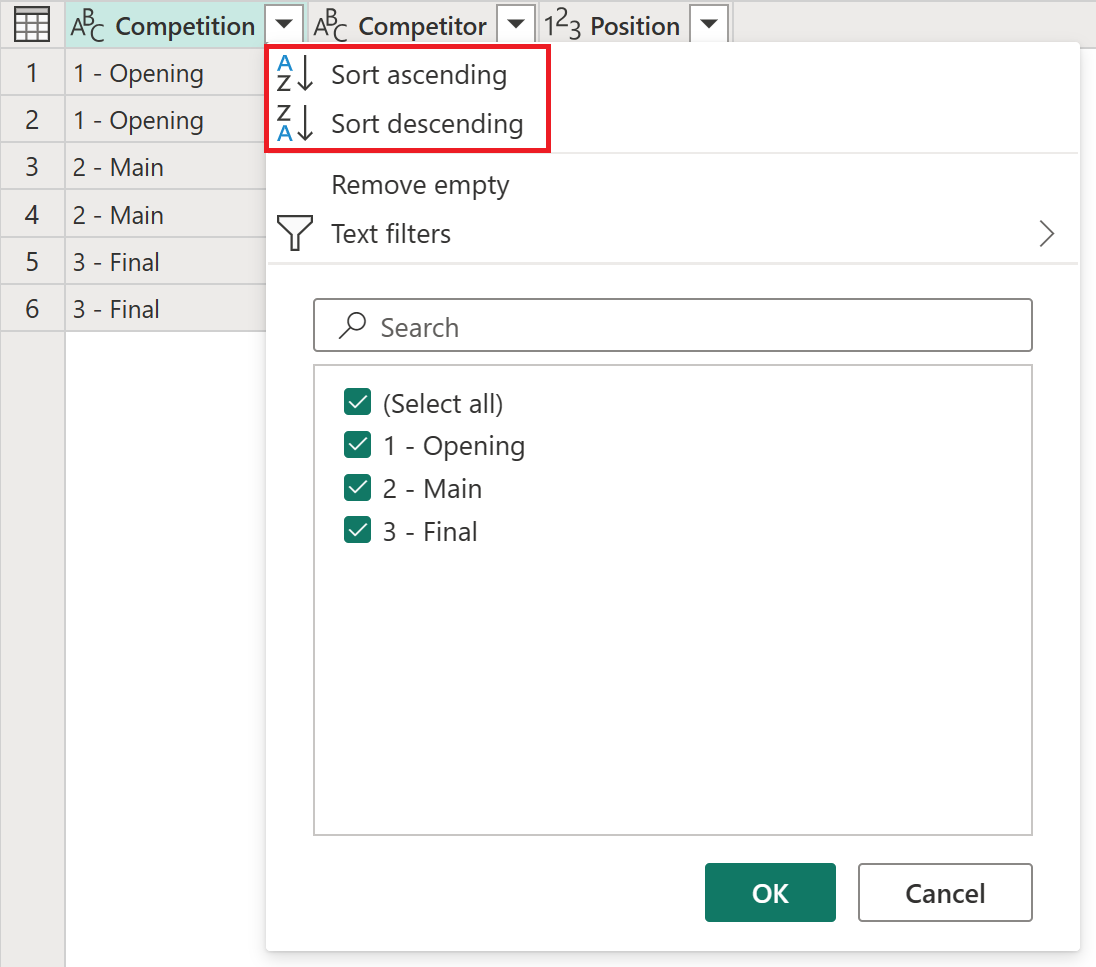

In this example, sort the Competition column by using the buttons in the Sort group on the Home tab. This action creates a new step in the Applied steps section named Sorted rows.

A visual indicator, displayed as an arrow pointing up, gets added to the Competition drop-down menu icon to show that the column is being sorted in ascending order.
Sort a table by multiple columns
You can sort by more than one column at a time. Power Query applies each column's sort in priority order, so rows are first sorted by the first column, then by the second column for any rows that tie on the first, and so on. There are two ways to define a multi-column sort: from the column heading menus, or from the Sort dialog box.
Use the column heading menus
Continuing the previous example, sort the Position field in ascending order as well, this time using the Position column heading drop-down menu.

This action doesn't create a new Sorted rows step, but modifies the existing one to perform both sort operations in one step. When you sort multiple columns this way, the order that the columns are sorted in is based on the order the columns were selected in. A visual indicator, displayed as a number to the left of the drop-down menu indicator, shows the place each column occupies in the sort order.
Use the Sort dialog box
For sorts with more than a couple of levels, or when you want to see and reorder every sort level at once, use the Sort dialog box instead of the column heading menus.
On the Home tab, in the Sort group, select Sort.

If you select one or more columns before you open the dialog box, Power Query adds those columns as sort levels automatically, in the order you selected them. Otherwise, the dialog box opens with a single, empty level. For example, the following Sort dialog box defines a three-level sort on a different table, first by Subtraction, then by Priority, then by Region, all in ascending order.

The Sort dialog box lists every sort level in a grid:
- Priority: The order in which Power Query applies each level, from top to bottom. This number is the same one shown next to each sorted column's heading in the data preview.
- Column: The column that this level sorts by. A column can only be used in one level at a time; a column already used in another level doesn't appear in this list.
- Sort Order: The direction to sort by, such as Ascending (smallest to largest) or Descending (largest to smallest).
To change the sort order:
- Select + Add level to add a new, empty level below the existing ones.
- Select the ... menu next to a level to remove it, or to move it up or down in priority.
- Drag a level by its row and drop it in a new position to reorder it directly.
Every level requires both a Column and a Sort Order selection before you can select OK. If any level is missing a selection, or if two levels use the same column, Power Query blocks the sort and highlights the levels that need attention.
After you select OK, Power Query sorts the table by all the levels you defined, and shows a priority number next to each sorted column's heading, in the same order as the levels in the dialog box.

To change an existing multi-level sort, select the gear icon next to the Sorted rows step in Applied steps. Power Query reopens the Sort dialog box with all of the saved levels and sort orders already filled in.
Clear a sort operation from a column
Do one of the following actions:
- Select the down arrow next to the column heading, and then select Clear sort.
- Select the gear icon next to the Sorted rows step in Applied steps to open the Sort dialog box, and then remove every level.
- In Applied steps on the Query Settings pane, delete the Sorted rows step.