Note
Access to this page requires authorization. You can try signing in or changing directories.
Access to this page requires authorization. You can try changing directories.
Important
As of January 2026, the AI Shell project is no longer being actively maintained. This project should be considered archived from an engineering standpoint.
Command-line options
Description:
  AI for the command line.

Usage:
  aish [<query>] [options]

Arguments:
  <query>  The query term used to get response from AI.

Options:
  --channel <channel>              A named pipe used to setup communication
                                   between aish and the command-line shell.
  --shell-wrapper <shell-wrapper>  Path to the configuration file to wrap
                                   AI Shell as a different application.
  --version                        Show version information
  -?, -h, --help                   Show help and usage information
Chat commands
To query the selected AI model, enter your prompt at the AI Shell prompt. AI Shell sends the prompt request to the connected AI model. AI Shell also provides a base set of shell commands used to interact with the AI model.
To get a list of commands, use the /help command in the chat session. The following list contain
the AI Shell commands available to all agents.
  Name       Description                                                 Source
─────────────────────────────────────────────────────────────────────────────────────
  /agent     Command for agent management.                               Core
  /clear     Clear the screen.                                           Core
  /code      Command to interact with the code generated.                Core
  /dislike   Dislike the last response and send feedback.                Core
  /exit      Exit the interactive session.                               Core
  /help      Show all available commands.                                Core
  /like      Like the last response and send feedback.                   Core
  /mcp       Command for managing MCP servers and tools.                 Core
  /refresh   Start a new chat session.                                   Core
  /retry     Regenerate a new response for the last query.               Core
AI Shell also provides commands specific to the selected agent.
  Name       Description                                                                   Source
---------------------------------------------------------------------------------------------------
  /gpt       Command for GPT management within the 'openai-gpt' agent.                     openai-gpt
  /replace   Replace argument placeholders in the generated scripts with the real value.   azure
General chat commands
/agent
Command for agent management.
Usage:
/agent [command] [options]
Options: -h, --help - Show help and usage information
Subcommands
config <agent>- Open up the setting file for an agent. When no agent is specified, target the active agent.list- List all available agents.use <agent>- Specify an agent to use, or choose one from the available agents.
/agent config
Open up the setting file for an agent. When no agent is specified, target the active agent.
Usage:
/agent config [<agent>] [options]
Arguments: <azure|openai-gpt> Name of an agent.
Options:
--editor <editor>- The editor to open the setting file in.-h,--help- Show help and usage information
Example:
/agent config openai-gpt
/agent list
List all available agents.
Usage:
/agent list [options]
Options:
-h,--helpShow help and usage information
Example:
> /agent list

  Name             Description
───────────────────────────────────────────────────────────────────────────────────────────────────

  openai-gpt       Active GPT: <gpt-name>. A GPT instance with expertise in PowerShell scripting
                   using Entra ID authentication.
  azure (active)   This AI assistant connects you to the Azure Copilot and can generate Azure
                   CLI and Azure PowerShell commands for managing Azure resources and answer
                   questions about Azure.
/agent use
Specify an agent to use, or choose one from the available agents.
Usage:
/agent use [<agent>] [options]
Arguments: <agent> - Name of an agent (optional). If you don't provide an agent name,
AI Shell prompts you to choose one from the available agents.
Options:
-h,--help- Show help and usage information
/clear
Clears the screen. You can also use the alias /cls.
/code
Command to interact with the code generated.
Usage:
/code [command] [options]
Subcommands:
copy <n>Copy the n-th (1-based) code snippet to clipboard. Copy all the code when<n>isn't specified. [default: -1]save <file>- Save all the code to a file.post <n>- Post the n-th (1-based) code snippet to the connected command-line shell. Post all the code when<n>isn't specified. [default: -1]
Options:
-h,--help- Show help and usage information
/code copy
Copy the n-th (1-based) code snippet to clipboard. Copy all the code when <n> isn't specified.
Usage:
/code copy [<n>] [options]
Arguments:
<n>Use the n-th (1-based) code snippet. Specify the argument as-1to use all the code. When you don't specify the argument, the default value is-1.
Options:
-h,--help- Show help and usage information
Examples
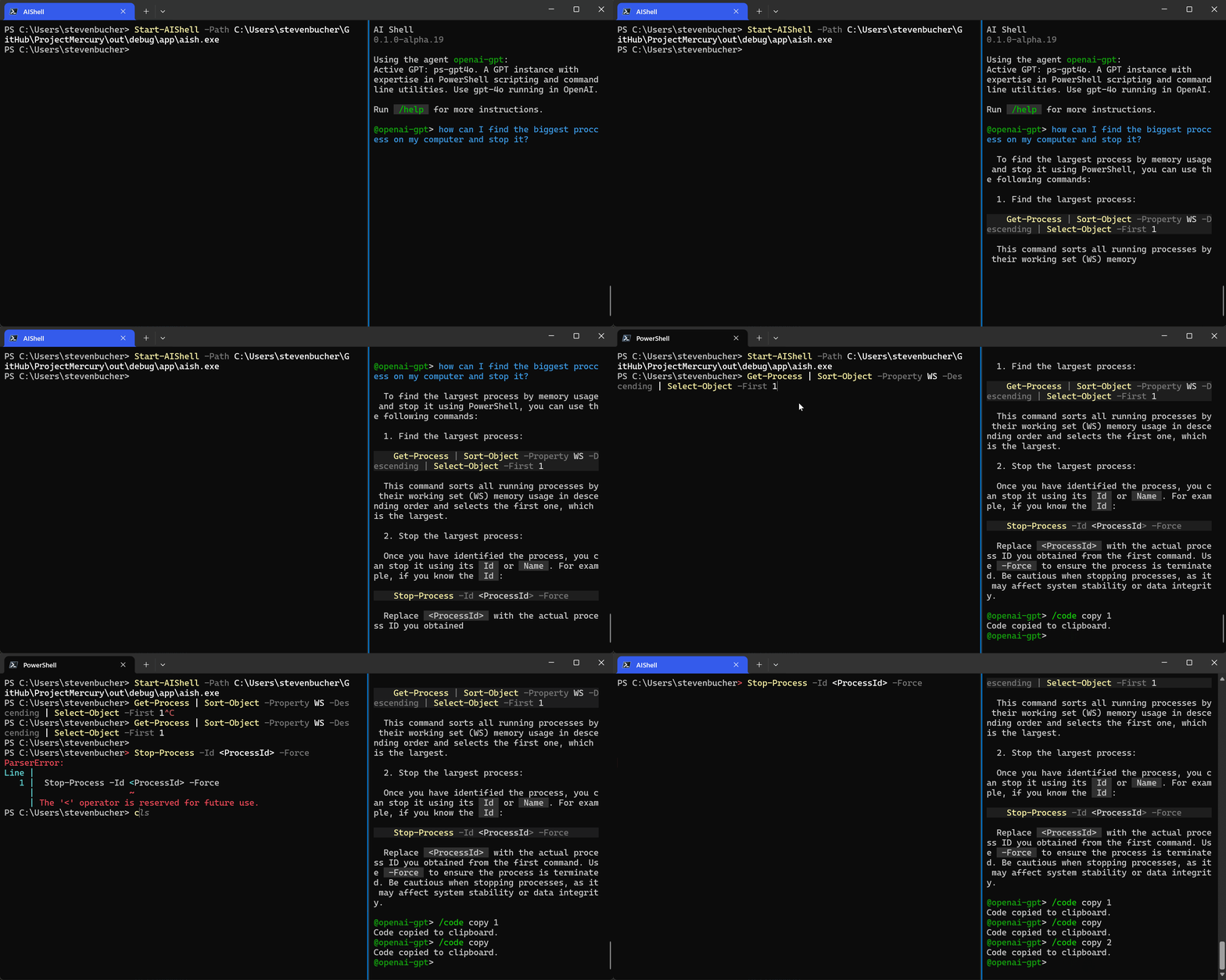
/code save
Save all the code to a file.
Usage:
/code save <file> [options]
Arguments:
<file>The file path to save the code to.
Options:
--appendAppend to the end of the file.-h,--helpShow help and usage information
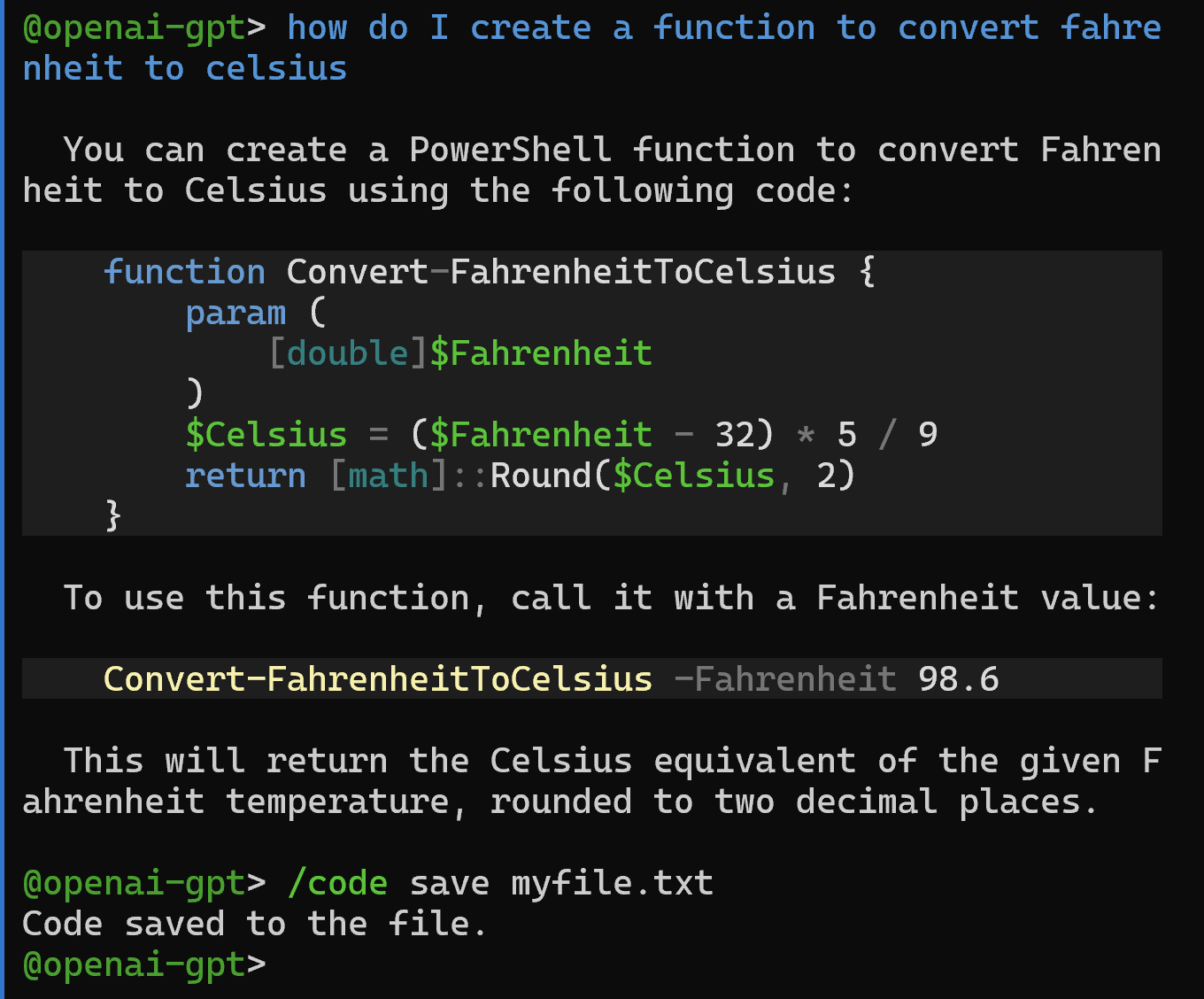
Examples:
The following example copies the all the code to a file.
/code post
Post the n-th (1-based) code snippet to the connected command-line shell. Post all the code
when <n> isn't specified.
Usage:
/code post [<n>] [options]
Arguments:
<n>Use the n-th (1-based) code snippet. Use all the code when no value is specified.
Options:
-h, --helpShow help and usage information
Examples:
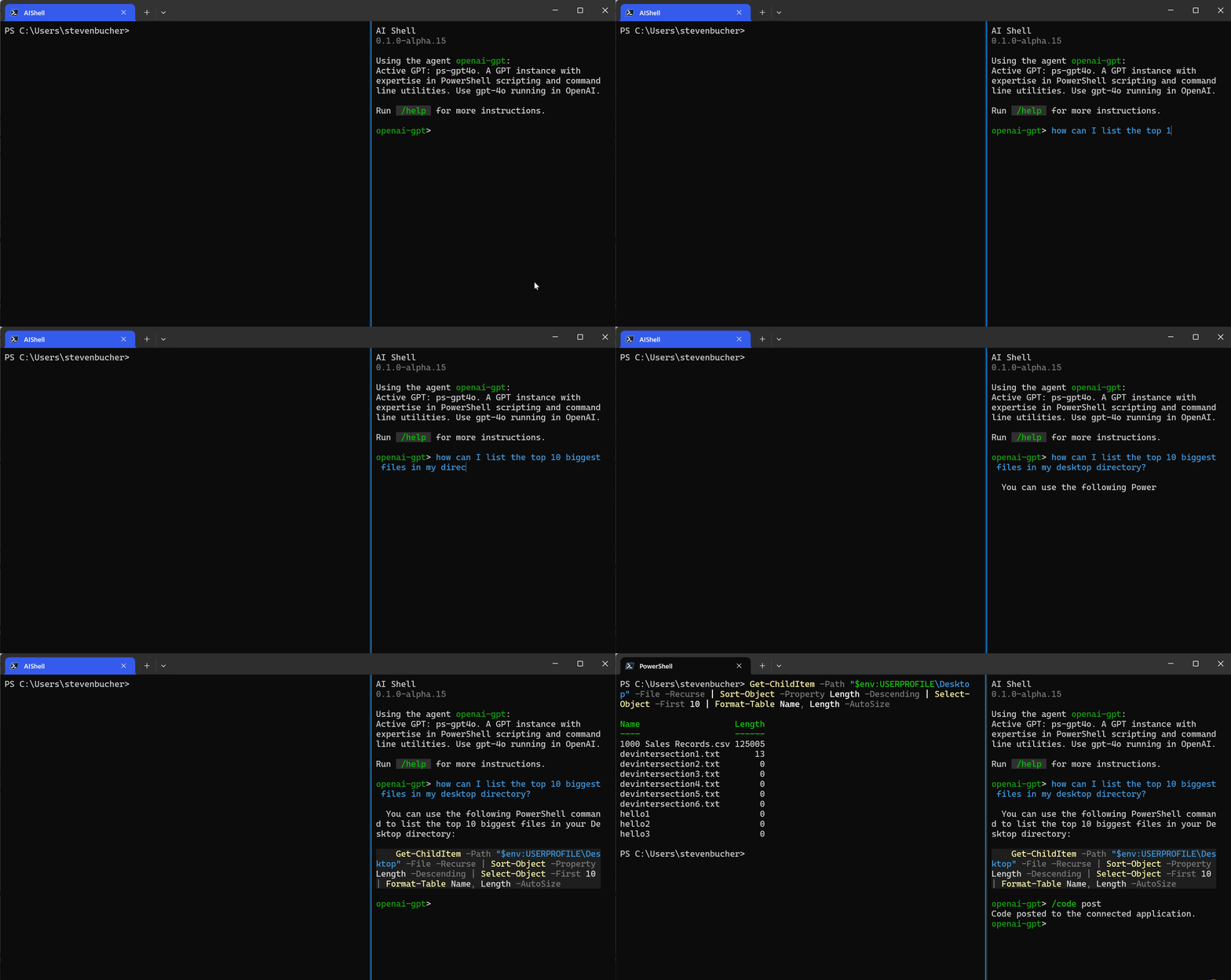
/dislike
Dislike the last response and send feedback.
Usage:
/dislike [options]
Options:
-h, --helpShow help and usage information
/exit
Exit the interactive session.
Usage:
/exit [options]
Options:
-h, --helpShow help and usage information
/like
Like the last response and send feedback.
Usage:
/like [options]
Options:
-h, --helpShow help and usage information
/mcp
Command for managing MCP servers and tools.
Usage:
/mcp [options]
Options:
-h, --helpShow help and usage information
/refresh
Start a new chat session.
Usage:
/refresh [options]
Options:
-h, --helpShow help and usage information
/retry
Regenerate a new response for the last query.
Usage:
/retry [options]
Options:
-h, --helpShow help and usage information
Agent-specific chat commands
/gpt
Command for GPT management within the 'openai-gpt' agent.
Usage:
/gpt [command] [options]
Options:
-h, --helpShow help and usage information
Subcommands:
list- List a specific GPT, or all available GPTs.use- Specify a GPT to use, or choose one from the available GPTs.
/gpt list
List a specific GPT, or all available GPTs.
Usage:
/gpt list [<GPT>] [options]
Arguments: <GPT> - The name of a GPT
Options:
-h,--help- Show help and usage information
Example
/gpt list

  Name                    Active   Description
───────────────────────────────────────────────────────────────────────────────────────────────────
  az-entraId-gpt-4o                A GPT instance with expertise in PowerShell scripting using
                                   Entra ID authentication.
  az-aikey-gpt-4o         true     A GPT instance with expertise in PowerShell scripting using
                                   Entra ID authentication.
/gpt use
Specify a GPT to use, or choose one from the available GPTs.
Usage:
/gpt use [<GPT>] [options]
Arguments: <GPT> - The name of a GPT
Options:
-h,--help- Show help and usage information
/replace
Replace argument placeholders in the generated scripts with the real value. This command is only available for the Azure agent.
Usage:
/replace [options]
Options:
-h,--help- Show help and usage information
AI Shell command history
AI Shell includes a modified version of PSReadLine. Like the PSReadLine module for PowerShell, AI
Shell lets you use the arrow keys to navigate through your command history. AI Shell saves the
history in a file named AIShell_history.txt, in the same location as the other PSReadLine history
files:
- On Windows systems:
$Env:APPDATA\Microsoft\Windows\PowerShell\PSReadLine. - On non-Windows systems:
$Env:XDG_DATA_HOME/powershell/PSReadLineor$Env:HOME/.local/share/powershell/PSReadLine.