Notă
Accesul la această pagină necesită autorizare. Puteți încerca să vă conectați sau să modificați directoarele.
Accesul la această pagină necesită autorizare. Puteți încerca să modificați directoarele.
The Genie knowledge store allows you to curate and enhance your space through localized metadata, prompt matching, and structured SQL instructions. These features help Genie understand your data and generate more accurate and relevant responses.
What is a knowledge store?
A knowledge store is a collection of curated semantic definitions that enhances Genie's understanding of your data and improves response accuracy.
The knowledge store consists of:
- Space-level metadata customization: Space-specific descriptions for tables, columns, and business terms and synonyms.
- Space-level data customization: Simplified, focused datasets without changing the underlying Unity Catalog tables.
- Prompt matching: Examples that help Genie match values that are most relevant to the user's question and correct spelling issues in user prompts. This includes format assistance and entity matching.
- Join relationships: Defined table relationships for accurate
JOINstatements. - SQL expressions: Structured definitions of measures, filters, and dimensions that capture business logic.
All knowledge store configurations are scoped to your Genie space and do not affect Unity Catalog metadata or other Azure Databricks assets.
Manage knowledge store metadata
Teach Genie about the data in your space by providing local table and column descriptions and adding column synonyms that align with common business terms. Simplify datasets by hiding unnecessary or duplicate columns to keep Genie focused.
These practices improve usability for users who do not have direct permissions on the underlying tables, and they also support quicker iterations when updating instruction versions.
To access space-level metadata, click Configure > Data in your Genie space. Then click a table name to view its metadata and columns.
View columns
Click a table name to see an overview of the column names and details. The following example shows a sample from a table named accounts.
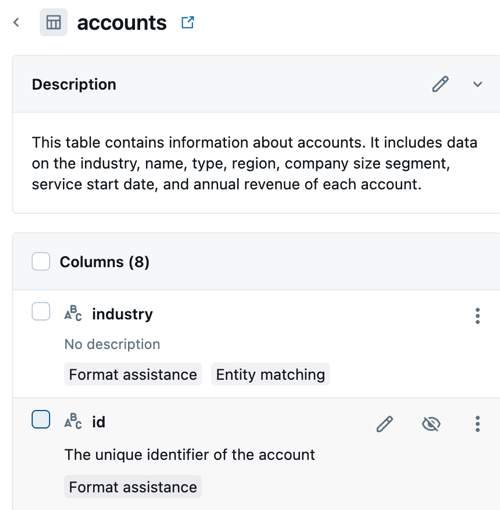
Description: Genie uses metadata to understand your data and generate accurate responses. The default table description shows the Unity Catalog metadata associated with your data asset. Edit this description to add specific directions that help Genie author SQL for your space. Click Reset to restore the Unity Catalog description.
Columns: Column names and descriptions are included in the column list. Each column is labeled with tags that show whether it includes Format assistance or Entity matching. See Prompt matching overview.
Hide or show relevant columns
Columns can be managed individually or in bulk. Use the following instructions to hide or show columns.
- Hide a single column: Click the
 next to the column name.
 - Hide multiple columns:
- Select the checkboxes for the columns you want to hide.
- From the Actions menu, select Hide selected columns.
- Undo changes: Repeat the same steps to show a column that was hidden.
Edit column metadata
You can customize the following for each column:
- Description: Space-specific column descriptions that enhance Genie's understanding.
- Synonyms: Business terms and keywords that help match user language to column names.
- Advanced settings: Prompt matching controls.
- Format assistance: Turn sampling of representative values on or off.
- Entity matching: Enable or disable entity matching for categorical columns.
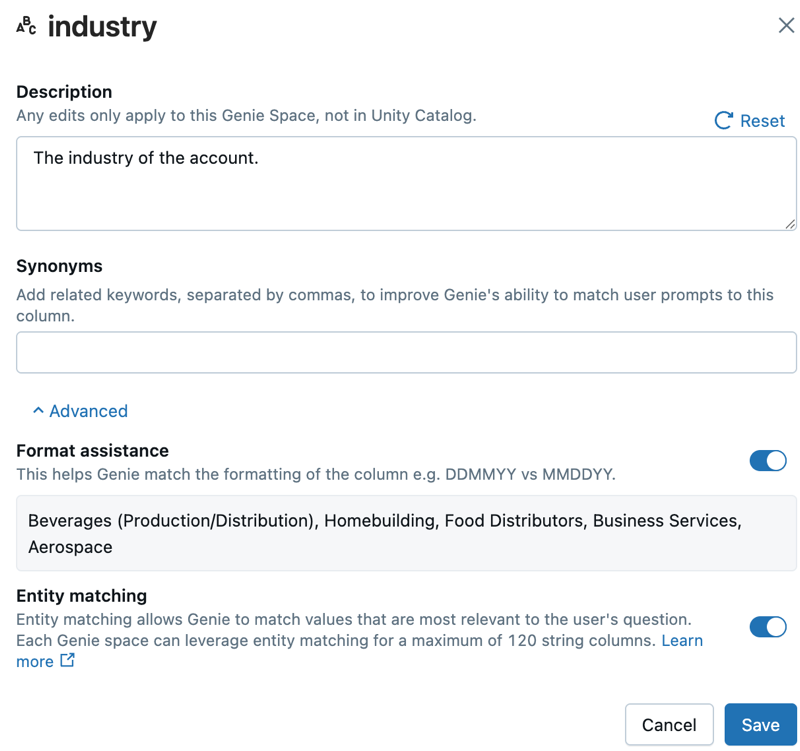
To edit column metadata:
- Click the
 pencil icon next to a column name.
 - Edit the description and synonyms for the column.
- If necessary, click Advanced settings to open prompt matching controls.
- Click Save to keep your changes and close the dialog.
Prompt matching overview
Prompt matching allows Genie to match columns and values that are most relevant to the user's question, and correct spelling issues in user prompts. This improves Genie's accuracy and helps generate more reliable SQL queries.
When a user asks a question in Genie, the phrasing is often conversational and can include errors such as misspellings. In these cases, the values in the prompt might not match the structure or values in the data. This can cause Genie to misinterpret the question and generate incorrect SQL.
Example
Review the following example:
"Show me car sales in Florida for Q1."
If the data uses state abbreviations (such as FL), and Genie cannot access the values for that column, Genie might generate SQL that includes ILIKE '%Florida%', which returns no results.
Enabling entity matching on the state column allows Genie to access representative values. With this context, Genie can recognize that FL corresponds to "Florida" and generate more accurate SQL.
| Without entity matching | With entity matching |
|---|---|
WHERE state ILIKE '%Florida%' |
WHERE state = 'FL' |
Prompt matching components
- Format assistance: Format assistance provides representative values for all eligible columns, helping Genie understand data types and formatting patterns. Representative values for prompt matching are generated using the author's data permissions. These values become part of the space's shared context and help Genie interpret user prompts more accurately for all space participants.
- Entity matching: Entity matching provides curated lists of distinct values for up to 120 columns where users are likely to reference specific entries, such as states and product categories. This helps Genie match user terminology to actual data values. Each column can include up to 1,024 distinct values, each up to 127 characters in length. Entity matching data is stored in your workspace's storage bucket.
Genie automatically provides format assistance and entity matching for eligible columns as you add tables to the space. Tables with row filters or column masks are excluded from prompt matching.
Manage prompt matching
Control which columns provide format assistance and entity matching to optimize Genie's understanding of your data. Prompt matching is enabled by default for all Genie spaces.
Manage format assistance
Format assistance is automatically applied when you add tables to a Genie space.
To turn off format assistance for a column:
- Click Configure > Data in your Genie space.
- Click a table name to view its columns.
- Click the pencil icon next to the column name.
- Click Advanced.
- Turn Format assistance off.
This action also automatically disables entity matching for that column. If necessary, use this setting to turn Format assistance back on.
Configure entity matching
Genie generates responses using your prompt, relevant table metadata, prompt matching capabilities, error signals, and any input code or queries. When a column has entity matching enabled, Genie leverages the stored values to match user prompts to actual data more accurately. This produces more reliable SQL queries. Entity matching significantly improves Genie's accuracy, especially when combined with clear example queries and well-crafted instructions. See Curate an effective Genie space for more guidance.
Genie prevents you from enabling entity matching on tables with row filters or column masks. However, space authors must disable entity matching for views that reference tables with row filters or column masks, or for dynamic views.
The following list includes examples of the types of data that work well with entity matching:
- State or country codes
- Product categories
- Status codes
- Department names
To enable entity matching, Format assistance must be turned on. Then, use the following steps:
- Click Configure > Data in your Genie space.
- Click a table name to view its columns.
- Click the pencil icon next to the column name.
- Click Advanced.
- Turn Entity matching on.
- To disable entity matching for a column, turn Entity matching off.
Refresh or remove prompt matching data
Refreshing prompt matching data updates a column's stored values. Refresh values if:
- New values have been added to the column.
- The format of existing values has changed.
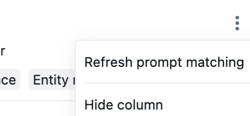
To refresh prompt matching data, click  the kebab menu in the column view, then Refresh prompt matching.
Define join relationships
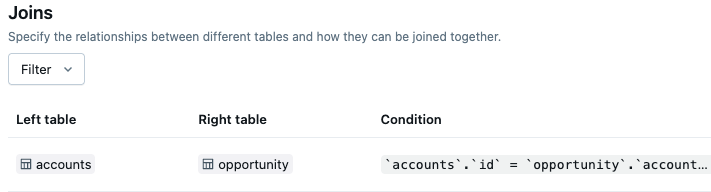
Help Genie create accurate JOIN statements by defining table relationships:
- Click Joins.
- Click Add.
- Select left and right tables from the drop-down menus.
- Enter a Join condition (for example,
accounts.id = opportunity.accountid)- For more complicated join conditions, click Use SQL expression and then record the join condition as a SQL expression.
- Select a Relationship Type:
- Many to one: Multiple left rows map to one right row
- One to many: One left row maps to multiple right rows
- One to one: One left row maps to at most one right row
Note
When multiple joins exist between the same tables or self-joins are used, Genie automatically generates aliases for the right-hand table to avoid ambiguity.
Get suggestions from feedback
When users click the thumbs up on a message that joins tables or uses SQL expressions, Genie analyzes the response and can suggest new SQL snippets (such as measures, joins, or filters) for space authors to review and add to the knowledge store. Genie does not automatically learn or change its behavior based on feedback.
Define SQL expressions
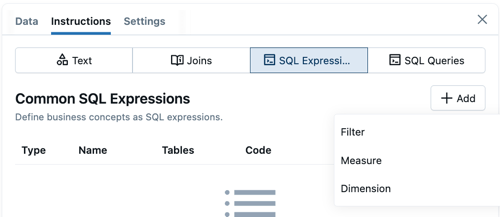
SQL expressions provide a structured, guided way to teach Genie about common business terms such as KPIs, attributes, and conditions. Genie then uses these definitions when a user asks about these business terms.
SQL expressions complement example SQL queries, specified in instructions. SQL expressions define reusable business concepts, but example SQL queries are more helpful for teaching Genie how to approach common user prompt formats. For example, if users commonly ask for "a breakdown of performance", an example SQL query can show that this means closed sales by region, sales rep, and manager.
SQL expressions work best when you need to:
- Provide structured definitions for KPIs and metrics, such as profit margin or conversion rate
- Give Genie explicit context about how to calculate important values
- Define additional dimensions for the dataset, such as month or customer segment
- Teach Genie filters for business conditions, such as large orders or orders before a specific time
SQL expression types
You can define the following types of SQL expressions:
- Measures: Key performance indicators (KPIs) and metrics. Define the name, SQL calculation, and synonyms.
- Filters: Common filtering conditions. Define the name, SQL filter logic, and synonyms.
- Dimensions: Attributes for grouping and analyzing data. Define the name, SQL expression, and synonyms.
Use the following instructions to define SQL expressions:
- Click Configure > Instructions > SQL Expressions
- Click Add. Choose Filter, Measure, or Dimension.
- In the Name field, enter a name for the expression.
- In the Code field, enter the SQL expression.
- Filter expressions should evaluate to a boolean condition.
- Measure expressions should calculate an aggregation over multiple rows in the table.
- Dimension expressions should alter the value of each row from the existing data.
- In the Synonyms field, enter common ways that users might refer to the expressions colloquially.
- In the Instructions field, enter specific instructions that tell Genie what the expression is for and how to work with it.
Next steps
Use the following links to help you continue to build your Genie space.
- Add context to your Genie space to help generate accurate responses. See Add SQL examples and instructions
- Learn best practices for optimizing your Genie space. See Curate an effective Genie space
- Evaluate and improve your space's performance. See Use benchmarks in a Genie space