Notă
Accesul la această pagină necesită autorizare. Puteți încerca să vă conectați sau să modificați directoarele.
Accesul la această pagină necesită autorizare. Puteți încerca să modificați directoarele.
Azure Developer CLI (azd) templates package the configuration, infrastructure, and optional application code required to provision and deploy a solution on Azure. You can use a template for an application, an infrastructure-only project, or a reusable starting point for future projects.
Note
Before you begin, read Azure Developer CLI templates for a complete description of template structure, required and optional assets, service-to-resource associations, and how azd commands use each file.
Template development workflow
The following workflow applies whether you create a template or initialize one that already exists:
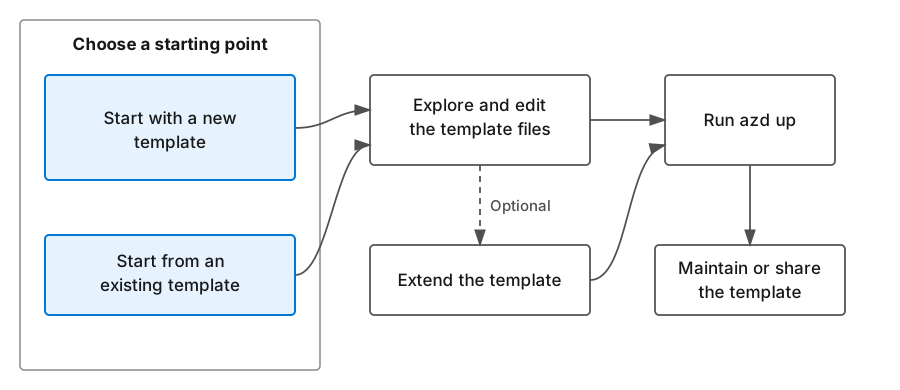
Diagram of the Azure Developer CLI template development workflow. On the left, a box labeled "Choose a starting point" contains two options: "Start with a new template" and "Start from an existing template." Both options lead to "Explore and edit the template files." From there, an optional path leads down to "Extend the template," and the main path continues to "Run azd up." The "Extend the template" step also leads to "Run azd up." Finally, "Run azd up" leads down to "Maintain or share the template."
- Choose a starting point: Start with a new template with the GitHub Copilot integration, another AI coding assistant, or direct authoring. Alternatively, start from an existing template from Microsoft, your organization, or the developer community.
- Explore and edit the files: Review how
azure.yaml, Bicep or Terraform files, app code, and supporting configuration work together. See Explore and edit template files. - Extend and evolve as needed: Add, replace, remove, or redesign app and infrastructure components. Follow Extend a template for an end-to-end example that adds an Azure resource and connects it to an app.
- Provision and deploy: Run
azd upto provision the infrastructure and deploy any app services. For more information, see Explore theazd upworkflow. - Maintain or share: Continue editing the template as your project evolves. If you plan to share it, test it in a clean directory and with a new
azdenvironment first.
Note
Throughout this workflow, you can create, edit, or replace template files yourself or with help from an AI coding assistant. The result is the same set of standard, editable azd assets.
Template building blocks
Every azd template supports a different solution, but most templates combine the same types of assets:
- Project configuration: The
azure.yamlfile identifies the project, deployable services, source directories, hosting targets, and optional hooks or workflows. - Infrastructure as code: Bicep or Terraform files define the Azure resources, role assignments, networking, and app settings that the solution requires.
- Application source: A template can include one or more deployable apps, or it can contain only infrastructure.
- Environment configuration: Parameters pass environment-specific values into deployments, and infrastructure outputs become values in the active
azdenvironment.
A template for an app might use the following folder structure:
.
├── azure.yaml                # Project configuration
├── infra/                    # Infrastructure as code
│   ├── main.bicep
│   ├── main.parameters.json
│   └── modules/
├── src/                      # Application source
│   ├── api/
│   └── web/
├── .github/                  # Pipeline workflows
│   └── workflows/
└── README.md
The exact structure varies by project. App source, infrastructure modules, and pipeline files are optional, and azure.yaml identifies the paths that azd uses. These assets work together throughout the template development lifecycle.
Next steps
Request help
For information on how to file a bug, request help, or propose a new feature for the Azure Developer CLI, please visit the troubleshooting and support page.