Notă
Accesul la această pagină necesită autorizare. Puteți încerca să vă conectați sau să modificați directoarele.
Accesul la această pagină necesită autorizare. Puteți încerca să modificați directoarele.
Modernizing your Java application isn't a one-time event. New CVEs are published every day, new CWE findings surface as your code evolves, and dependencies drift out of compliance. Keeping the application secure means continuously detecting and fixing security debt - the evergreen way to think about application security.
GitHub Copilot modernization helps you with two capabilities:
- Security assessment - scans your code for CWE findings guided by ISO/IEC 5055 and for CVE vulnerabilities in your direct and transitive dependencies.
- Code remediation - generates an execution plan to fix the selected issues and applies the fixes for you.
You can find these capabilities in:
- Visual Studio Code - interactive scan and fix, covered in this article.
- Modernize CLI - security is one of the assessment domains in batch assessment, so you can scan a portfolio of applications in a single run.
Scan and resolve security issues in Visual Studio Code
Follow these steps to assess and remediate security issues in one flow.
1. Start the security scan
In the GitHub Copilot modernization pane, open the Quick Start view and select Scan & Resolve Security Issues.
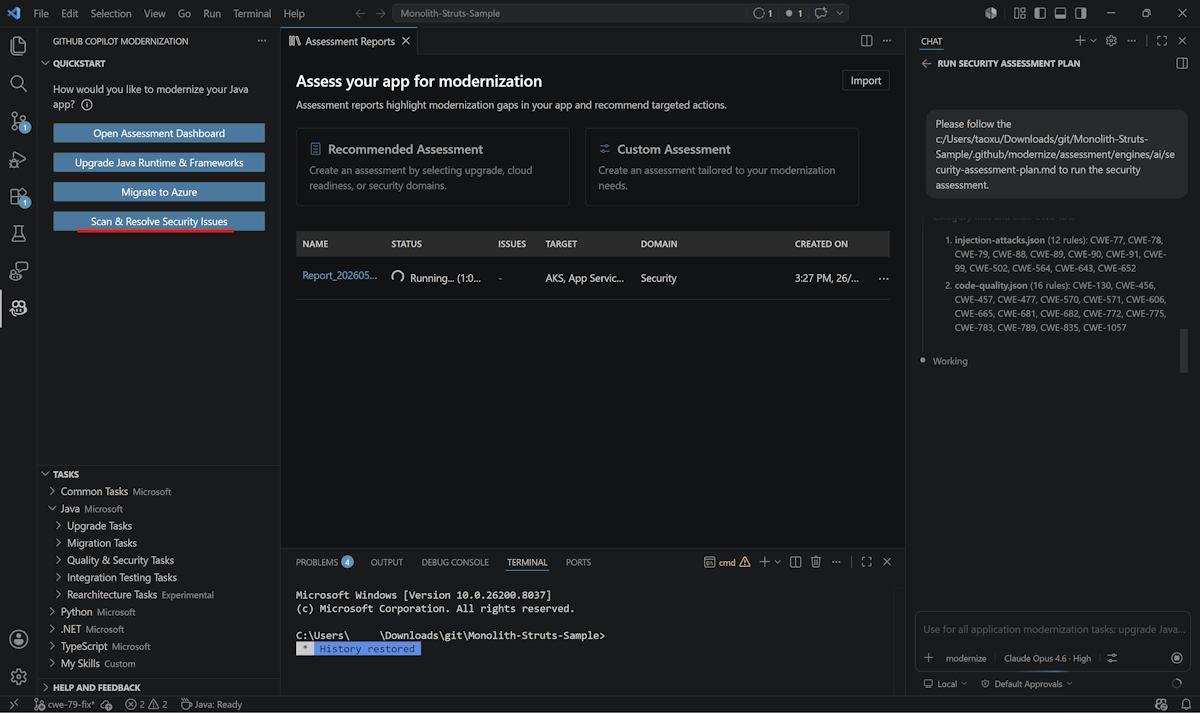
Copilot runs a security-domain assessment over your project. The scan covers:
- A curated set of CWE rules aligned with ISO/IEC 5055, grouped into six categories: File & Path Security, Injection Attacks, Memory Safety, Code Quality, Credentials & Secrets, and Concurrency & Synchronization.
- CVE findings in your direct and transitive dependencies, sourced from the GitHub Security Advisories database.
For the full catalog of CWE rules and the details of CVE coverage, see Understand assessment coverage.
Note
CVE checks work without GitHub authentication, but anonymous calls are rate-limited. For large projects, sign in with gh auth login to avoid throttling.
2. Review the report
When the scan finishes, the Assessment Report opens with the security findings.
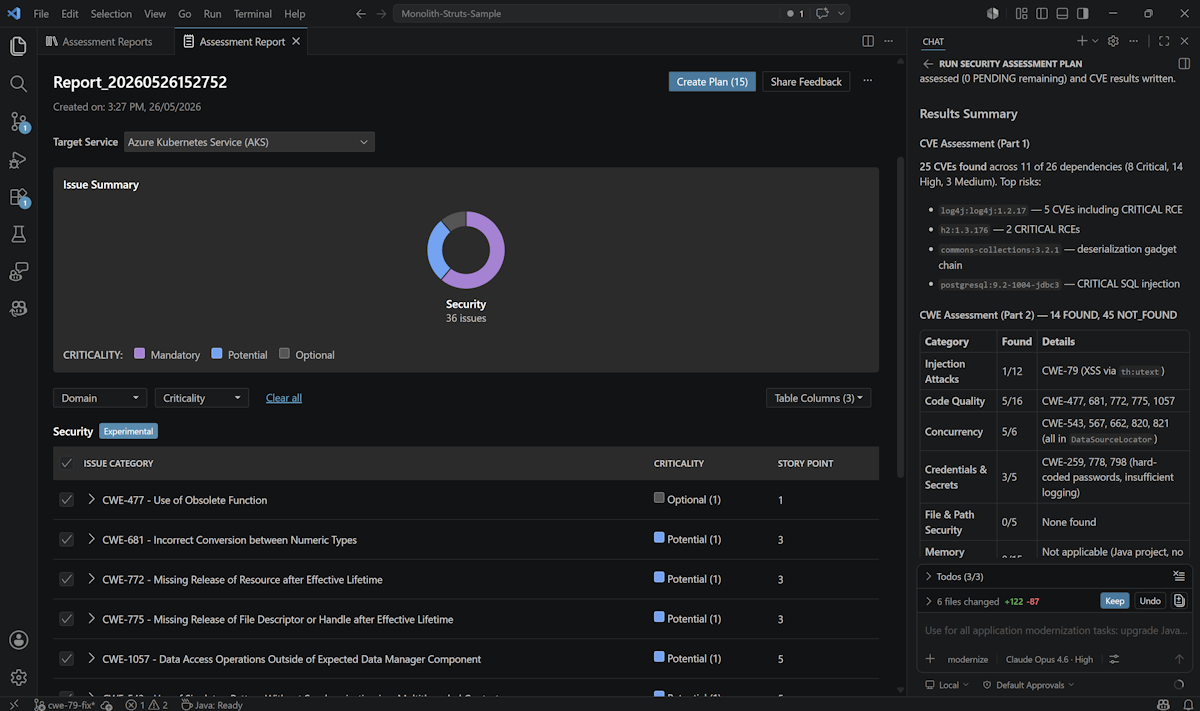
To control which CVEs surface, set Security: Minimum CVE Severity in the assessment configuration. Accepted values are critical, high, medium, and low; the default is high.
3. Pick the issues to fix and create a plan
Select the issue categories you want to fix. The action button updates to show the count — for example, Create Plan (3). Select it to generate an execution plan.
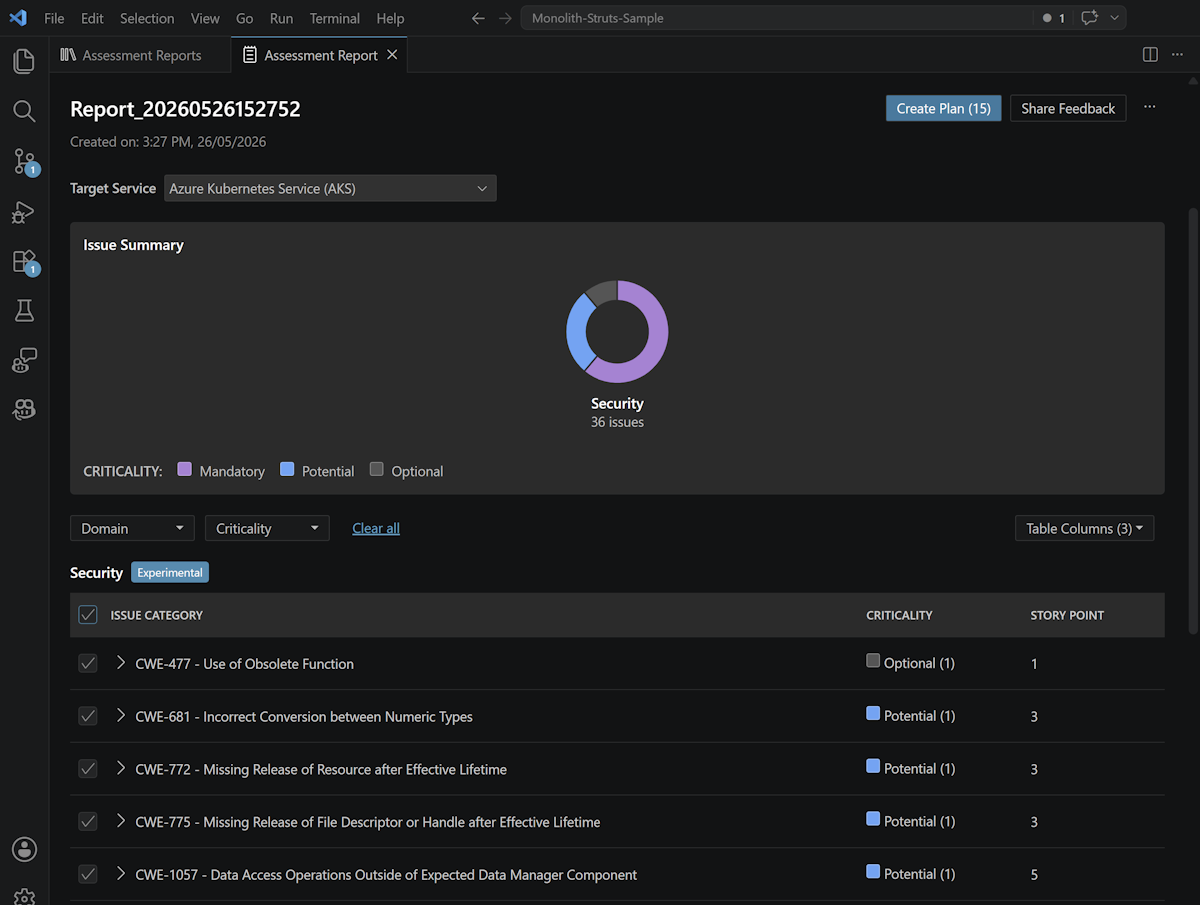
4. Review the plan
Copilot writes the execution plan as a Markdown file and opens it in the preview pane so you can read it before any fix is applied. The plan describes how Copilot groups and addresses the selected issues. It groups CVE issues by dependency and CWE findings by file. If you want to change the scope or order, edit the Markdown file directly.
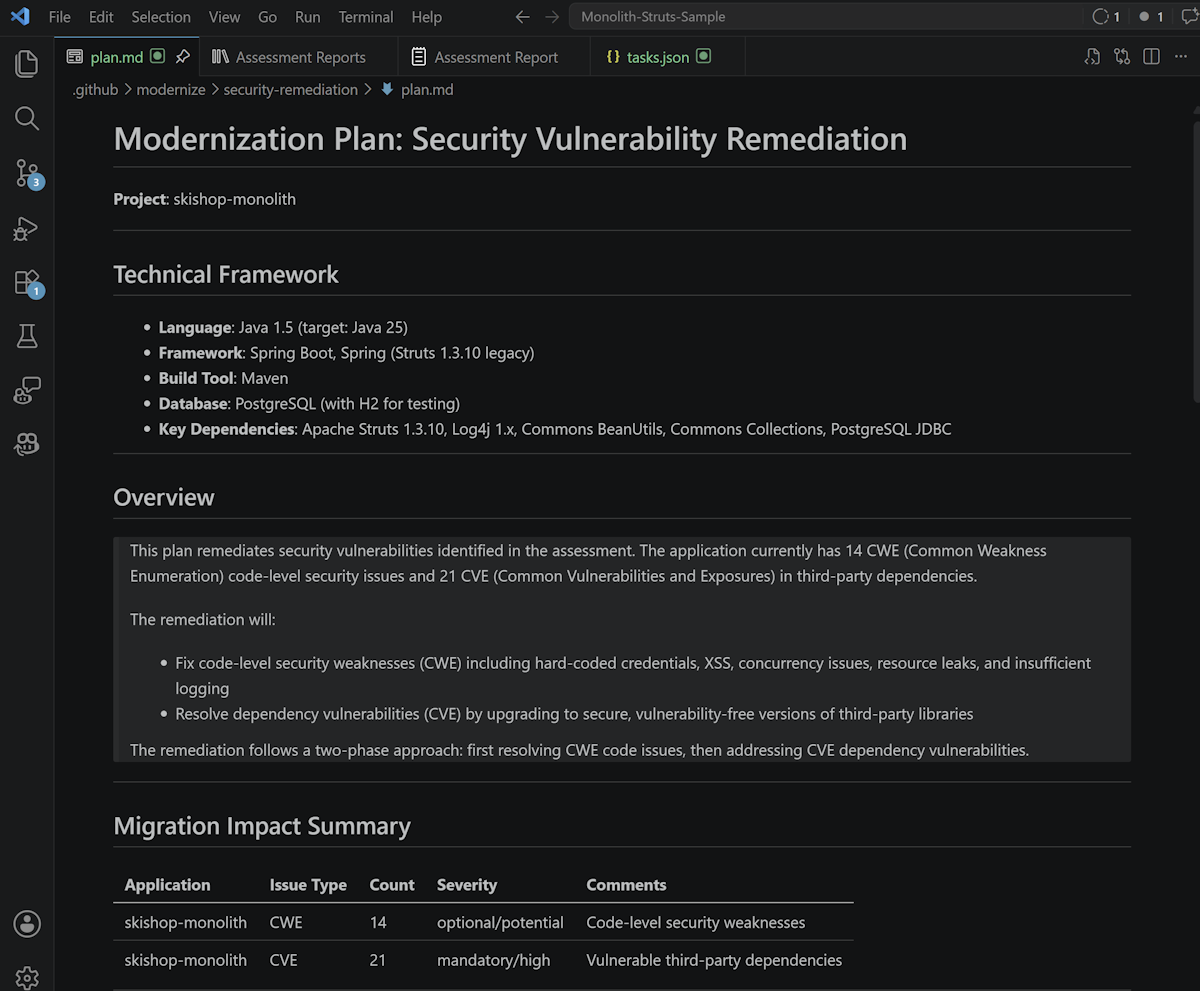
5. Execute the plan
When you're satisfied with the plan, tell Copilot in the chat to execute it. Copilot resolves the selected issues group by group, builds the project to validate each change, and reports progress in the chat. Review the resulting diffs and commit the changes you want to keep.
Stay evergreen
Security debt reappears as new CVEs are published and as your application changes. Re-run Scan & Resolve Security Issues as part of your regular modernization cadence - for example, on every release branch - so you catch and fix issues continuously instead of accumulating them into a Big Upgrade.
Next steps
- Understand assessment coverage - full catalog of CWE rules and CVE coverage details.
- Working with assessment
- Batch assessment with the GitHub Copilot modernization agent