Notă
Accesul la această pagină necesită autorizare. Puteți încerca să vă conectați sau să modificați directoarele.
Accesul la această pagină necesită autorizare. Puteți încerca să modificați directoarele.
Use this article to reonboard existing Microsoft Defender for Endpoint devices with the streamlined connectivity package. Streamlined connectivity consolidates core Defender for Endpoint service traffic under a smaller set of network destinations. Before you migrate devices, configure the required network destinations and confirm that the devices meet the streamlined connectivity prerequisites.
In most cases, you don't need to offboard devices before reonboarding them. Apply the streamlined onboarding package, and then reboot Windows devices or restart the Defender for Endpoint service on macOS and Linux devices.
Important
Review the following limitations before you migrate devices:
- Offboarding isn't required to switch to streamlined connectivity. After you apply the updated onboarding package, reboot Windows devices or restart the Defender for Endpoint service on macOS and Linux devices.
- Windows 10 versions 1607, 1703, 1709, and 1803 don't support reonboarding. Offboard first and then onboard using the updated package. These versions also require a longer URL list.
- Devices that run the Microsoft Monitoring Agent (MMA) don't support streamlined connectivity and must continue to use standard connectivity.
Note
The Defender deployment tool can be used to deploy Defender endpoint security on Windows and Linux devices. The tool is a lightweight, self-updating application that streamlines the deployment process. For more information, see Deploy Microsoft Defender endpoint security to Windows devices using the Defender deployment tool and Deploy Microsoft Defender endpoint security to Linux devices using the Defender deployment tool (preview).
Migrate devices to streamlined connectivity
Use the platform-specific procedures in this section to migrate existing devices from standard connectivity to streamlined connectivity.
Plan the migration
Before you migrate devices:
Plan a gradual rollout: Begin with a small set of devices. Expand the rollout after you verify that the test devices use streamlined connectivity.
Use supported management tools: For managed devices, use deployment methods such as Intune, Configuration Manager, Group Policy, Jamf Pro, or another supported management tool.
Test cloud connectivity: Confirm that devices can communicate with Defender for Endpoint services. For more information, see Verify client connectivity to Microsoft Defender for Endpoint service URLs.
Prepare a rollback plan: Keep the standard connectivity destinations available during the migration. If problems occur, reapply the standard connectivity onboarding package.
Validate migration success: Verify that devices use streamlined connectivity before you remove the standard core service destinations from your firewall or proxy configuration. Continue to allow supporting service destinations required for the operating system, updates, certificate validation, and your deployment and security features. For more information, see Onboarding devices using streamlined connectivity.
Restart devices or services after reonboarding
After you apply the streamlined onboarding package, complete the action for the device operating system:
Windows: Reboot the device.
macOS: Reboot the device, or restart the Defender for Endpoint service:
sudo launchctl unload /Library/LaunchDaemons/com.microsoft.fresno.plist sudo launchctl load /Library/LaunchDaemons/com.microsoft.fresno.plistLinux: Reboot the device, or restart the Defender for Endpoint service:
sudo systemctl restart mdatp
Use the following options to migrate Windows 10 and Windows 11 devices to the streamlined connectivity method.
Migrate Windows 10 and Windows 11 devices
Important
Windows 10 versions 1607, 1703, 1709, and 1803 don't support reonboarding. To migrate existing devices, you need to fully offboard and onboard using the streamlined onboarding package.
For general information, see Onboard Windows client devices.
Confirm that the devices meet the streamlined connectivity prerequisites.
Migrate devices using a local script
Follow the guidance in Onboard Windows devices using a local script with the streamlined onboarding package. After you apply the package, reboot the device.
Migrate devices using Group Policy
Follow the guidance in Onboard Windows devices using Group Policy with the streamlined onboarding package. After you apply the policy, reboot the device.
Migrate devices using Microsoft Intune
Microsoft Intune is the recommended tool for configuring and distributing Defender for Endpoint features to devices. However, Intune is a separate product that isn't part of Defender for Endpoint, and it isn't included in all subscriptions. To use Intune, you need a subscription that includes it, or you can buy it separately as a standalone subscription or add-on. If you don't have Intune, you can use any of the other methods in this article. For more information, see Microsoft Intune licensing.
Follow the guidance in Update the onboarding state for a Windows device with the streamlined onboarding package. The Auto from connector option doesn't automatically reapply the onboarding package to existing devices. Create a new onboarding policy, assign it to a test group, and confirm that the devices receive the policy. After you apply the policy, reboot the devices.
Migrate devices using Microsoft Configuration Manager
Follow the guidance in Update onboarding information for existing devices to deploy the streamlined onboarding package.
Migrate VDI devices using the streamlined method
Follow the guidance in Onboard nonpersistent virtual desktop infrastructure (VDI) devices with the streamlined onboarding package. After you apply the package, reboot the device.
Verify migrated device connectivity
Use the following methods to confirm that migrated devices use streamlined connectivity.
Use the Client Analyzer on Windows
Run the Microsoft Defender for Endpoint Client Analyzer on a migrated Windows device to confirm that the device connects to the streamlined destinations. The analyzer automatically uses the onboarding package configured on the device. For instructions, see Run the client analyzer on Windows and Verify client connectivity to Microsoft Defender for Endpoint service URLs.
Track connectivity type with advanced hunting
Use advanced hunting in the Microsoft Defender portal to view the connectivity type that devices report in the DeviceInfo table:
- Column name:
ConnectivityType. - Possible values: Blank,
Streamlined, orStandard. - Data type: String.
- Description: The type of connectivity from the device to the Defender for Endpoint cloud service.
After a migrated device establishes communication with the EDR command-and-control channel, the value is Streamlined. If you reapply a standard onboarding package, the value changes to Standard. The value remains blank for devices that haven't attempted to reonboard.
Use the advanced hunting queries later in this article to review individual devices and deployment totals. For the schema, see DeviceInfo table.
Track connectivity locally in Windows Event Viewer
Use the SENSE operational log in Windows Event Viewer to confirm that a Windows device connects to a streamlined destination.
Select Start, type
Event Viewer, and press Enter.Under Log Summary, double-click Microsoft-Windows-SENSE/Operational.
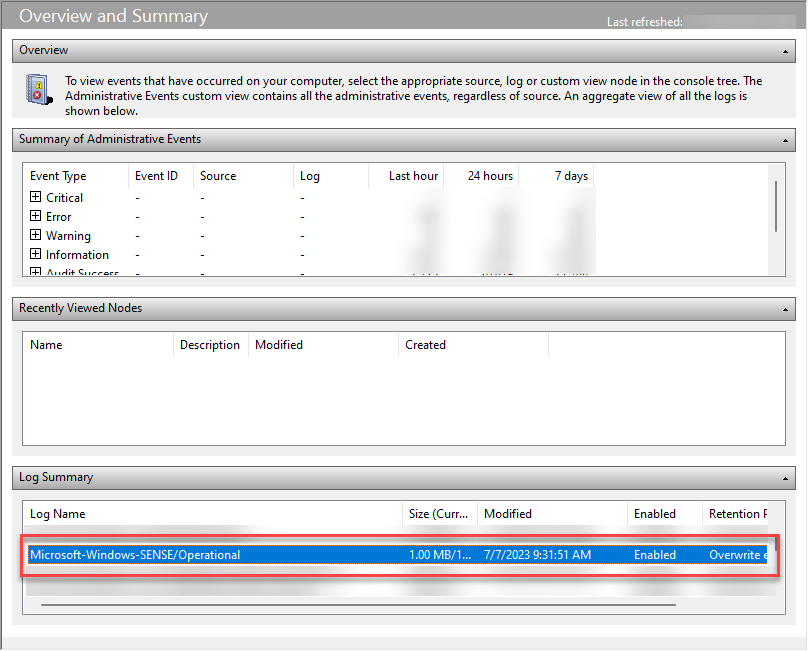
You can also expand Applications and Services Logs > Microsoft > Windows > SENSE, and then select Operational.
Find event ID 4, which records a successful connection to a Defender for Endpoint processing server. Confirm that the contacted server uses the
endpoint.security.microsoft.comdomain. For example:Contacted server 6 times, all succeeded, URI: <region>.<geo>.endpoint.security.microsoft.com. <EventData> <Data Name="UInt1">6</Data> <Data Name="Message1">https://<region>.<geo>.endpoint.security.microsoft.com> </EventData>Review event ID 5 for connection errors.
Note
SENSE is the internal name of the behavioral sensor that powers Defender for Endpoint. For more information about the events that the service records, see Review events and errors using Event Viewer.
Run optional Windows feature tests
After migration, confirm that the device continues to appear in Device Inventory with the same device ID. Review the device timeline to confirm that events continue to arrive.
Test Live Response connectivity
Start a live response session on a test device, and run a basic command to confirm that the session is responsive. For more information, see Investigate entities on devices using live response.
Test automated investigation and response connectivity
Confirm that the device meets the requirements for automated investigation and response. For more information, see Configure automated investigation and response capabilities.
Test cloud-delivered protection connectivity
Verify cloud-delivered protection connectivity on a Windows test device.
In an elevated Command Prompt (a Command Prompt window you opened by selecting Run as administrator), run the following commands:
Tip
The first command changes the directory to the latest version of <antimalware platform version> in %ProgramData%\Microsoft\Windows Defender\Platform\<antimalware platform version>. If that path doesn't exist, it goes to %ProgramFiles%\Windows Defender.
(set "_done=" & if exist "%ProgramData%\Microsoft\Windows Defender\Platform\" (for /f "delims=" %d in ('dir "%ProgramData%\Microsoft\Windows Defender\Platform" /ad /b /o:-n 2^>nul') do if not defined _done (cd /d "%ProgramData%\Microsoft\Windows Defender\Platform\%d" & set _done=1)) else (cd /d "%ProgramFiles%\Windows Defender")) >nul 2>&1

MpCmdRun.exe -ValidateMapsConnection
For more information about MpCmdRun, see Configure and manage Microsoft Defender Antivirus with the MpCmdRun command-line tool.
Test block at first sight
Follow the block at first sight (BAFS) demonstration instructions in Defender for Endpoint demonstrations.
Test SmartScreen
Follow the SmartScreen demonstration instructions on the Microsoft Defender SmartScreen Demo (msft.net) page.
PowerShell detection test
On the Windows device, create a folder:
C:\test-MDATP-test.Open Command Prompt as an administrator.
In the Command Prompt window, run the following PowerShell command:
powershell.exe -NoExit -ExecutionPolicy Bypass -WindowStyle Hidden $ErrorActionPreference = 'silentlycontinue';(New-Object System.Net.WebClient).DownloadFile('http://127.0.0.1/1.exe', 'C:\\test-MDATP-test\\invoice.exe');Start-Process 'C:\\test-MDATP-test\\invoice.exe'
If the command runs successfully and the test file executes, the Windows EDR detection test is complete and a new alert appears in the Microsoft Defender portal within a few minutes. For more information, see Run an EDR detection test.
Test connectivity on macOS and Linux
Run the following command to confirm that edr_partner_geo_location is available. The value should use the format GW_<geo>, where <geo> is the geographic location of your organization:
mdatp health --details edr
Run the connectivity test, and confirm that the results include the endpoint.security.microsoft.com domain:
mdatp connectivity test
Expect two results for /storage, and one result each for /mdav, /xplat, and /packages. For example: https://mdav.us.endpoint.security.microsoft.com/storage.
Query connectivity type for migrated devices
Run the following query to list onboarded devices and show the most recent connectivity type reported for each device:
DeviceInfo
| where OnboardingStatus == "Onboarded"
| summarize arg_max(Timestamp, ConnectivityType) by DeviceName
Run the following query to count onboarded devices by operating system and connectivity type:
DeviceInfo
| where OnboardingStatus == "Onboarded"
| summarize arg_max(Timestamp, ConnectivityType, OSPlatform) by DeviceName
| summarize count() by OSPlatform, ConnectivityType
| render columnchart
Use the Client Analyzer on macOS and Linux
Run the XMDE Client Analyzer to collect connectivity and health diagnostics. Use the procedure for the device operating system: