Notă
Accesul la această pagină necesită autorizare. Puteți încerca să vă conectați sau să modificați directoarele.
Accesul la această pagină necesită autorizare. Puteți încerca să modificați directoarele.
Applies to: ✅ Fabric Data Engineering and Data Science
When you create a workspace in Fabric, a starter pool that is associated with that workspace is automatically created. With the simplified setup in Fabric, there's no need to choose the node or machine sizes, as these options are handled for you behind the scenes. This configuration provides a faster (5-10 seconds) Apache Spark session start experience for users to get started and run your Apache Spark jobs in many common scenarios without having to worry about setting up the compute. For advanced scenarios with specific compute requirements, users can create a custom Apache Spark pool and size the nodes based on their performance needs.
To make changes to the Apache Spark settings in a workspace, you should have the admin role for that workspace. To learn more, see Roles in workspaces.
To manage the Spark settings for the pool associated with your workspace:
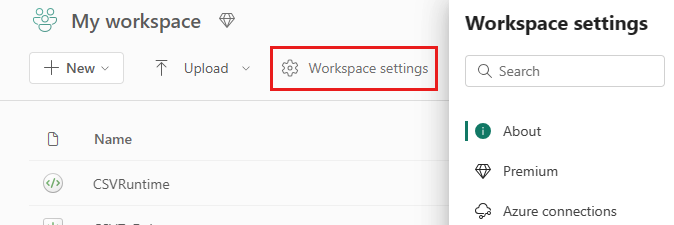
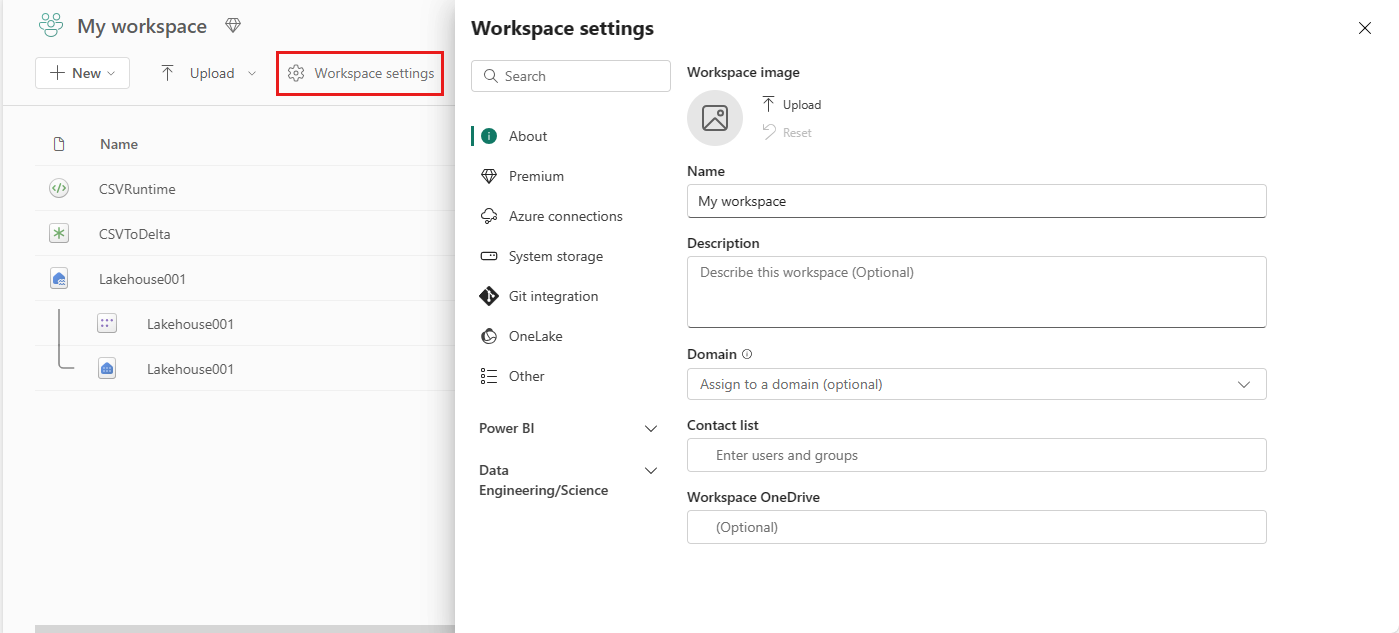
Go to the Workspace settings in your workspace and choose the Data Engineering/Science option to expand the menu:
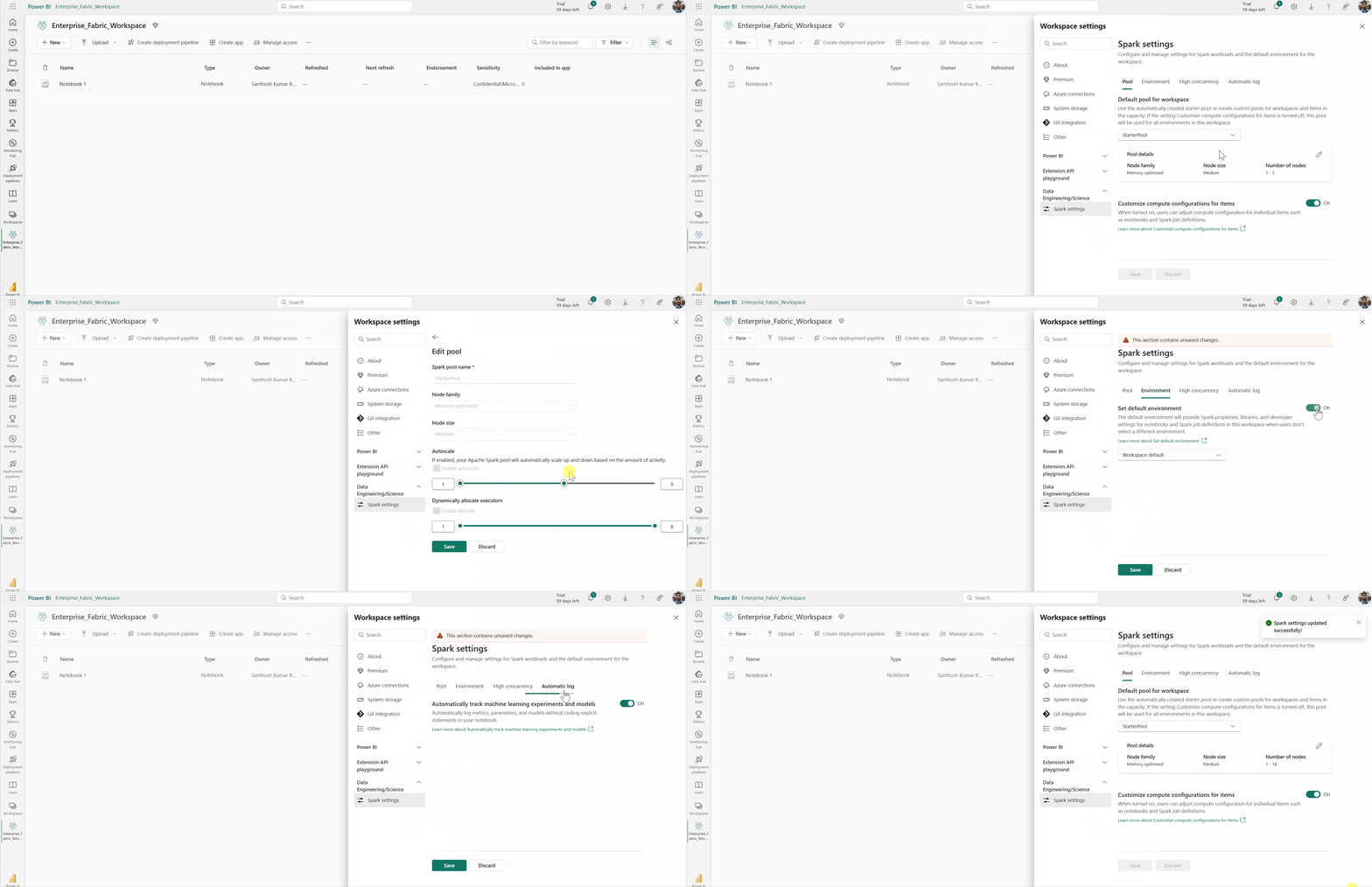
You see the Spark Compute option in your left-hand menu:
Note
If you change the default pool from Starter Pool to a Custom Spark pool you may see longer session start (~3 minutes).
Pool
Default pool for the workspace
You can use the automatically created starter pool or create custom pools for the workspace.
Starter Pool: Prehydrated live pools automatically created for your faster experience. These clusters are medium size. The starter pool is set to a default configuration based on the Fabric capacity SKU purchased. Admins can customize the max nodes and executors based on their Spark workload scale requirements. To learn more, see Configure Starter Pools
Custom Spark Pool: You can size the nodes, autoscale, and dynamically allocate executors based on your Spark job requirements. To create a custom Spark pool, the capacity admin should enable the Customized workspace pools option in the Spark Compute section of Capacity Admin settings.
Note
The capacity level control for Customized workspace pools is enabled by default. To learn more, see Configure and manage data engineering and data science settings for Fabric capacities.
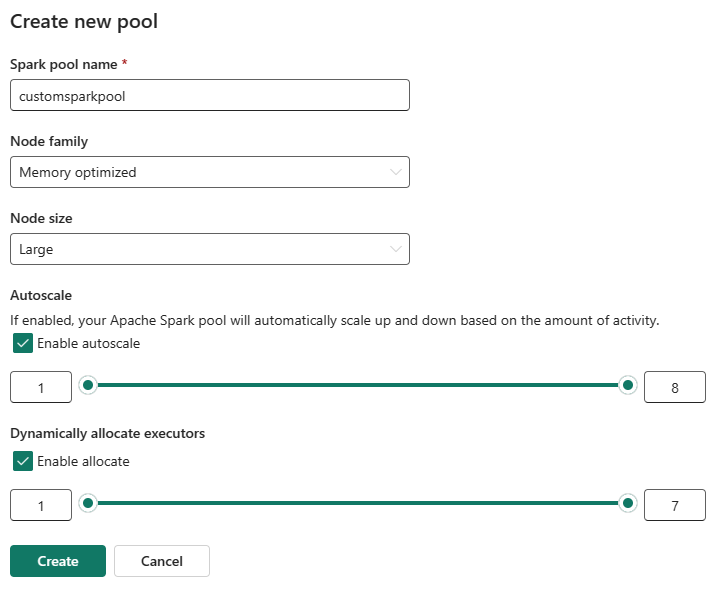
Admins can create custom Spark pools based on their compute requirements by selecting the New Pool option.
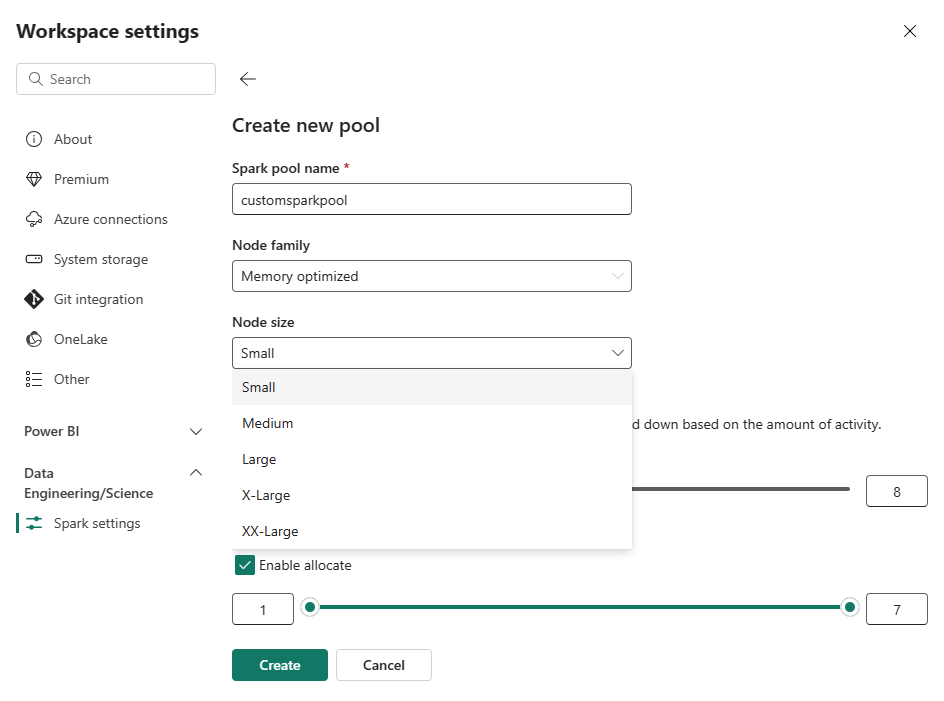
Apache Spark for Fabric supports single node clusters, which allows users to select a minimum node configuration of 1 in which case the driver and executor run in a single node. These single node clusters offer restorable high-availability during node failures and better job reliability for workloads with smaller compute requirements. You can also enable or disable autoscaling option for your custom Spark pools. When enabled with autoscale, the pool would acquire new nodes within the max node limit specified by the user and retire them after the job execution for better performance.
You can also select the option to dynamically allocate executors to pool automatically optimal number of executors within the max bound specified based on the data volume for better performance.
Learn more about Apache Spark compute for Fabric.
- Customize compute configuration for items: As a workspace admin, you can allow users to adjust compute configurations (session level properties which include Driver/Executor Core, Driver/Executor Memory) for individual items such as notebooks, Spark job definitions using Environment.
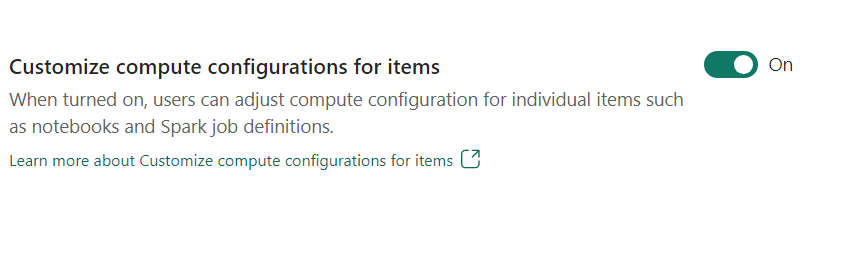
If the setting is turned off by the workspace admin, the Default pool and its compute configurations are used for all environments in the workspace.
Environment
Environment provides flexible configurations for running your Spark jobs (notebooks, Spark job definitions). In an Environment you can configure compute properties, select different runtime, setup library package dependencies based on your workload requirements.
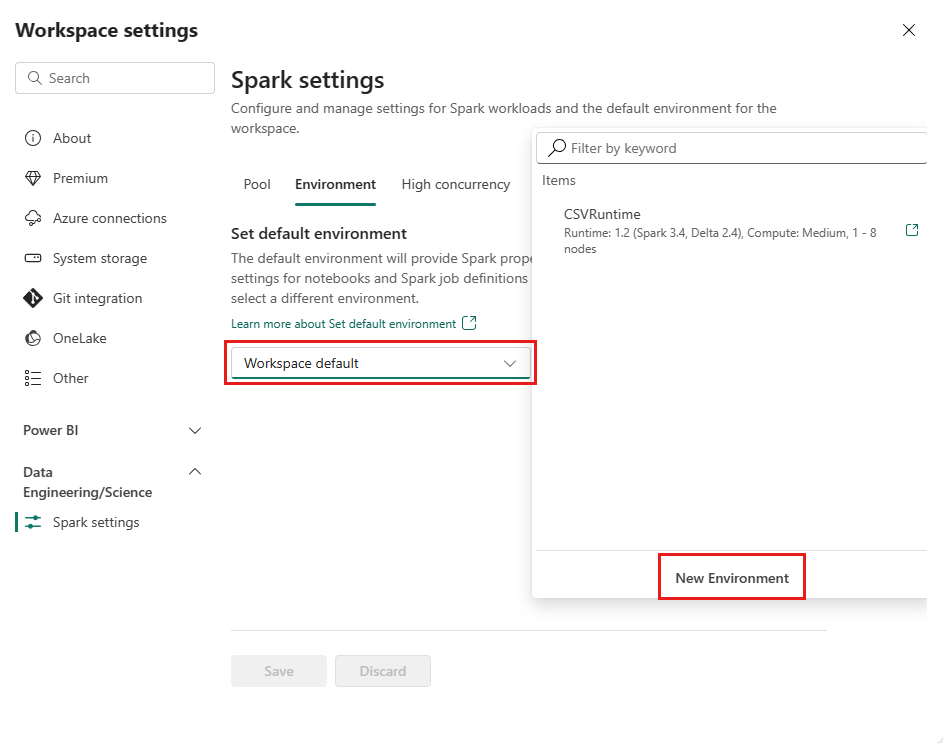
In the environment tab, you have the option to set the default environment. You may choose which version of Spark you'd like to use for the workspace.
As a Fabric workspace admin, you can select an Environment as workspace default Environment.
You can also create a new one through the Environment dropdown.
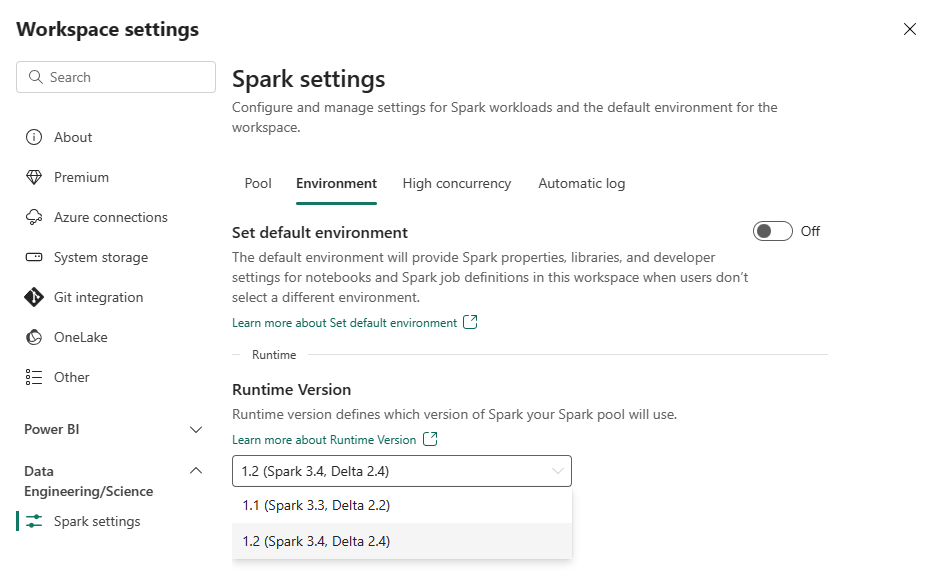
If you disable the option to have a default environment, you have the option to select the Fabric runtime version from the available runtime versions listed in the dropdown selection.
Learn more about Apache Spark runtimes.
Jobs
Jobs settings allow admins to control the job admission logic for all the Spark jobs in the workspace.
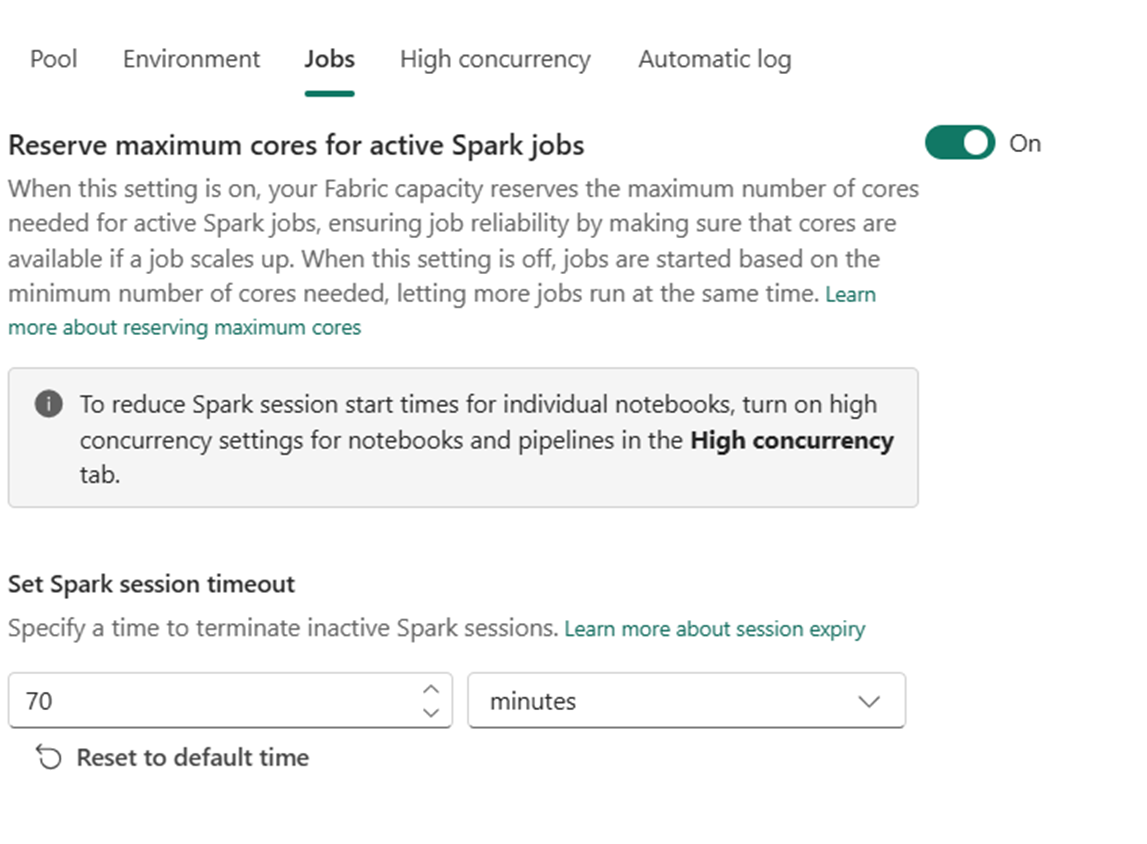
By default all workspaces are enabled with Optimistic Job Admission. Learn more about Job admission for Spark in Fabric.
You can enable the Reserve maximum cores for active Spark jobs to turn off Optimistic job admission based approach and reserve max cores for their Spark jobs.
You can also set the Spark session timeout to customize the session expiry for all the notebook interactive sessions.
Note
The default session expiry is set to 20 minutes for the interactive Spark sessions.
Set maximum job lifetime
Use the Set maximum job lifetime setting as a guardrail to stop runaway Spark jobs from consuming compute beyond a defined time limit. When you turn on this setting and specify a duration, Fabric automatically terminates any eligible Spark job that runs longer than the configured lifetime. Workspace admins can use this control to:
- Stop runaway or stuck jobs before they hold capacity indefinitely and block other workloads in the workspace.
- Enforce compute compliance and governance policies by capping how long any single job can run.
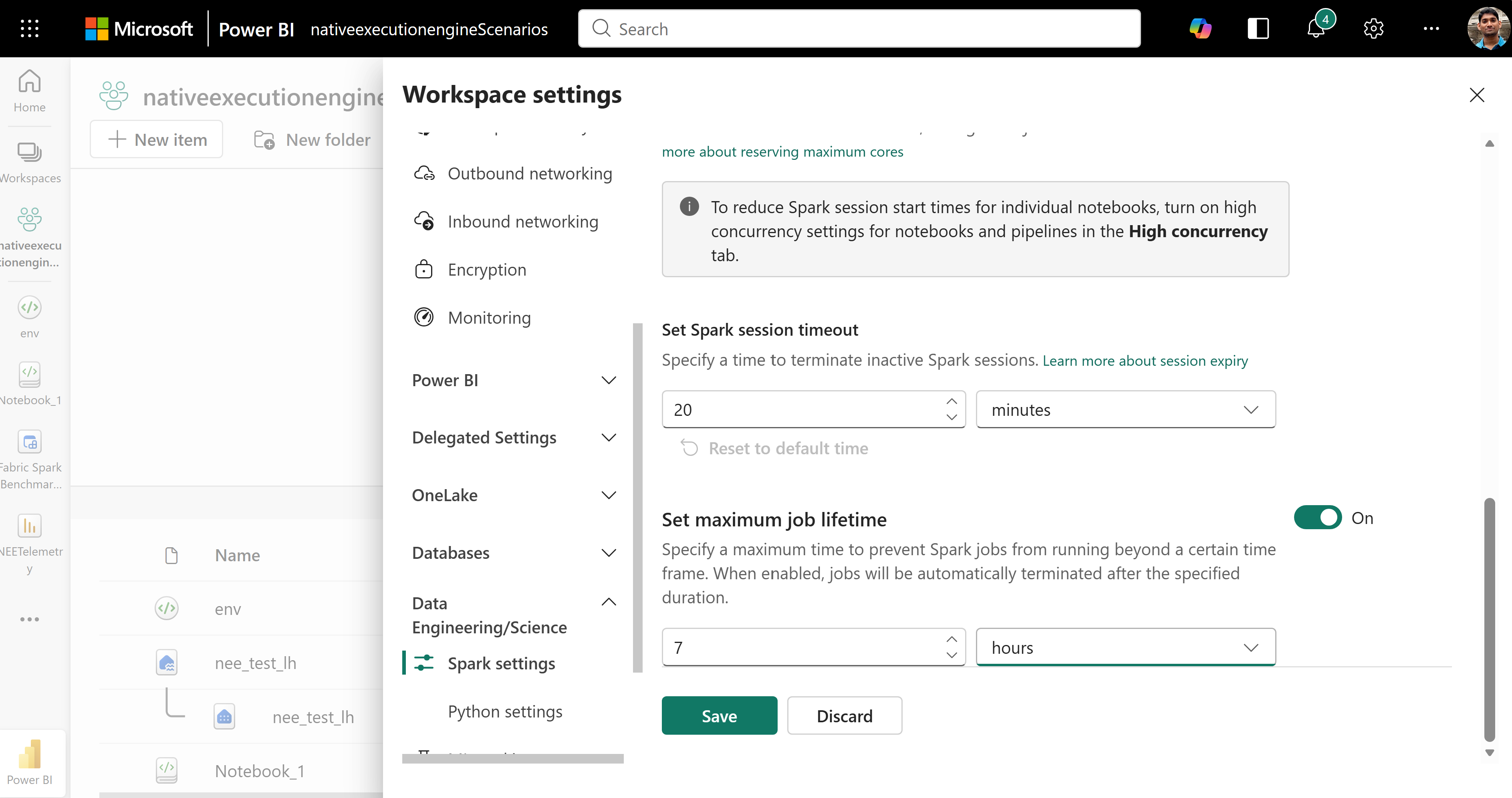
To configure it, turn on Set maximum job lifetime, enter a value, select a time unit such as hours, and then select Save to apply the limit to the workspace.
Which jobs are affected
The maximum job lifetime applies only to user-submitted jobs - jobs that a user explicitly starts and that run with the user's identity. These jobs include, for example:
- Interactive and scheduled notebook runs, including notebook runs orchestrated through a pipeline.
- Spark job definition runs, whether you submit them directly, on a schedule, or through a pipeline.
- Livy batch and interactive sessions, including high concurrency sessions.
System-managed jobs aren't affected by this setting and continue to run to completion. These jobs are triggered and managed by Fabric on your behalf, such as:
- Lakehouse table maintenance operations, such as optimize and vacuum.
- Materialized lake view refreshes.
- Platform operations, such as security and policy enforcement.
This distinction makes sure that background maintenance and platform operations that keep your data and workspace healthy aren't interrupted, while user workloads remain subject to the guardrail.
Note
When a job reaches the configured maximum lifetime, Fabric cancels it automatically. Set a limit that allows enough time for your longest-running legitimate user jobs to finish.
High concurrency
High concurrency mode allows users to share the same Spark sessions in Apache Spark for Fabric data engineering and data science workloads. An item like a notebook uses a Spark session for its execution and when enabled allows users to share a single Spark session across multiple notebooks.
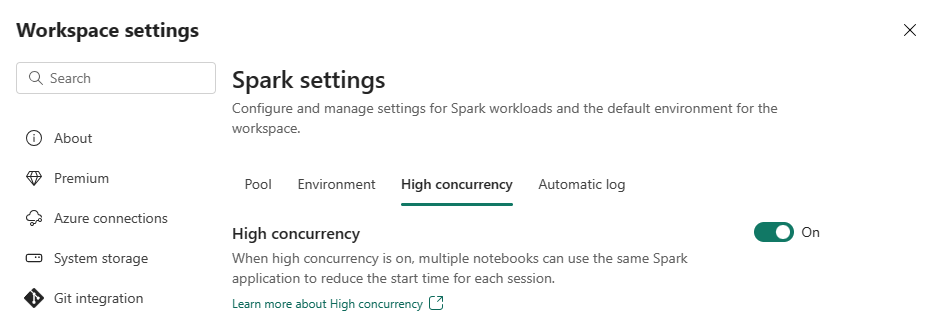
Learn more about High concurrency in Apache Spark for Fabric.
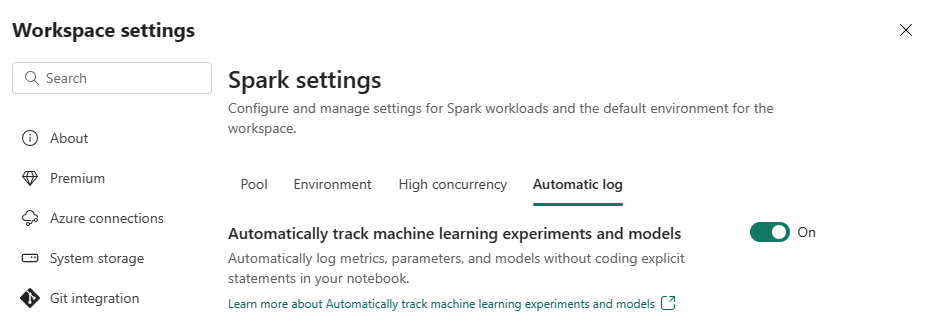
Automatic logging for Machine Learning models and experiments
Admins can now enable autologging for their machine learning models and experiments. This option automatically captures the values of input parameters, output metrics, and output items of a machine learning model as it is being trained. Learn more about autologging.
Related content
- Read about Apache Spark Runtimes in Fabric - Overview, Versioning, Multiple Runtimes Support and Upgrading Delta Lake Protocol.
- Learn more from the Apache Spark public documentation.
- Find answers to frequently asked questions: Apache Spark workspace administration settings FAQ.