Notă
Accesul la această pagină necesită autorizare. Puteți încerca să vă conectați sau să modificați directoarele.
Accesul la această pagină necesită autorizare. Puteți încerca să modificați directoarele.
Note
This article describes features used in agents or agent flows powered by the standard harness.
Conversational evaluation allows you to assess your agent's general behavior over a longer interaction. It reflects how real users interact with agents, where each response depends on previous context within an ongoing conversation. You can use these evaluations to determine whether an agent can maintain context, ask for clarifications, and complete multi‑step tasks.
You can also run single response evaluations, which are good for when you want to test your agent on how it answer specific questions, on what capabilities it call, and on the exact wording it uses in its answers.
Evaluations use test sets. A test set for conversational evaluations consists of a group of up to 20 test cases. When you run an agent evaluation, you select a test set and Copilot Studio runs every test case in that set against your agent.
You can create test cases within a test set by importing them by using a spreadsheet or use AI to generate messages based on your agent's design and resources. You can then choose how you want to measure the quality of your agent's responses for each test case within a test set.
Learn more about how agent evaluation works in About agent evaluation.
To learn how to edit an existing test set, see Change the details of a test set.
Important
Test results are available in Copilot Studio for 89 days. To save your test results for a longer period, export the results to a CSV file.
Create a conversation test set
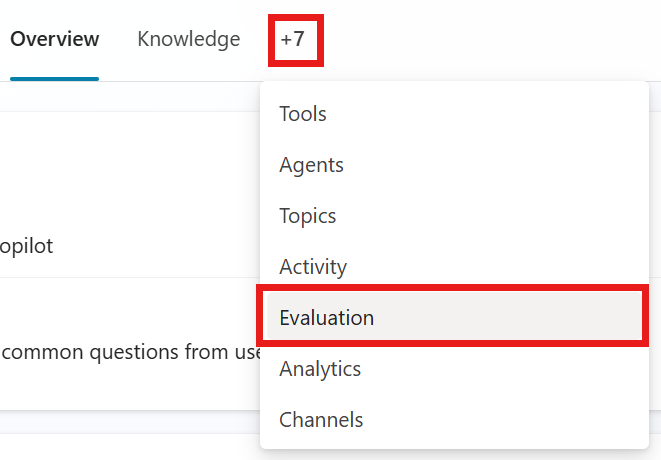
Go to your agent's Evaluation page.
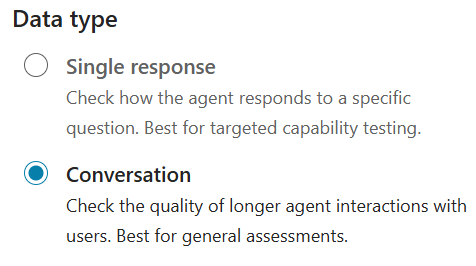
Select New evaluation, then select Conversation.
You can create multi-turn test cases using any of the following methods:
Quick conversation set: Automatically generate 10 short conversations based on your agent’s description, instructions, and capabilities.
Full conversation set: Generate conversations using your agent’s knowledge or defined topics. In this option you can select creating short or long conversations.
Use your test chat: Convert the latest test chat into a test case.
Note
Conversation test sets support up to 20 test cases. Each test case supports up to 12 total messages, which is 6 pairs of questions and answers.
Under Name, type a name for your test set.
Change or add the test methods you want to use. For conversation test sets, you can add the General quality, Keyword match, Tools use or the Custom test methods.
- Add a new method:
- Select Add test method.
- Select all the methods you want to test with, then select OK. You can add multiple methods.
- For some methods, set a pass score, then select OK. The pass score determines what score results in a pass or a failure.
- Some methods require adding expected responses or keywords for each of your test cases. Learn more in Choose evaluation methods.
- Select an existing test method to edit or delete.
Test method Measures Test set type Scoring Configurations General quality How good is a test case's response(s) based on specific qualities Single response or conversation Scored out of 100% None Content safety Whether the test case's response contains harmful content, such as hate, violence, self-harm, or sexual content Single response or conversation Pass/fail Content type, Permitted content safety level Compare meaning How well the meaning of the test case's answer matches the expected answer Single response Scored out of 100% Pass score, expected answer Tool use Whether the test case used all or any the expected resources Single response Pass/fail Expected capabilities Keyword match Whether the test case used all or any of the expected keywords or phrases Single response or conversation Pass/fail Expected keywords or phrases Text similarity How well the text of the test case's answer matches the expected answer Single response Scored out of 100% Pass score, expected answer Exact match Whether the test case's answer matches the expected answer exactly Single response Pass/fail Expected answer Custom Whether the test case's response meets your defined criteria or expectations. Single response or conversation Pass/fail (passes the defined label criteria) Name, evaluation instructions, labels - Add a new method:
Edit the details of the test cases. All test methods, except general quality, require expected responses or keywords. Learn more about editing test cases in Modify a test set.
Select User profile, review the connections for the currently signed-in user, or continue without authentication. The evaluation uses the currently signed-in user to connect to knowledge sources and tools during testing. To run the evaluation as a different user, sign out, sign in by using that user's account, and then start the evaluation. Learn more in Manage user profiles and connections.
Note
Automated testing uses the authentication of the currently signed-in user. Ensure that user can access any knowledge sources or connections that require authentication.
Edit or create more test cases. Learn more in Edit test cases within a test set.
Select Save to update the test set without running the test cases or Evaluate to run the test set immediately.